
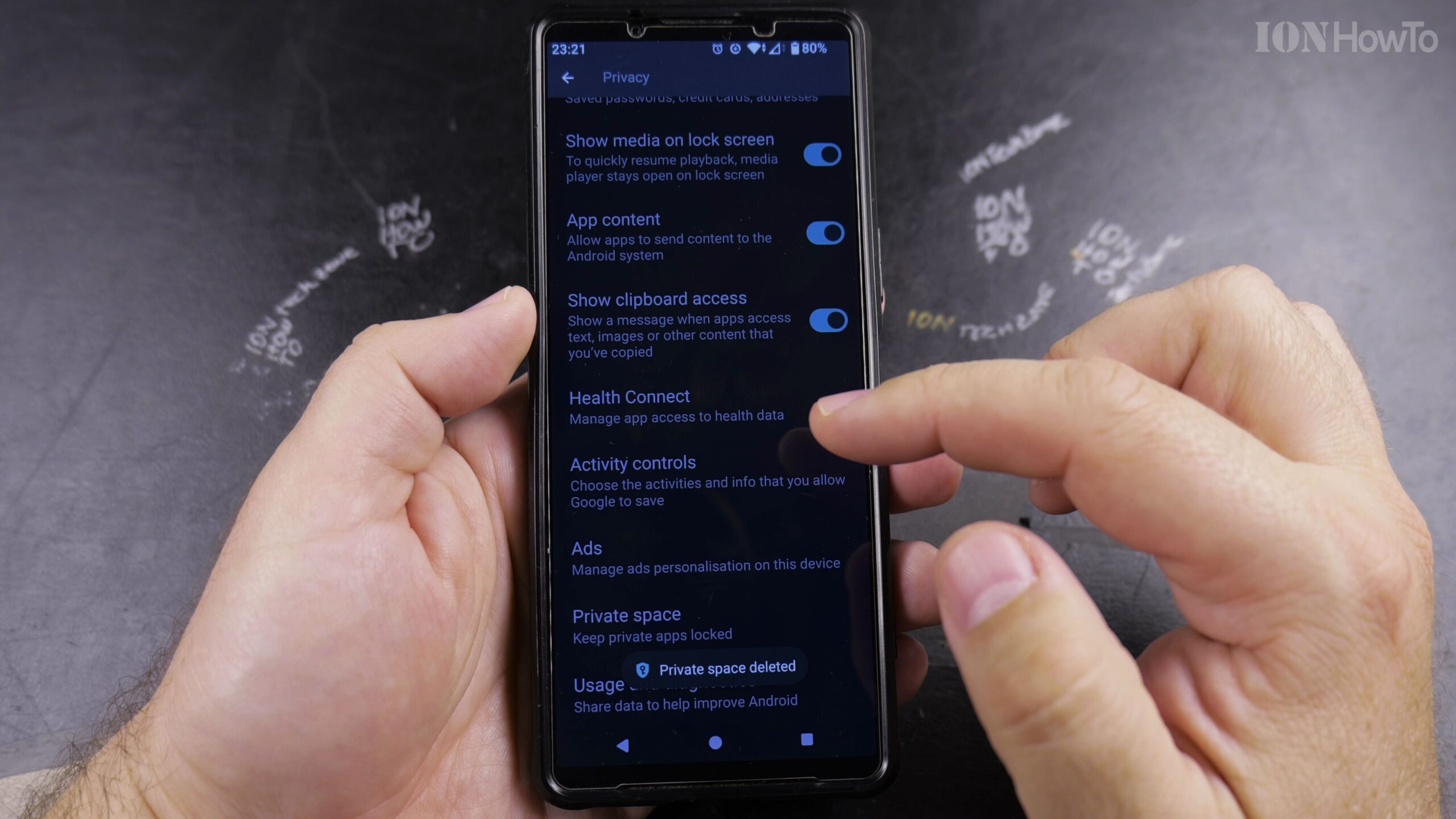
If you no longer need Private Space on Android or want to wipe all hidden apps, accounts, and private photos stored inside the container, Android provides a one-click deletion setting. Here is how to permanently delete Private Space and reclaim your phone’s storage.
Open Settings and Tap Security & Privacy
Open the Settings app on your Android smartphone and scroll down to the Security & privacy section.
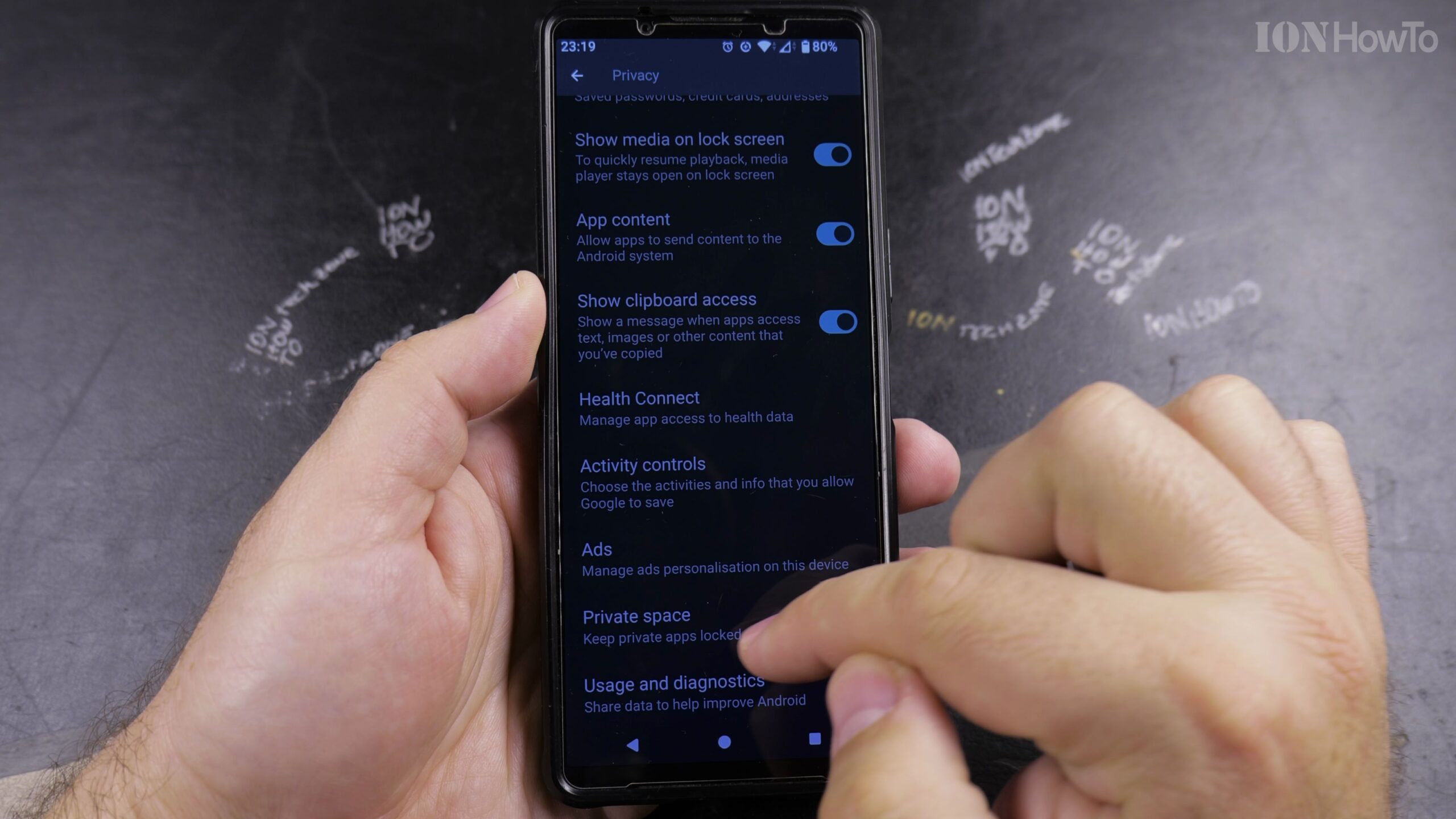
Tap Private Space in the Privacy Menu
Scroll down to locate Private Space. Tap on it and enter your device PIN or scan your fingerprint to unlock its configuration preferences.
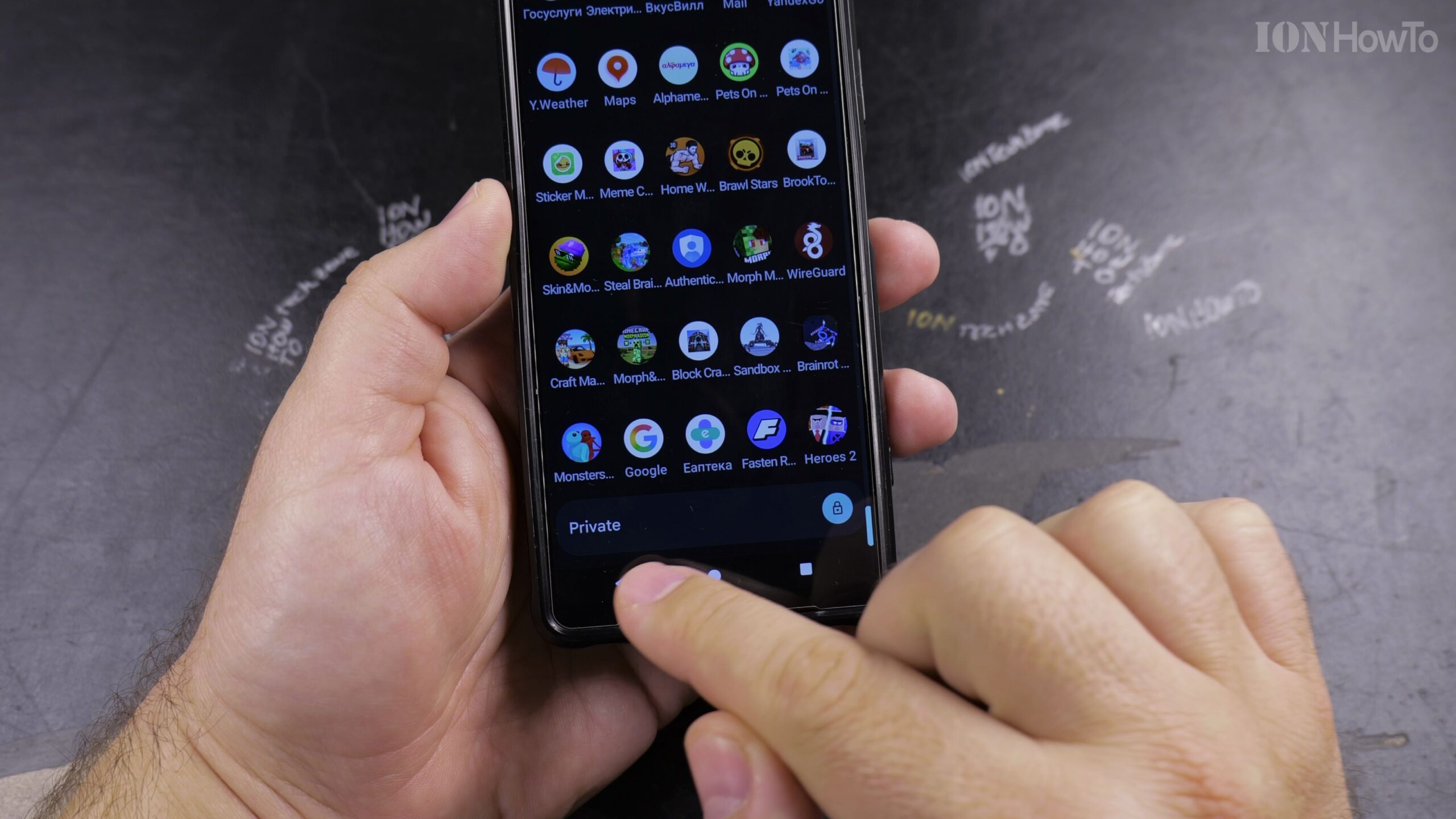
Scroll to the Bottom of Private Space Settings
Within the Private Space settings screen, scroll past the lock preferences and notification toggles until you see the Delete Private Space option highlighted in red.
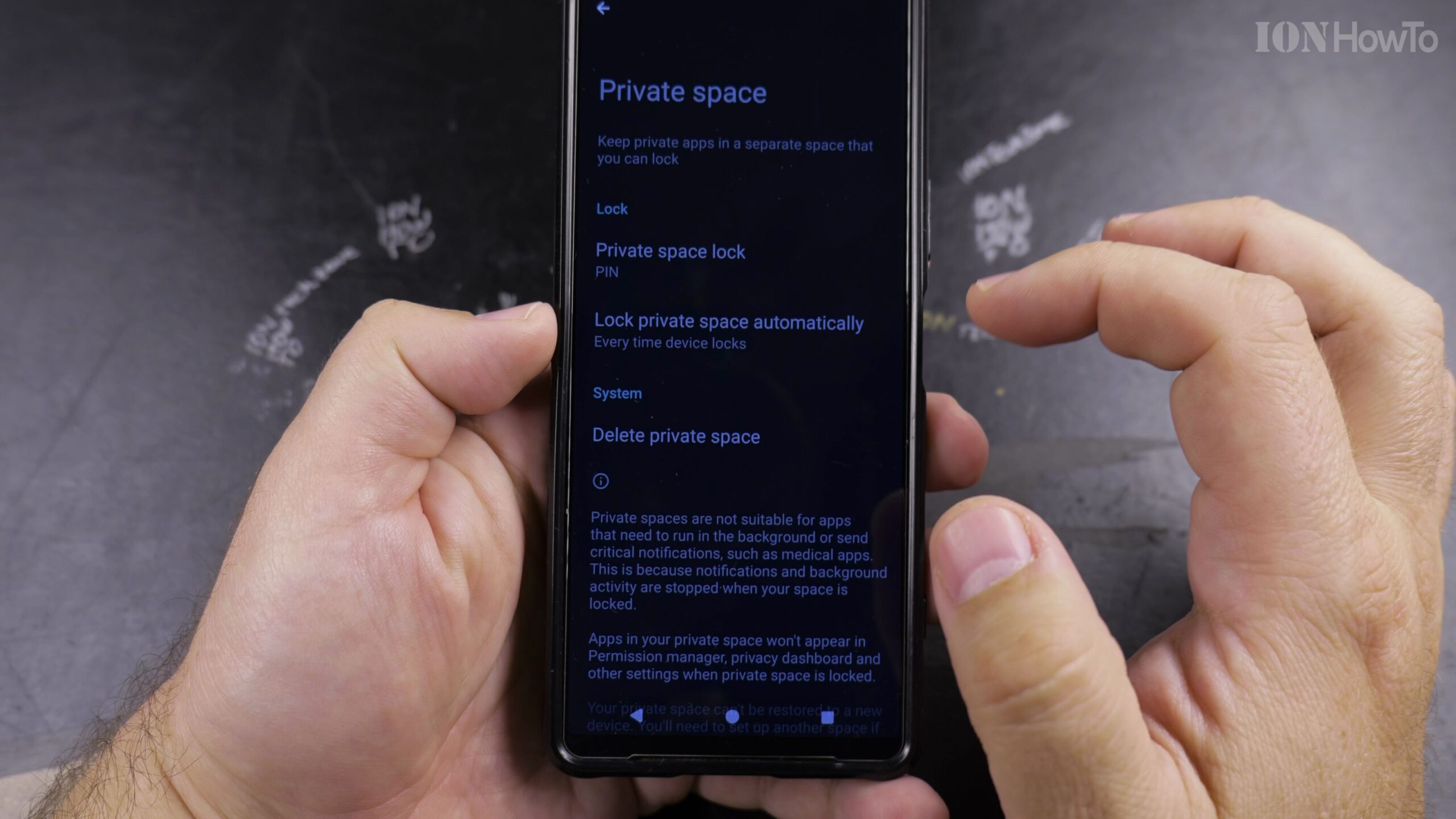
Review What Will Be Erased and Tap Delete
A confirmation dialog will warn you that deleting Private Space permanently uninstalls all apps and erases all photos, documents, and accounts stored within it. Tap Delete to proceed.
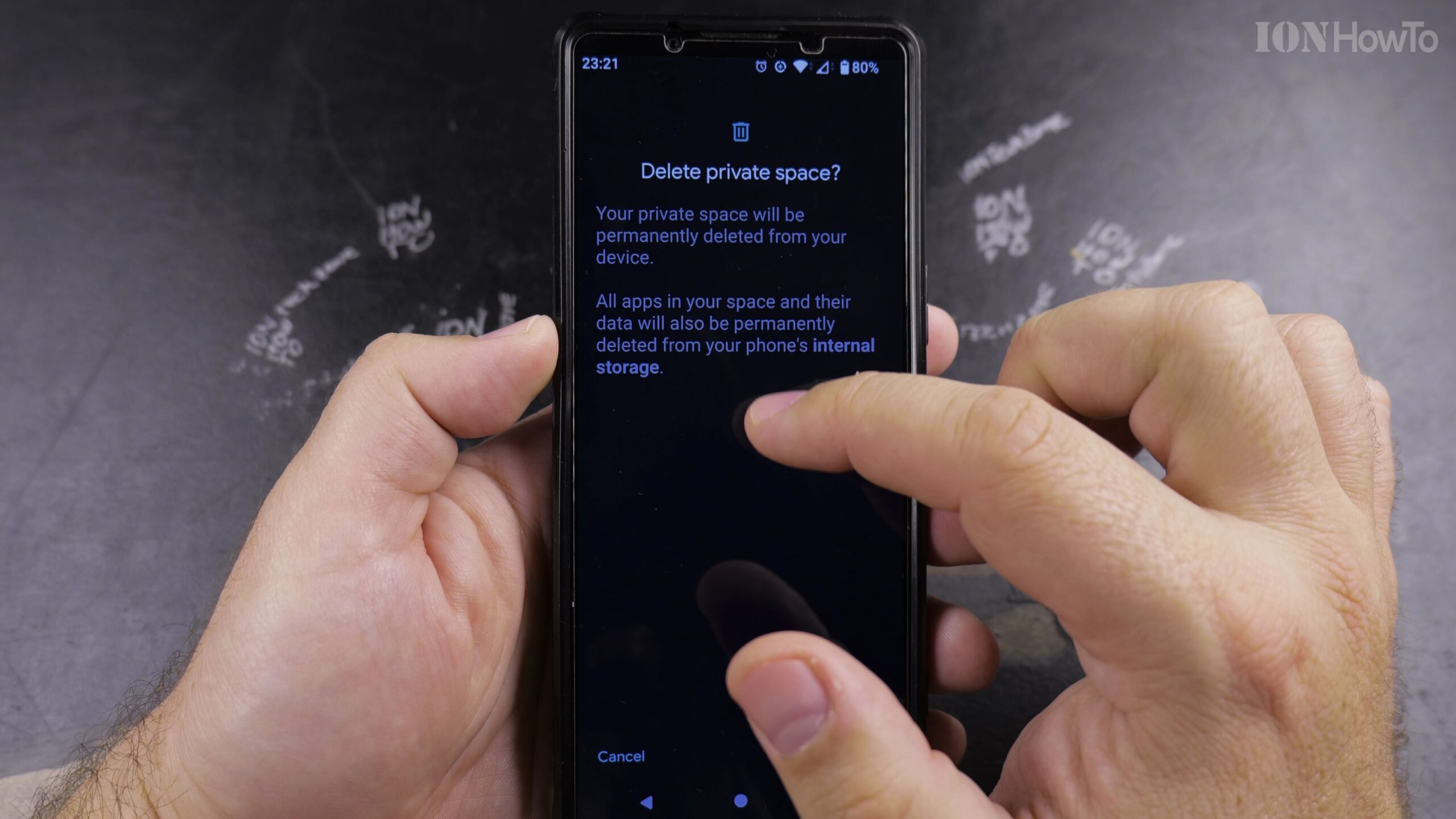
Confirm with Your Screen Lock PIN
Authenticate one last time with your phone PIN or biometric scan. The system will wipe the container in seconds and remove the Private Space banner from your app drawer.
Helpful Tips and Related Guides
Before deleting Private Space, remember to move any important photos or documents back to your main public storage or backup them to cloud storage. Explore more in our Android Tips hub, read our Guide to Enabling Private Space on Android, or visit our How-To guides.


Leave a Reply