
Passkeys replace passwords with encrypted cryptographic keys tied to your phone, tablet, or computer’s built-in biometric security. In this step-by-step tutorial, I’ll show you how to set up and add a Passkey to your Roblox account using Face ID, fingerprint, or a device PIN.
Open Roblox Account Settings and Select Security
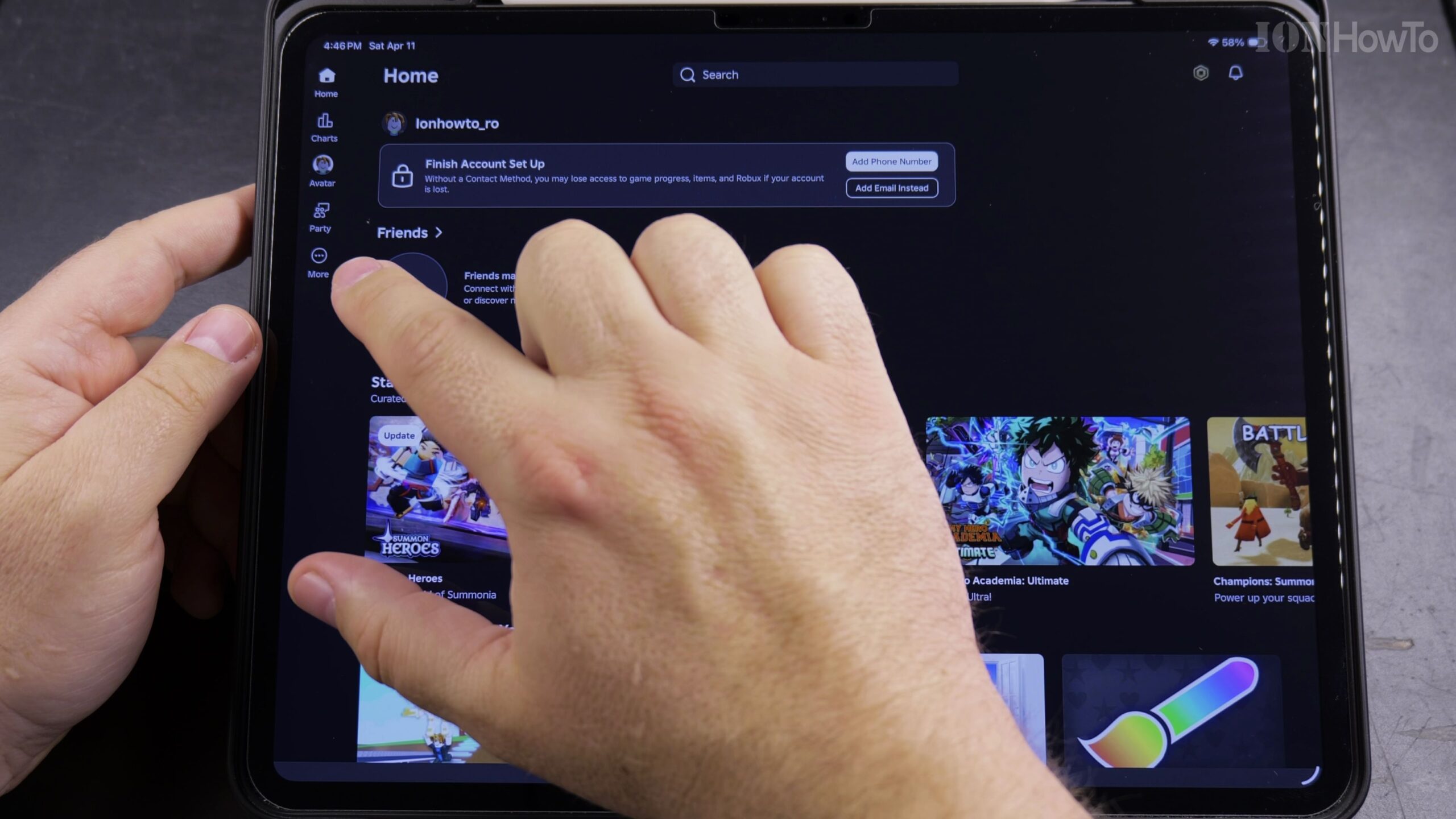
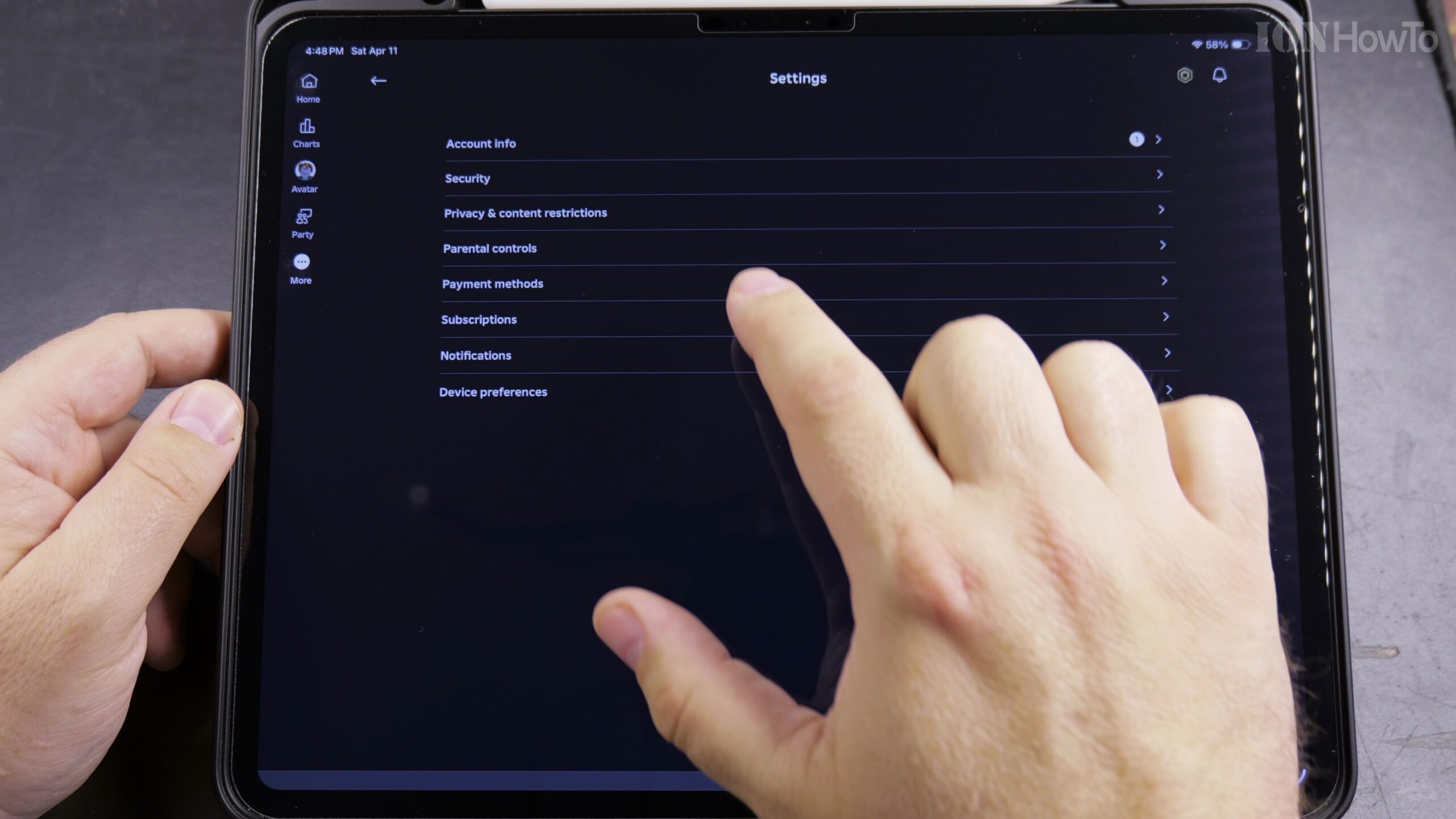
Sign in to Roblox on your preferred mobile device or web browser. Tap the gear icon in the top corner, open Settings, and tap Security (or Account Info > Login Methods).
Locate the Passkeys Section and Tap Add Passkey
Under Login Methods, locate the Passkeys option. Tap the Add Passkey button to initiate the device registration prompt.
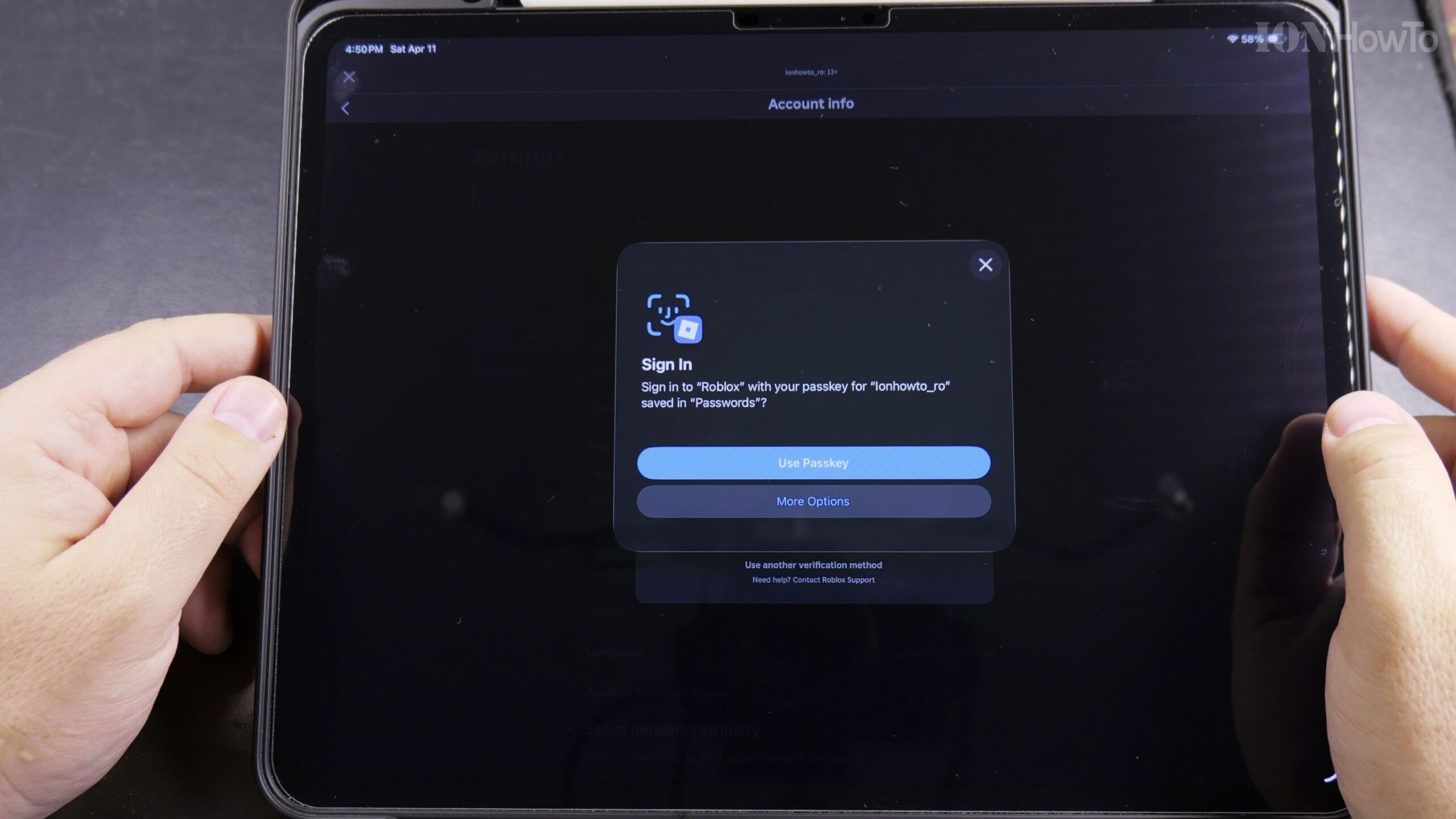
Authenticate with Face ID, Fingerprint, or Screen Lock PIN
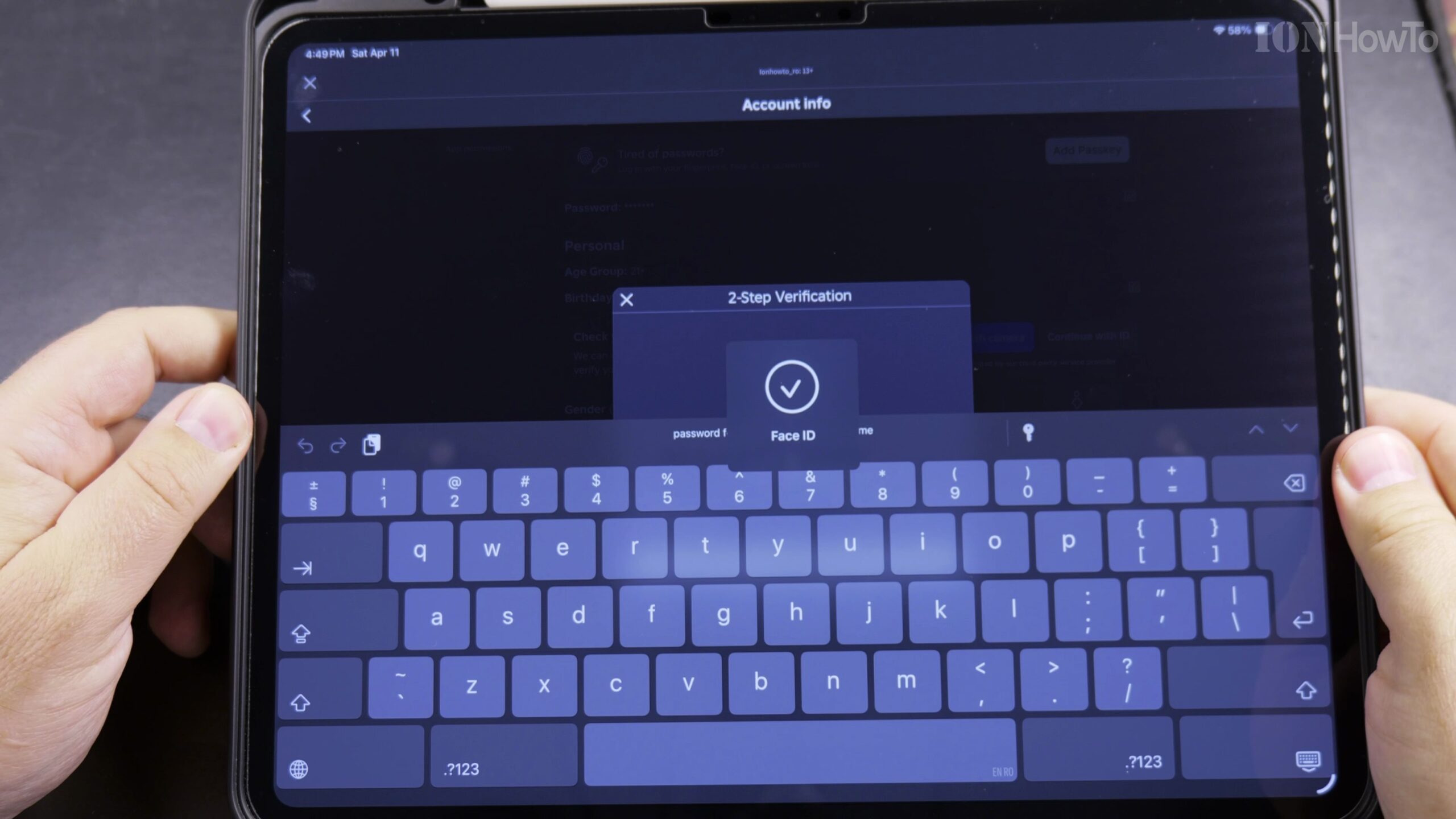
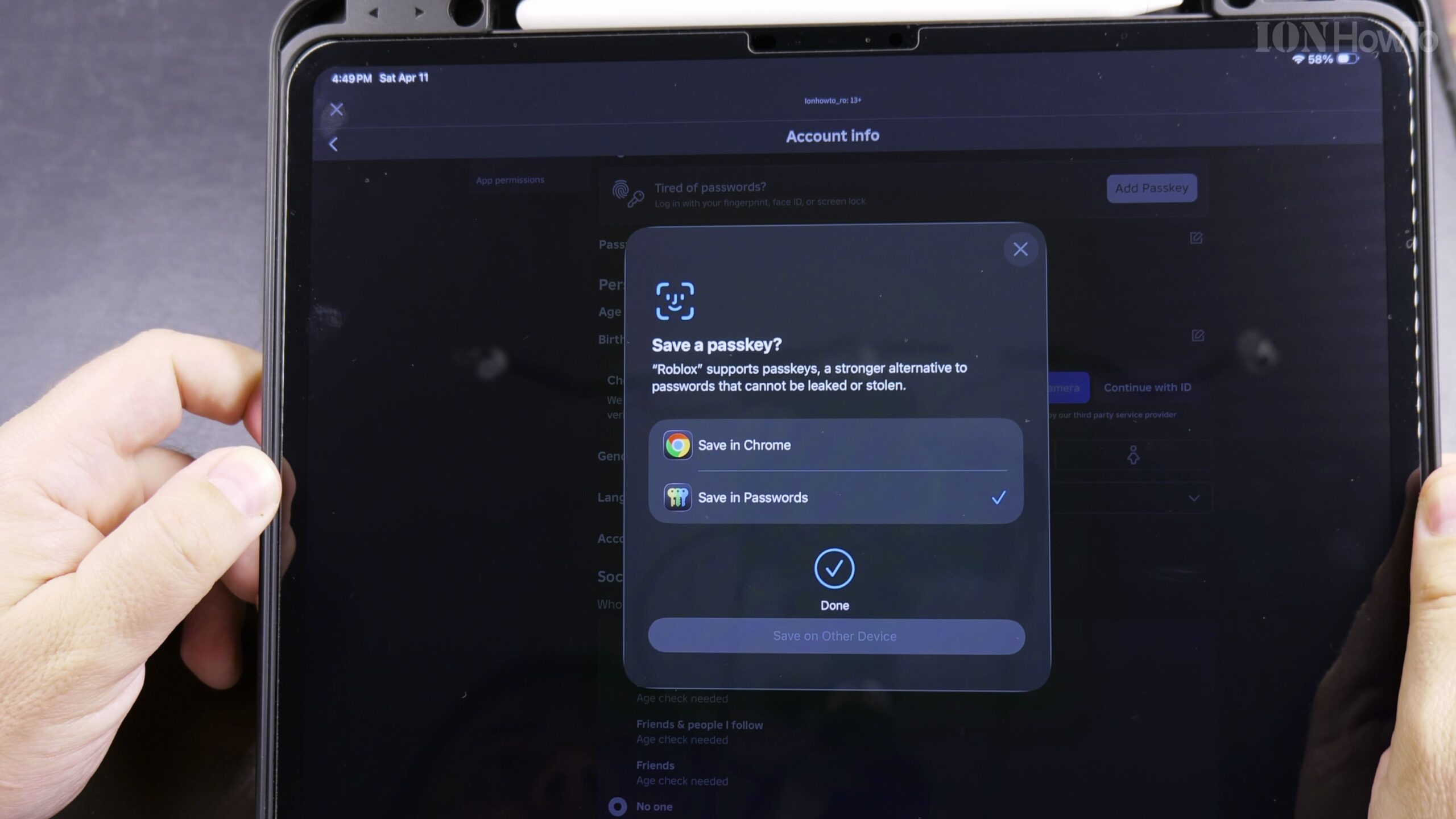
Your operating system will display a prompt asking to save a passkey for roblox.com. Confirm with your Face ID scan, fingerprint reader, or device passcode.
Verify That Your Device Appears in Registered Passkeys
Once authenticated, Roblox will show your device name and registration date under the active Passkeys list, confirming that hardware-level authentication is active.
Test Logging In on a New Session Using Your Passkey
Log out of Roblox and tap Log In with Passkey on the sign-in screen. A single biometric scan will immediately log you into your games without entering a password.
Helpful Tips and Related Guides
You can add multiple passkeys—such as one on your iPhone and another on your Mac or Windows PC—so you always have a convenient biometric login ready. Check out our Roblox How-To Guides, explore Removing Payment Methods from Roblox, and view our How-To guides.


Leave a Reply