
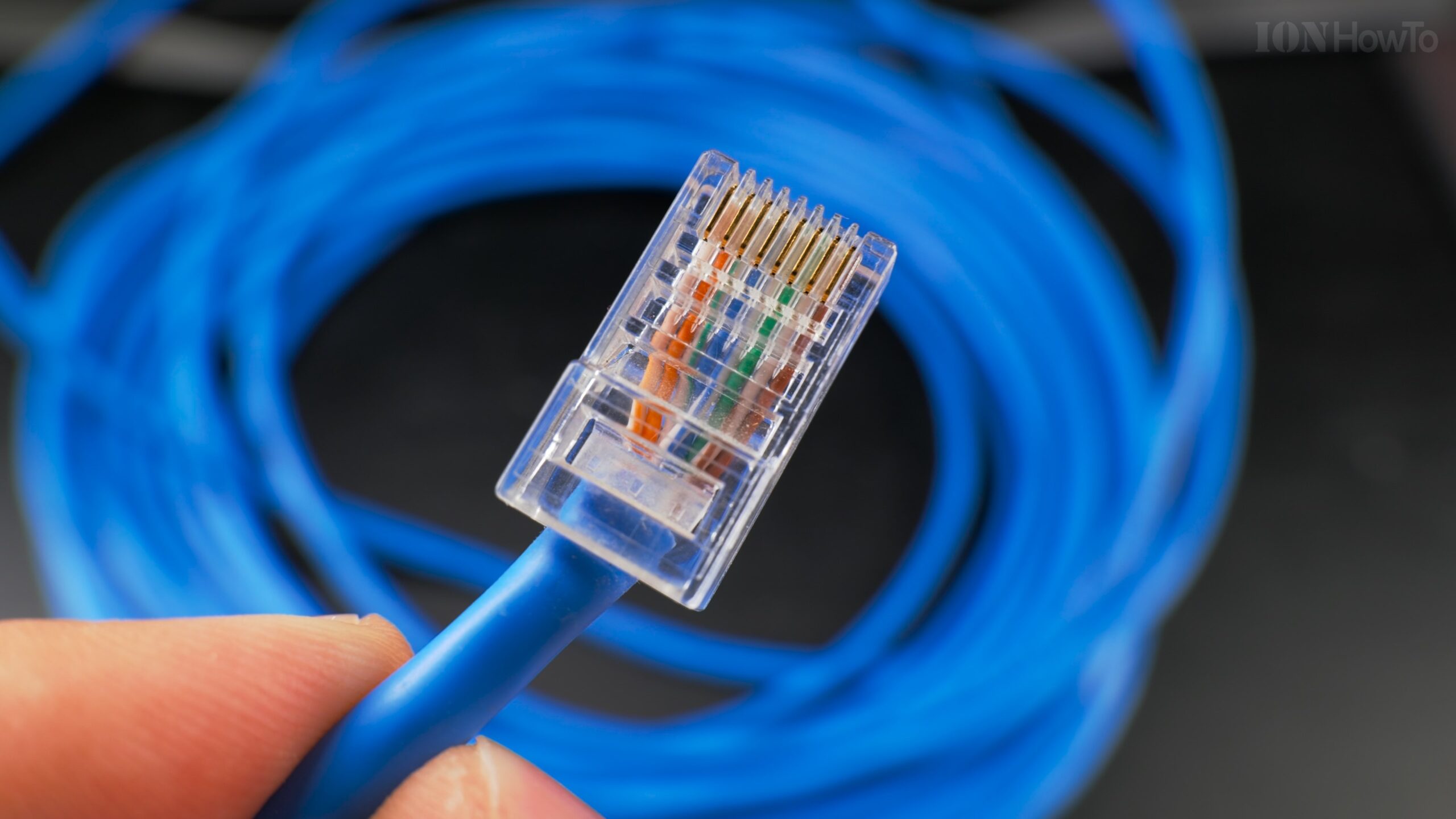
Learn how to find out exactly how long an Ethernet cable is when it’s already installed inside your walls. I’ll show you a super simple trick that doesn’t require any measuring tapes or special tools.
The Secret is Printed on the Cable Itself
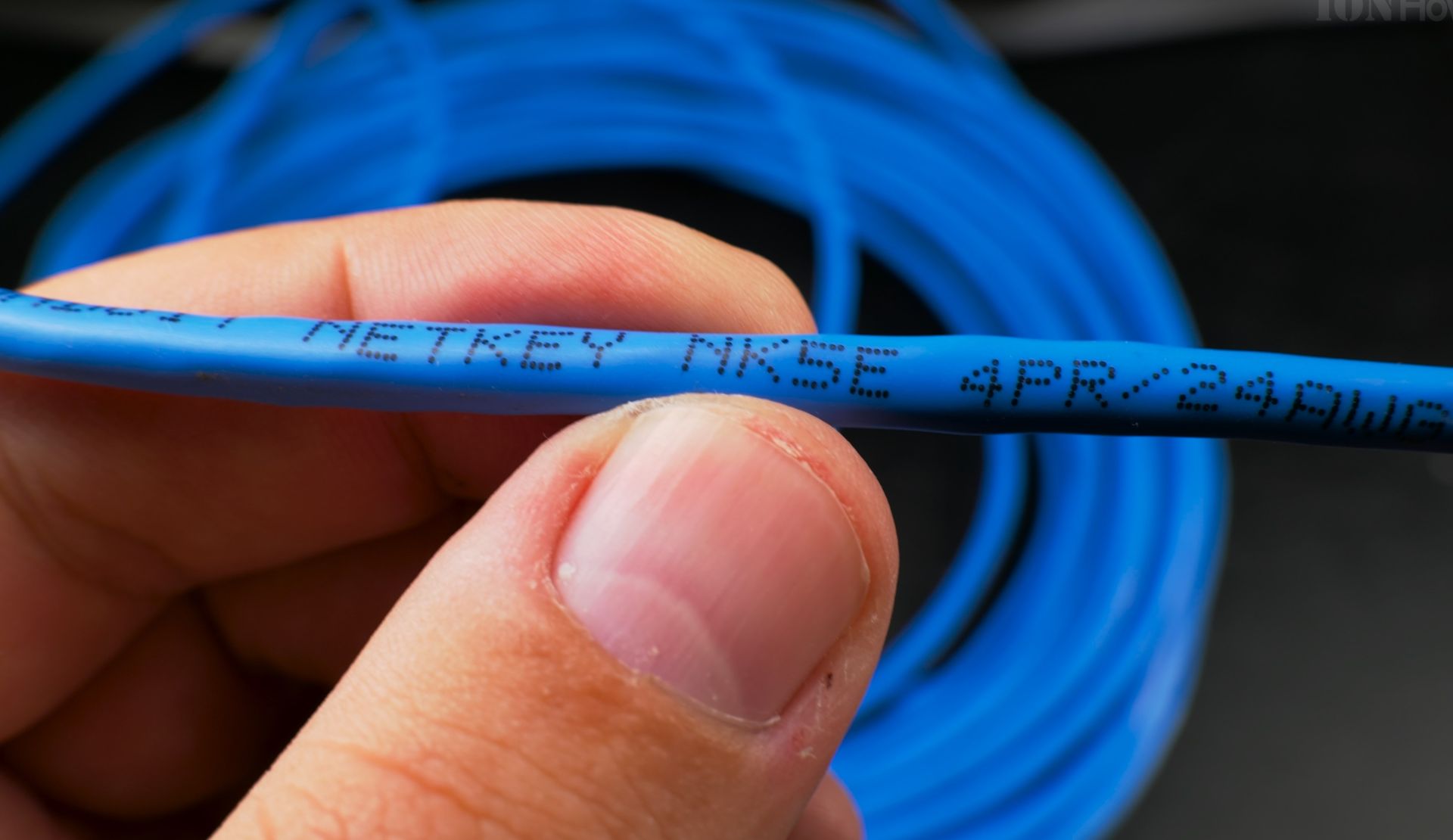
Most Ethernet cables bought in bulk (the kind electricians pull through walls) have length markings printed right on the outer jacket. You can use these markings like a built-in ruler.
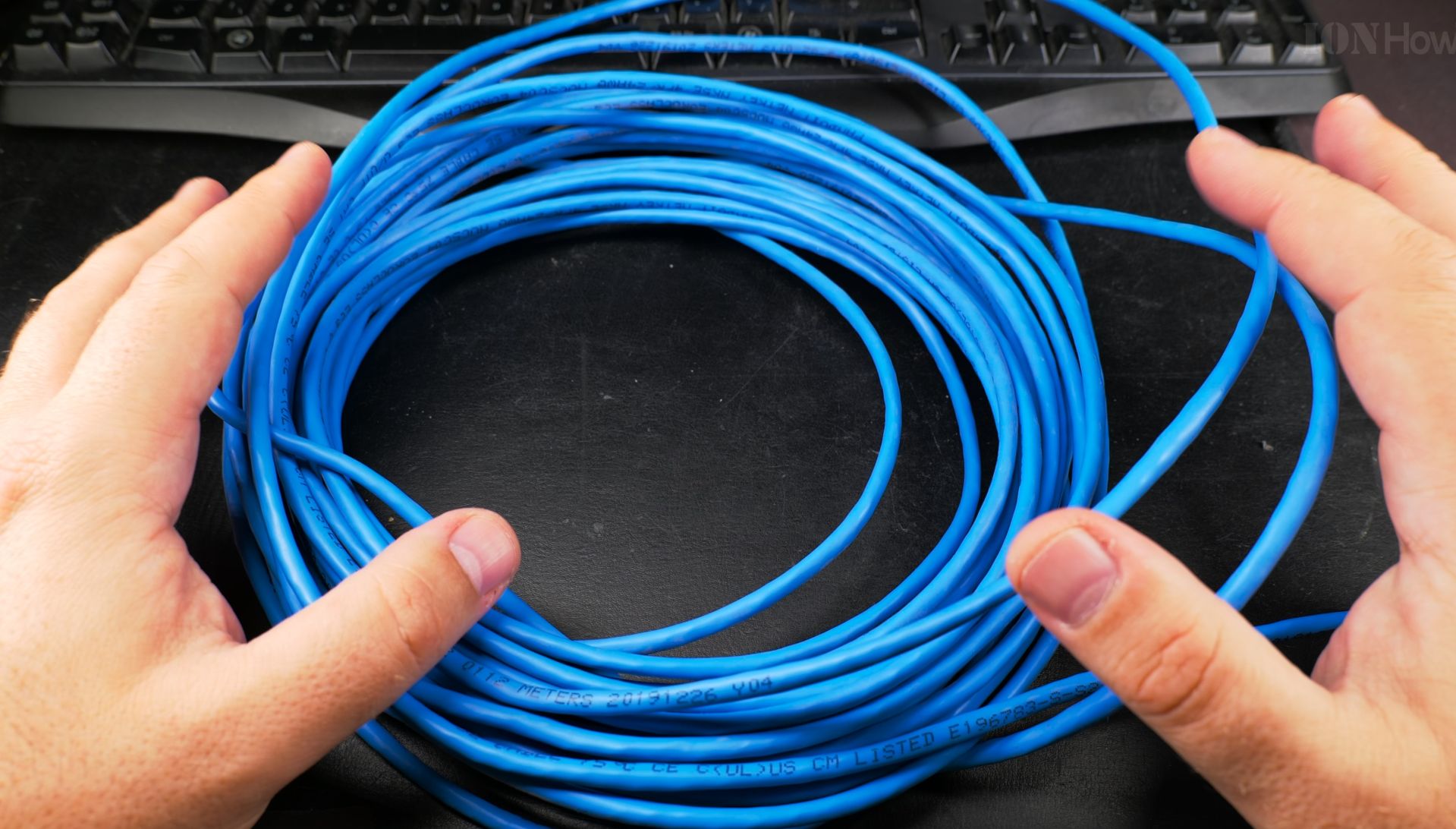
This is especially useful when you install the bare cable first and only add the RJ45 connectors later, once you know exactly how much cable you have at each outlet.
Quick Steps and Scenarios Overview
| What You Need to Do | Quick Jump |
|---|---|
| The Secret is Printed on the Cable Itself | Jump to Step 1 |
| Steps to Find the Hidden Length | Jump to Step 2 |
| Important Tips for Accuracy | Jump to Step 3 |
| A Note on Ethernet Wiring | Jump to Step 4 |
Recommended Amazon Gear and Accessories
Disclosure: This article contains Amazon affiliate links. As an Amazon Associate, we earn from qualifying purchases at no extra cost to you.
Steps to Find the Hidden Length
Here’s how to measure your in-wall cable in just a few minutes.
Follow these steps:
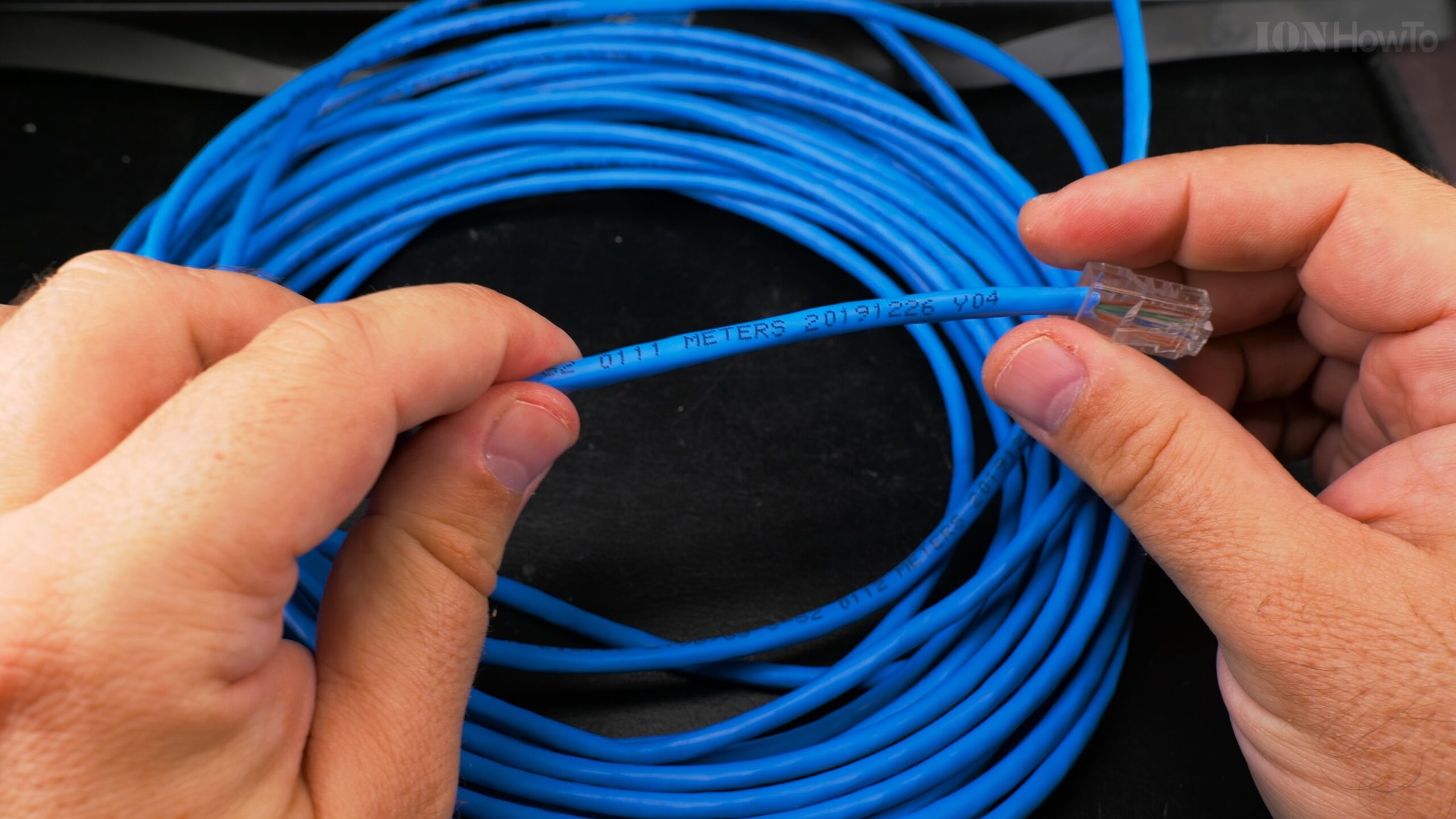
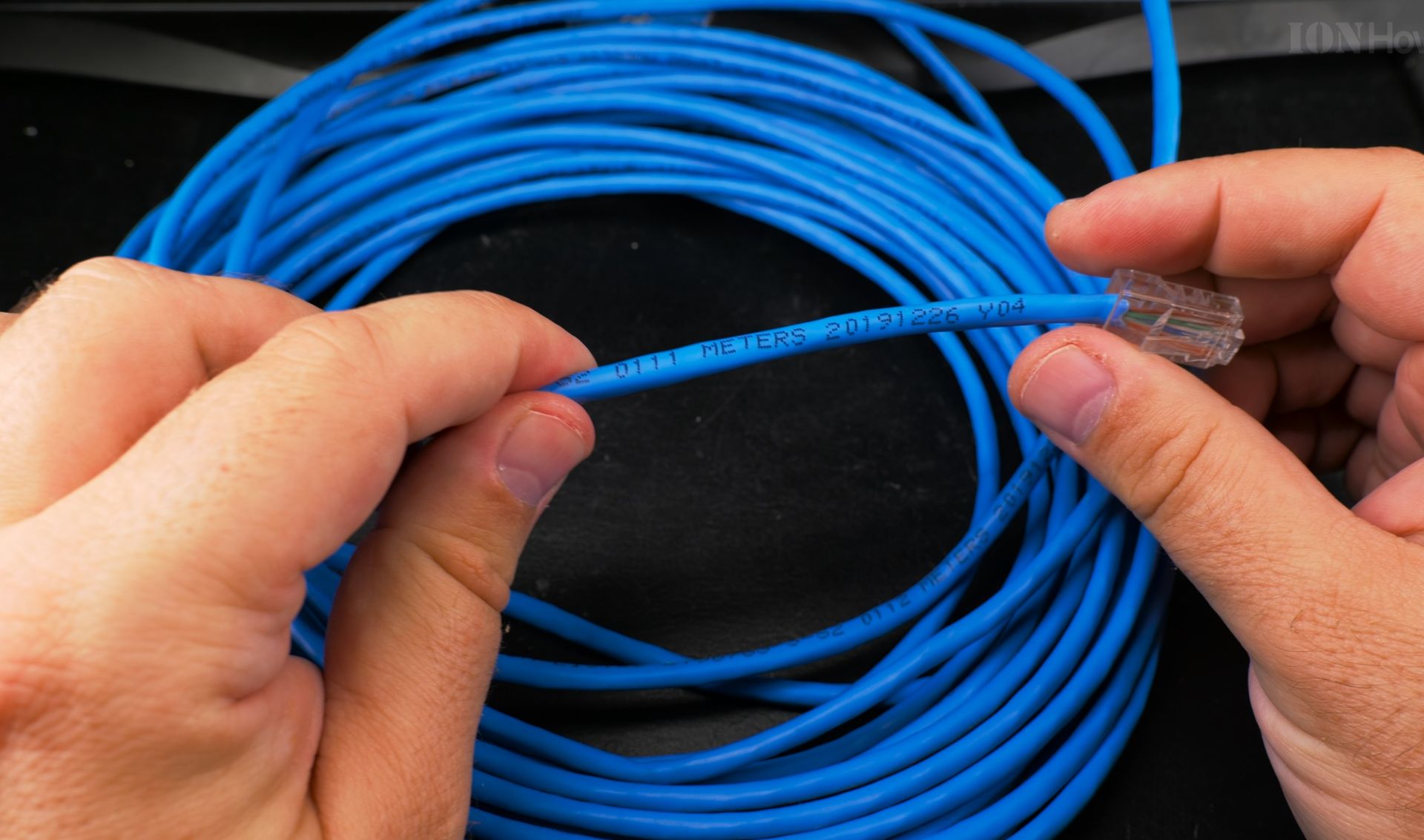
- Find the cable markings. At one end of your installed cable (where it comes out of the wall), gently pull out a few extra inches so you can see the cable jacket clearly. Look closely at the black or gray plastic coating. You will see text printed along it.
- Find the meter/foot number. In the printed text, search for a number followed by “M” for meters or “FT” for feet. For example, you might see something like
...105M.... This number indicates the length marker at that specific spot on the cable from when it was manufactured. - Note the first number. Write down this length number. Let’s call this Number A.
- Go to the other end. Now, go to the other end of the same cable where it comes out of the wall (at another room or a network panel). Again, pull out a little slack so you can see the cable jacket.
- Find the marking at this end. Look for the same type of length marking. Find the number with “M” or “FT”. Write this down as Number B.
- Do the math.
- If the numbers increased (e.g., 105M at one end and 120M at the other), subtract the smaller number from the larger one: Length = Number B – Number A
- In our example: 120M – 105M = 15 meters of cable inside the wall.
- Account for extra slack. Add the length of the cable sticking out of the wall at both ends to your final number for a total length.
Important Tips for Accuracy
- Look carefully: The markings can be small and might be spaced every meter or every few feet. Make sure you’re reading the actual length counter, not other codes like gauge (e.g., 24AWG) or certification (e.g., CAT5e).
- Pull gently: Only pull out enough cable to read it clearly. Avoid pulling hard on cables that are secured inside the wall.
- It’s a factory measure: This method gives you the length of the cable segment itself, which is perfect for knowing how much you have to work with for terminating connections.
A Note on Ethernet Wiring
Today, for standard Gigabit Ethernet connections in homes and offices, you almost always use a straight-through cable wired to the T-568B standard. This connects computers, printers, and other devices to switches and routers.
An old method called a crossover cable (where the transmit and receive wires are crossed) was used to connect two computers directly without a switch. Modern network equipment (switches, routers, and network cards) now almost always have “auto-MDI/X,” which means they automatically detect and correct the connection, making crossover cables largely unnecessary for most people.
Now you can confidently know how much cable you have to terminate, without any guesswork.
Helpful Tips
Check all labels, connections, and power ratings before starting so everything fits safely and securely. If any detail looks slightly different on your model, pause the embedded video above for a clear closeup view.
Related Guides
- Step-by-Step Replace Ethernet Cable Pull New Cable with Old Cable in Conduit Upgrade Cat5E to Cat6A – If your home network needs 10-gigabit speeds, pulling new wiring through existing wall pipes is much easier than opening drywall.
- How to Connect an iPad to Wired Ethernet Internet Using a USB-C Cable – When Wi-Fi is spotty or you need zero-latency internet for gaming, video calls, or large file transfers, connecting your…
- Pull New Ethernet Cable Using Old Cable in Conduit – How to Pull New Ethernet Cable Using Old Cable in Conduit: Upgrade Cat5E to Cat6A.
- Ethernet & Networking Guides – Browse more tutorials and practical guides in this section.


Leave a Reply