
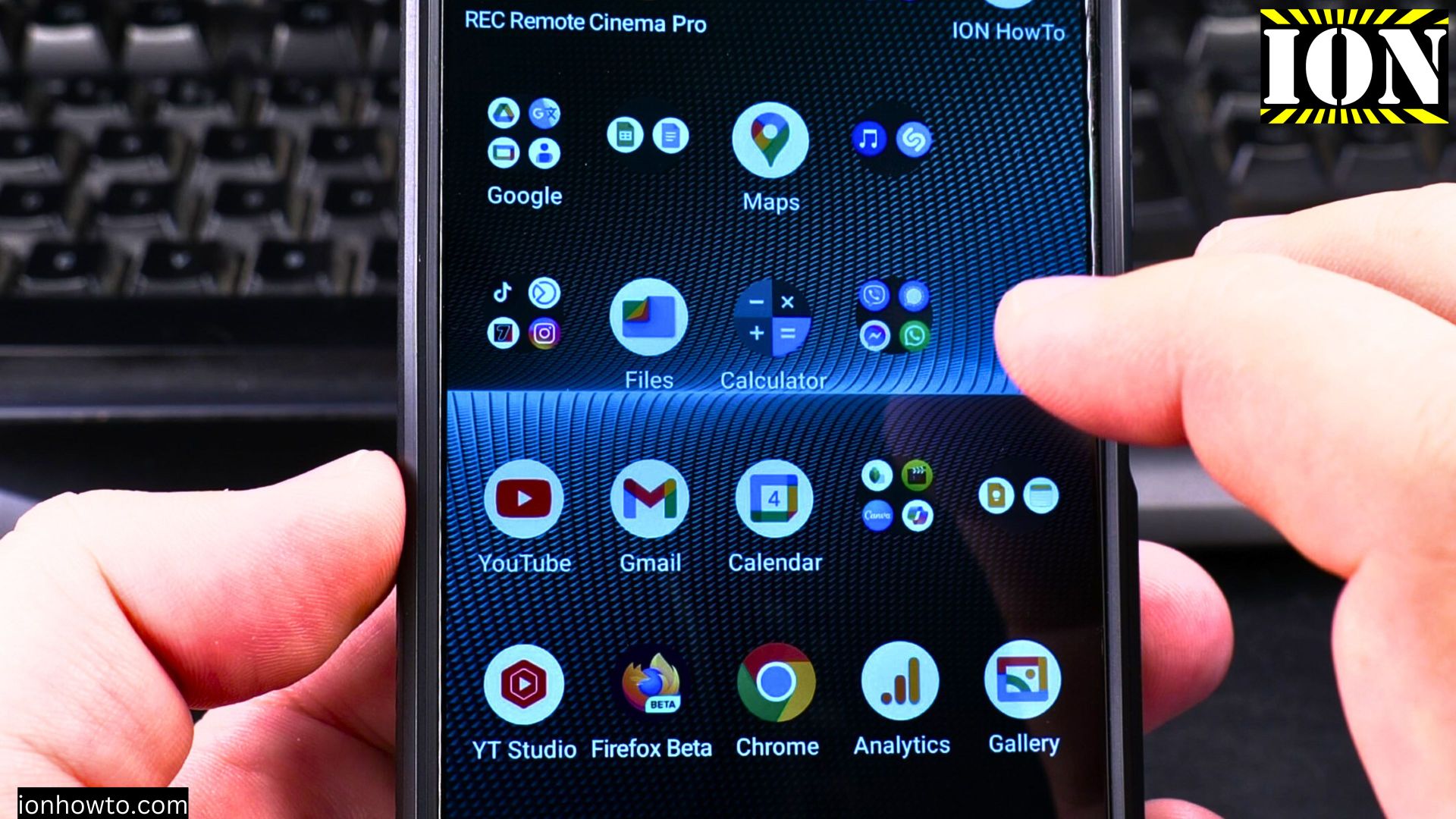
How to Scan a Barcode with Your Android Phone.
Ever wondered what that little barcode on a product holds? Or wanted to quickly compare a price without typing out a long name? Your Android phone can scan barcodes in just a few seconds. It’s a super handy trick for shopping, getting info, or just satisfying your curiosity.
Amazon links
As an Amazon Associate I earn from qualifying purchases:
- Phone Cases
- Mobile Tripods
- Usb-c charger
- Usb-c cable
- Docking stations
- Wireless car chargers
- Wireless charger stand
- SIM card removal tool
- SIM card holder
Learn how to do it easily using either a dedicated app or a tool you probably already have.
Download a Barcode Scanner App
The quickest way is to use a free app from the Google Play Store. There are many good ones.
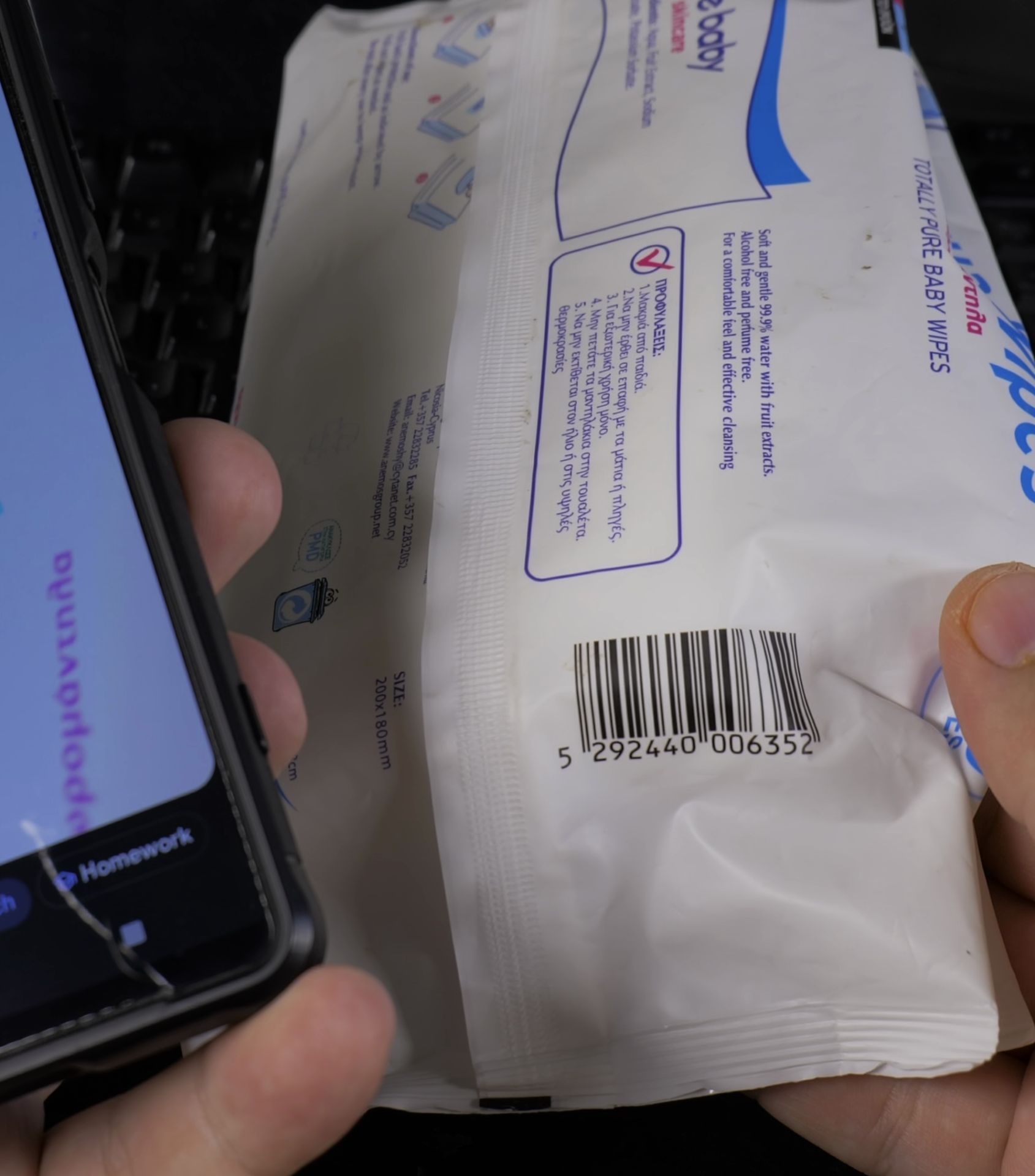
How to Scan with most Apps
Using barcode scanner apps:
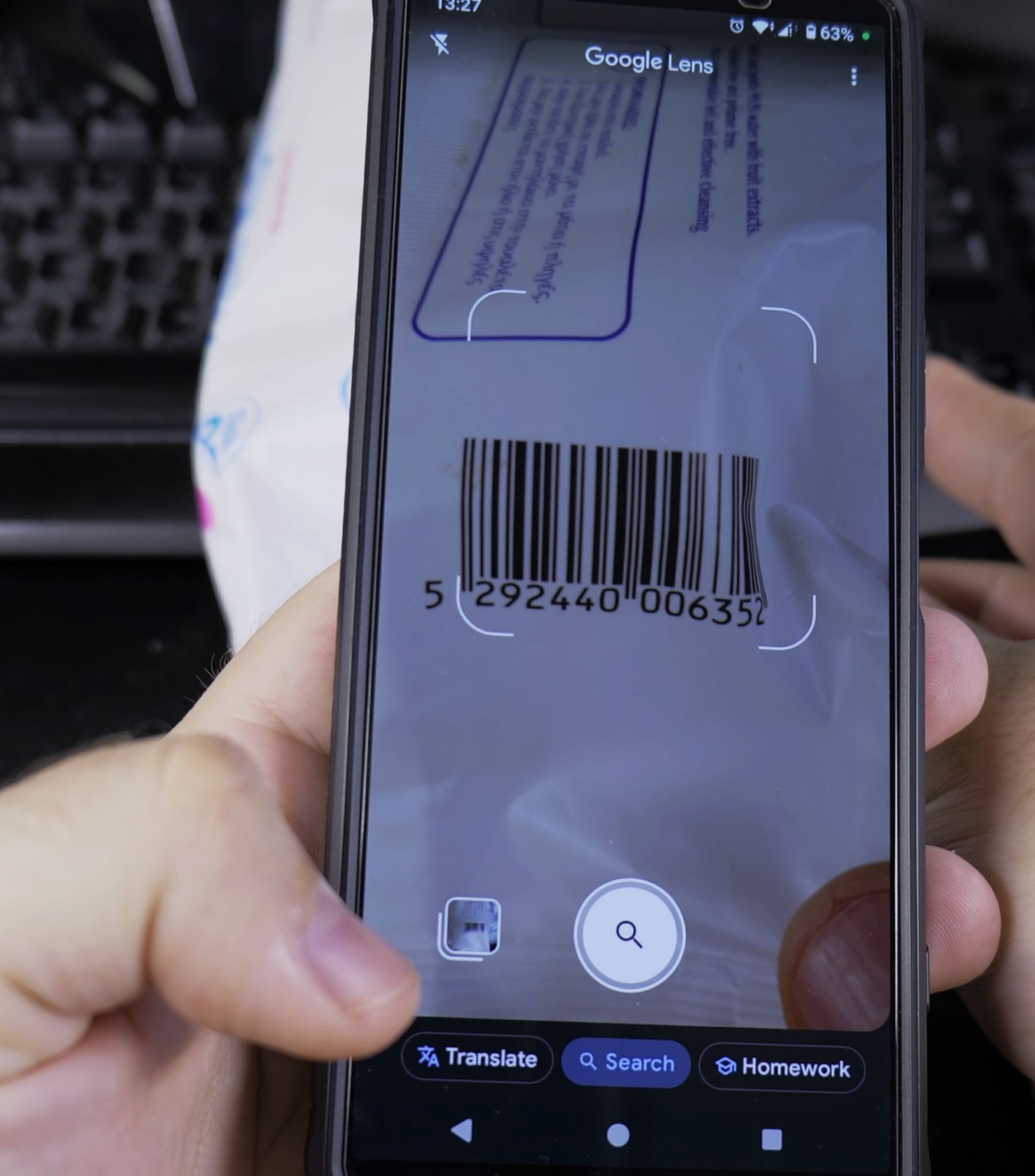
- Open your barcode scanner app.
- Point your phone’s camera at the barcode. Make sure the barcode is well-lit and fully inside the camera frame on your screen.
- Hold your phone steady. The app will automatically detect the barcode, and you’ll usually hear a beep or feel a vibration.
- In an instant, the app will show you the information it found. This is often the product name, a link to a shopping site, or details like the manufacturer.
Use Google Lens (No App Needed)
If you don’t want to download anything, you can use Google Lens. It’s built into many Android phones and is very powerful.
Quick Steps and Scenarios Overview
| What You Need to Do | Quick Jump |
|---|---|
| Download a Barcode Scanner App | Jump to Step 1 |
| How to Scan with most Apps | Jump to Step 2 |
| Use Google Lens (No App Needed) | Jump to Step 3 |
| Why Scanning Barcodes is Useful | Jump to Step 4 |
The steps:
- Open the Google app or Google Photos on your phone.
- Look for the Lens icon (it looks like a little square camera). In the Google app, it’s right in the search bar. In Google Photos, open a picture and tap the Lens icon at the bottom.
- Point your camera at the barcode. Just like with an app, make sure it’s clear in the frame.
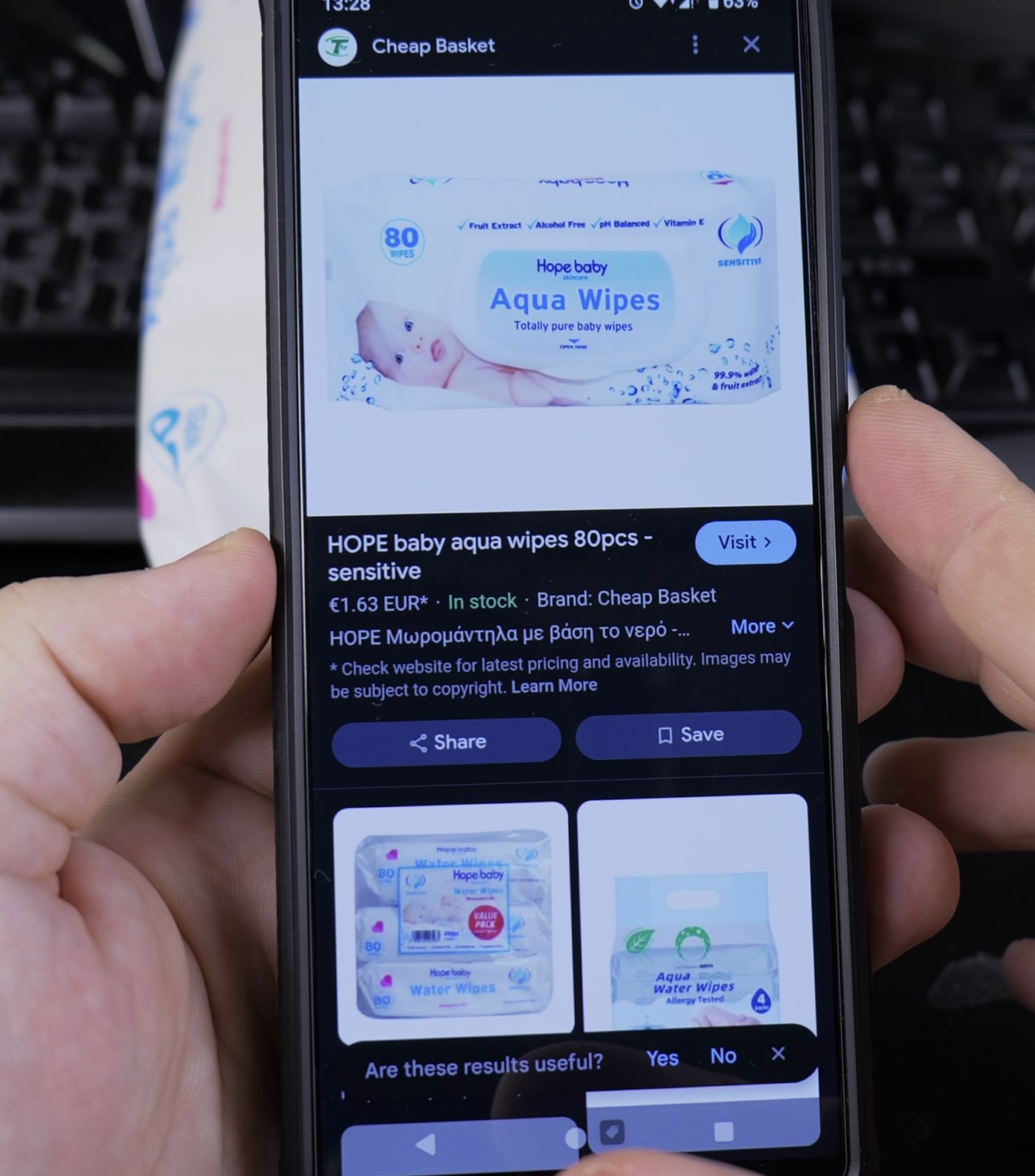
- Google Lens will scan it and show you search results for that product right away.
Why Scanning Barcodes is Useful
Scanning barcodes isn’t just for techies. It’s a practical tool for everyday life. You can use it to:
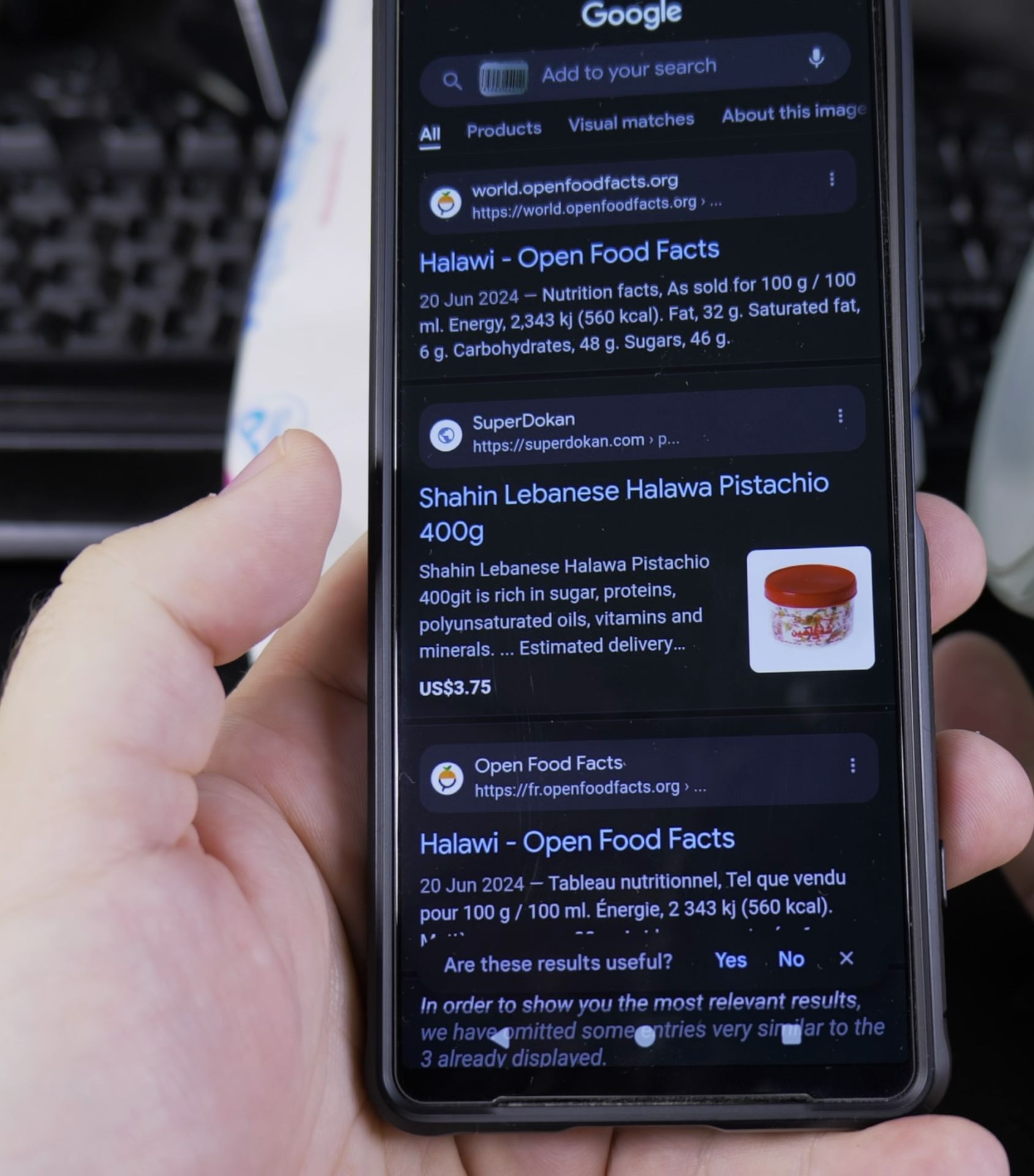
- Compare prices in-store to see if it’s cheaper online.
- Read reviews before you buy something.
- Get detailed information about a product, like ingredients or specifications.
- Quickly find an app by scanning its promo code.
I show you how to make this a habit next time you’re shopping. It takes seconds and gives you a lot more power as a shopper. If you use a dedicated app or Google Lens, you’re just a quick scan away from a wealth of information.
Helpful Tips
Take your time and check the screen carefully after each tap so you can confirm the setting changed as expected. If an option appears in a slightly different spot on your device, watch the embedded video above for a closer look.
Related Guides
- Scan QR Code on Android – How to Scan a QR Code on Your Android Phone.
- Android & Mobile Guides – Browse more tutorials and practical guides in this section.


Leave a Reply