
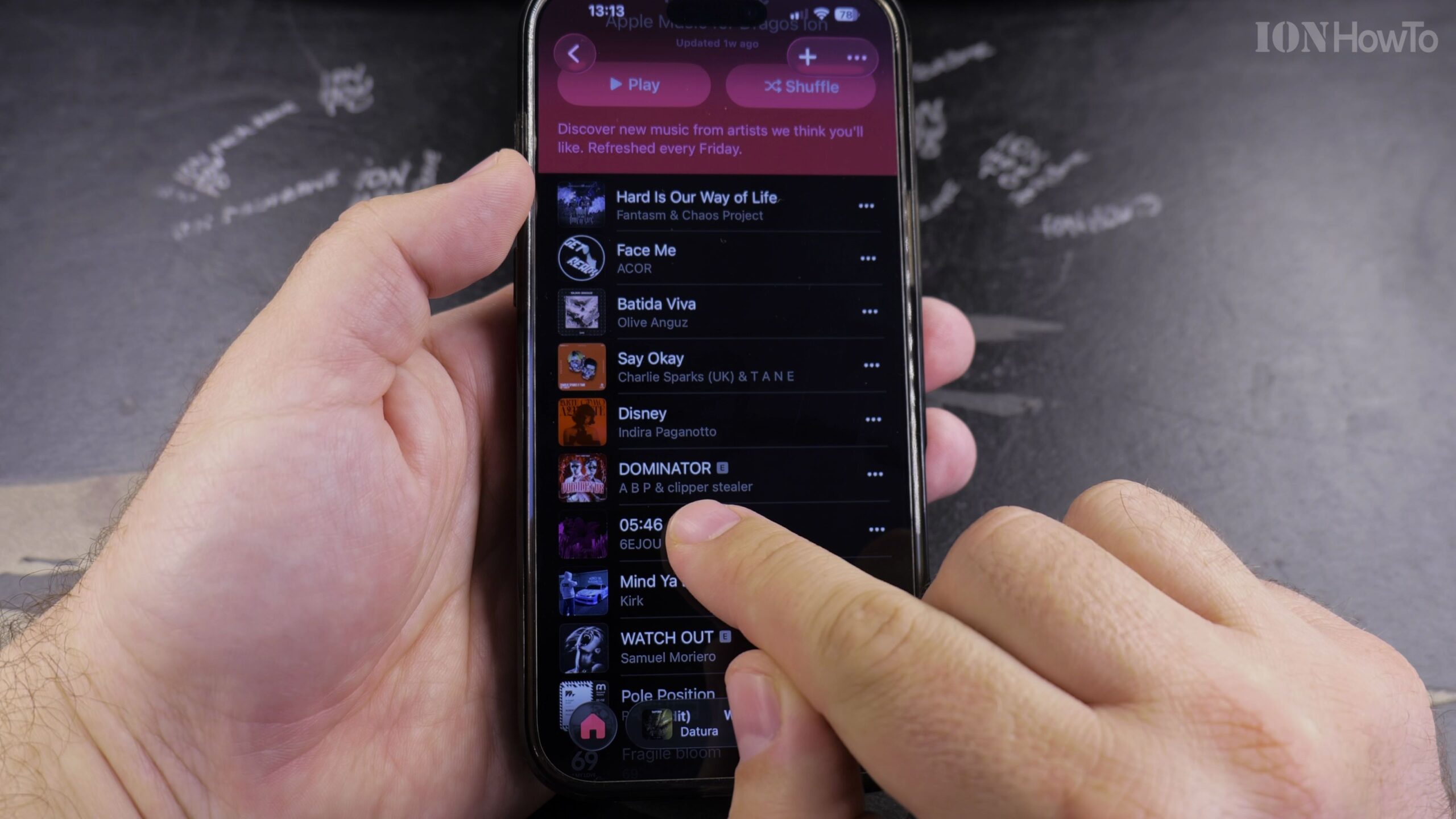
If children use your device or you prefer clean radio edits without profanity or mature themes, iOS allows you to filter out explicit tracks across Apple Music. Here is how to enable clean-only playback using Content Restrictions.
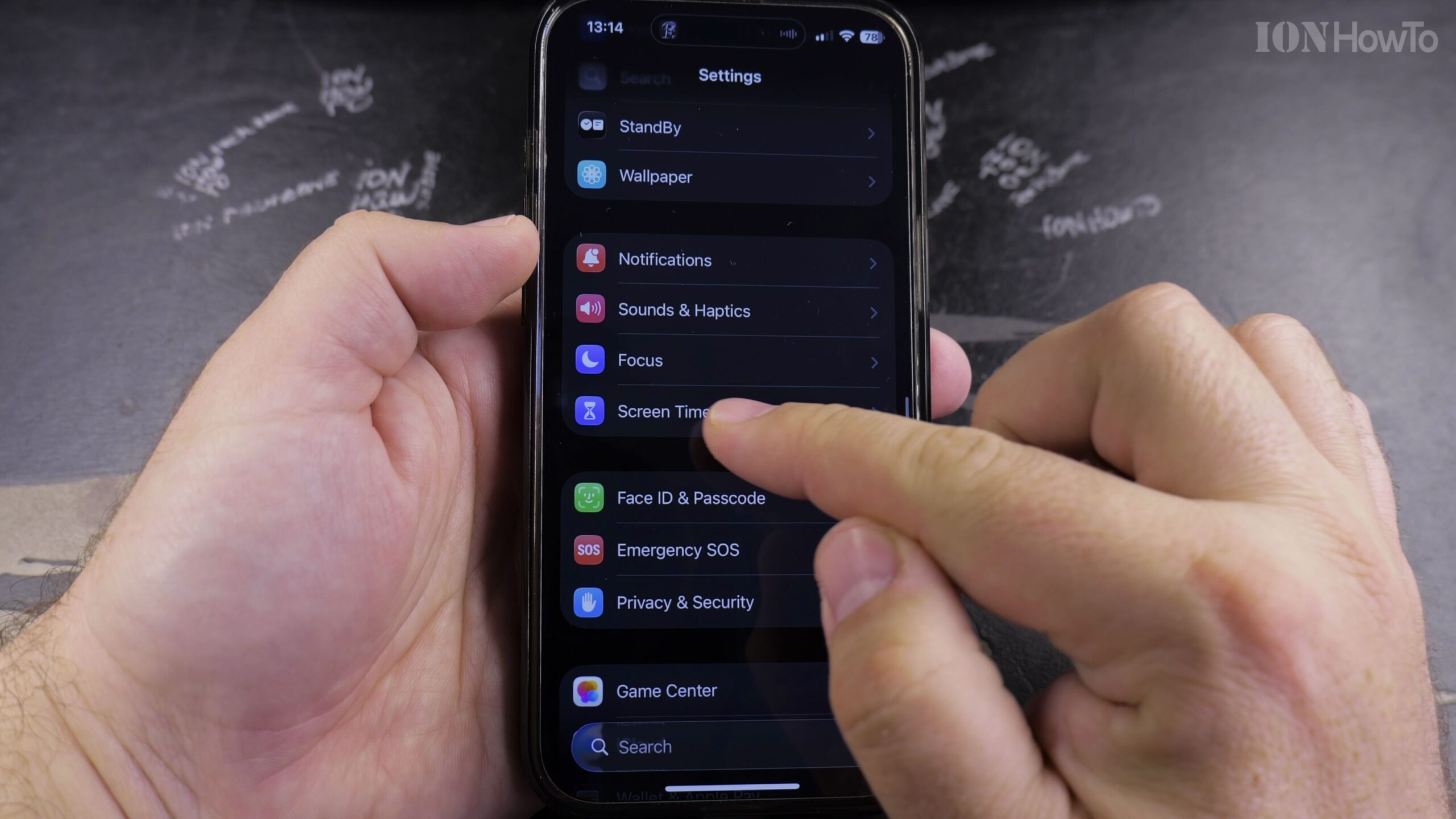
1. Open Settings and Tap Screen Time
Unlock your device and tap Settings, then scroll down and tap ‘Screen Time’.
2. Select Content & Privacy Restrictions
Tap ‘Content & Privacy Restrictions’ and ensure the master toggle switch at the top is turned ON.
3. Tap Store, Web, Siri & Game Center Content
Open ‘Store, Web, Siri & Game Center Content’ to manage entertainment content age ratings.
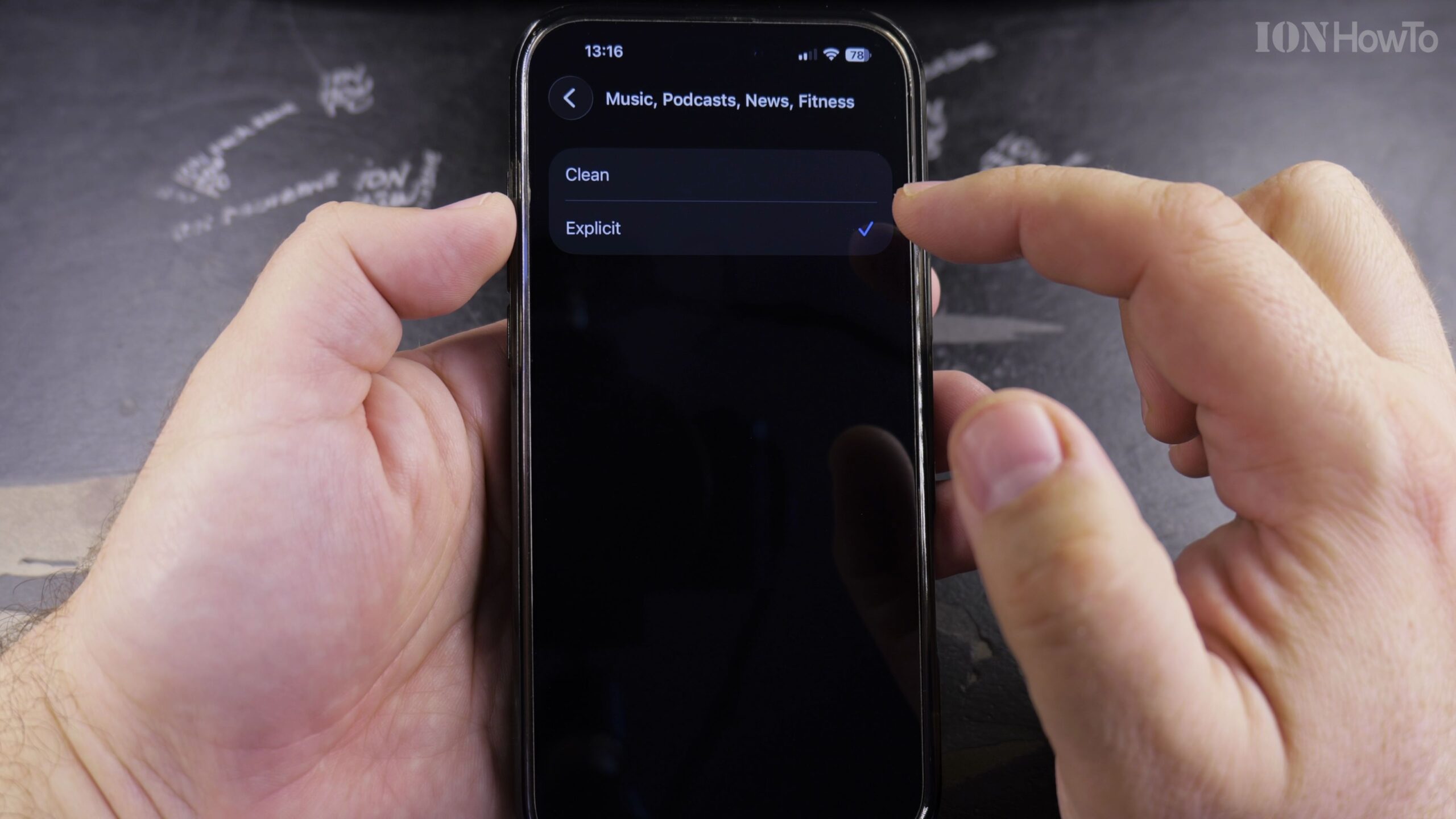
4. Select Music, Podcasts, News, Fitness and Choose Clean
Tap ‘Music, Podcasts, News, Fitness’ and change the selection from ‘Explicit’ to ‘Clean’.
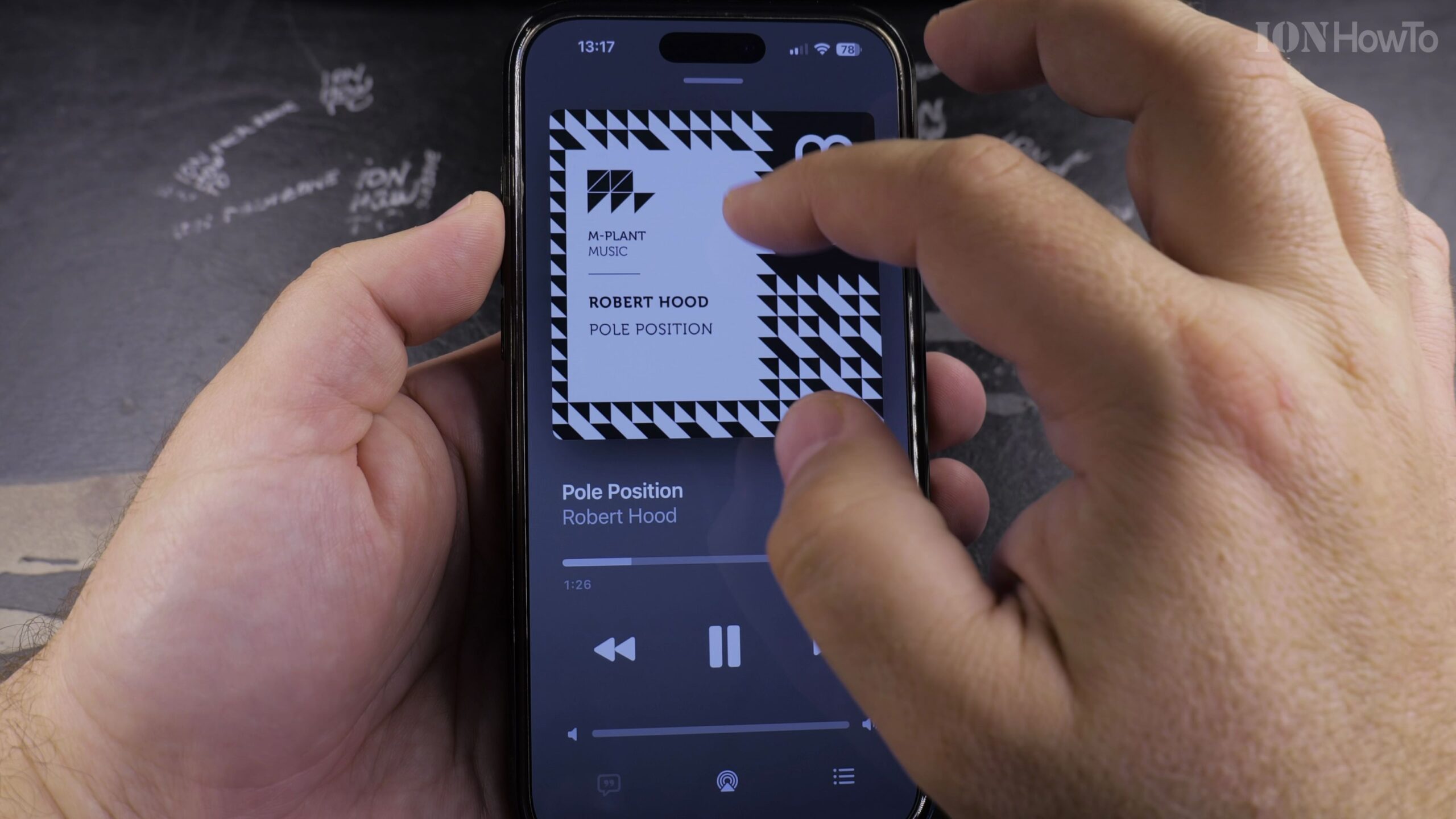
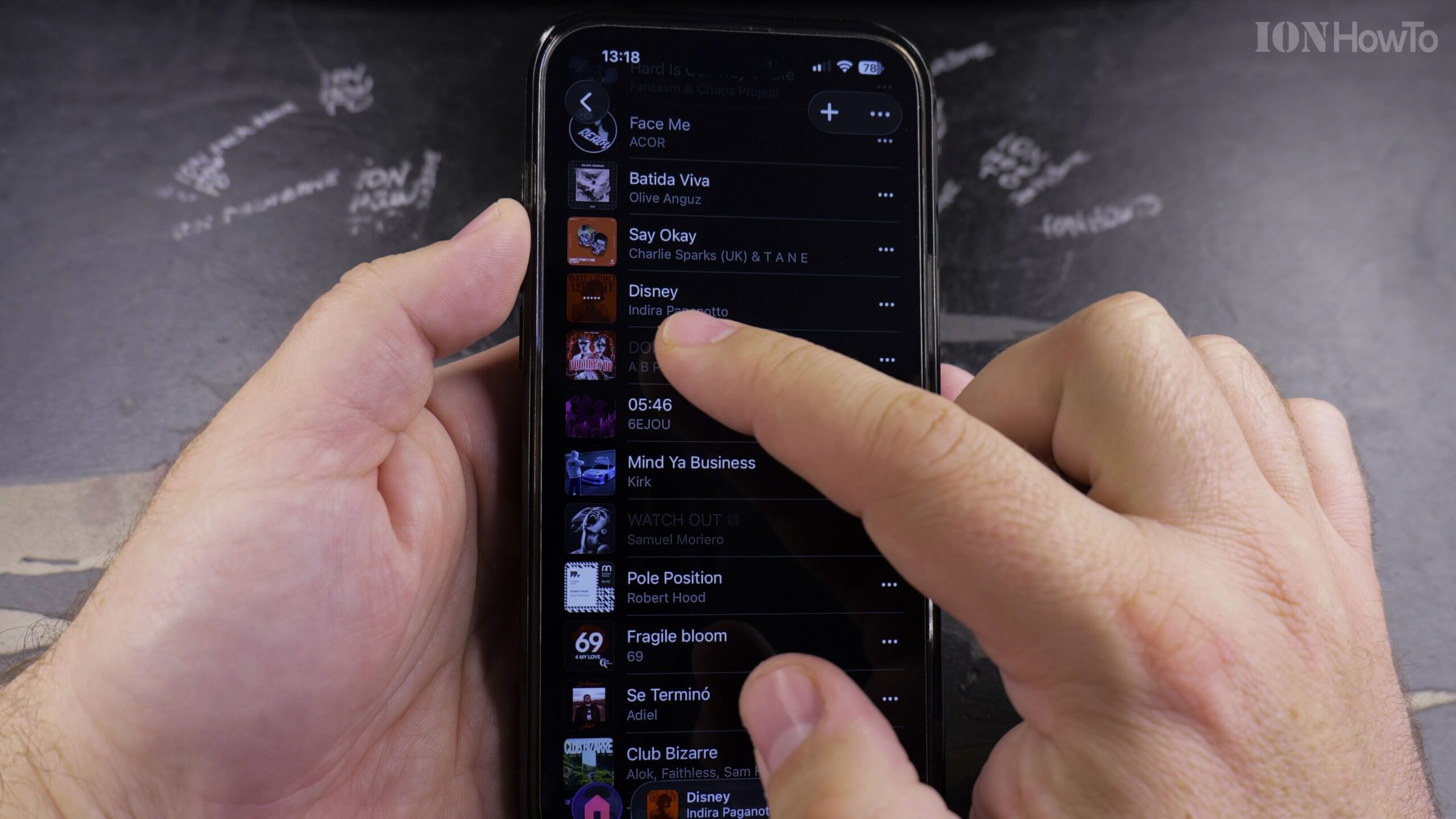
5. Verify in Apple Music That Explicit Tracks Are Blocked
Launch Apple Music. Any song bearing an explicit badge will now be grayed out and skipped automatically during radio playback.
Helpful Tips and Related Guides
Setting a dedicated Screen Time passcode prevents kids from turning explicit content back on without your permission. Discover more device safety tips in our Apple Music & Audio section, check our guide on Finding Playlists in Apple Music, or browse How-To guides.


Leave a Reply