
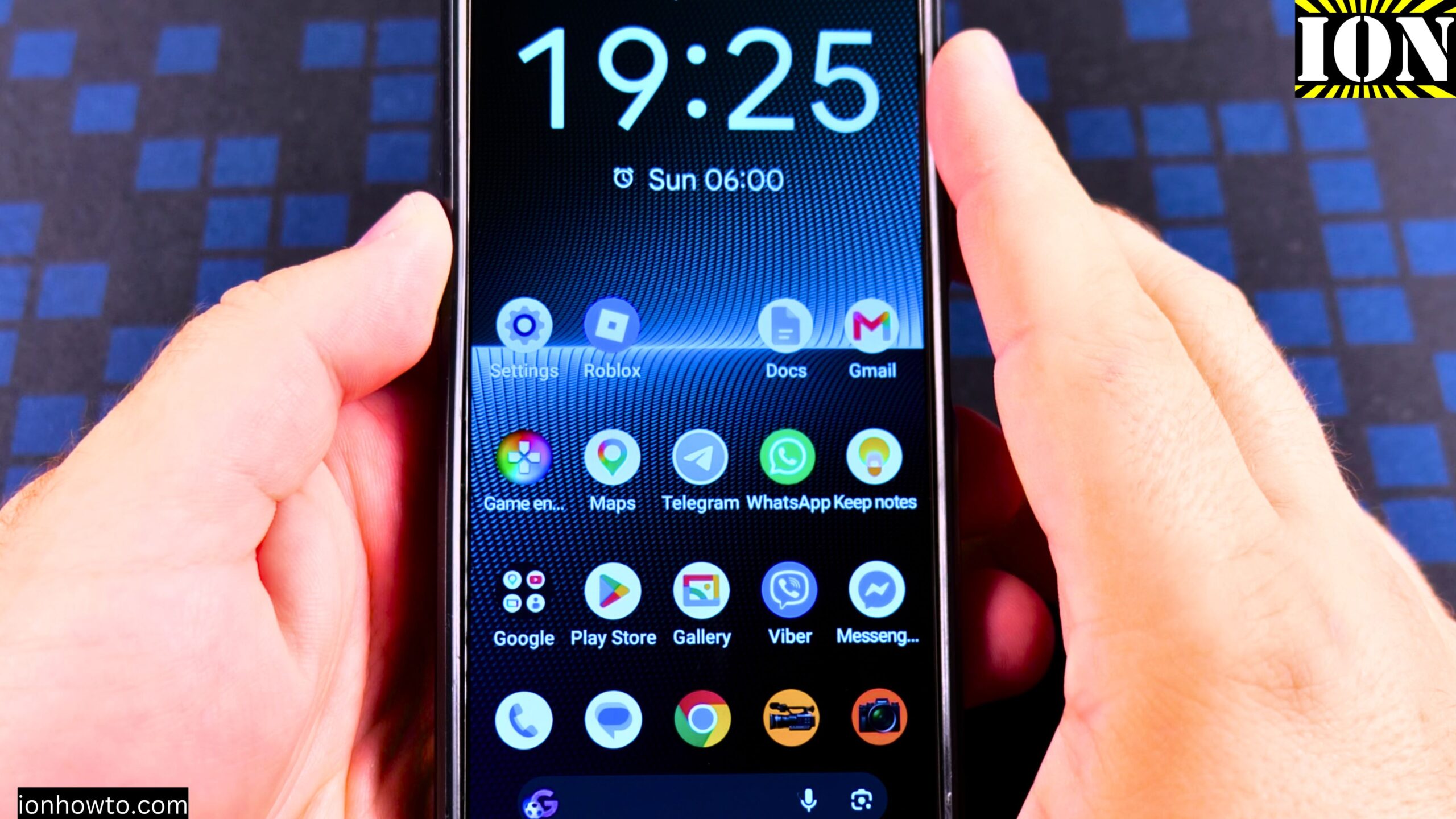
How to Activate a New SIM Card on Android.
Learn how to activate a new SIM card on your Android phone. I show you the steps to get your SIM card working quickly and easily.
I did this using a prepaid SIM card from Cyprus on a Sony Xperia 1 V Global – EU Model XQ-DQ54 running Android 15. Your steps might be different, but it’s usually insert the SIM card and make any phone call, or make a phone call to a specific number that the cellular service provider will tell you in their activation steps.
What You Need Before You Start
When you get a new prepaid SIM card, like the new SIM card connection pack I have with a new phone number, usually all you have to do is insert the SIM card in the phone and make a phone call.
For best results, make sure your phone is unlocked and supports the SIM network you are trying to use.
The exact steps will vary depending on your Android model and carrier settings.
Find Your SIM Card Details
Before you insert anything, look at the card you got. You have a cutout where you remove the nano SIM from.
You also need to find the PIN and the PUK code, and also your phone number.
The PIN is what you enter to use the SIM card. The PUK code is what you enter in case you enter the PIN wrong three times. Don’t lose these numbers. You might be able to get them from the provider if you do.
How to Activate SIM Card on Android Video
Step 1: Insert the SIM Card
You don’t need to shut down your phone. It doesn’t need to be powered off.
Remove the SIM Card Tray
On my Sony Xperia 1 Mark 5, this is the SIM card tray. I can simply pull this thing out. That’s the old SIM card.
Place the New SIM Card in the Tray
When you put the SIM card in, check the notch. The notch should align to the notch of the SIM card tray.
Insert the Tray Back Into the Phone
After inserting it, push the tray back into the phone.
Step 2: Enter Your SIM PIN
After inserting it, the phone is asking for the SIM PIN because the card has a PIN.
I will insert 1 2 3 4 and continue.
As you see, it’s already showing that it’s connected and it has full signal. That’s good.
Step 3: Make a Phone Call to Activate
In some cases you might have to call a special number. That number will be different for each cellular provider, but as you see, they explain what I need to do when trying to make a call.
Check Your Network and SIM Settings
Go to network and internet, then SIM cards.
Call the Activation Number
To activate the card in this case, I have to call 1882.
When I called, it said my account had already been activated.
Check Your Phone Number
This is the phone number here. You see it: 99239667.
The card is activated.
Step 4: Test Receiving a Call
I also tried receiving a phone call to make sure it worked. Both cards are now activated.
A Few Things to Keep in Mind
With other providers, that step is not needed and you can just start calling and talking normally.
If you have a new SIM card, this guide will help you set it up on your Android device. You’ll learn how to insert the SIM card, check for network signal, and complete the activation process.
Make sure you don’t lose the SIM card and the little numbers that come with it, because they are so small.
I hope this helps you activate your SIM card. Thanks for reading.
Related Guides and Helpful Resources
If you found this guide helpful, check out these related step-by-step tutorials and category resources on ION HowTo:
- How to Add a Picture to a Contact on Android: Personalize your contacts with custom profile photos for caller identification.
- How to Disable 2G on Android: Enhance network privacy and prevent insecure 2G connections.
- Turn Off Automatic Updates on Samsung Android: Manage app and firmware updates to save battery and mobile data.
- Android Tips and Tricks: Explore our full collection of tutorials and step-by-step articles in this category.


Leave a Reply