
When songs in Apple Music sound muffled, distorted, unusually quiet, or abrupt during transitions, conflicting audio processing settings are usually the culprit. In this troubleshooting guide, I’ll show you how to check EQ presets, Automix, Crossfade, and Sound Check to restore crisp music playback.
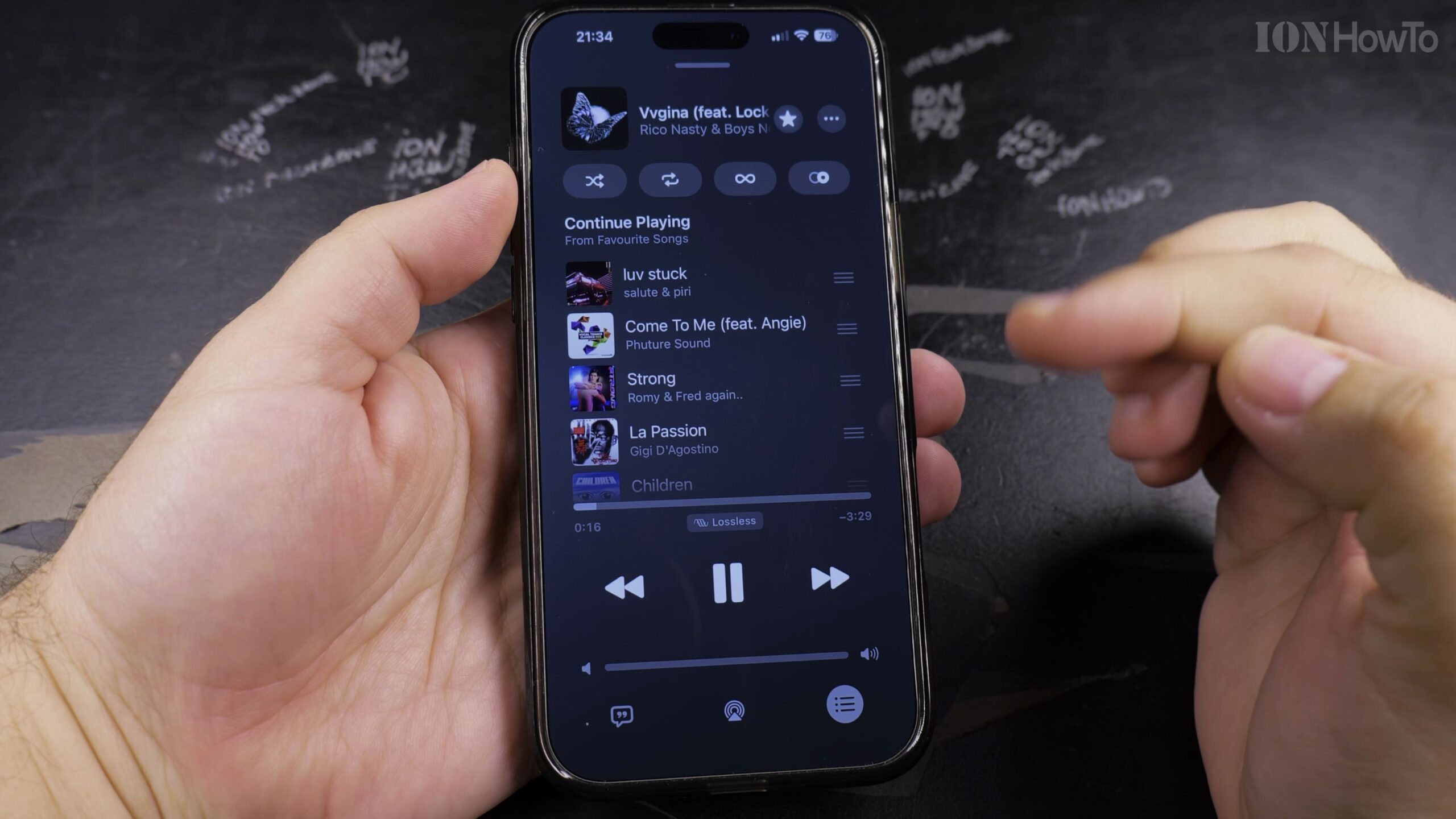
1. Open iPhone Settings and Scroll Down to Music
Unlock your iPhone and open the main Settings application. Scroll down through your installed apps until you locate Music, then tap to open audio configuration.
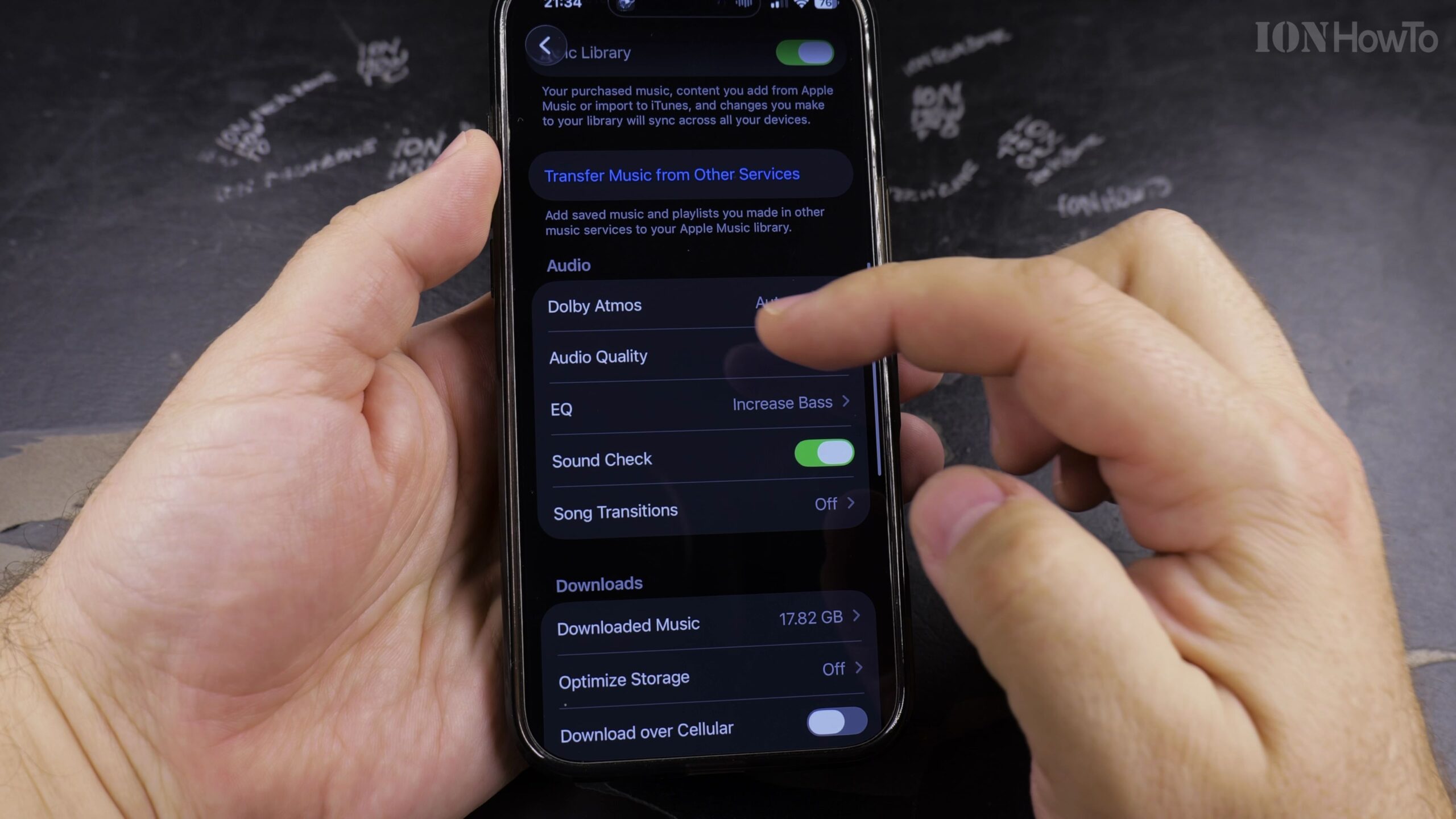
2. Check and Disable or Reset the Equalizer (EQ) Preset
Tap on EQ under the Audio section. If a severe preset like Vocal Booster or Treble Reducer is active, toggle EQ off or switch it to Flat to verify if standard balanced audio returns.
3. Toggle Sound Check to Prevent Uneven Volume Levels
Return to the main Music settings screen and locate Sound Check. If songs sound muffled or unnaturally compressed, toggle Sound Check off to hear the original master dynamics.
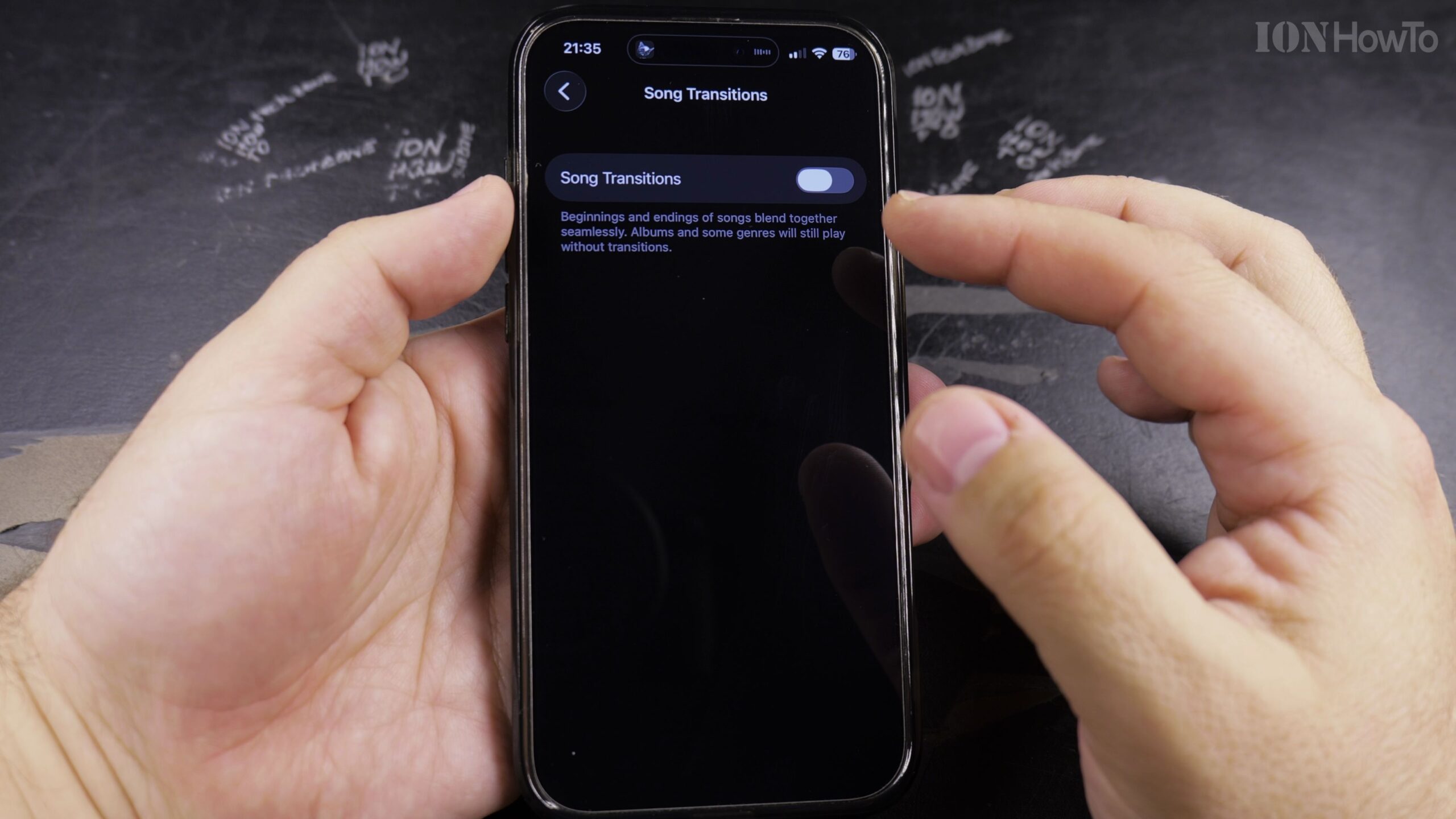
4. Adjust Crossfade and Automix Transition Settings
Under the Audio section, inspect the Crossfade slider. If song intros are getting chopped off or overlapping strangely, adjust Crossfade timing to 3-5 seconds or turn it off.
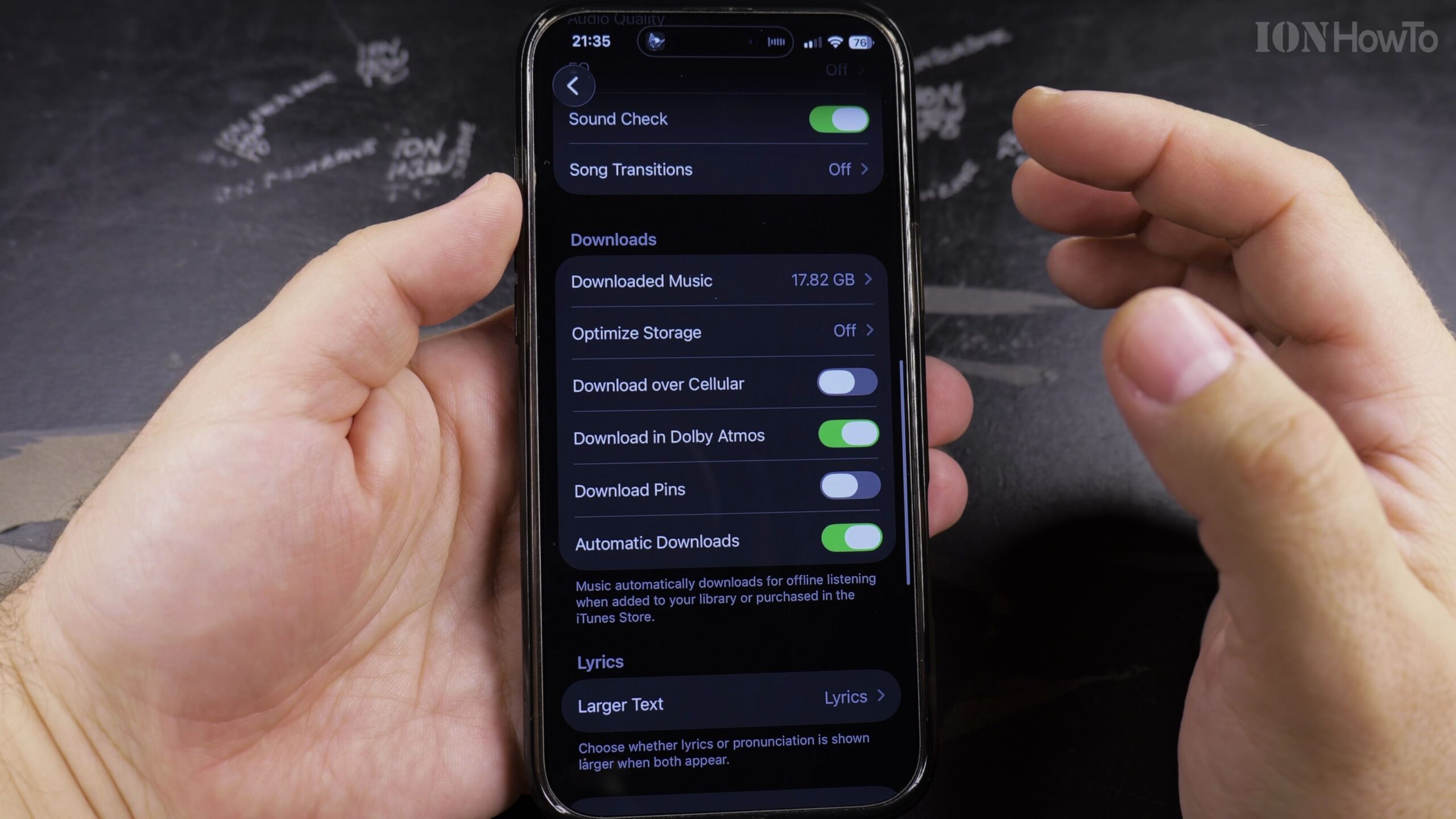
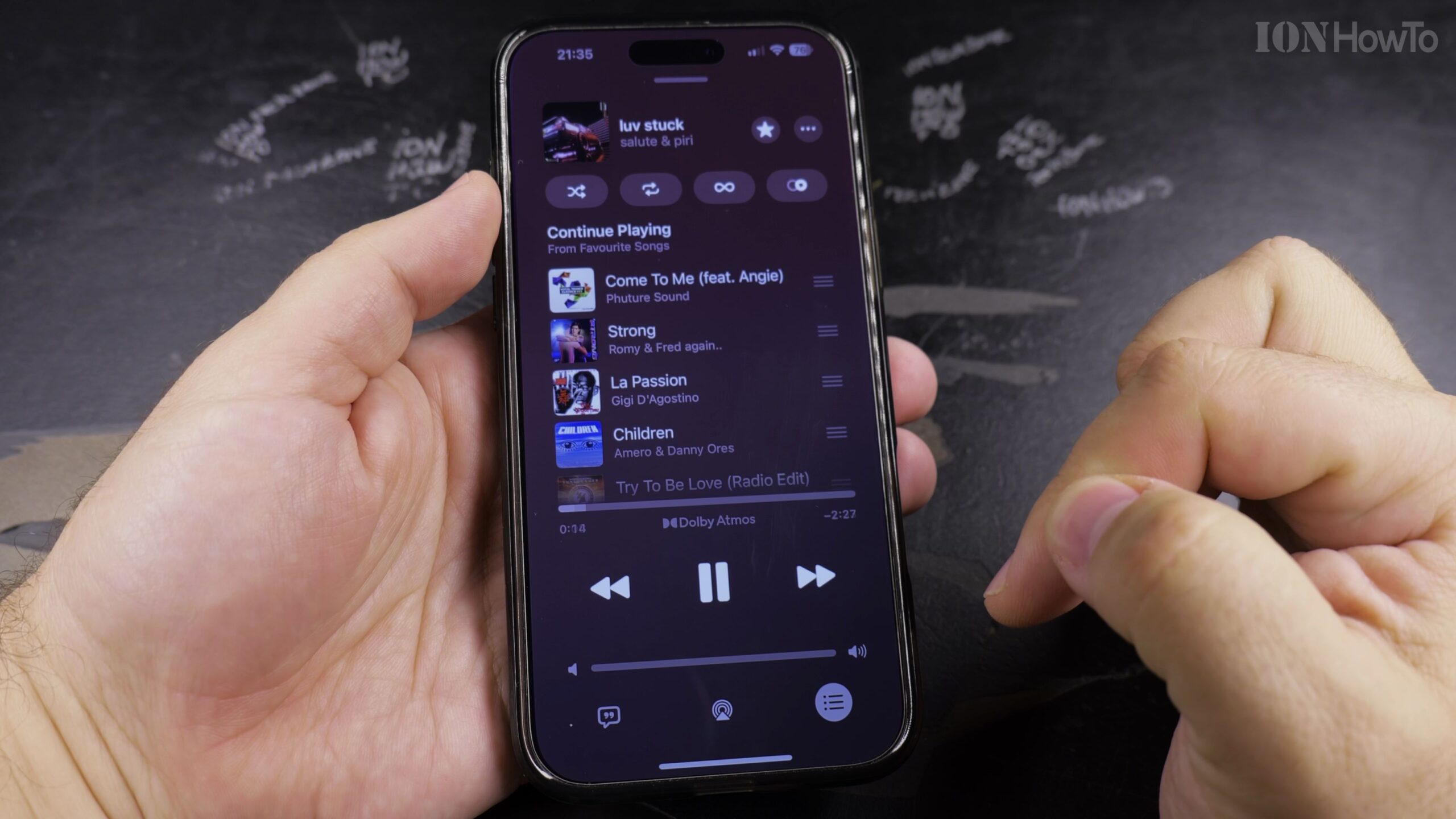
5. Inspect Dolby Atmos and Audio Quality Bitrate
Tap Audio Quality and ensure Lossless Audio or High Quality is active. If your headphones do not support spatial audio, set Dolby Atmos to Off or Automatic so stereo tracks play cleanly.
Helpful Tips and Related Guides
For background on audio frequency balancing, see Equalization on Wikipedia, which explains how adjusting frequency bands impacts tonal balance and audio clarity.
Always restart your Apple Music app after changing audio presets to clear any buffered cached streams. For more audio troubleshooting, browse our Apple Music & Audio section, check our guide on Connecting iPad to Ethernet, or visit Apple Guides.


Leave a Reply