
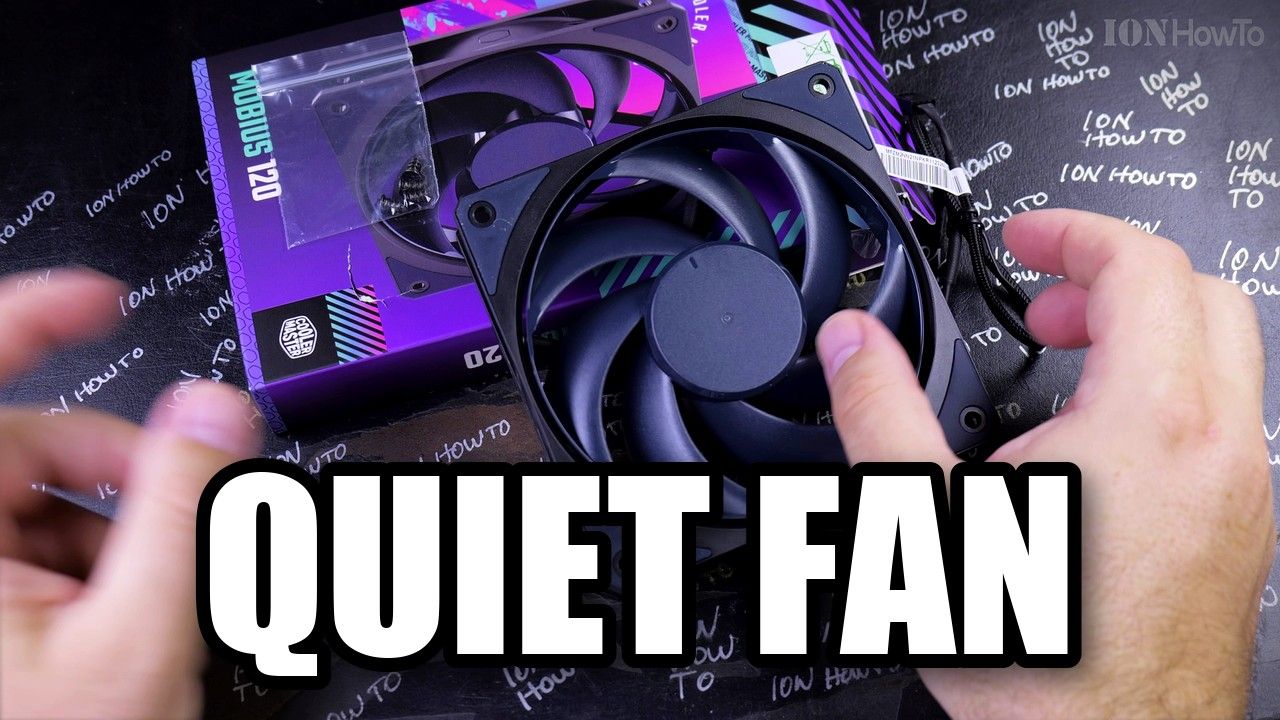
I ordered the Cooler Master Mobius 120 thinking it came as a pair. It is a single 120mm fan, so read the listing carefully. Below are the numbers from the box and what I noticed once it was out of the packaging.
Pick your step
- Check the space in your case first
- Look over the fan for damage
- Find the screws and note the rubber corners
- Plan where the 4-pin cable will go
Recommended Amazon Gear and Accessories
Disclosure: This article contains Amazon affiliate links. As an Amazon Associate, I earn from qualifying purchases at no extra cost to you.
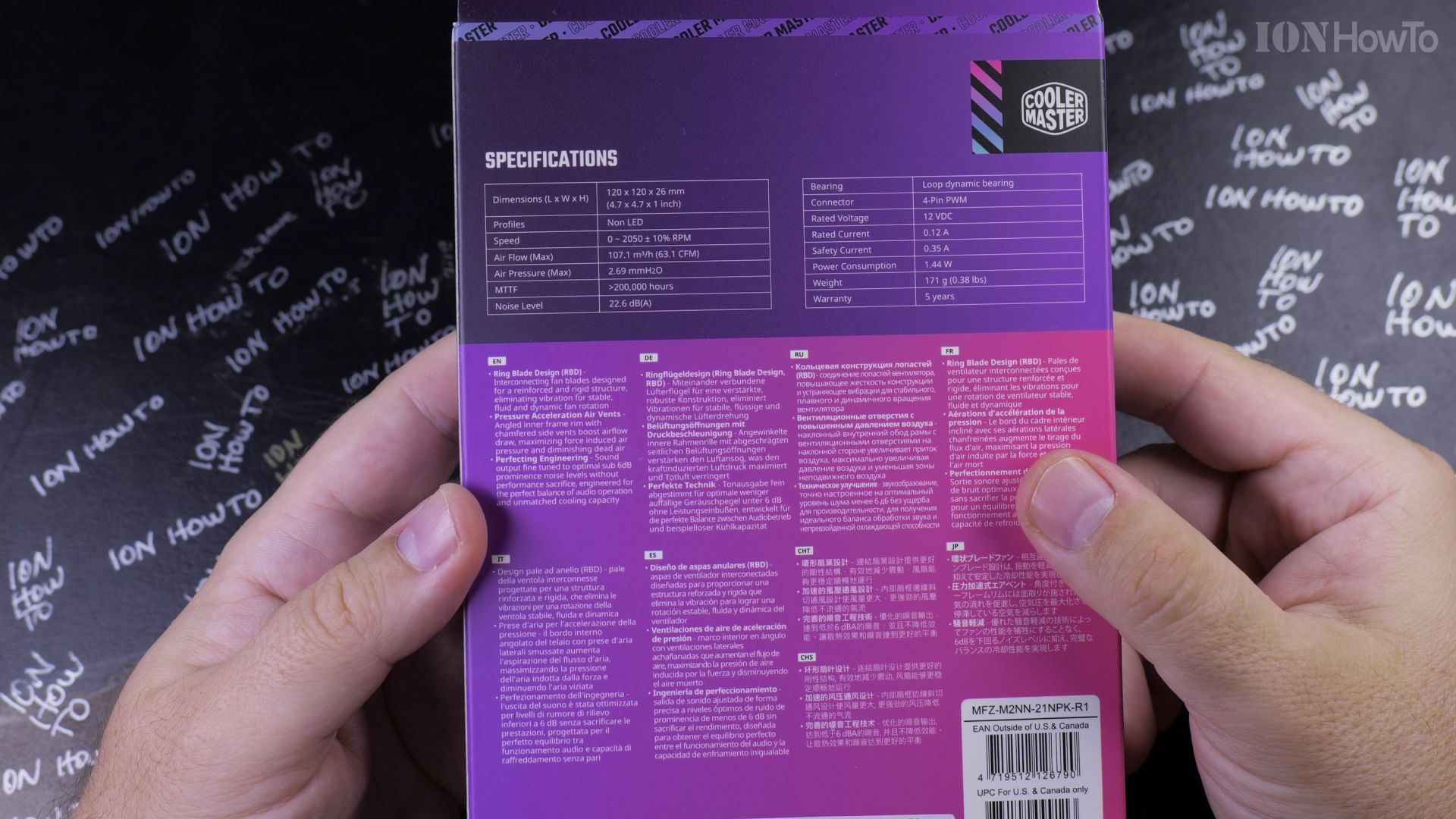
The numbers on the box
- Airflow: 63 CFM.
- Noise: 22 dBA. I have seen quieter fans at 18 dBA, but they move less air.
- Size: 120 x 26 mm, a little thicker than many case fans.
1. Check the space in your case first
At 26 mm thick, the fan can clash with a radiator or a long graphics card. Measure the gap before you take it out of the box.
2. Look over the fan for damage
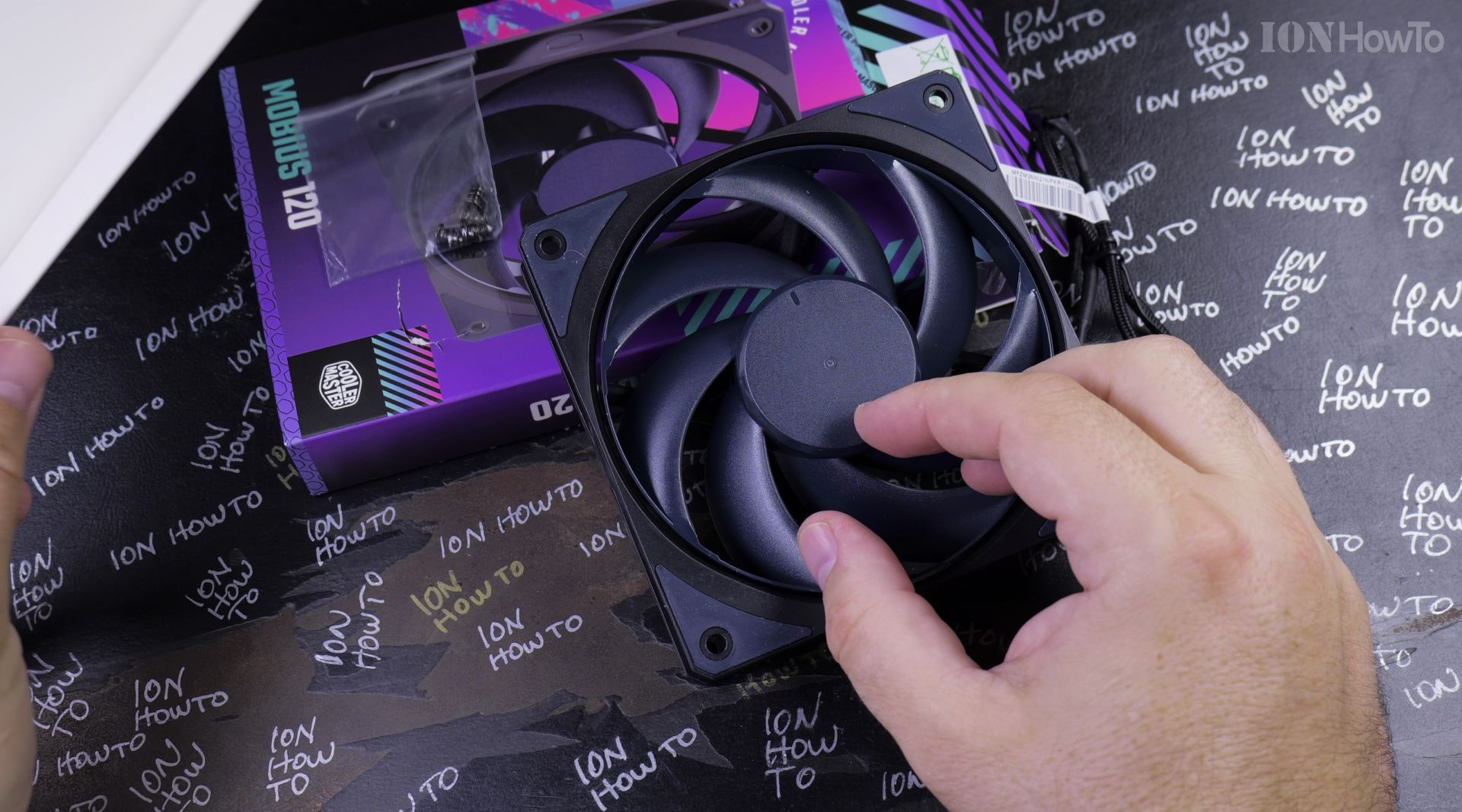
Mine was packed well and felt bulky and solid. The blades are smooth and there were no cracks on the frame corners.
3. Find the screws and note the rubber corners
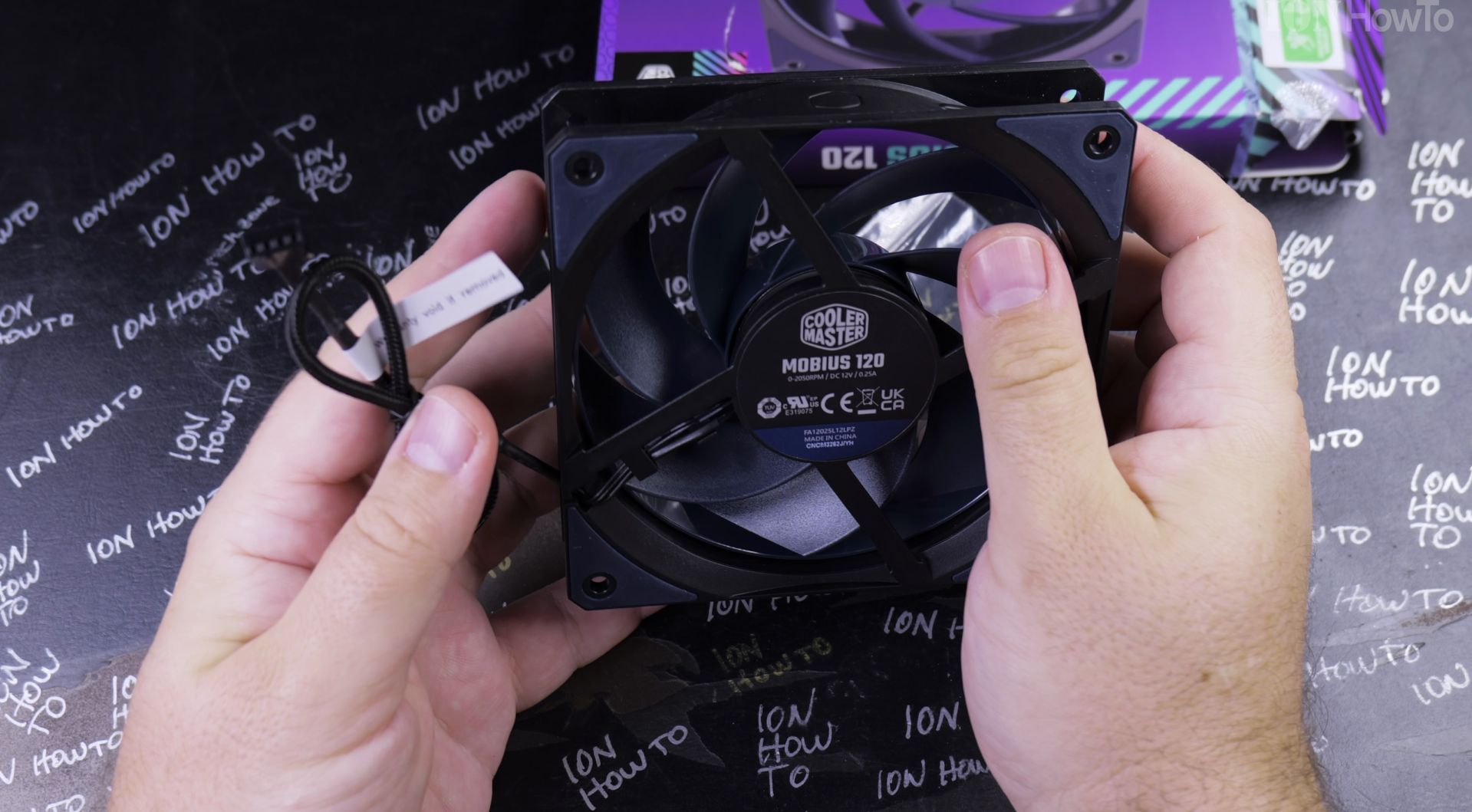
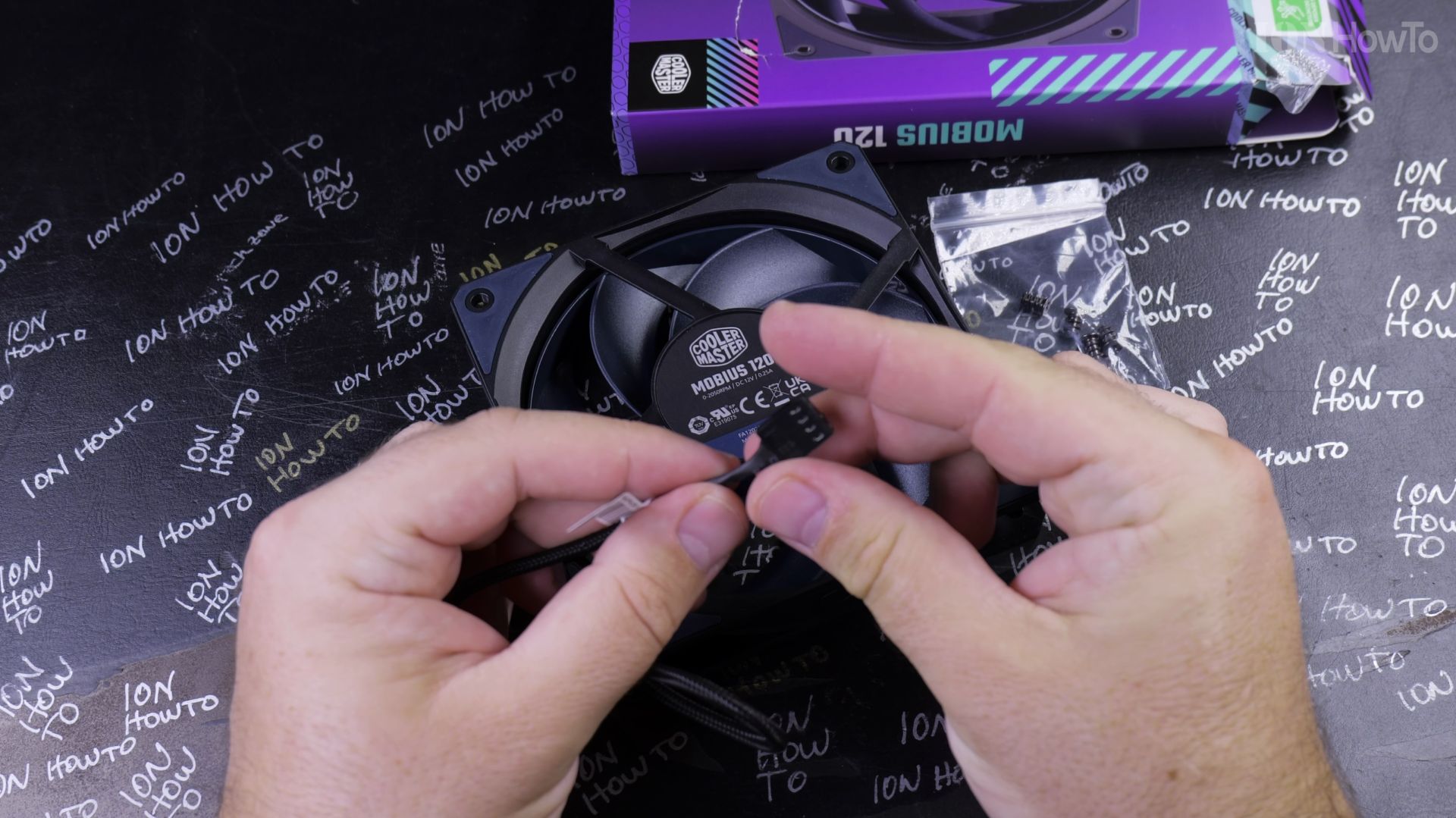
A small bag of case screws is included. Each corner has a rubber pad where the fan touches the case, which cuts down on vibration noise.
4. Plan where the 4-pin cable will go
The cable is long enough for most cases, though not generous. The 4-pin plug lets the motherboard slow the fan down when the PC is cool. I did not see any RGB lighting, which suited me.
Before you mount it
- Read the airflow arrows on the frame before you screw it in.
- Front fans usually pull air in. Rear and top fans usually push it out.
- If it runs flat out all the time, turn on fan control in the BIOS.
- A fan extension cable solves a header that is too far away.
Related Guides
- Computer Build & PC Hardware – Browse more tutorials and practical guides in this section.


Leave a Reply