
Stop Accidental Gemini Launches from Corner Swipes.
Learn how to disable the Gemini activation when swiping from the bottom corners of your Android screen. I show you how to turn off the left-up and right-up swipe gestures if you accidentally trigger Gemini or prefer not to use this feature.
Amazon links
As an Amazon Associate I earn from qualifying purchases:
- Phone Cases
- Mobile Tripods
- Usb-c charger
- Usb-c cable
- Docking stations
- Wireless car chargers
- Wireless charger stand
- SIM card removal tool
- SIM card holder
How to Disable Gemini Corner Swipes on Android Devices video.
Quick Steps and Scenarios Overview
| What You Need to Do | Quick Jump |
|---|---|
| Stop Accidental Gemini Launches from Corner Swipes. | Jump to Step 1 |
| Steps to Disable Gemini Corner Swipes | Jump to Step 2 |
Tested on Sony Xperia 1 V Global – EU Model XQ-DQ54 running Android 15.
Steps to Disable Gemini Corner Swipes
If your phone keeps opening Gemini when you swipe up from the corners, follow these steps to turn it off:
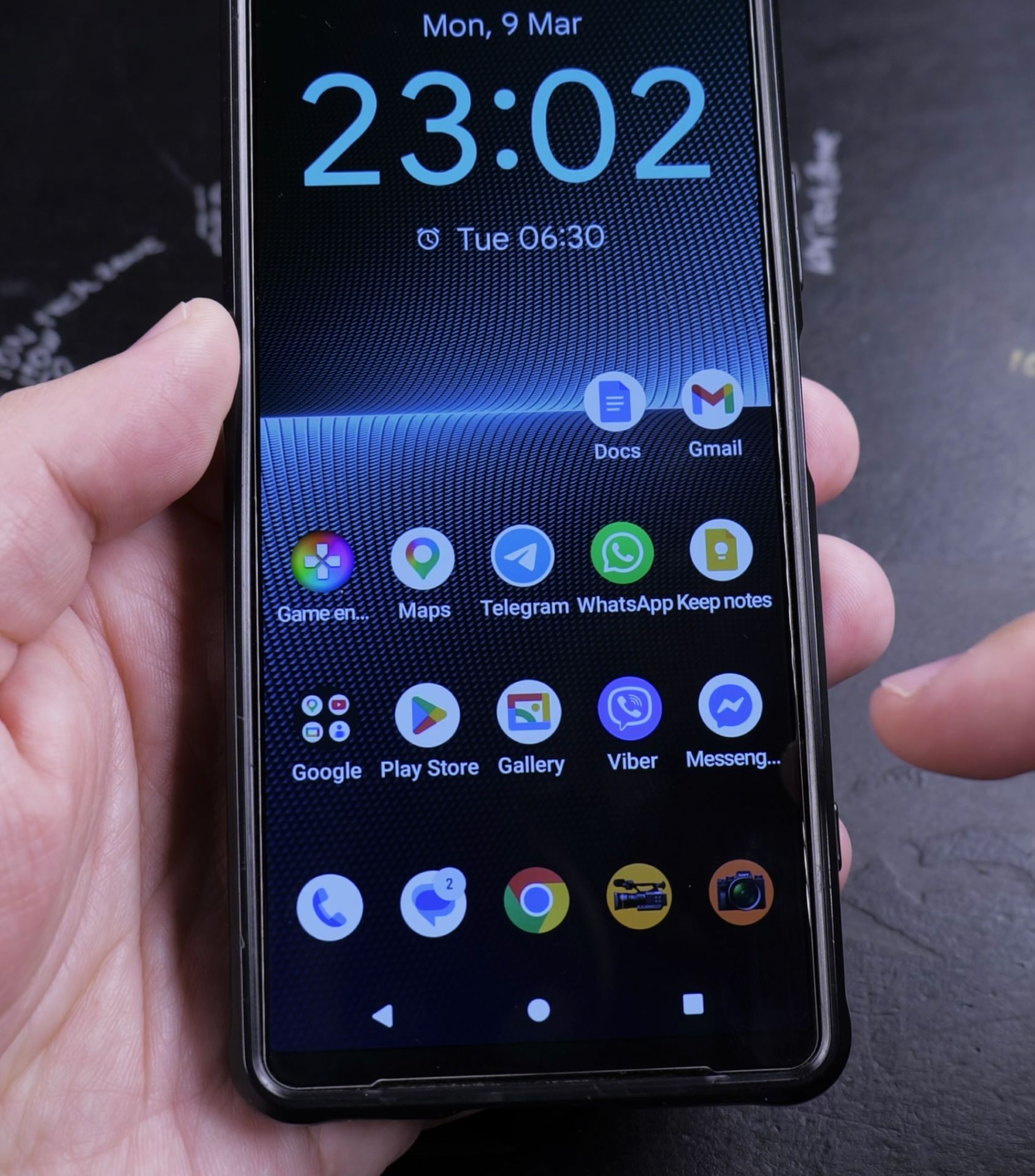
- Open Settings – Launch the Settings app on your Android device.
- Go to Gesture Controls – Go to System > Gestures (or Display > Navigation bar & gestures on some devices).
- Find Corner Gestures – Look for Corner Gestures, Quick Gestures, or similar options.
- Disable or Change the Action – Tap Left-Up Swipe and select None or disable the toggle. Repeat for Right-Up Swipe if needed.
- Confirm Changes – Exit settings – the changes save automatically.
What If You Don’t See These Options?
Some Android skins hide gesture settings differently. Try these alternatives:
- Samsung One UI: Go to Settings > Advanced Features > Side & Corner Gestures.
- Pixel/Stock Android: Check Settings > System > Gestures > System Navigation.
- Third-Party Launchers: Apps like Nova Launcher may override system gestures.
Troubleshooting Tips
If Gemini still activates accidentally:
- Restart your phone after changing settings.
- Check for system updates – newer versions may have better gesture controls.
- Try resetting all gesture preferences under Settings > System > Reset options.
Now you can swipe from the corners without accidentally launching Gemini!
Helpful Tips
Take your time and check the screen carefully after each tap so you can confirm the setting changed as expected. If an option appears in a slightly different spot on your device, watch the embedded video above for a closer look.
Related Guides
- Remove Apps from Samsung Android Home Screen – How to Remove Apps from Home Screen on Samsung Android.
- Add Apps to Samsung Android Home Screen – How to Add Apps to Home Screen on Samsung Android.
- Remove App From Android Home Screen – How to Remove an App from Your Home Screen on Android.
- Android & Mobile Guides – Browse more tutorials and practical guides in this section.


Leave a Reply