

Amazon links
As an Amazon Associate I earn from qualifying purchases:
- Phone Cases
- Mobile Tripods
- Usb-c charger
- Usb-c cable
- Docking stations
- Wireless car chargers
- Wireless charger stand
- SIM card removal tool
- SIM card holder
How to Turn On Bixby with the Side Button on Samsung Phones.
Learn how to set up your Samsung phone‘s side button to launch Bixby. I’ll show you the steps to enable this feature and troubleshoot common issues.
How to Enable Bixby with the Side Button on Samsung Phones.
Quick Steps and Scenarios Overview
| What You Need to Do | Quick Jump |
|---|---|
| How to Enable Bixby with the Side Button | Jump to Step 1 |
| How to Change Side Button Functions | Jump to Step 2 |
| Using Bixby Effectively | Jump to Step 3 |
| Switching Back to Power Off Function | Jump to Step 4 |
| Setting Up Google Gemini Instead | Jump to Step 5 |
Demo performed on Samsung S23 Ultra running Android 14 with OneUI 6.1
How to Enable Bixby with the Side Button
Follow these steps to set up Bixby with your side/power button:
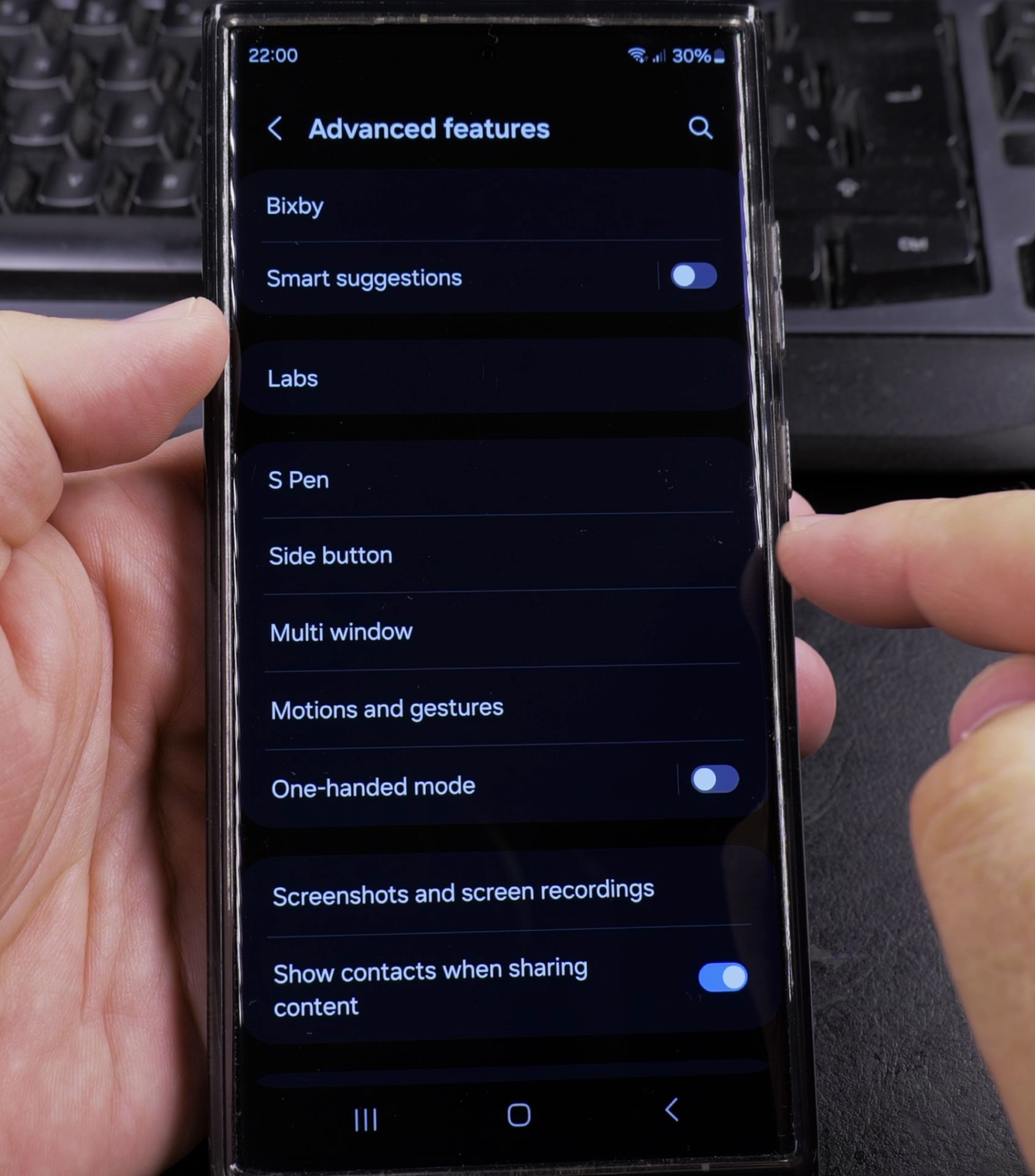
- Open Settings on your Samsung phone
- Scroll down and tap Advanced Features
- Select Side Key
- Under “Press and hold” option, choose Bixby
- If available, you can also set Double press to open Bixby
What to Do If Bixby Doesn’t Open
If your side button isn’t launching Bixby:
- Make sure Bixby is installed and updated
- Check that you’re signed in to your Samsung account
- Try pressing and holding the button for 1-2 seconds
- Restart your phone if the issue persists
How to Change Side Button Functions
Learn how to customize your side button:
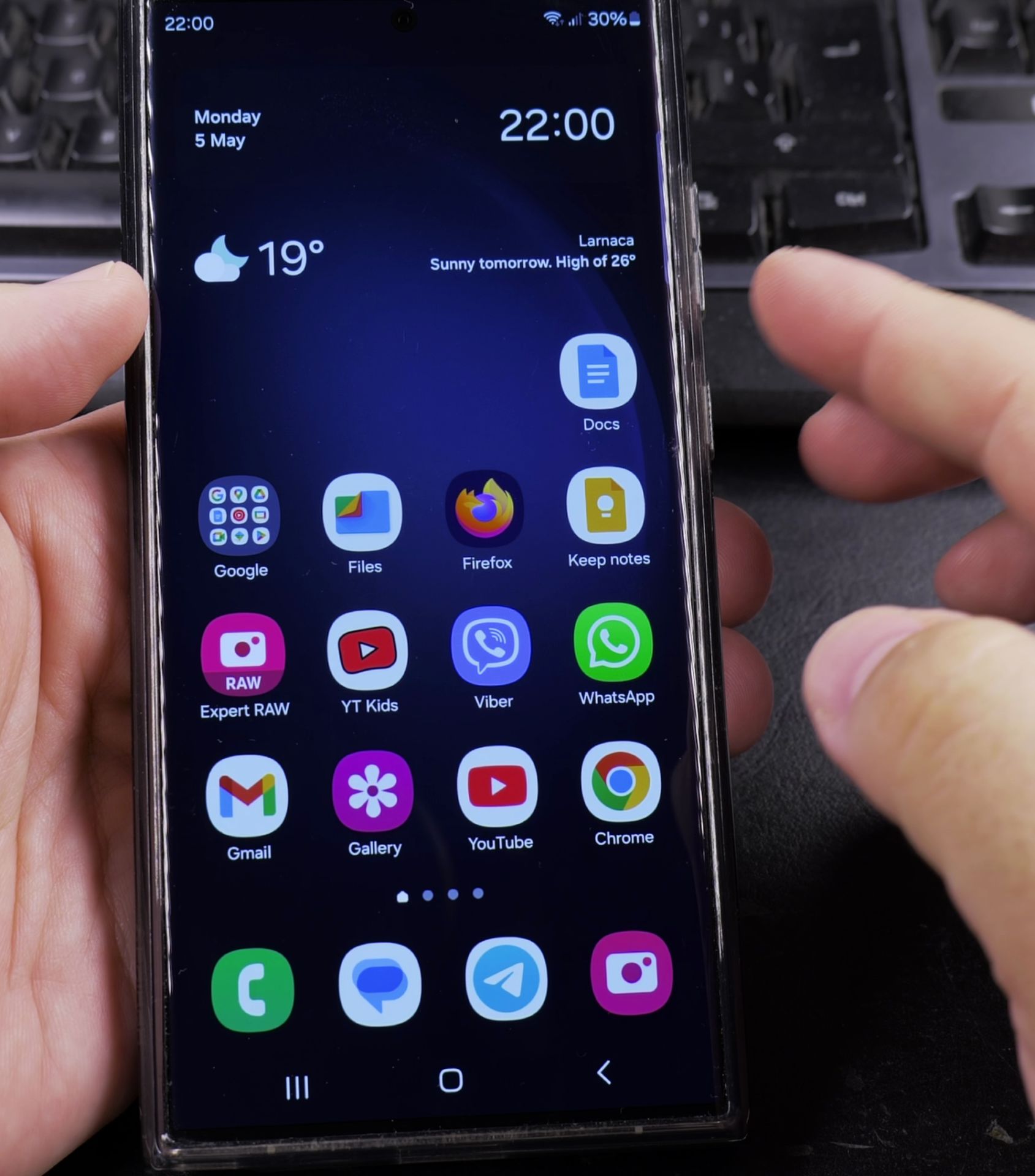
- Go to Settings > Advanced Features > Side Key
- For Press and hold, choose between:
- Power off menu
- Bixby
- Google Gemini (if installed)
- For Double press (if available), select your preferred quick action
Using Bixby Effectively
Once set up, Bixby can help with:
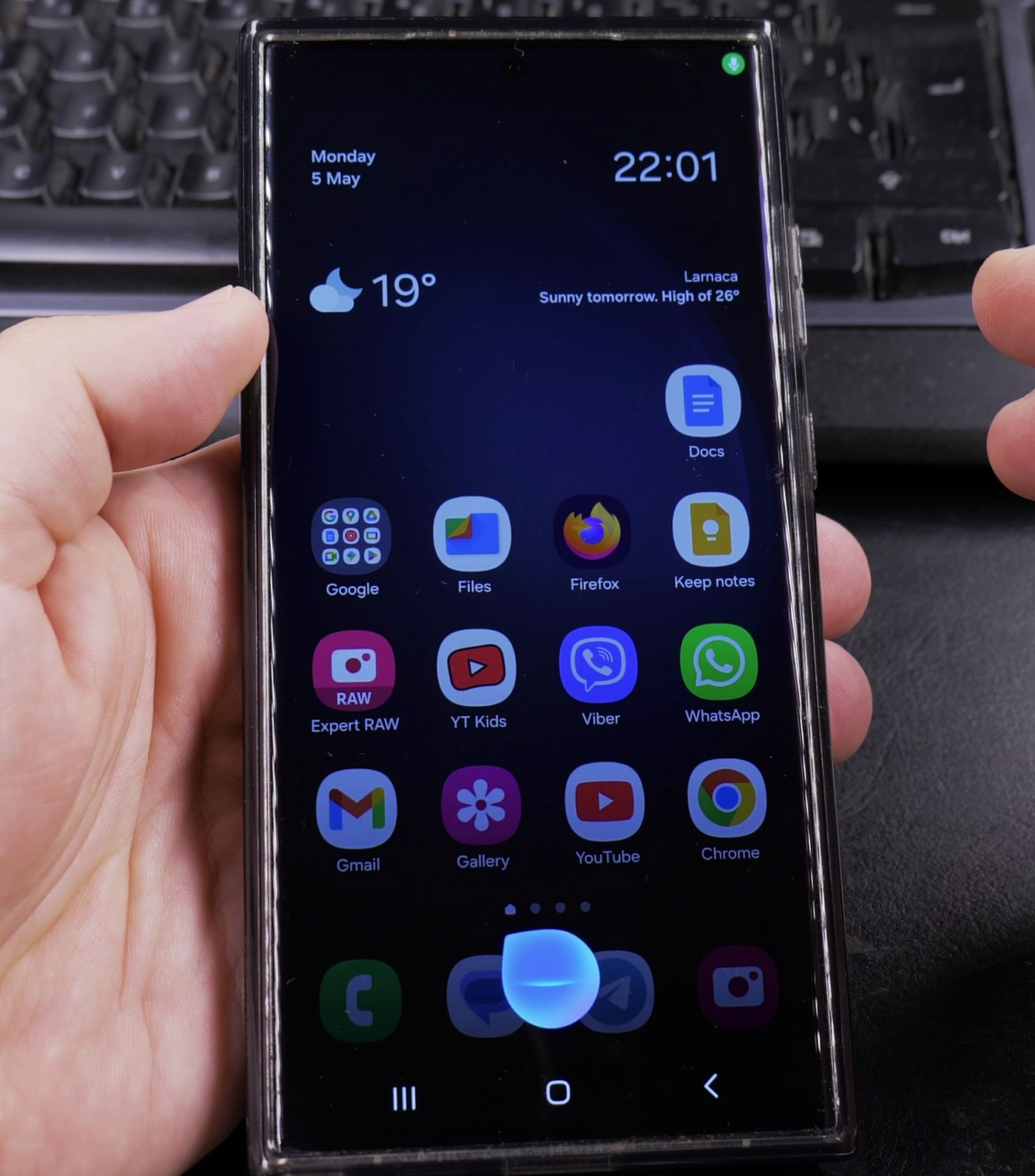
- Setting reminders and alarms
- Controlling smart home devices
- Sending messages hands-free
- Opening apps with voice commands
- Checking weather and calendar events
Switching Back to Power Off Function
If you prefer the traditional power menu:
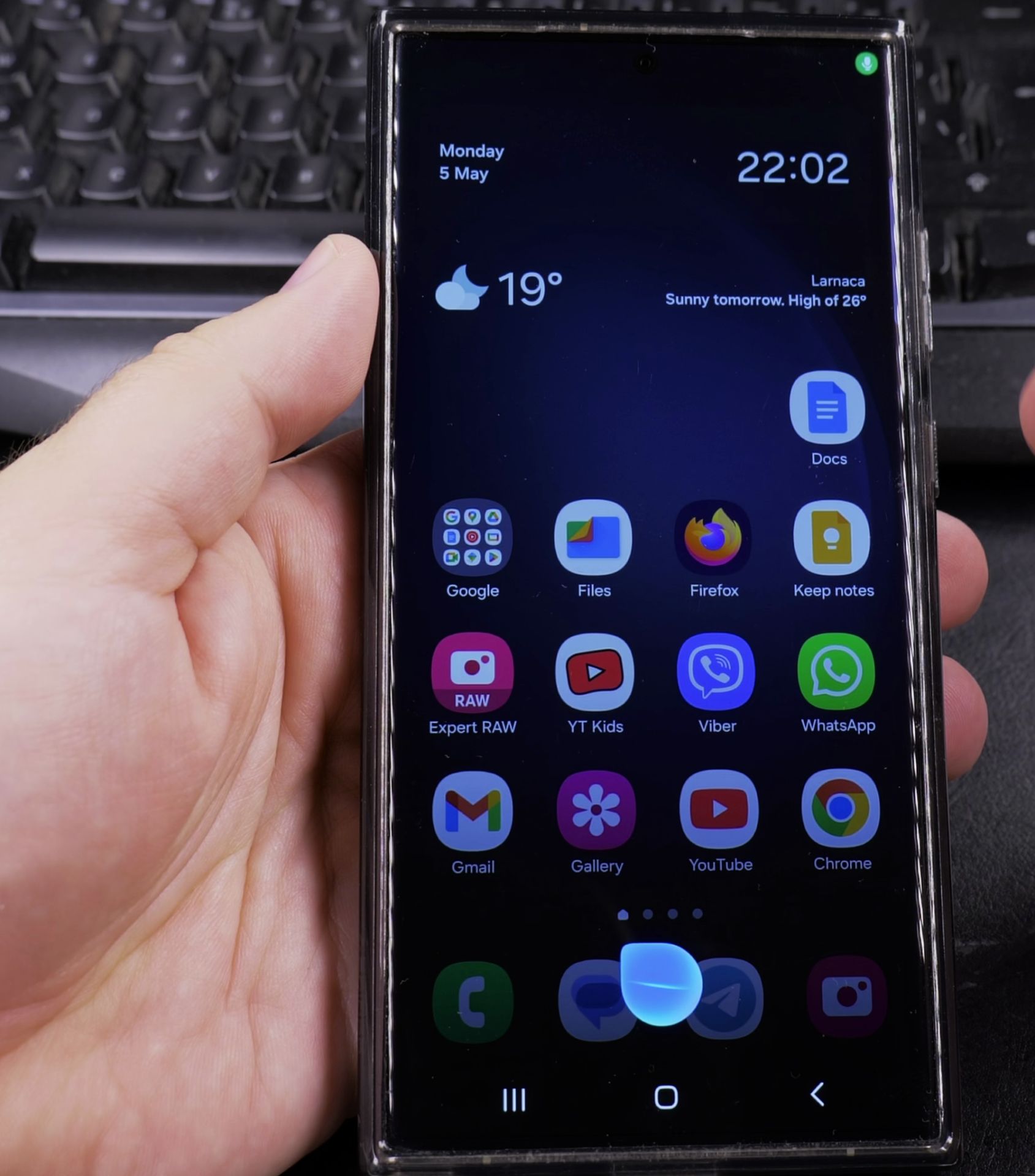
- Go to Settings > Advanced Features > Side Key
- Select Power off menu for the “Press and hold” option
- Your side button will now show the power menu when held
Setting Up Google Gemini Instead
To use Google Gemini with your side button:
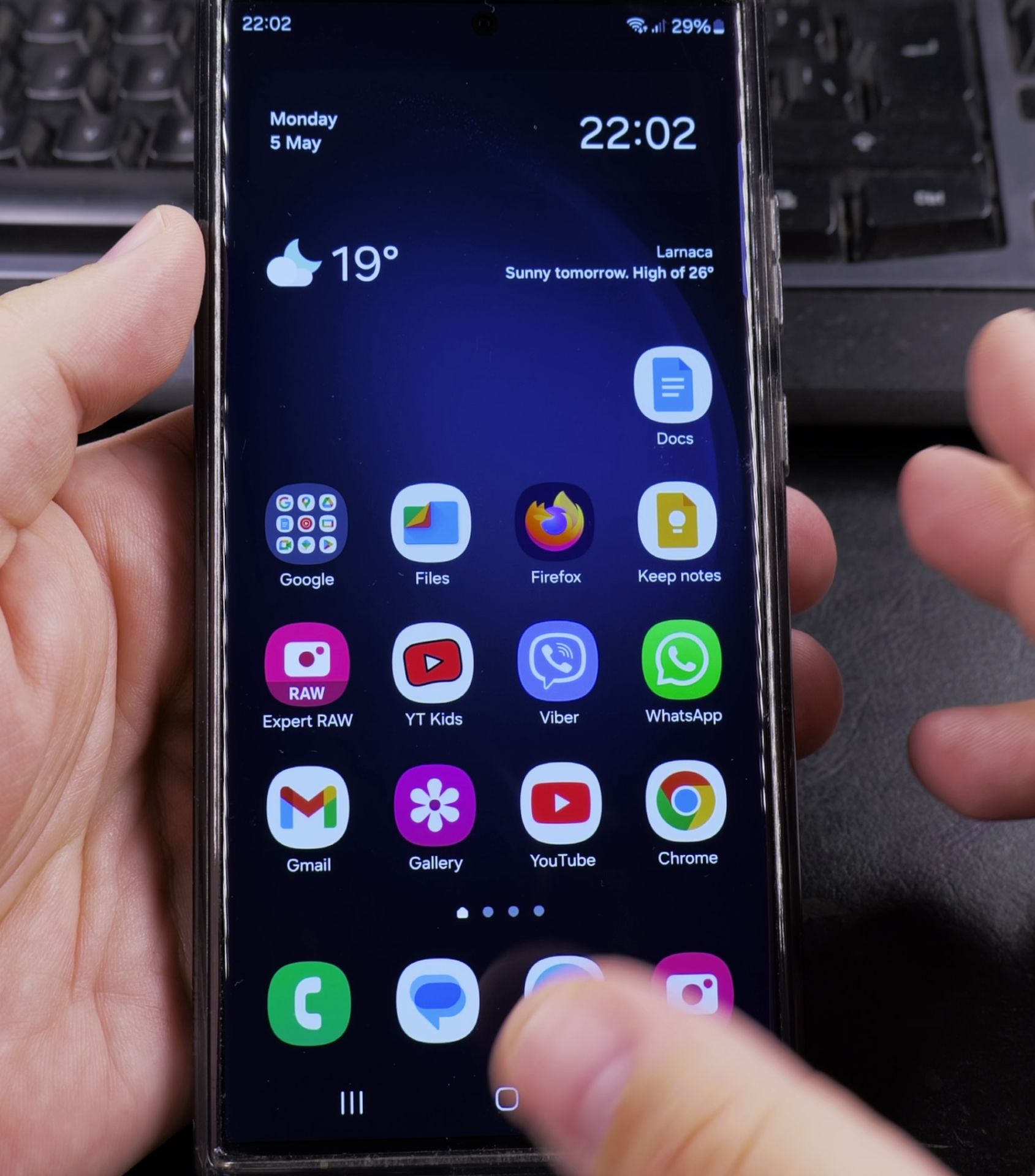
- Install Google Gemini from the Play Store
- Go to Settings > Advanced Features > Side Key
- Select Google Gemini as your preferred assistant
- Follow the setup instructions in the Gemini app
Troubleshooting Tips
If you’re having issues:
- Update Bixby through the Galaxy Store
- Clear Bixby app cache in Settings > Apps
- Check for software updates in Settings > Software Update
- Reset Bixby preferences in the Bixby app settings
Have you successfully set up Bixby with your side button? Let me know in the comments if you prefer Bixby, Google Gemini, or the standard power menu function for your Samsung phone’s side button.
Helpful Tips
Take your time and check the screen carefully after each tap so you can confirm the setting changed as expected. If an option appears in a slightly different spot on your device, watch the embedded video above for a closer look.
Related Guides
- Power Off Samsung Galaxy Without Power Button – How to Power Off Samsung Galaxy Without Using the Power Button.
- Switch From Bixby to Google Gemini on Samsung – How to Switch From Bixby to Google Gemini on Samsung One UI 7.
- Why I Don't Like Samsung Bixby – Why I Don't Like Samsung Bixby Common Problems.
- Samsung Android Guides – Browse more tutorials and practical guides in this section.


Leave a Reply