
Amazon links
As an Amazon Associate I earn from qualifying purchases:
- iPhone Accessories
- iPhone Charger
- iPhone Cases
- iPhone Screen protector
- iPhone Magsafe
- iPhone Wallet
- iPhone Usb c cable
Learn how to stop apps from using your iPhone‘s microphone and take control of your privacy settings. I’ll show you how to manage app permissions and what to do if apps stop working after changes.
How to Remove Microphone Access from Apps on iPhone.
Quick Steps and Scenarios Overview
| What You Need to Do | Quick Jump |
|---|---|
| How to Remove Microphone Permissions | Jump to Step 1 |
| Which Apps Should You Disable? | Jump to Step 2 |
| How to Fix Apps That Stop Working | Jump to Step 3 |
| Checking Camera Permissions Too | Jump to Step 4 |
| When to Re-enable Microphone Access | Jump to Step 5 |
| Important Privacy Tips | Jump to Step 6 |
Demo performed on iOS 18.4.1 with iPhone 16 Pro Max Titanium Black 256GB (Global model A3296 – MYWV3ZD/A)
How to Remove Microphone Permissions
Follow these steps to disable microphone access for any app:
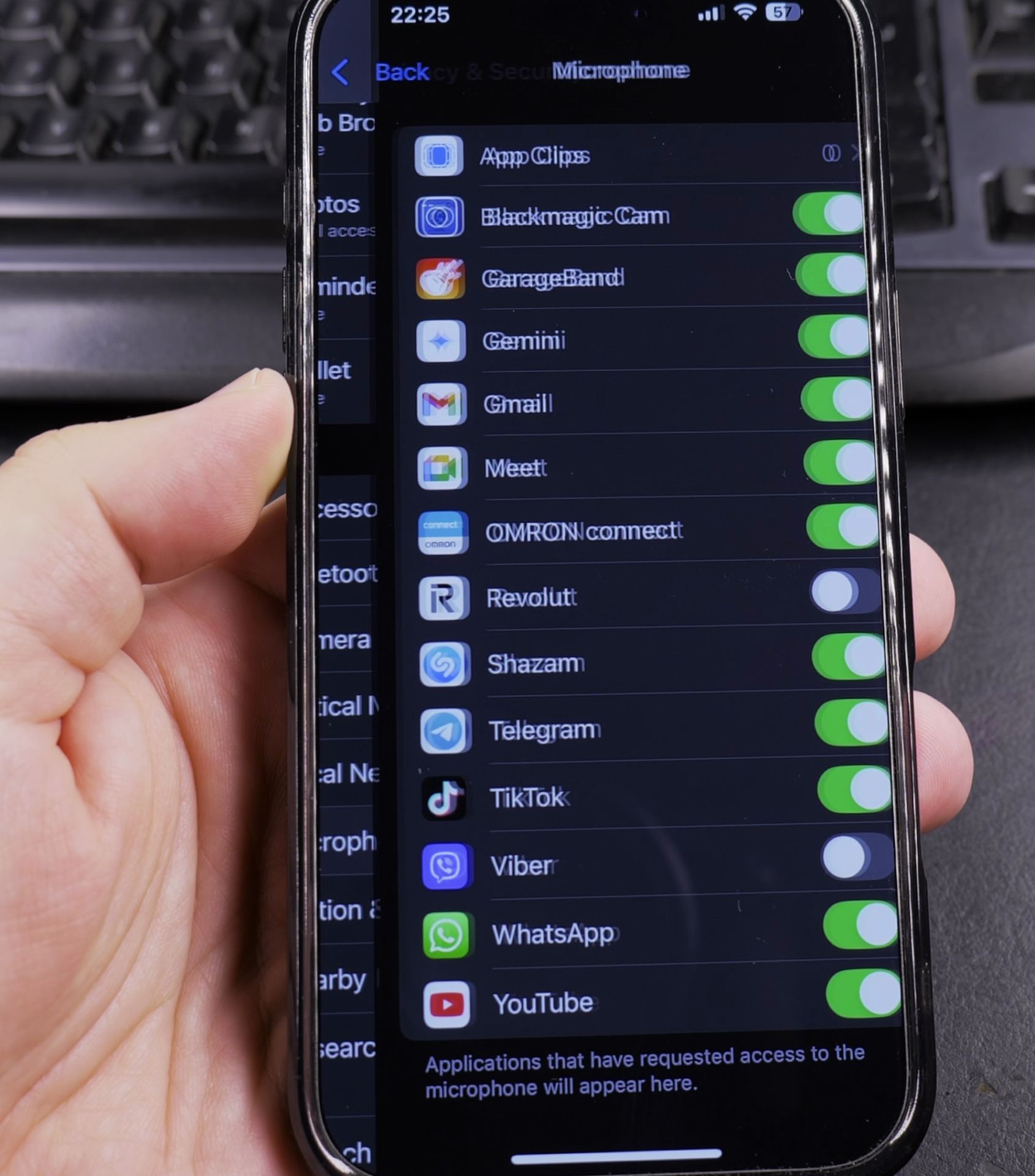
- Open Settings on your iPhone
- Scroll down and tap Privacy & Security
- Select Microphone
- You’ll see a list of all apps with microphone access
- Toggle off the switch next to any app you want to block
Which Apps Should You Disable?
Consider removing microphone access for:
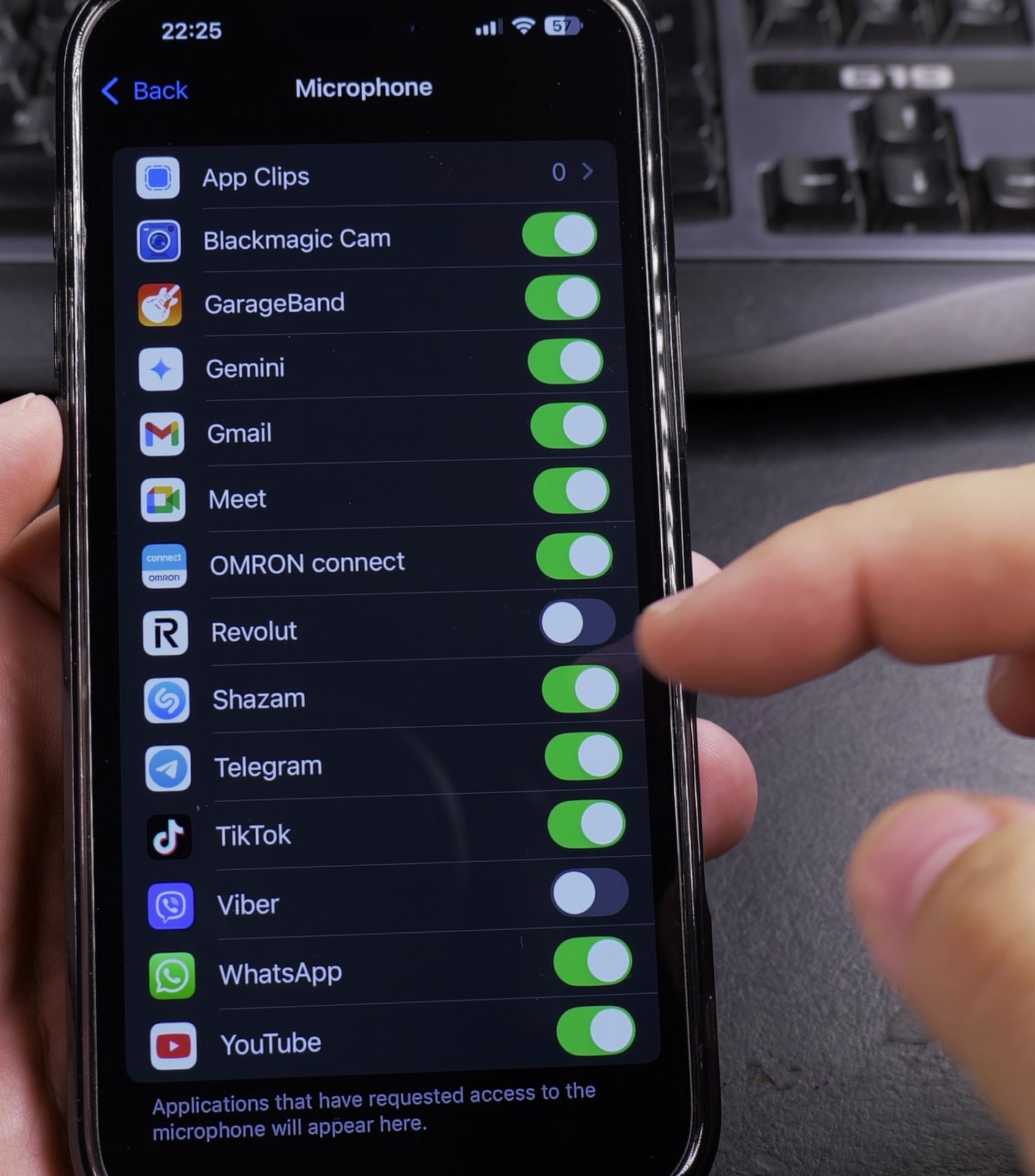
- Apps that don’t need audio features
- Apps you rarely use
- Apps you don’t fully trust
- Games and utilities that shouldn’t require microphone access
What Happens When You Disable Microphone Access
Learn what changes when you turn off permissions:
- The app can no longer record audio
- Voice features will stop working
- Video calls won’t transmit your voice
- The orange dot won’t appear for that app
How to Fix Apps That Stop Working
If an app needs microphone access to function:
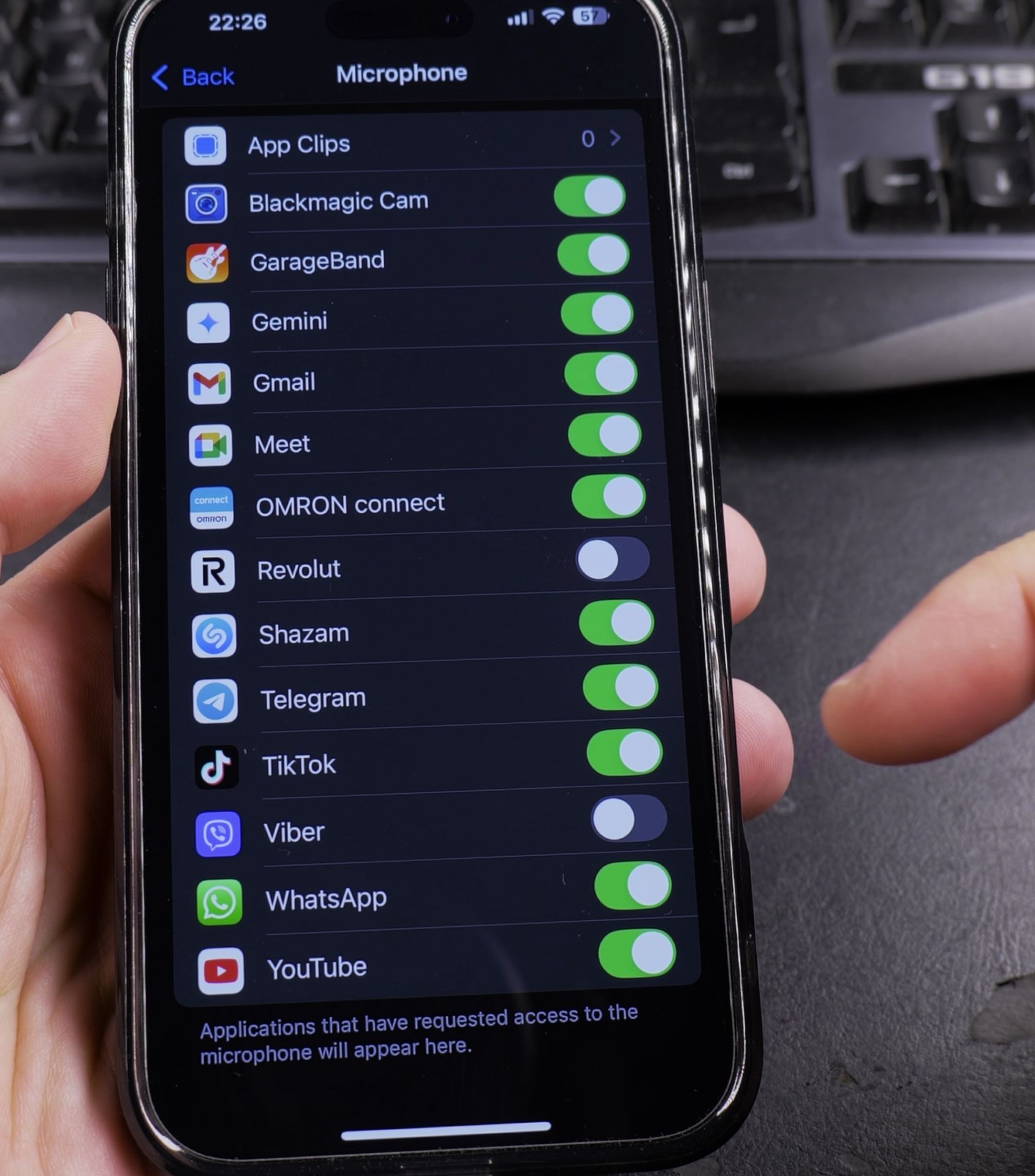
- Return to Settings > Privacy & Security > Microphone
- Toggle the app’s microphone permission back on
- Alternatively, look for audio-free alternatives to the app
Checking Camera Permissions Too
For complete privacy control:
- Go to Settings > Privacy & Security > Camera
- Review which apps have camera access
- Disable permissions for apps that don’t need it
When to Re-enable Microphone Access
You might need to turn microphone access back on for:
- Video calling apps (Zoom, FaceTime, WhatsApp)
- Voice recording apps
- Navigation apps with voice commands
- Smart assistant apps
Important Privacy Tips
- Regularly review your microphone permissions
- Pay attention to the orange dot indicator
- Only grant microphone access when absolutely necessary
- Check app permissions after iOS updates
Have you found any unexpected apps using your microphone? Let me know in the comments which apps you decided to block and why. For more iPhone privacy guides, check out our other simple tutorials.
Helpful Tips
Take your time and check the screen carefully after each tap so you can confirm the setting changed as expected. If an option appears in a slightly different spot on your device, watch the embedded video above for a closer look.
Related Guides
- Check Which App Uses iPhone Microphone – How to Check Which App is Using Your iPhone Microphone.
- How to Record Your iPhone Screen With Microphone – How to Record Your iPhone Screen With Microphone Audio.
- iPhone How-To Guides – Browse more tutorials and practical guides in this section.


Leave a Reply