
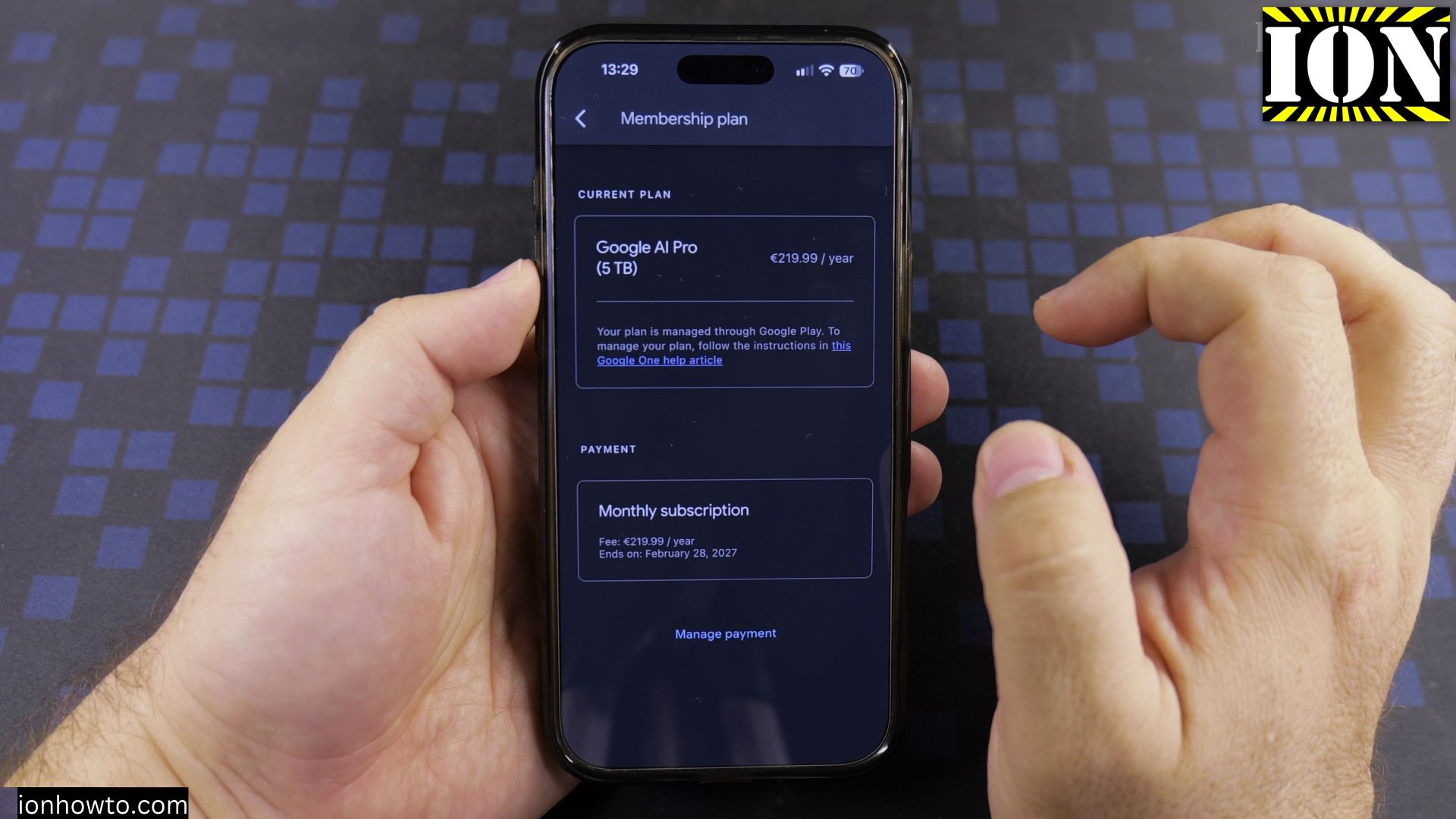
If you want to stop your Google One or Google AI Pro subscription from renewing automatically, you can cancel it anytime while keeping your paid access until the billing period ends. In this step-by-step guide, I’ll show you how to open your Google Play Subscriptions from Google One, confirm cancellation without losing current benefits, and check your expiration date.
What you will do
- Open Google One and tap Manage payment
- Check your billing options or tap Cancel subscription
- Skip the reason prompt and confirm Cancel
1. Open Google One and tap Manage payment
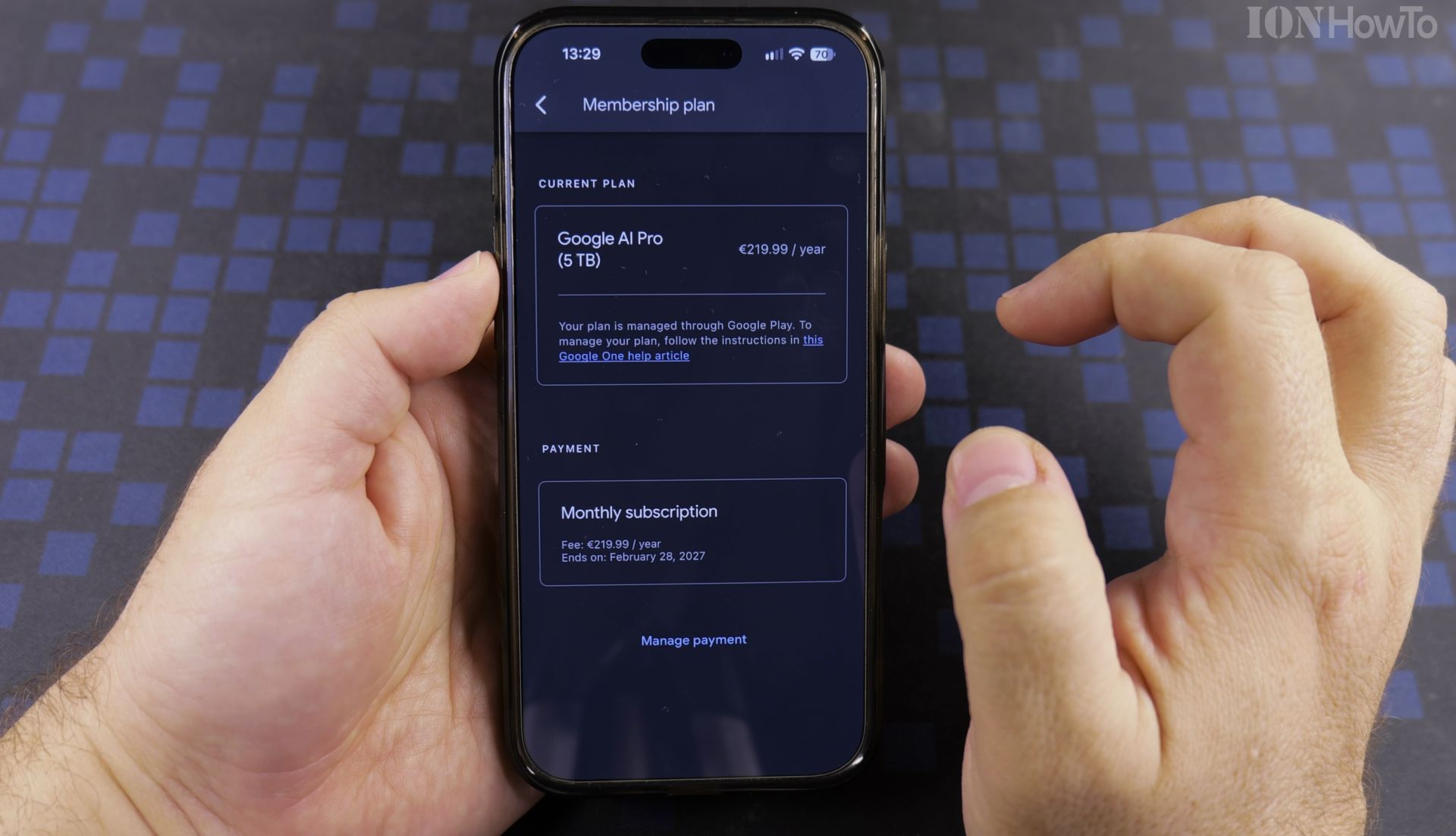
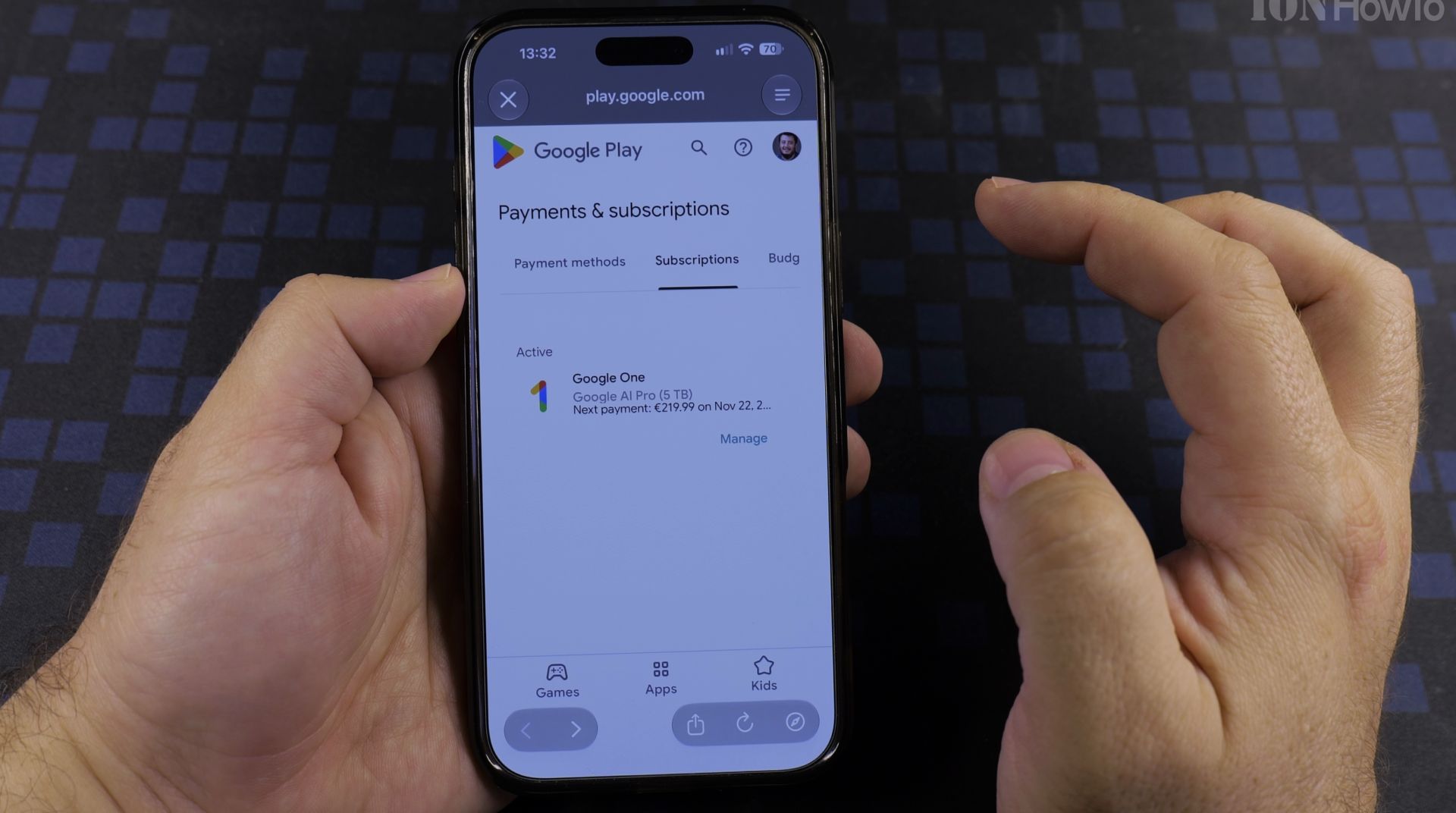
Open one.google.com in your phone browser, open the main menu, and select Membership plans or Manage your Google AI Pro plan. Tap Manage payment to jump straight to your Subscriptions page at play.google.com, where you can view your next renewal date and upcoming €219.99 charge.
2. Check your billing options or tap Cancel subscription
On the Google Play subscription details page, you can change your card, add a backup payment card, or switch billing options. To stop auto-renewal completely, tap Cancel subscription near the bottom of the subscription panel.
3. Skip the reason prompt and confirm Cancel
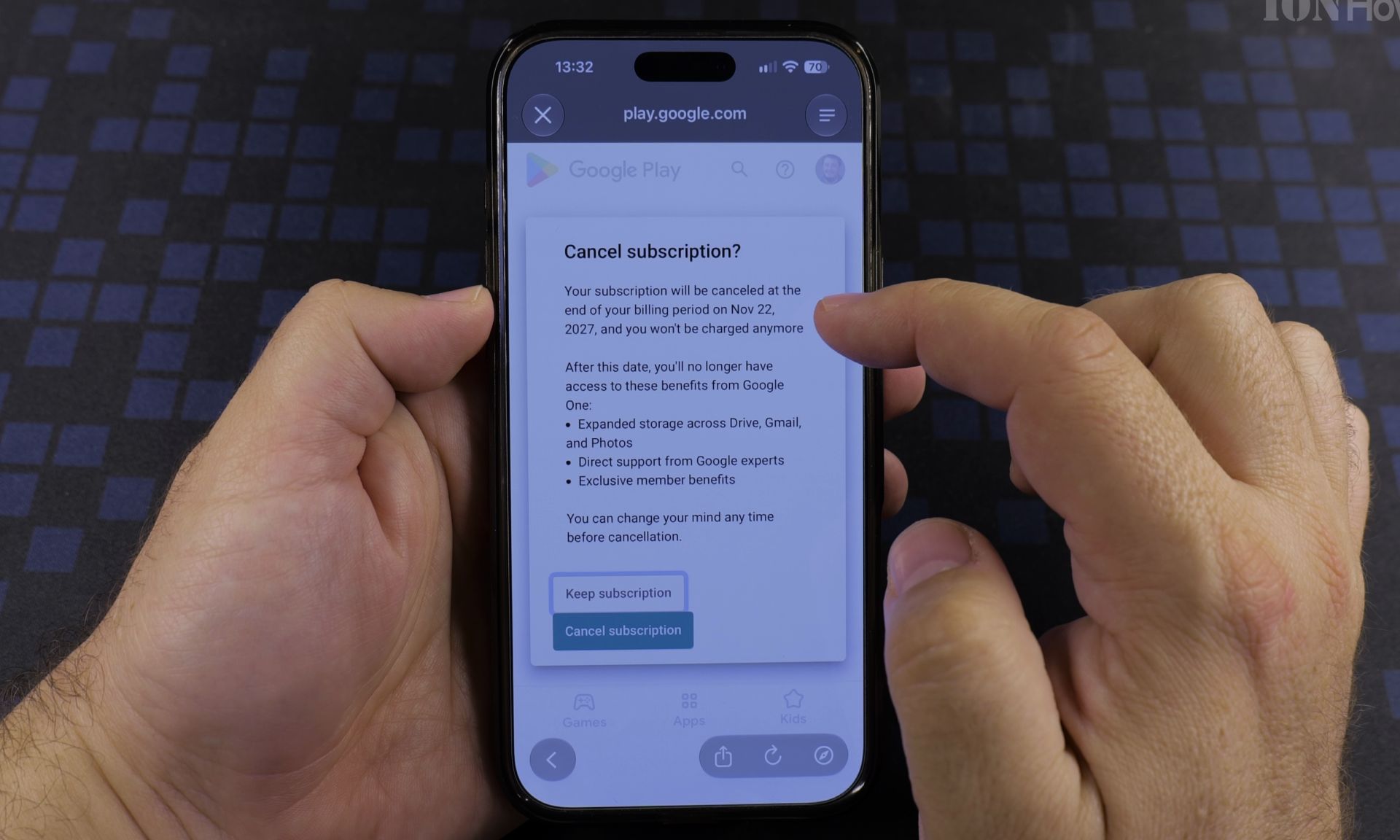
Tap Continue without needing to select a cancellation reason, and read the notice confirming the exact date your subscription ends. Tap Cancel subscription again to confirm, knowing that your 5 TB storage, family sharing, and AI benefits remain active until the paid year finishes.
Helpful Tips
- Cancelling a yearly or monthly Google One subscription never removes access early; you keep everything you already paid for until the end of the billing cycle.
- After the end date shown on screen, extra Google Drive, Gmail, and Photos storage drops back to free limits, so review storage usage beforehand.
- Google sends a confirmation email right after cancellation, and you can tap Resubscribe inside Google Play anytime before expiration.
Related Guides
- HiLight Notifications Gemini AI Assistant Light and Flashlight on Google Pixel 11 Pro XL – On the Google Pixel 11 Pro XL, notification indicators have evolved into HiLight – an intelligent lighting system surrounding…
- How to Cancel Roblox Plus Subscription Renewal or Free Trial (Roblox Plus vs Premium) – If you signed up for a Roblox Plus membership or free trial and want to make sure you are not charged automatically at the…
- Google Pixel 11 Pro XL Canyon 512GB 16GB RAM Unboxing and Box Contents Overview – Curious what comes inside the box when you pick up the 512GB Google Pixel 11 Pro XL in Canyon?
- Google Interview Questions – Browse more tutorials and practical guides in this section.
Watch the Extended Step-by-Step Guide (Upgrade Checks and Expiration Rules)
If you want the complete walkthrough where I check backup payment cards, compare upgrading to 10 TB or Google AI Ultra, and review every benefit that ends after cancellation, watch my extended step-by-step video guide below.


Leave a Reply