
If you signed up for a Roblox Plus membership or free trial and want to make sure you are not charged automatically at the next billing cycle, you can cancel automatic renewal in just a few clicks. In this guide, I’ll show you how to cancel a Roblox Plus subscription or free trial and explain how Roblox Plus compares to the older Roblox Premium plans.
Log In to Roblox and Open Account Settings
Sign in to your Roblox account on your computer or mobile browser, click the gear icon in the upper-right corner, and click Settings from the dropdown list.
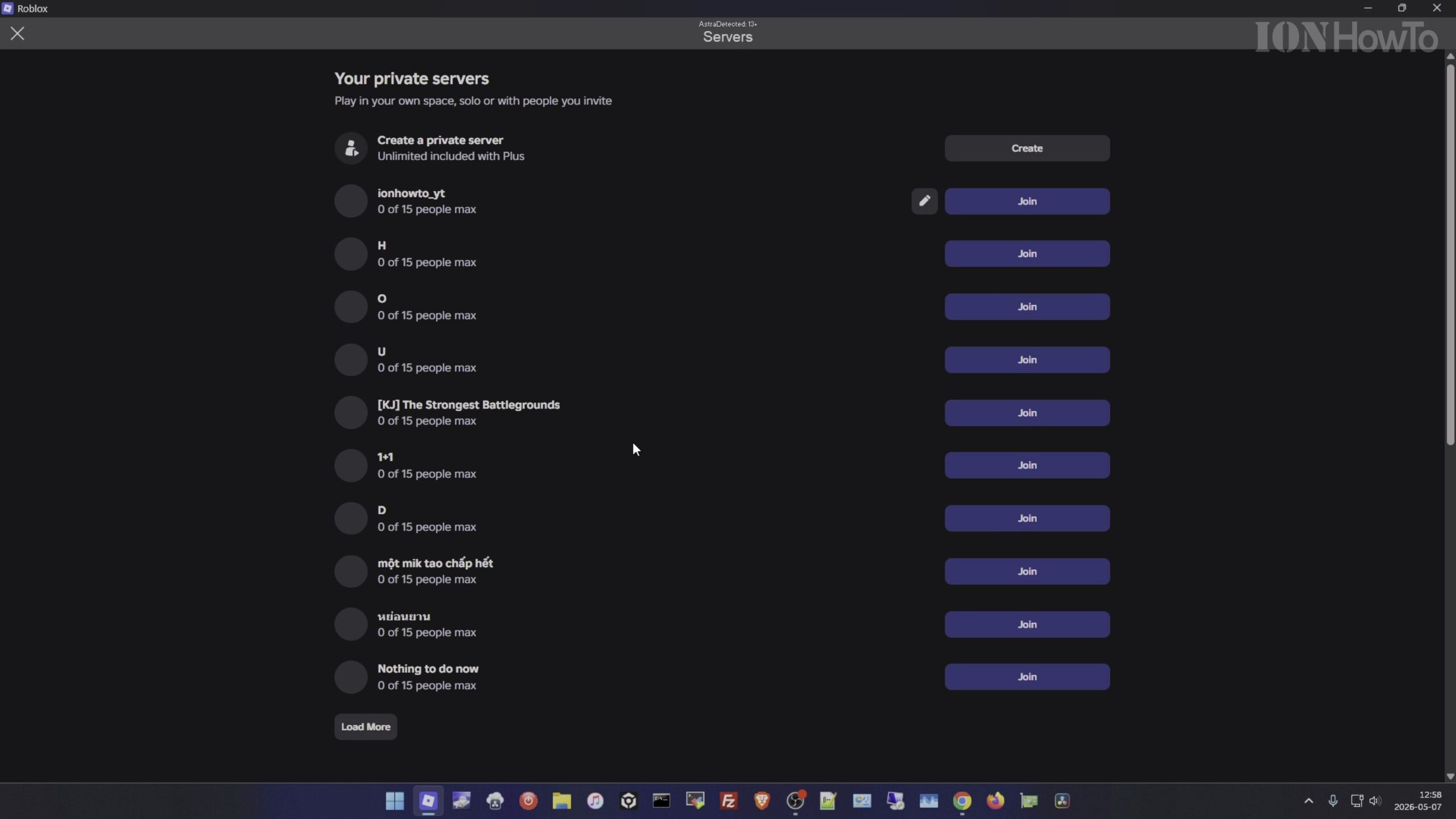
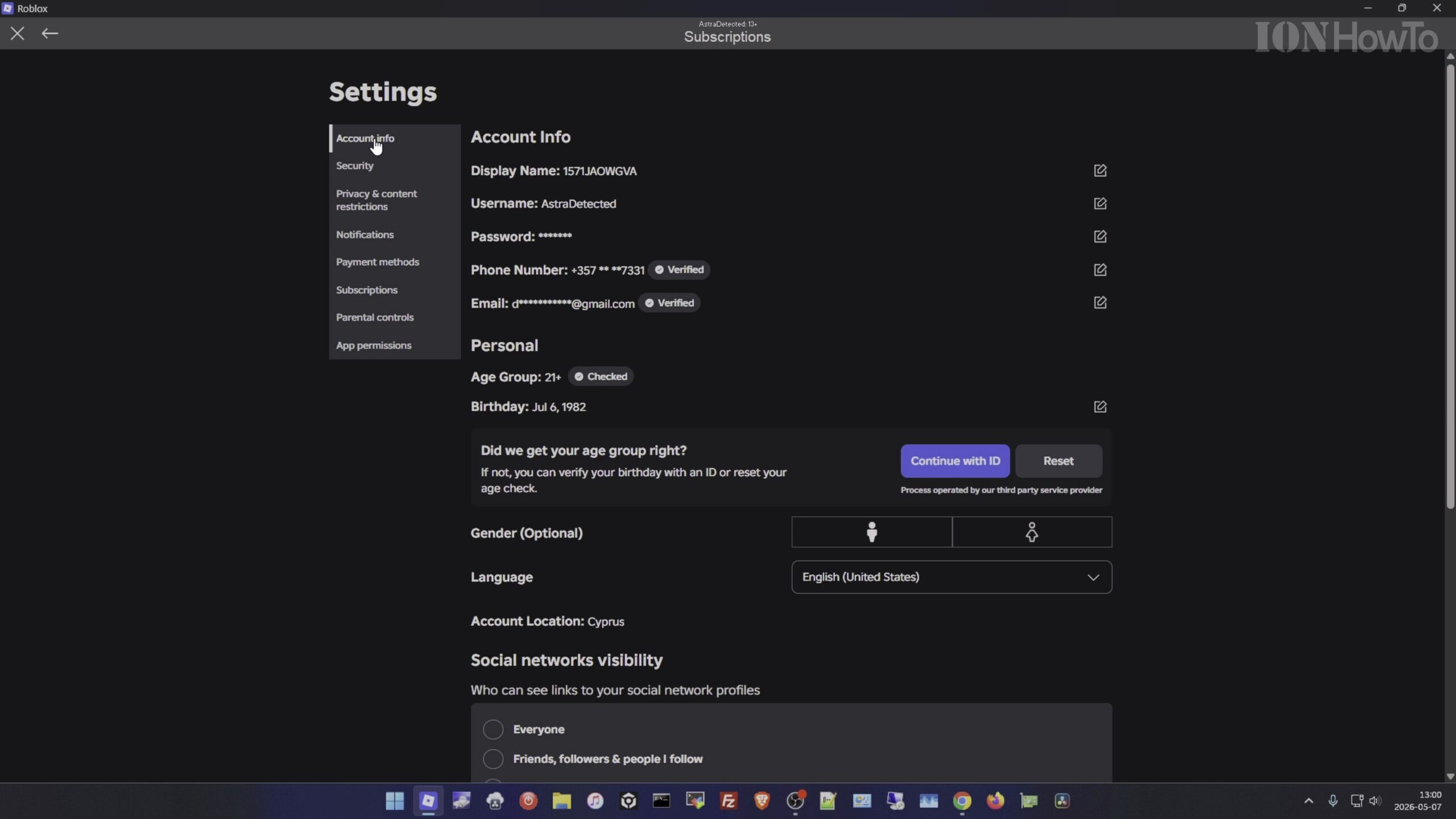
Click the Subscriptions Tab in the Left Sidebar
In the Account Settings sidebar, select Subscriptions to view all active memberships on your account, including Roblox Plus and any legacy Roblox Premium plans.
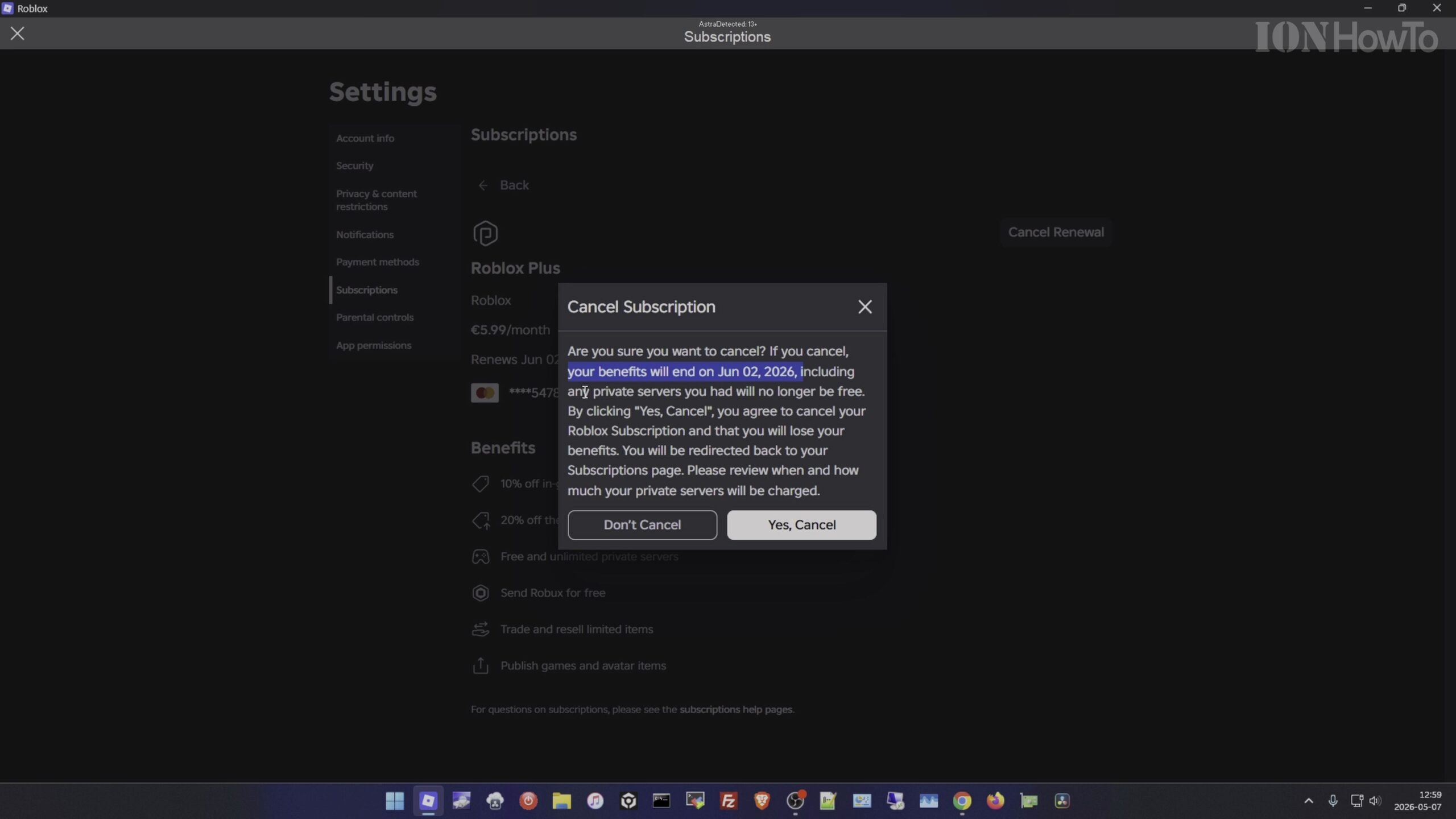
Review Your Roblox Plus Plan Details and Renewal Date
Click on your Roblox Plus subscription entry to see when the current billing period or free trial expires and how its item discount benefits compare to traditional Robux stipends.
Click Cancel Renewal and Confirm Your Choice
Click the Cancel Renewal button on the subscription details page and follow the confirmation prompt. Cancelling stops all future automatic monthly charges while letting you keep your active benefits until the listed expiration date.
Verify That the Subscription Status Shows Expires On
Check the Subscriptions page one last time to confirm that the status label has changed from ‘Renews on’ to ‘Expires on’, confirming that your card will not be billed again.
Helpful Tips and Related Guides
If you also want to delete your credit card from Roblox after cancelling your Roblox Plus renewal, head over to the Payment Methods tab once cancellation is complete. Check out our related guides on How to Renew a Cancelled Roblox Plus Subscription Before Expiry, Fixing Roblox Integrity Errors 317 and 319, and our full Roblox How-To Guides archive.


Leave a Reply