
Typing text messages, search queries, or emails on an Android phone is much easier when your virtual keyboard is set to the correct language. If you speak or write in more than one language, having the wrong keyboard active causes frustrating auto-correct mistakes, changes words into English unexpectedly, and hides necessary accent marks. In this guide, I show you how to add multiple languages to Gboard (Google Keyboard) and switch between them smoothly.
Why Adding Multiple Keyboard Languages Makes Typing Easier
When you type on an Android phone, the built-in dictionary constantly evaluates your keystrokes to predict words and correct typos. If you type in Spanish, French, German, or Romanian while the keyboard is set strictly to English, the auto-correct engine will forcefully substitute English words. Setting up your target language gives you native spell-checking and tailored word suggestions.
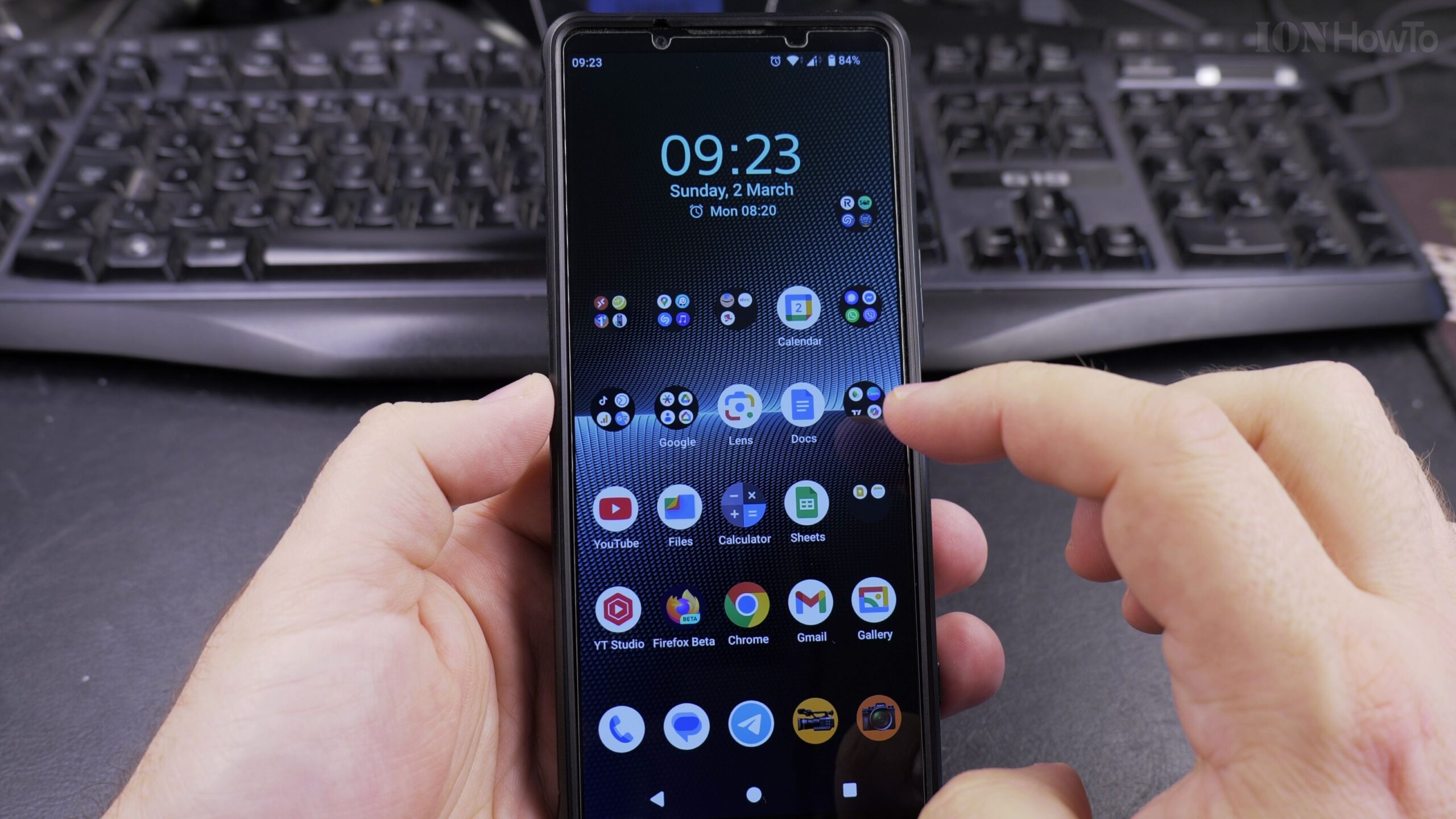
Step 1: Access Accented Letters with a Long Press
On most standard keyboards, special regional letters (such as vowels with accents, cedillas, or tildes) are tucked behind standard letters. You can access these characters at any time by pressing and holding down a key on your keyboard. A small popup bubble will appear showing all variations of that letter. Slide your finger over to the character you need and release.
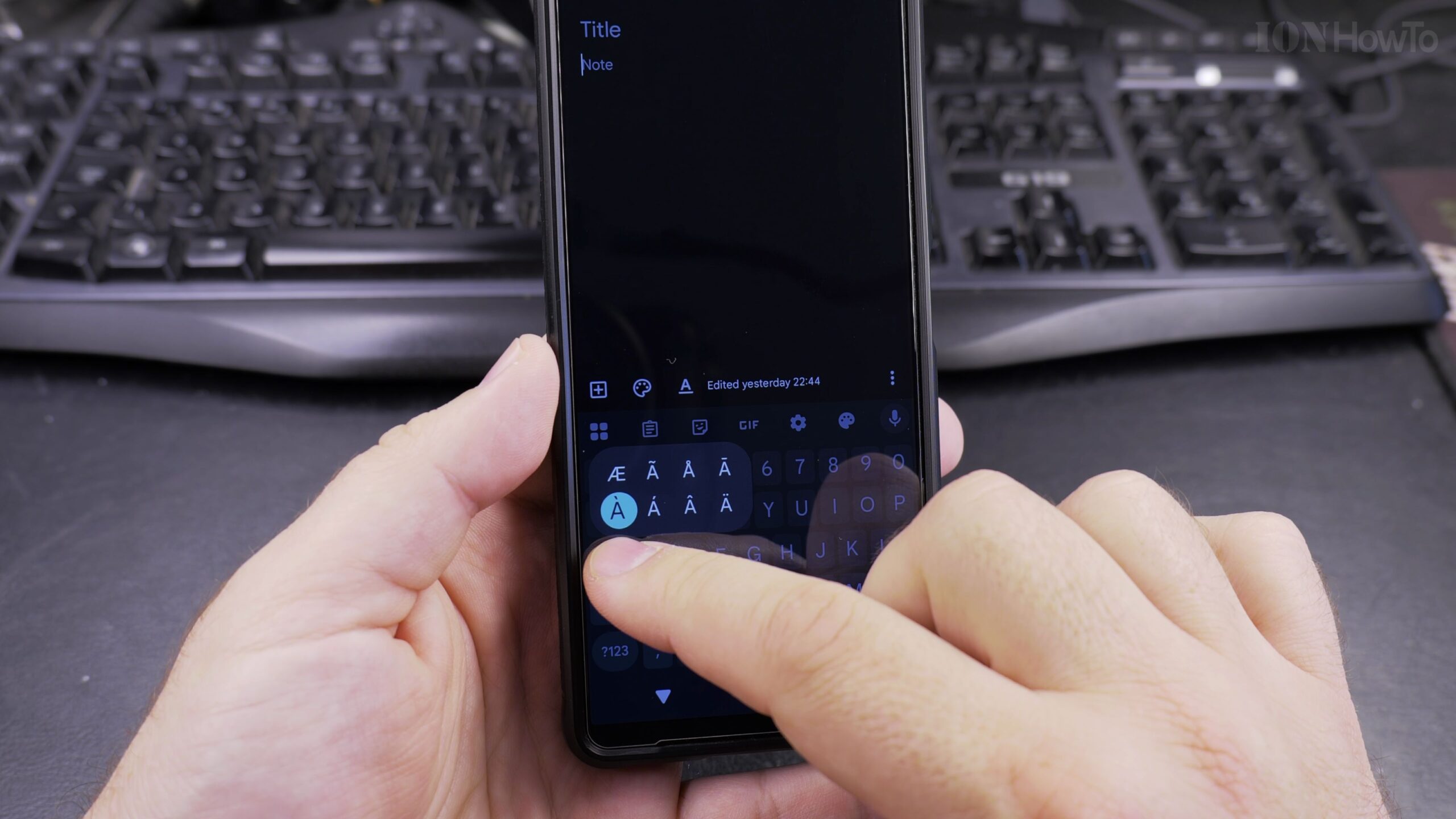
Step 2: Open the Language Selector via the Spacebar
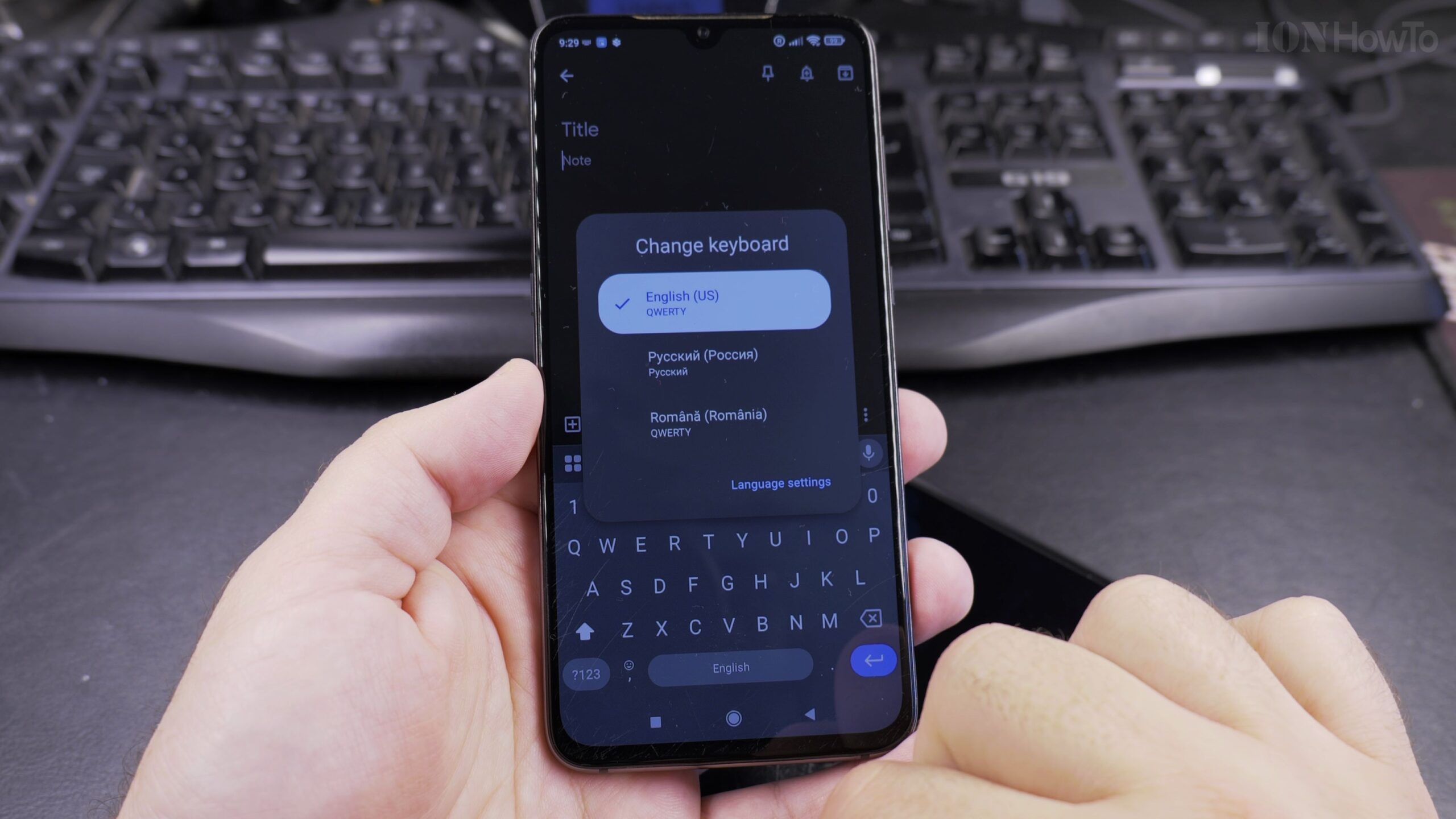
The quickest way to switch or configure keyboard languages on Android is right from the typing area. Tap and hold the Spacebar for approximately one second. A menu titled Change Keyboard will pop up in the center of your screen, displaying all currently installed keyboard layouts and input languages.
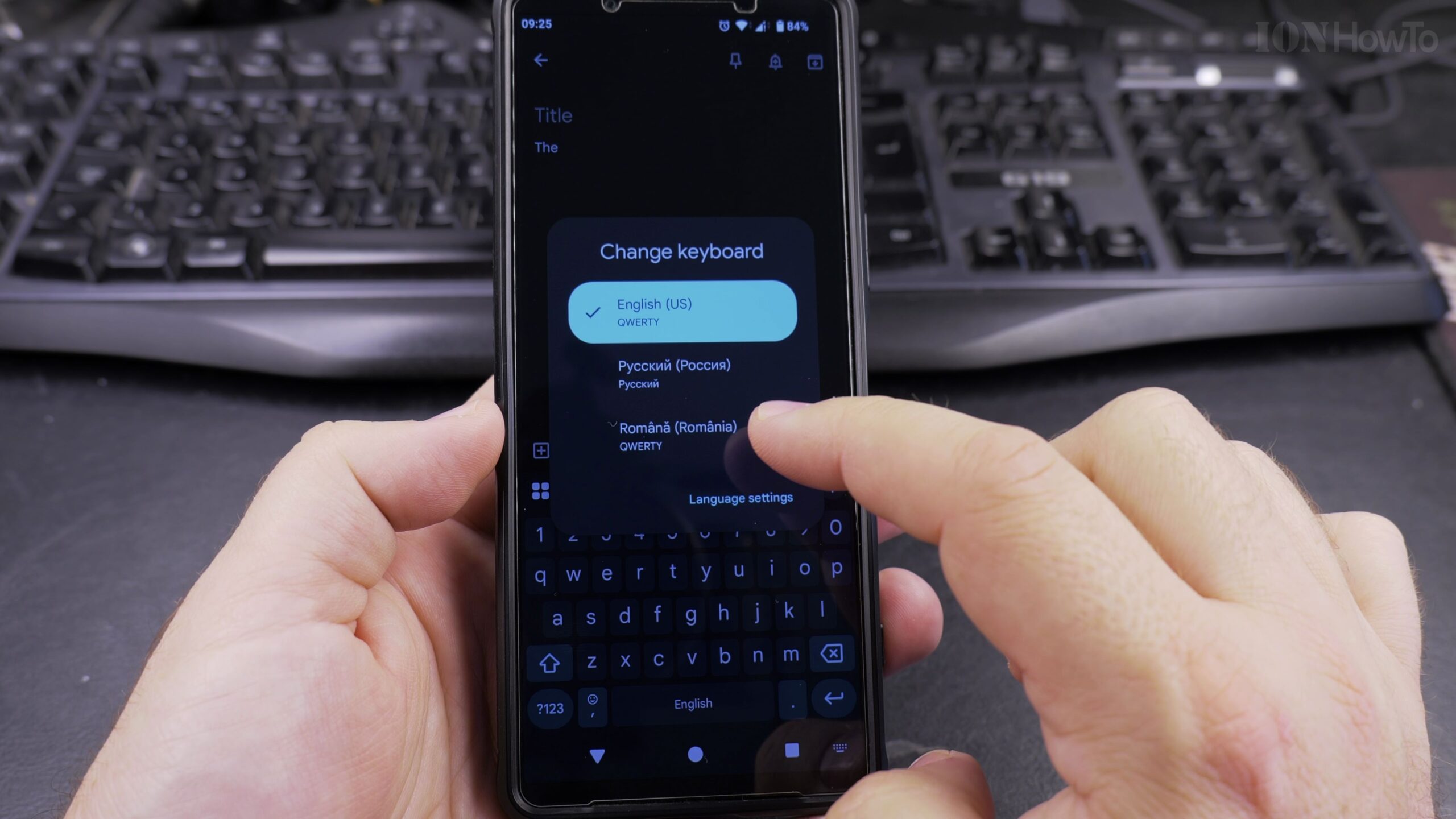
Step 3: Add New Languages in Gboard Settings
At the bottom of the Change Keyboard popup window, tap on Language Settings. Here, tap the Add Keyboard button. Scroll through the alphabetical list or use the search bar to locate your desired language. Select your preferred layout (such as QWERTY or native regional arrangement) and tap Done. You can add as many languages as you need.
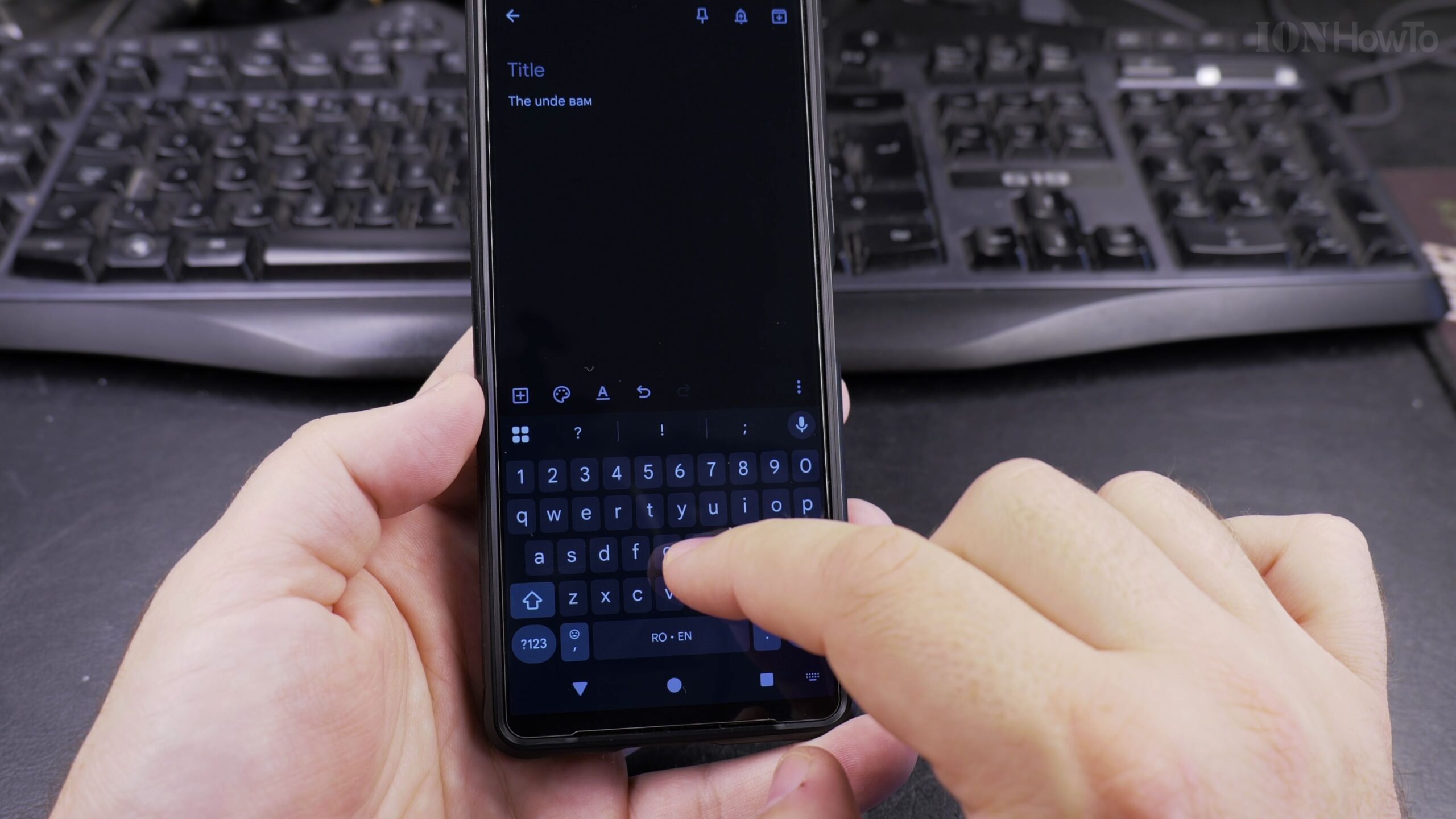
Step 4: Type Seamlessly with Dual-Language Predictive Text
Modern Gboard keyboards support multilingual typing automatically. Once multiple languages sharing the Latin alphabet are installed, the suggestion bar above the keys will offer word completions in both languages simultaneously. You no longer need to switch back and forth manually for casual bilingual chatting.
Helpful Keyboard Tips and Related Android Guides
If you prefer switching languages manually, you can also enable the dedicated Globe key in Gboard settings under Preferences > Show language switch key. Tapping this globe icon cycles directly to your next installed language with a single tap.
To further customize your phone, check out our guide on how to add a picture to a contact on Android, learn how to use the built-in stopwatch on Android, or browse our comprehensive Android how-to guides.


Leave a Reply