
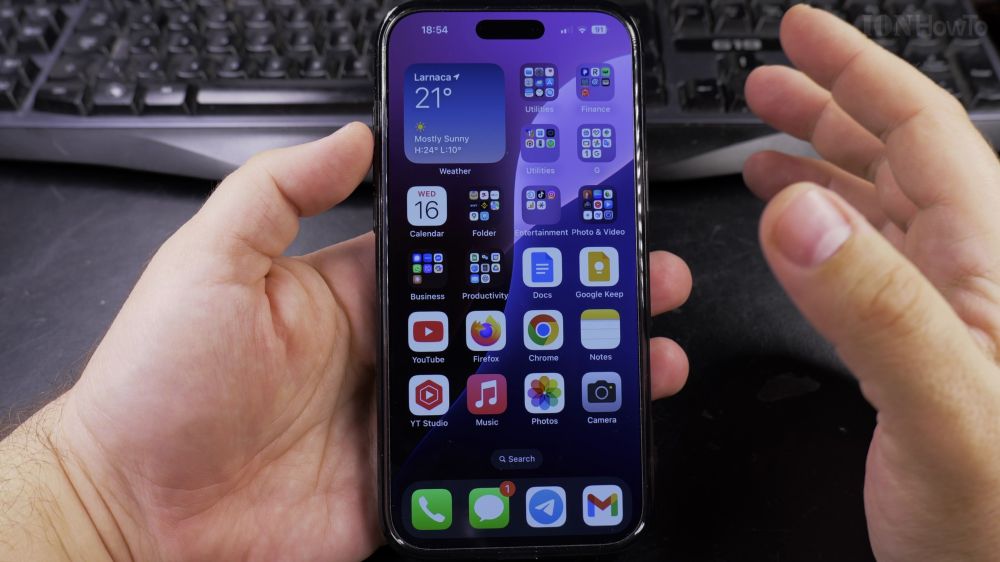
If your iPhone storage is running low or your screen is crowded with old apps, uninstalling them takes just a few seconds. I’ll show you how to delete apps from your home screen and App Library in a few quick taps.
1. Locate the App to Remove
Find the app you want to uninstall on your home screen or swipe left to the **App Library**.
2. Press and Hold the App Icon
Touch and hold the app icon firmly for two seconds until a popup action menu appears.
3. Tap Remove App
In the menu list, tap **Remove App** (written in red text).
4. Select Delete App
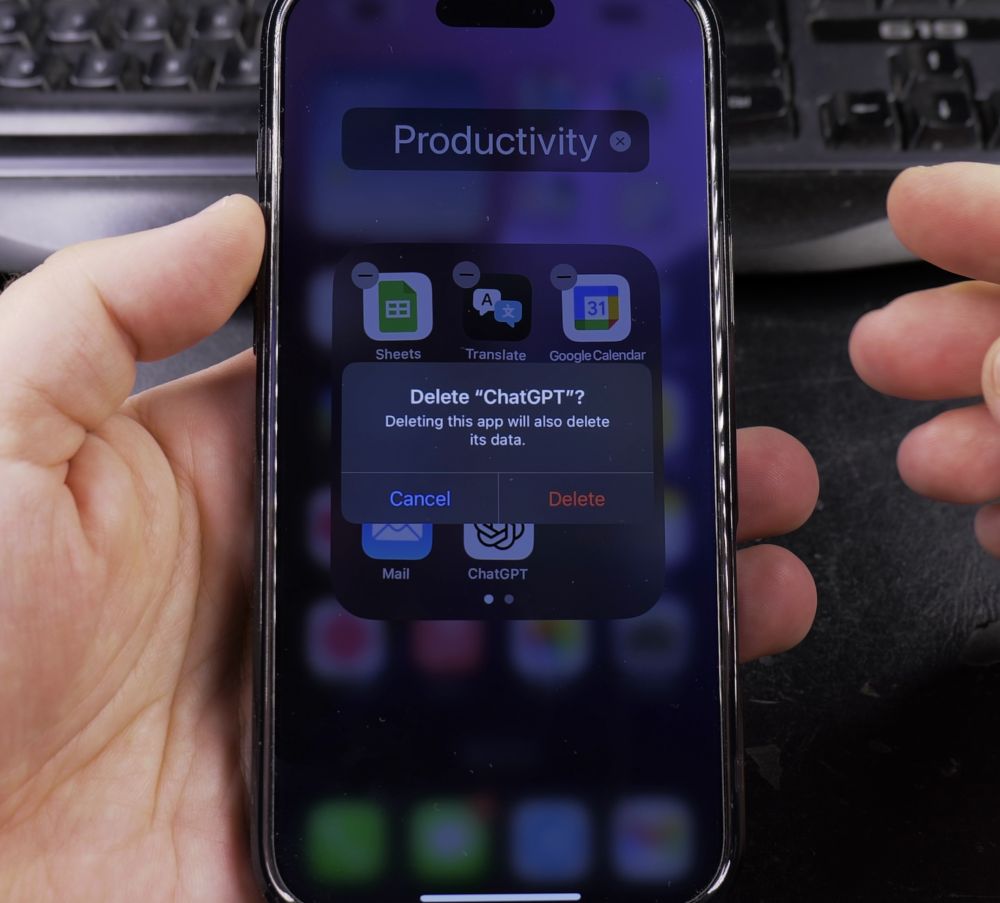
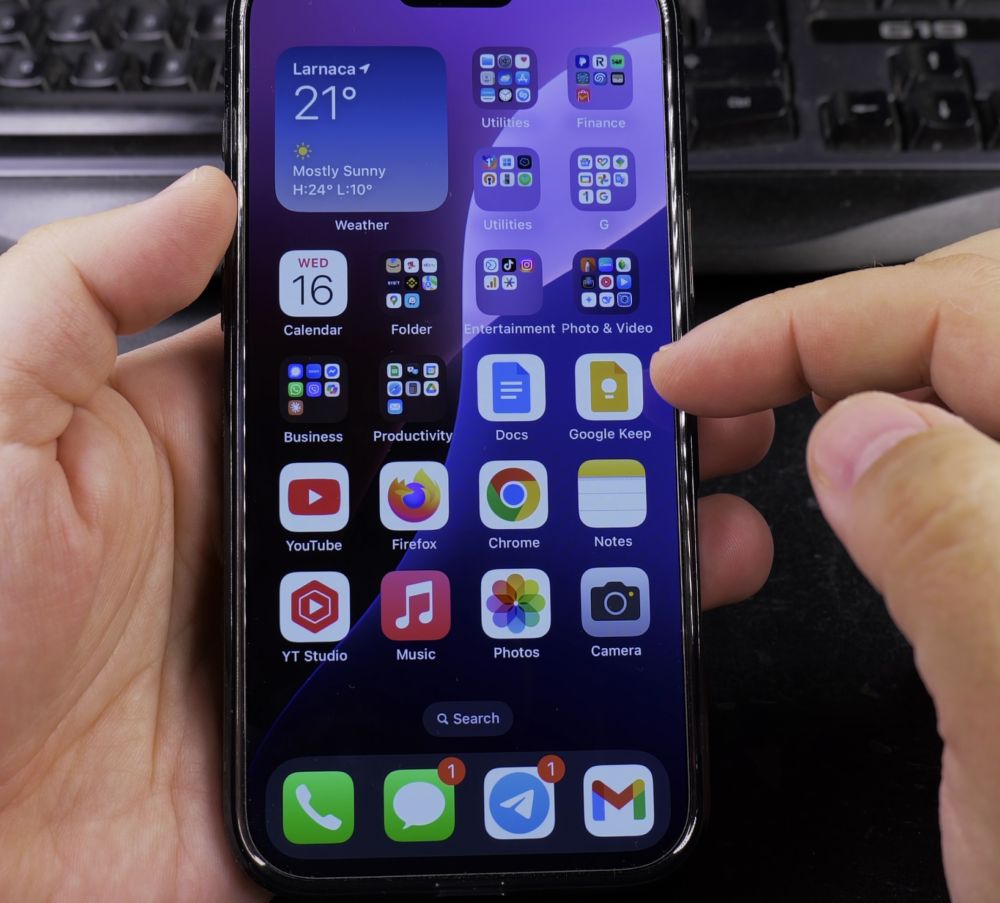
In the confirmation popup, tap **Delete App**, then tap **Delete** again. This completely erases the app and frees up storage space.
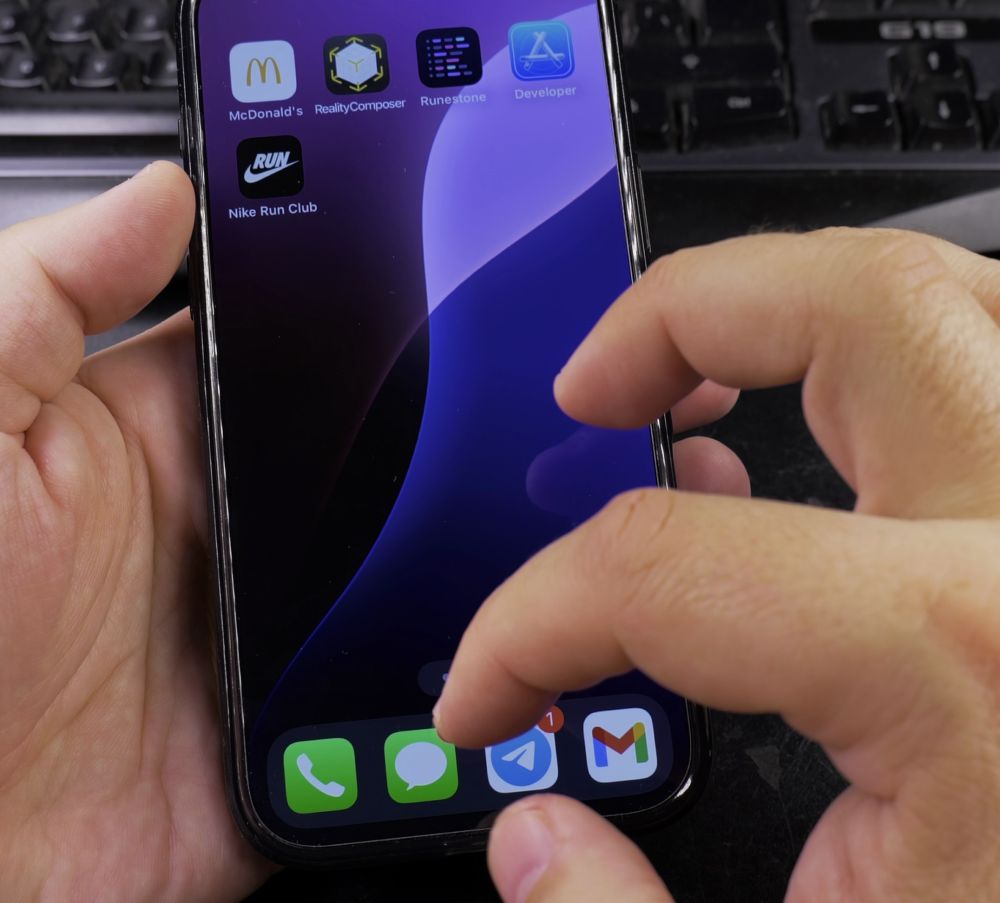
5. Alternative Jiggle Mode Method
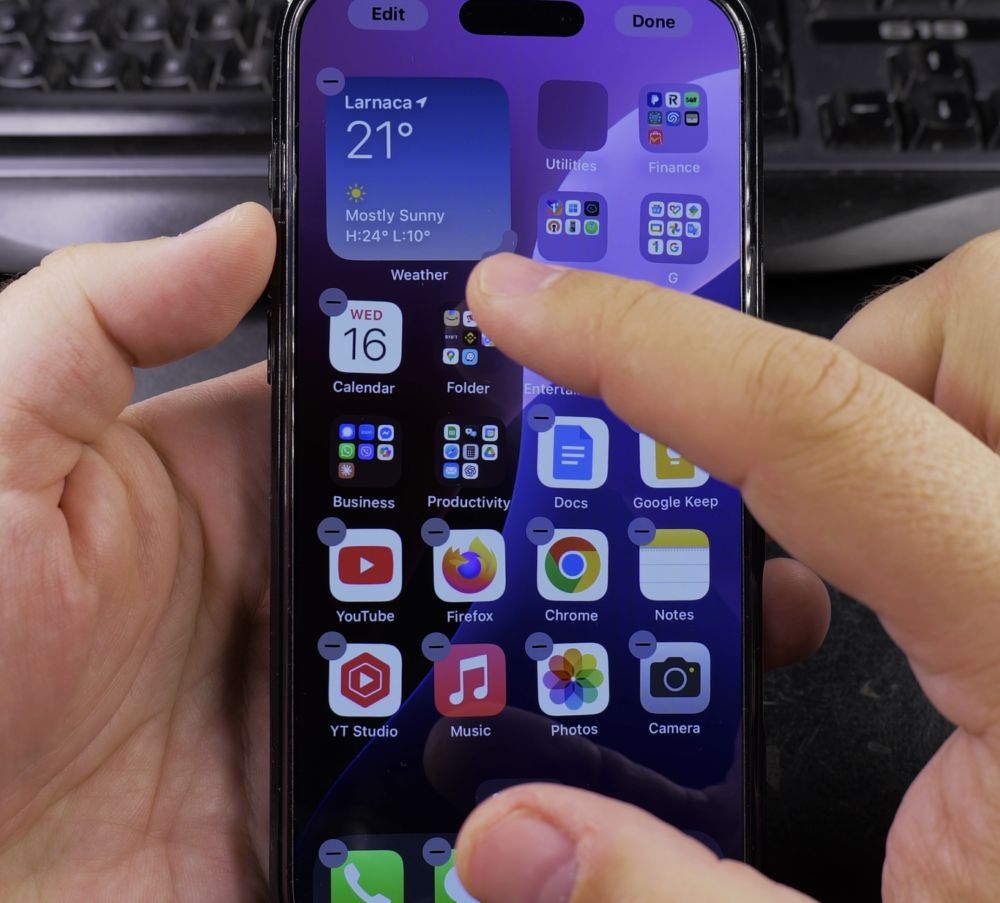
You can also touch and hold any empty background area on your screen until the icons shake, then tap the small minus (–) badge on the app corner.
Helpful Tips
Choosing ‘Remove from Home Screen’ only hides the icon while keeping the app installed in your App Library. If you want to reclaim storage space, always choose **Delete App**. For more storage and organization tips, explore our iPhone Guides hub.


Leave a Reply