

Amazon links
As an Amazon Associate I earn from qualifying purchases:
- Phone Cases
- Mobile Tripods
- Usb-c charger
- Usb-c cable
- Docking stations
- Wireless car chargers
- Wireless charger stand
- SIM card removal tool
- SIM card holder
You know when autocorrect decides to “help” you by changing your words into something completely different or worse bad words.
Quick Steps and Scenarios Overview
| What You Need to Do | Quick Jump |
|---|---|
| Step-by-Step Guide to Disable Autocorrect on Samsung Galaxy | Jump to Step 1 |
| Keyboard Customization Options | Jump to Step 2 |
| Tips | Jump to Step 3 |
Autocorrect can be helpful but many times it will get things wrong. Especially if you type in another langu6than the keyboard set to. While it aims to help, it often:
- Changes words you didn’t intend to modify
- Introduces embarrassing typos
- Interrupts your natural typing flow
- Creates frustration during writing messages
Step-by-Step Guide to Disable Autocorrect on Samsung Galaxy
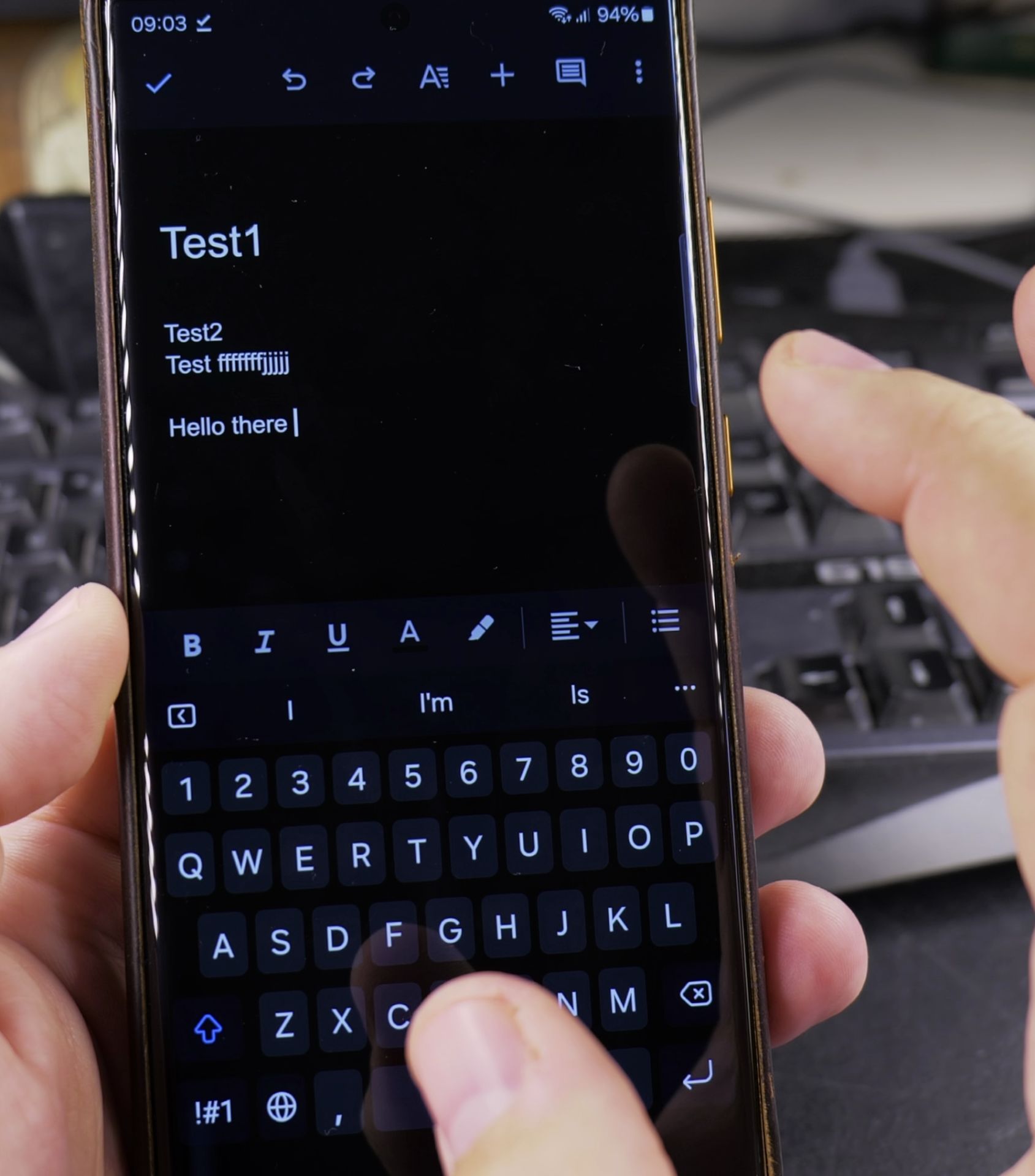
Method 1: Samsung Keyboard Settings
- Open any app where you can type (like Messages or Google Keep)
- Tap on the text field to bring up the keyboard
- Tap the keyboard settings icon (usually looks like a gear or three dots)
- Select “Text correction” or “Keyboard settings”
- Look for “Autocorrect” or “Auto-replace”
- Toggle the switch to turn off autocorrect
Method 2: Device Settings
- Open your phone’s “Settings” app
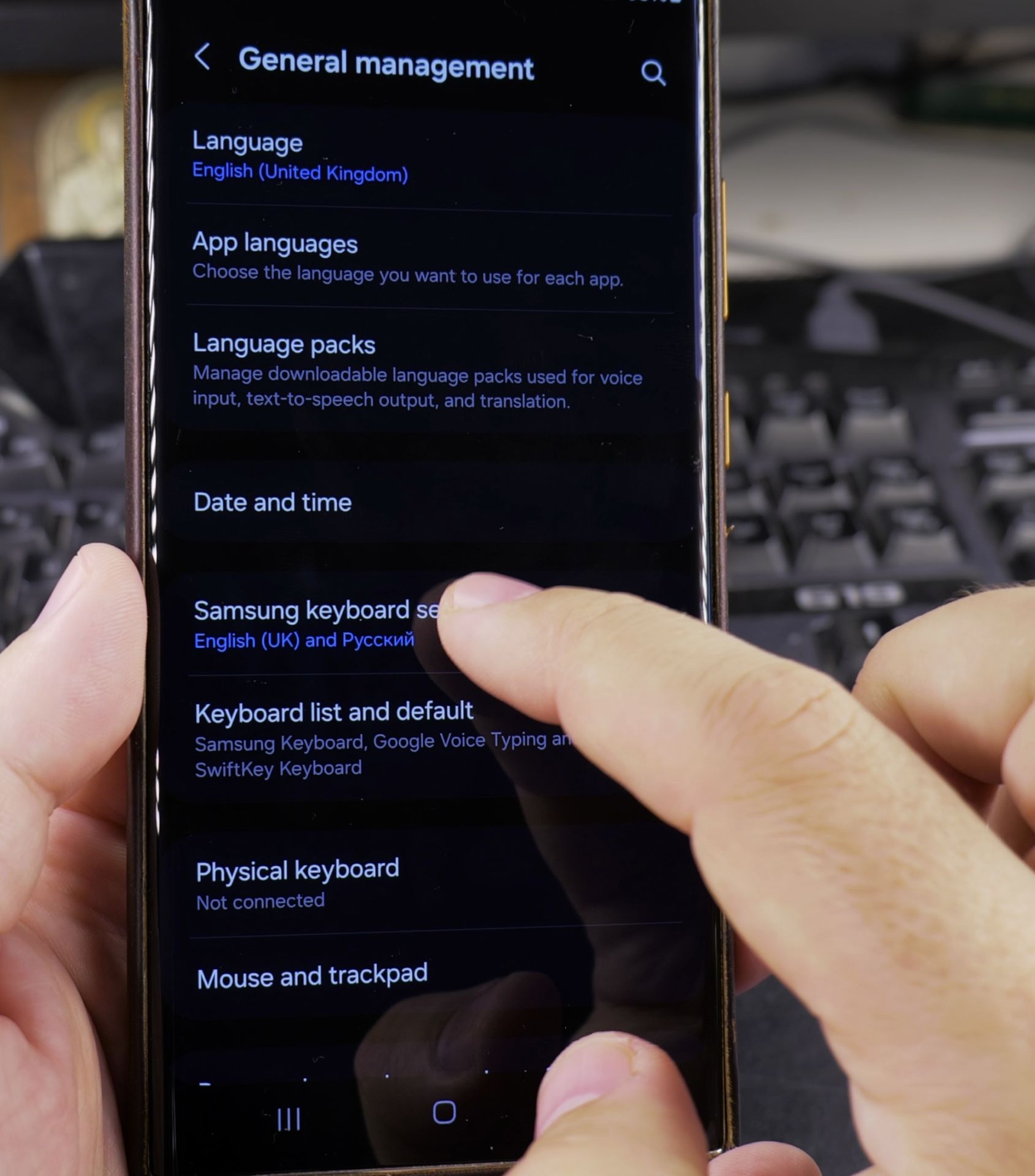
- Scroll to and tap on “General Management”
- Select “Language and input”
- Tap on “On-screen keyboard”
- Choose “Samsung Keyboard”
- Select “Text correction”
- Disable “Autocorrect” and “Auto-replace”
Keyboard Customization Options
While you’re in settings, you might want to change:
- Predictive text options
- Auto-capitalization settings
- Personal dictionary management
- Keyboard layout customization
Turning Off Predictive Text
- Follow the same initial steps as disabling autocorrect
- Look for “Predictive text” or “Text suggestions”
- Toggle off this feature to remove all text prediction
Tips
If you can’t find these settings:
- Ensure you’re using the Samsung keyboard
- Check your Android and OneUI version
- Restart your device
- Update your keyboard app
Conclusion
Customizing your keyboard settings helps create a more personalized typing experience. Now you can type freely without worrying about unexpected word replacements.
Different Samsung models might have slightly different menu layouts, so take your time finding the settings and look for a similar name.
Helpful Tips
Take your time and check the screen carefully after each tap so you can confirm the setting changed as expected. If an option appears in a slightly different spot on your device, watch the embedded video above for a closer look.
Related Guides
- How to Change Google Gemini Voice on Samsung Galaxy Android – If you don't like the default voice of your Google Gemini assistant, you can choose from a range of friendly and natural…
- Turn Off Color Palettes on Samsung Galaxy Android – How to Turn Off Color Palettes for Home Screen and App Icons on Samsung Galaxy Android phones.
- Android Samsung Galaxy 23 Iltra Cameras Not Working Use Selfie Camera – Android Samsung Galaxy 23 Iltra Cameras Not Working Use Selfie Camera When Main Camera Freezes.
- Samsung Android Guides – Browse more tutorials and practical guides in this section.


Leave a Reply