
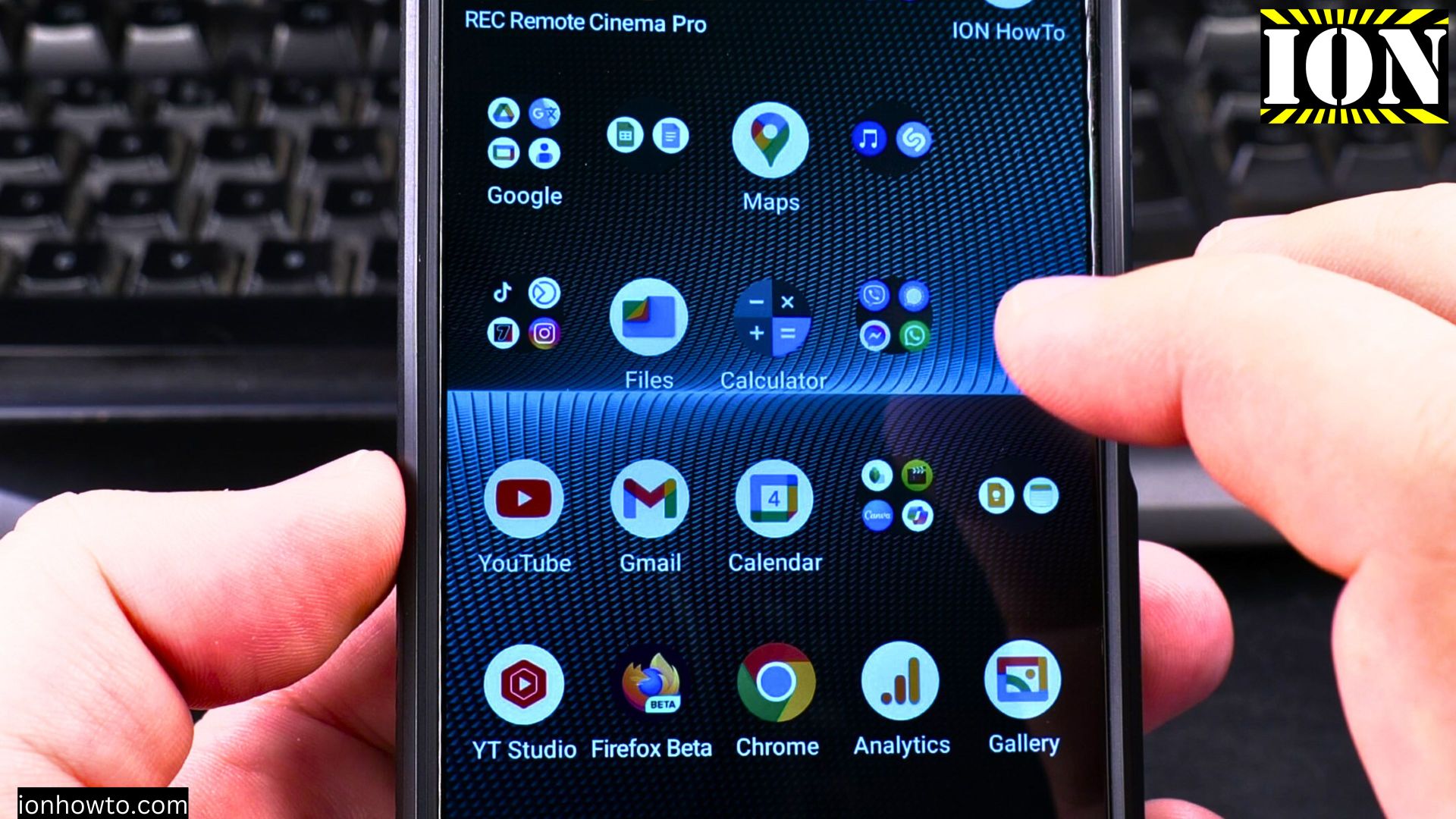
Learn how to stop Gemini from activating when you long press your Android home button. I show you the steps to turn off this feature if you accidentally trigger Gemini or prefer not to use it.
Amazon links
As an Amazon Associate I earn from qualifying purchases:
- Phone Cases
- Mobile Tripods
- Usb-c charger
- Usb-c cable
- Docking stations
- Wireless car chargers
- Wireless charger stand
- SIM card removal tool
- SIM card holder
Android Disable Gemini on Home Button Long Press video.
Quick Steps and Scenarios Overview
| What You Need to Do | Quick Jump |
|---|---|
| Method 1: Disable Through Google App Settings | Jump to Step 1 |
| Method 2: Change Home Button Behavior | Jump to Step 2 |
| Method 3: Using Button Remapping (If Available) | Jump to Step 3 |
| Alternative Solutions | Jump to Step 4 |
| Important Notes | Jump to Step 5 |
Method 1: Disable Through Google App Settings
- Open the Google app on your device
- Tap your profile picture in the top-right corner
- Select “Settings”
- Choose “Google Assistant”
- Tap “General”
- Turn off “Gemini” or “Use Gemini” option
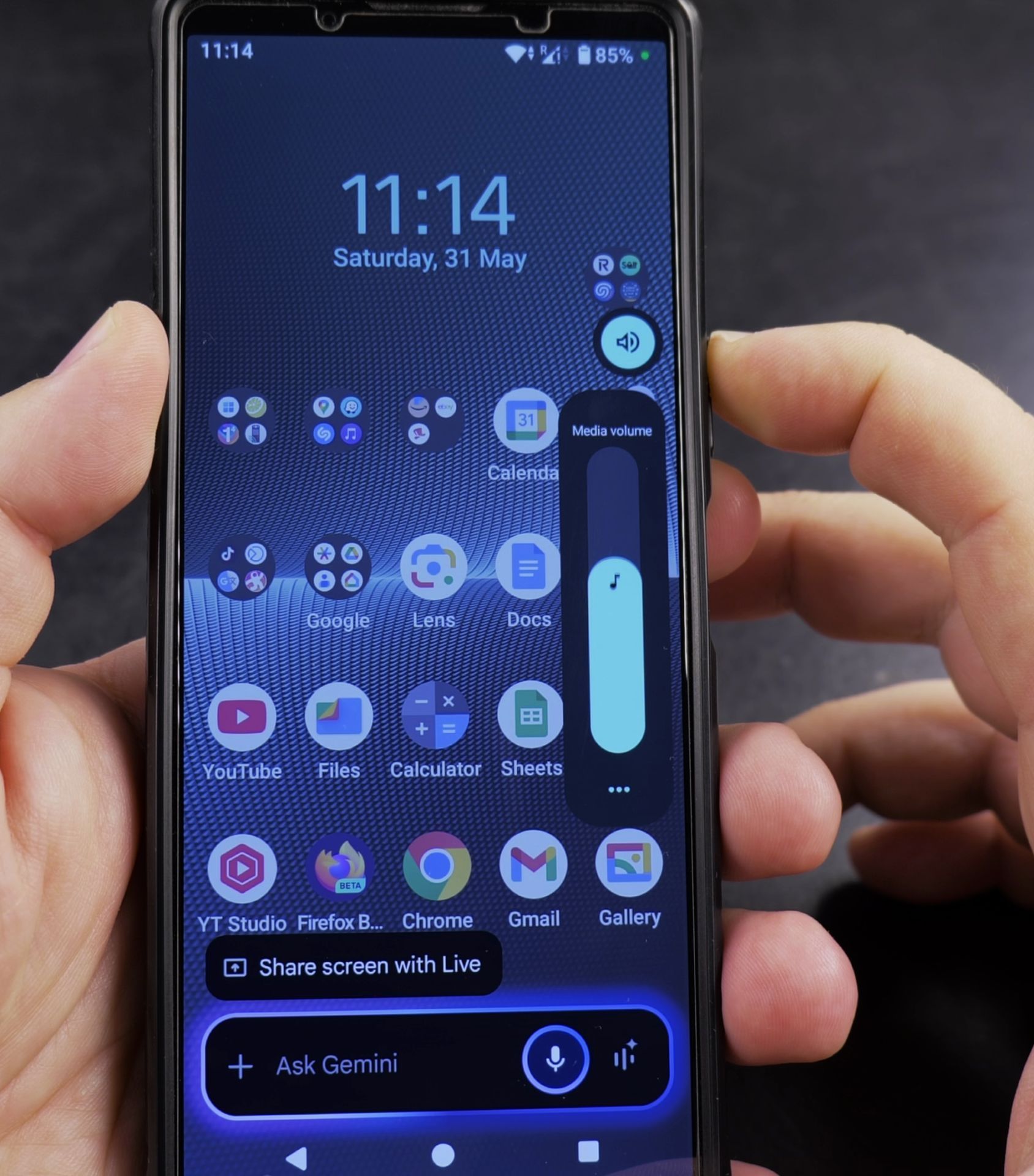
Method 2: Change Home Button Behavior
- Go to Settings on your Android phone
- Select “Apps”
- Tap “Default apps”
- Choose “Digital assistant app”
- Select “None” or your preferred assistant
Method 3: Using Button Remapping (If Available)
- Open Settings
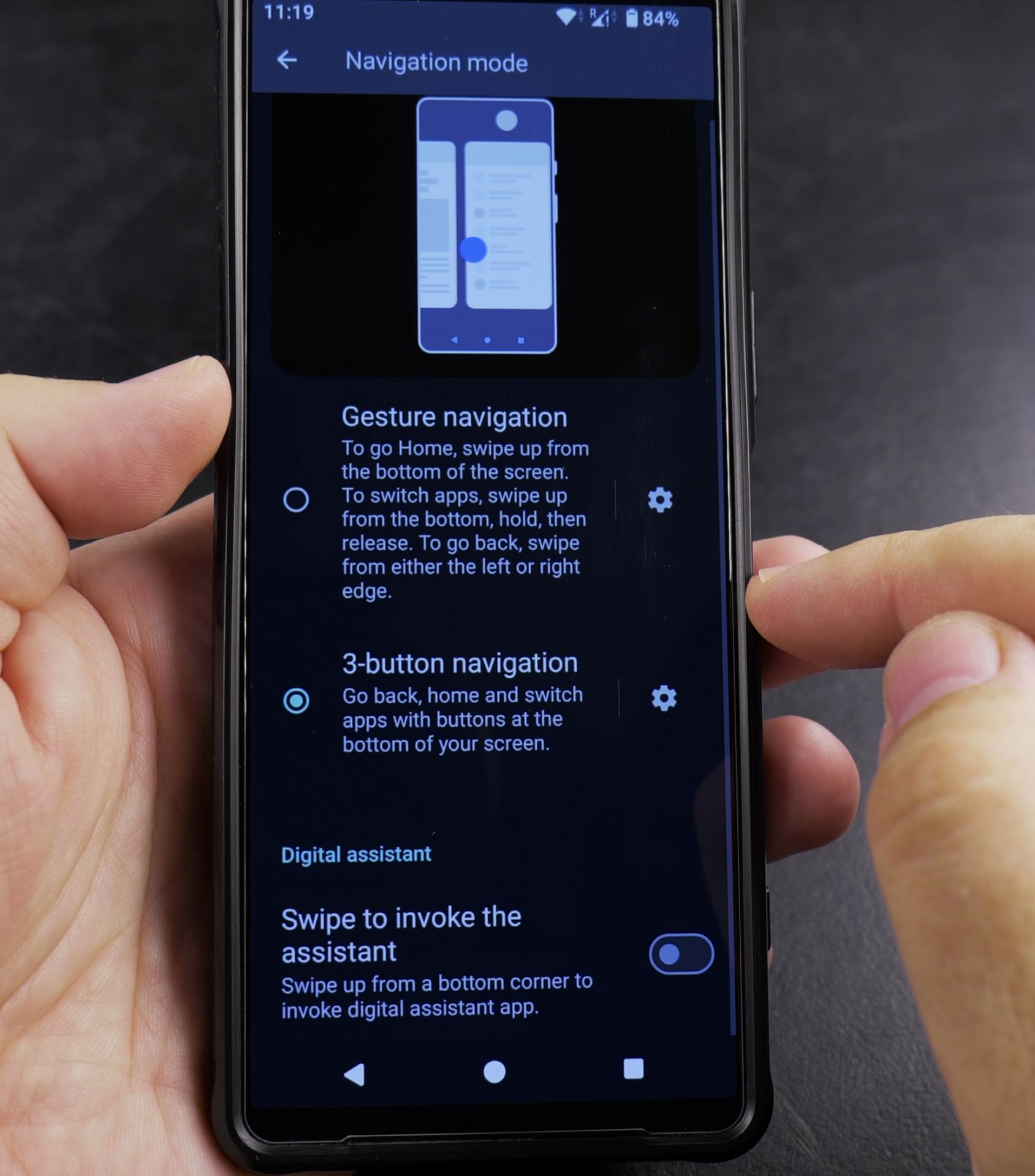
- Go to “System” then “Gestures”
- Select “System navigation”
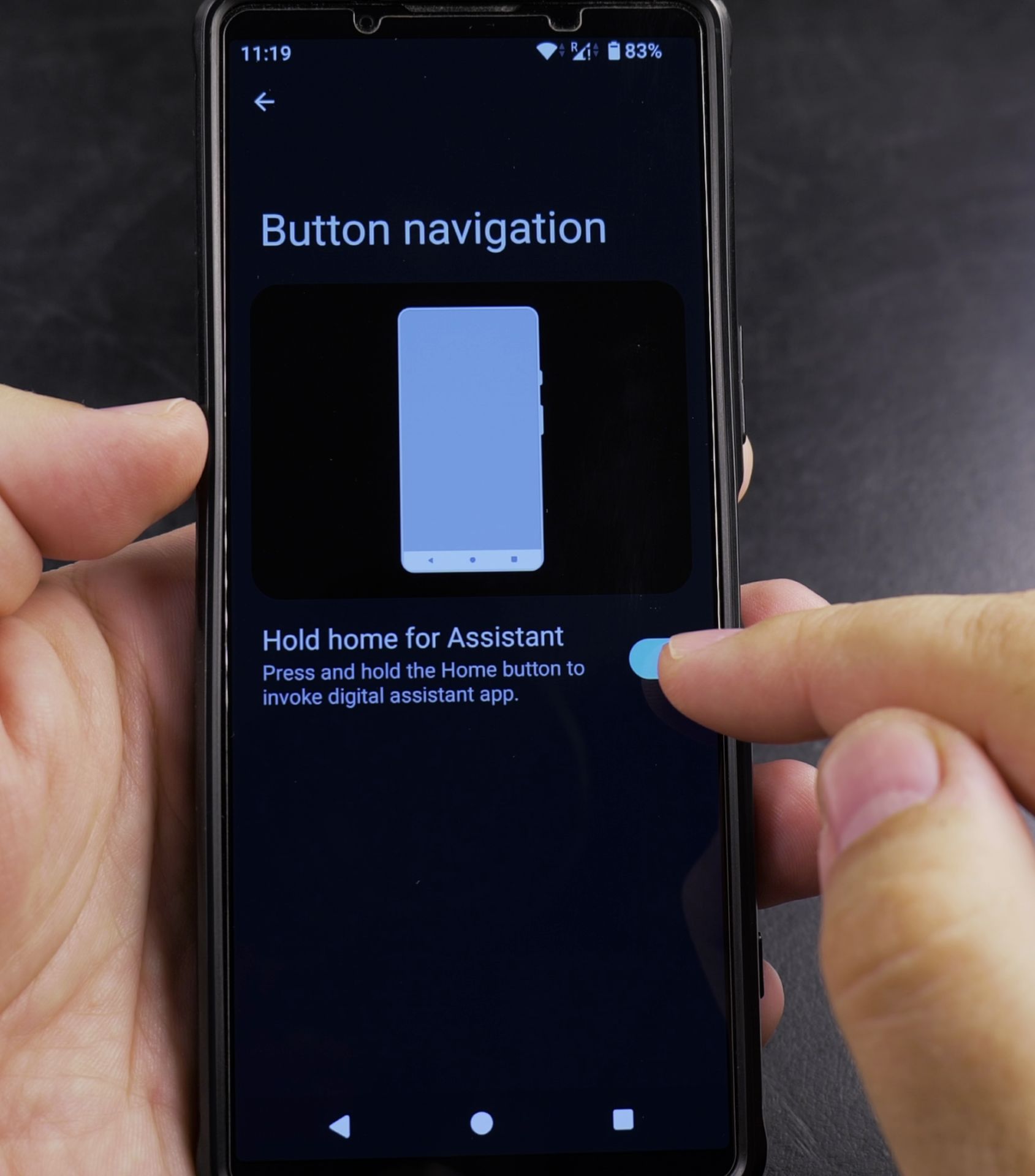
- Choose “Buttons” if available
- Look for “Long press home button” setting
- Change to “No action” or your preferred option
Alternative Solutions
If the above methods don’t work:
- Try a different launcher like Nova or Microsoft Launcher
- Check for manufacturer settings (Samsung, LG, etc. have their own menus)
- Disable the Google app temporarily to test
Important Notes
- Some newer Android versions may label this as “Assistant” settings
- The exact menu names might vary by device
- Disabling might affect other Google Assistant features
- You can always re-enable it later if you change your mind
This guide should work for most modern Android devices. If you can’t find these exact options, look for similar settings in your device’s customization menus. Remember that some manufacturers like Samsung or Xiaomi might place these settings in different locations.
Helpful Tips
Take your time and check the screen carefully after each tap so you can confirm the setting changed as expected. If an option appears in a slightly different spot on your device, watch the embedded video above for a closer look.
Related Guides
- Disable Gemini on Power Button Long Press on Android Devices – How to Disable Gemini on Power Button Long Press on Android Devices.
- How to Long Press on a Samsung Android Phone to Open Hidden Menus and Shortcuts – Learning how to long press – also called touch and hold – on a Samsung Galaxy Android smartphone unlocks dozens of helpful…
- Remove App From Android Home Screen – How to Remove an App from Your Home Screen on Android.
- Android & Mobile Guides – Browse more tutorials and practical guides in this section.


Leave a Reply