
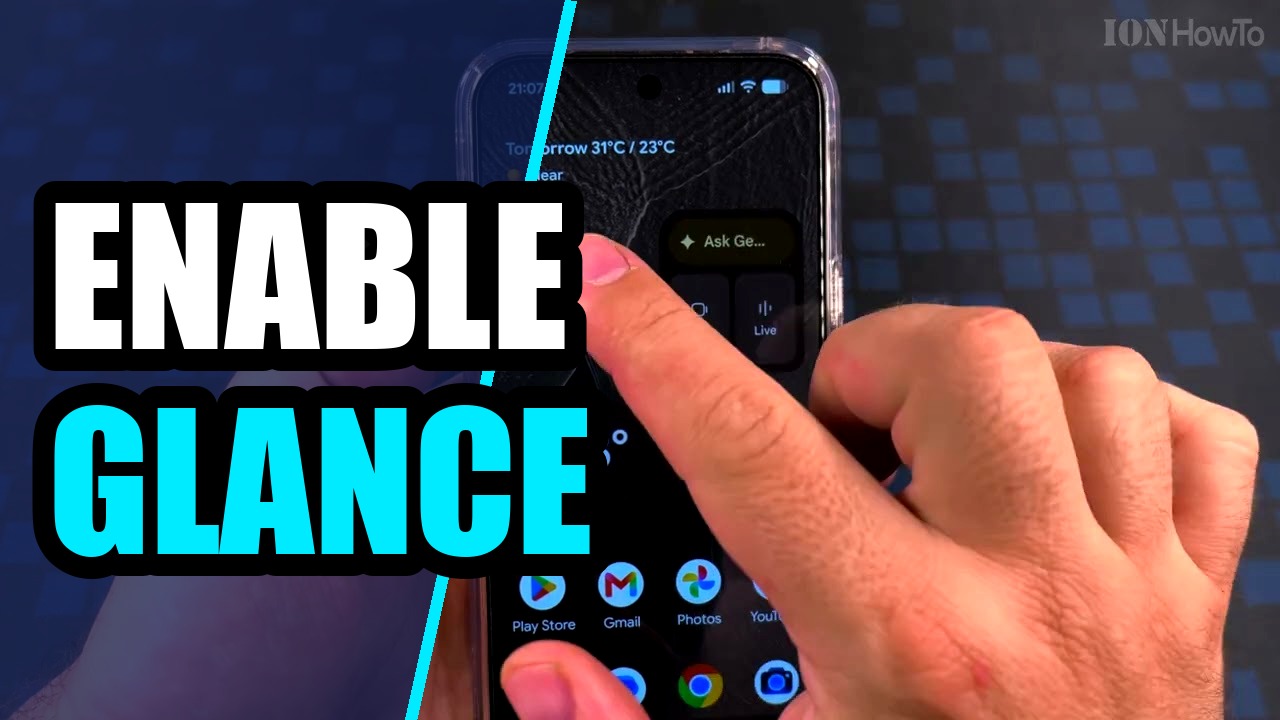
The At a Glance widget puts the weather, date, and upcoming reminders right at the top of your Google Pixel 11 Pro XL screen. If it disappeared or was switched off earlier, I will show you how to enable it again in Android 17.
Quick Steps
- Touch and hold an empty spot on the home screen
- Tap Home settings
- Open At a Glance settings
- Switch Use At a Glance on
Step 1: Touch and hold an empty spot on the home screen
Press and hold an open area of your Google Pixel 11 Pro XL home screen until the quick menu pops up.
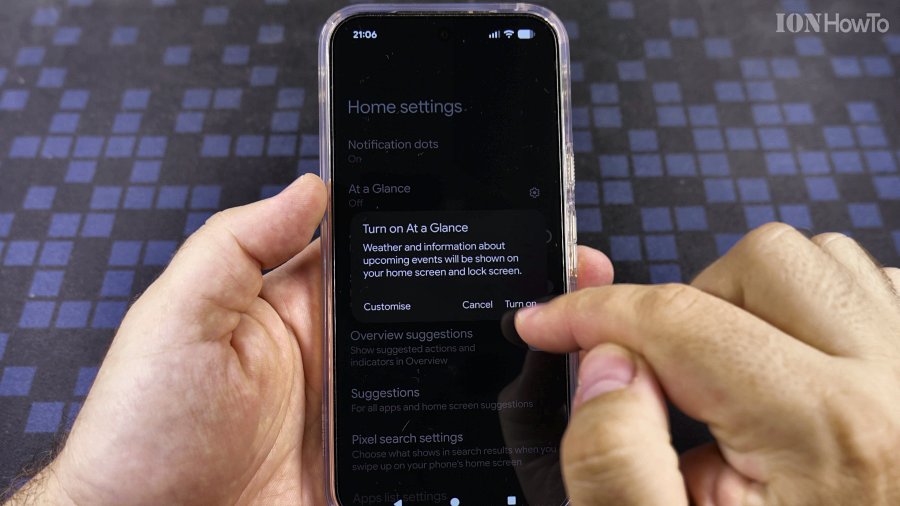
Step 2: Tap Home settings
Tap Home settings at the bottom of the pop-up menu to open your Pixel launcher options.
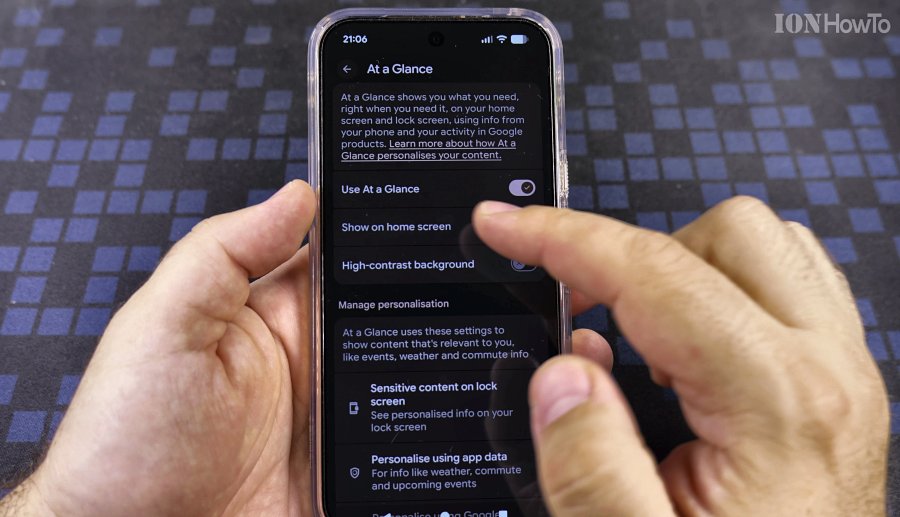
Step 3: Open At a Glance settings
Tap At a Glance near the top of the Home settings list to view the toggle and options.
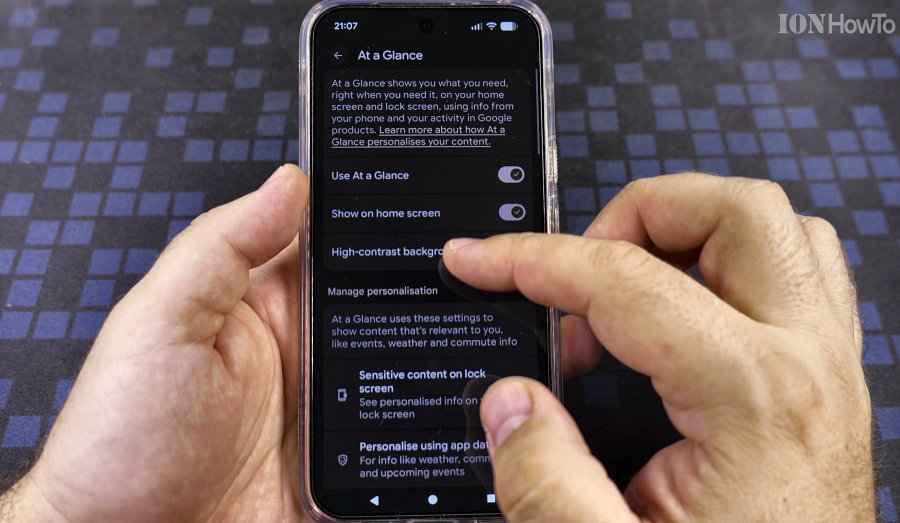
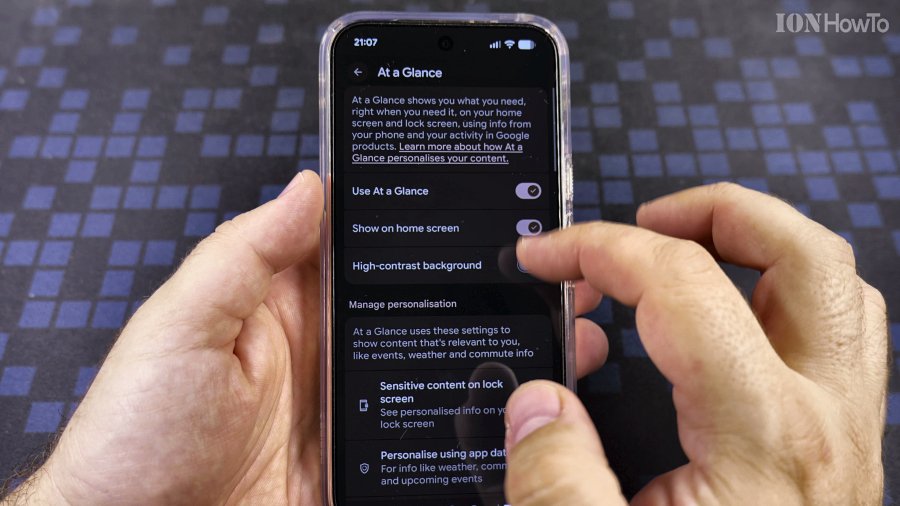
Step 4: Switch Use At a Glance on
Toggle Use At a Glance to the on position so weather, date, and alerts appear on your home screen again.
Helpful Tips
- Restart your Pixel if a setting change does not take effect right away.
- Keep Android 17 updated for the latest carrier and home screen fixes.
Related Guides
Browse more easy Google Pixel tutorials on IONHowTo.


Leave a Reply