
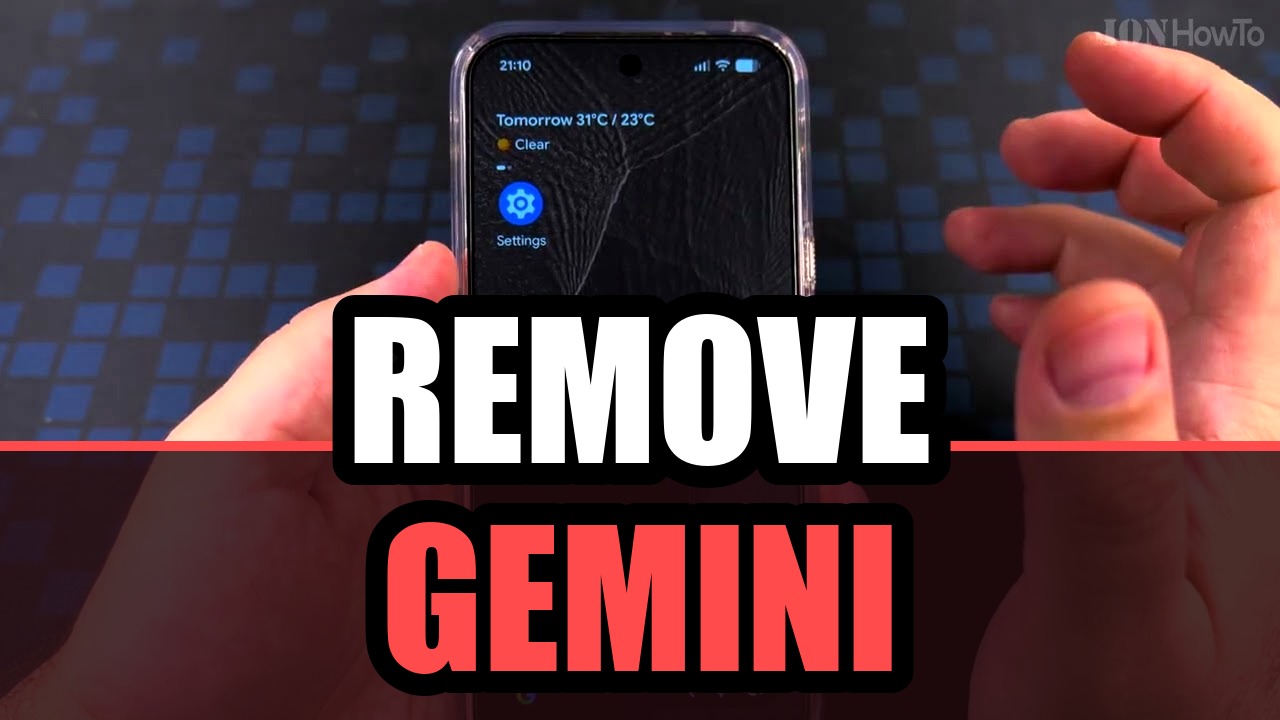
If the Gemini widget is taking up valuable space on your Google Pixel 11 Pro XL home screen, you can remove it in seconds without uninstalling any app. I will show you the exact gesture on Android 17.
Quick Steps
- Locate the Gemini widget on your home screen
- Touch and hold the Gemini widget
- Drag the widget to Remove
Step 1: Locate the Gemini widget on your home screen
Find the Gemini widget on your Google Pixel 11 Pro XL home screen page where you want to free up space.
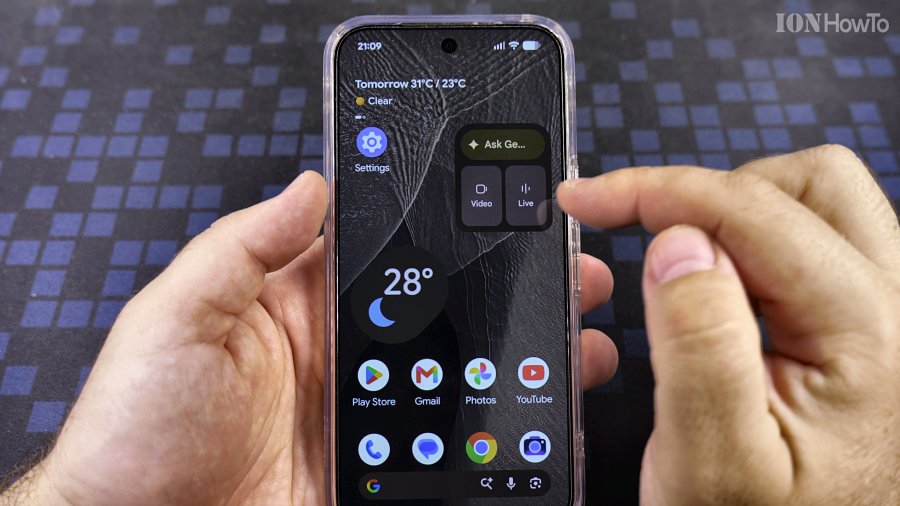
Step 2: Touch and hold the Gemini widget
Press and hold your finger on the Gemini widget until it lifts slightly and the Remove option appears at the top.
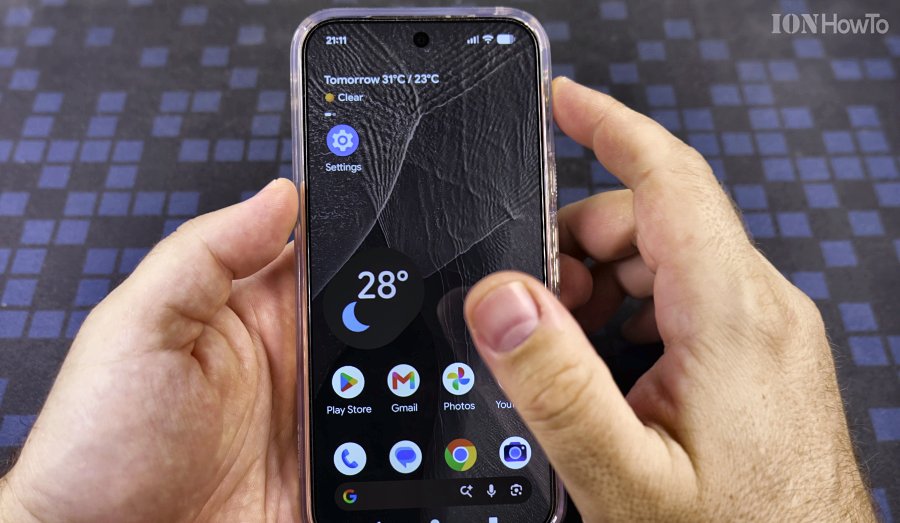
Step 3: Drag the widget to Remove
Slide the widget up to Remove at the top of the screen and lift your finger to clear it from your home screen.
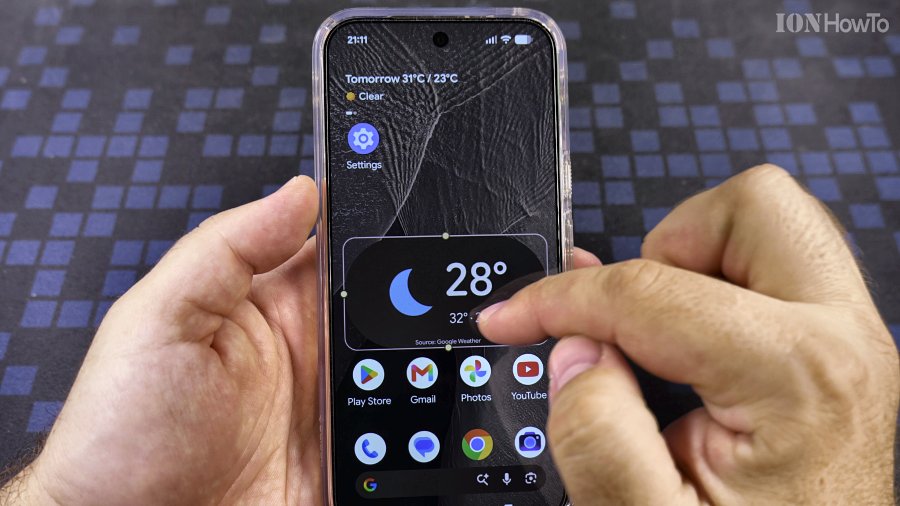
Helpful Tips
- Restart your Pixel if a setting change does not take effect right away.
- Keep Android 17 updated for the latest carrier and home screen fixes.
Related Guides
Browse more easy Google Pixel tutorials on IONHowTo.


Leave a Reply