

Samsung Android devices have a built-in AutoCorrect feature that can save you from those awkward autocorrect fails or flies if autocorrect would make a mistake.
Autocorrect can help you type faster and more accurate.
Amazon links
As an Amazon Associate I earn from qualifying purchases:
- Phone Cases
- Mobile Tripods
- Usb-c charger
- Usb-c cable
- Docking stations
- Wireless car chargers
- Wireless charger stand
- SIM card removal tool
- SIM card holder
Why AutoCorrect?
When you are sending a text, email, or writing anything, AutoCorrect can:
- Automatically fix common spelling mistakes
- Suggest the words as you type
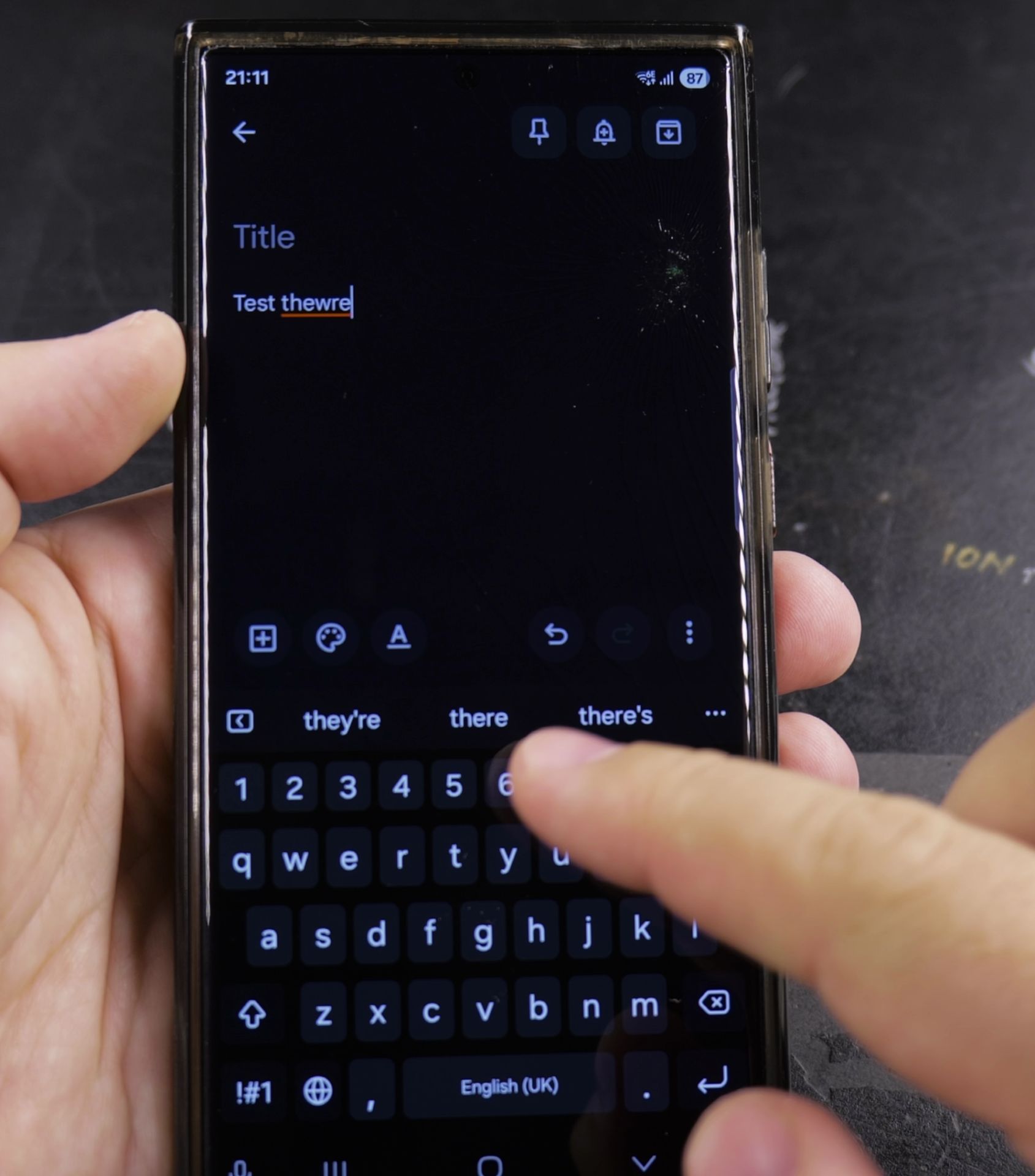
- Save you time and prevent typos but be careful it could make mistakes and change to words you don’t intend to use
- Help you type faster and more confidently
Quick Steps and Scenarios Overview
| What You Need to Do | Quick Jump |
|---|---|
| Why AutoCorrect? | Jump to Step 1 |
| Enabling AutoCorrect | Jump to Step 2 |
| Faster Typing Tips | Jump to Step 3 |
| How to Disable Autocorrect | Jump to Step 4 |
Enabling AutoCorrect
Steps to enable AutoCorrect on your Samsung Android device:
Step 1: Open Keyboard Settings
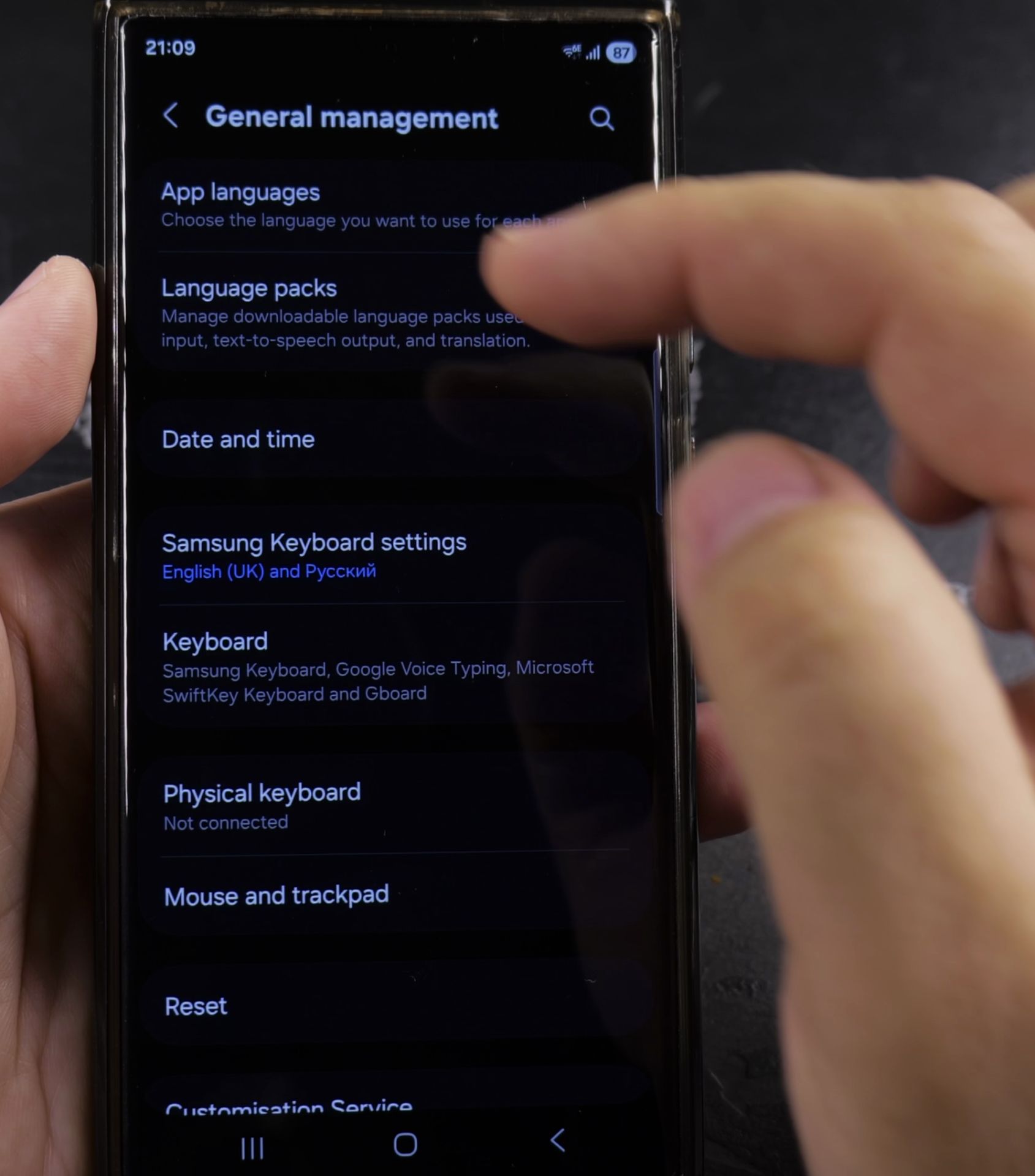
- Go to your phone’s “Settings” app
- Scroll down and tap on “General Management”
- Select “Keyboard List and Default”
Step 2: Choose Samsung Keyboard Settings
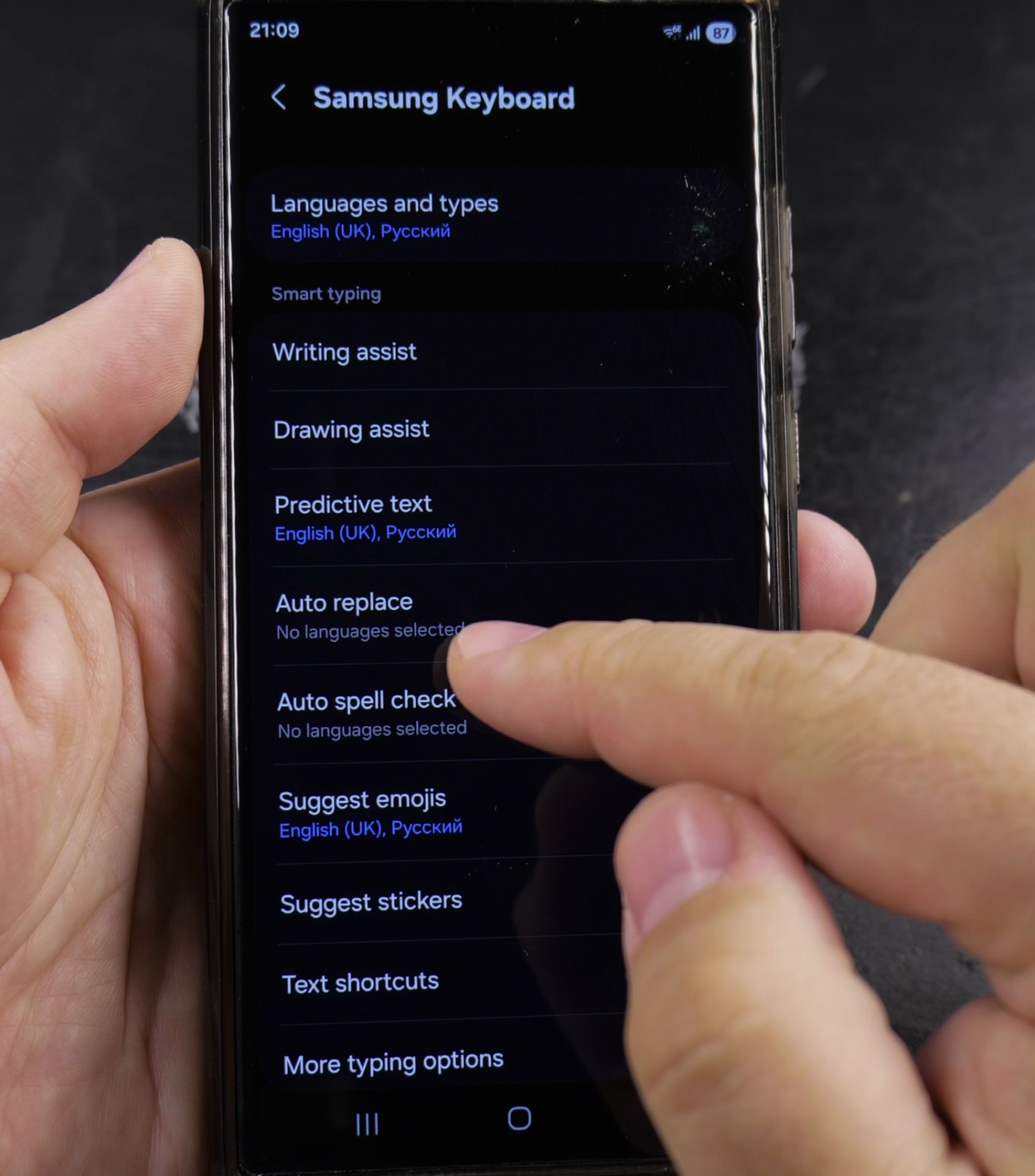
- Tap on “Samsung Keyboard”
- Select “Keyboard Settings”
Step 3: Find AutoCorrect Options
- Look for “Text Correction” or “AutoCorrect” settings
- You may see see several options to customize your typing experience
Step 4: Enable AutoCorrect Features
- Toggle on “Auto-replace” or “AutoCorrect”
- You can also enable “Show suggestion” for additional typing help
- Customize the settings to match your typing style
Faster Typing Tips
These are a few more tips:
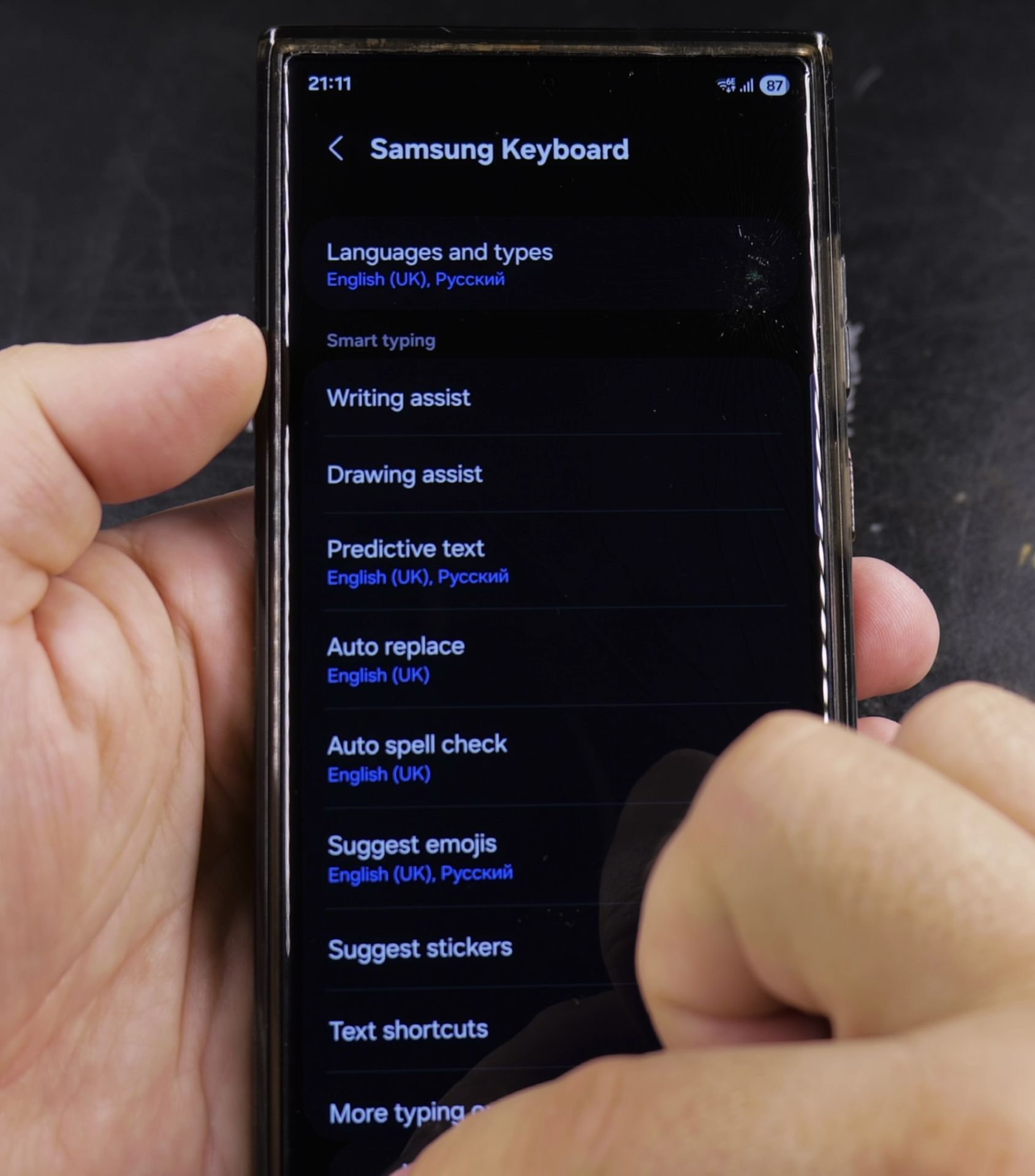
- Check the prediction settings to adjust suggestions
- Add personal words to your dictionary
- Practice using swipe typing for even faster input
Troubleshooting
If AutoCorrect is not working as you want it:
- Restart your phone
- Check for Samsung keyboard updates
- Check if the latest version of Samsung keyboard is installed
- Reset keyboard settings
How to Disable Autocorrect
Read How to Disable Autocorrect or watch the video below:
Conclusions
AutoCorrect can be a both good and bad for your typing experience.
It’s up to you to decide if the benefits of autocorrect are bigger than the downsides of using it.
It’s easy to set up and also easy to disable if needed. It can save you time.
Device Tested: Samsung Galaxy S23 Ultra, Android 14, OneUI 6.1
Helpful Tips
Take your time and check the screen carefully after each tap so you can confirm the setting changed as expected. If an option appears in a slightly different spot on your device, watch the embedded video above for a closer look.
Related Guides
- How to Change Google Gemini Voice on Samsung Galaxy Android – If you don't like the default voice of your Google Gemini assistant, you can choose from a range of friendly and natural…
- How to Access Network Share on Samsung Galaxy Android Phone – If you have movies, photos, or documents on your home computer or network drive, you can open them right from your phone.
- Set Default USB Mode File Transfer on Samsung Android – How to Set Default USB Mode to File Transfer on Samsung Galaxy.
- Samsung Android Guides – Browse more tutorials and practical guides in this section.


Leave a Reply