
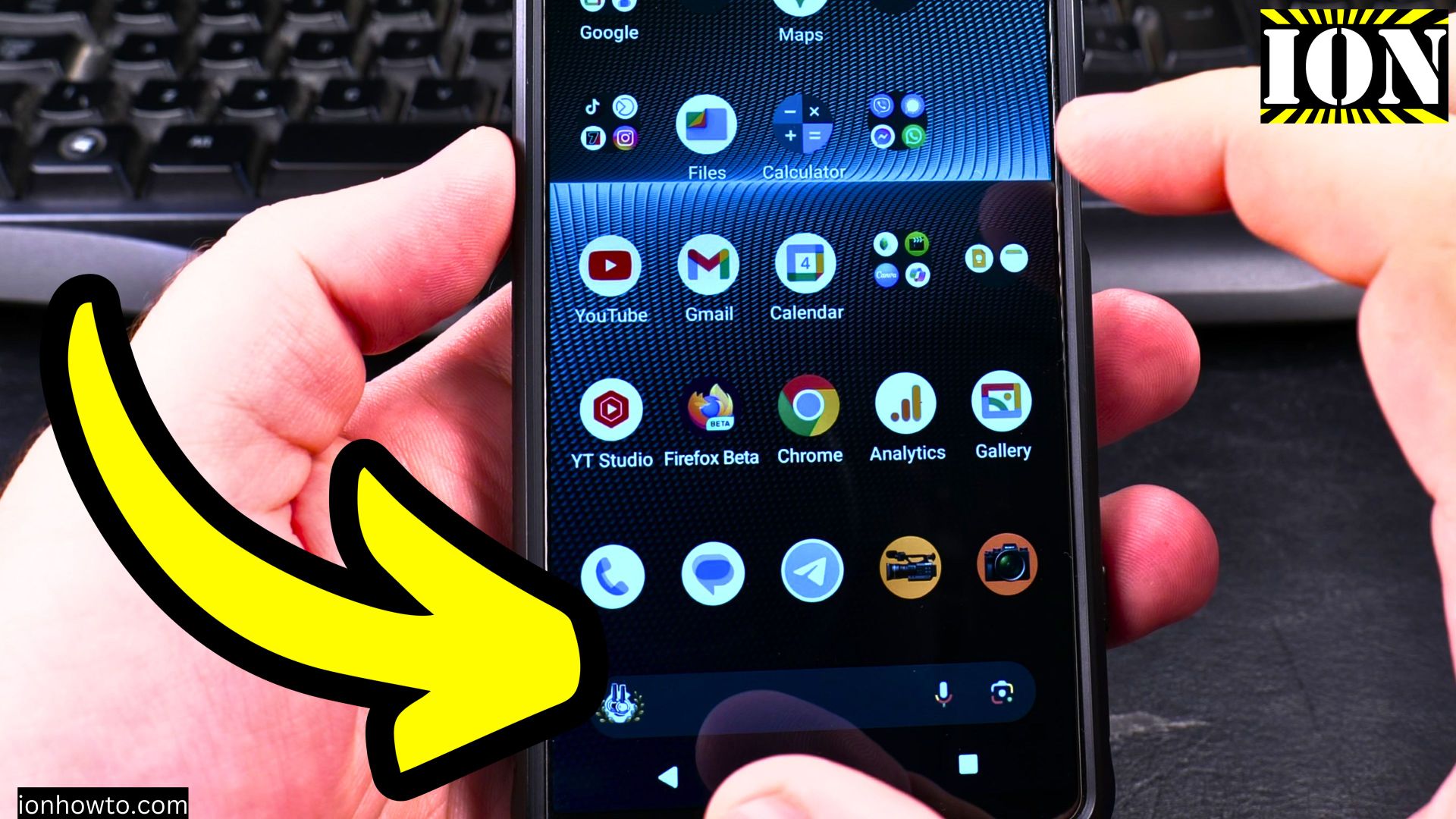
Learn how to enable your SIM card on an Android device when you need to reactivate cellular service.
I show you the steps to turn your SIM card back on if you previously disabled it or are setting up a new device.
Amazon links
As an Amazon Associate I earn from qualifying purchases:
- Phone Cases
- Mobile Tripods
- Usb-c charger
- Usb-c cable
- Docking stations
- Wireless car chargers
- Wireless charger stand
- SIM card removal tool
- SIM card holder
How to Enable SIM Card on Android Phones video
Quick Steps and Scenarios Overview
| What You Need to Do | Quick Jump |
|---|---|
| How to Enable Your SIM Card | Jump to Step 1 |
| Open the Settings app on your Android | Jump to Step 1 |
| Go to "Network & internet" (or "Connections" | Jump to Step 2 |
| Select "SIM cards" (may be called "Mobile | Jump to Step 3 |
| Find the disabled SIM card | Jump to Step 4 |
| Toggle the switch to "On" position | Jump to Step 5 |
How to Enable Your SIM Card
1. Open the Settings app on your Android
Open the Settings app on your Android phone.
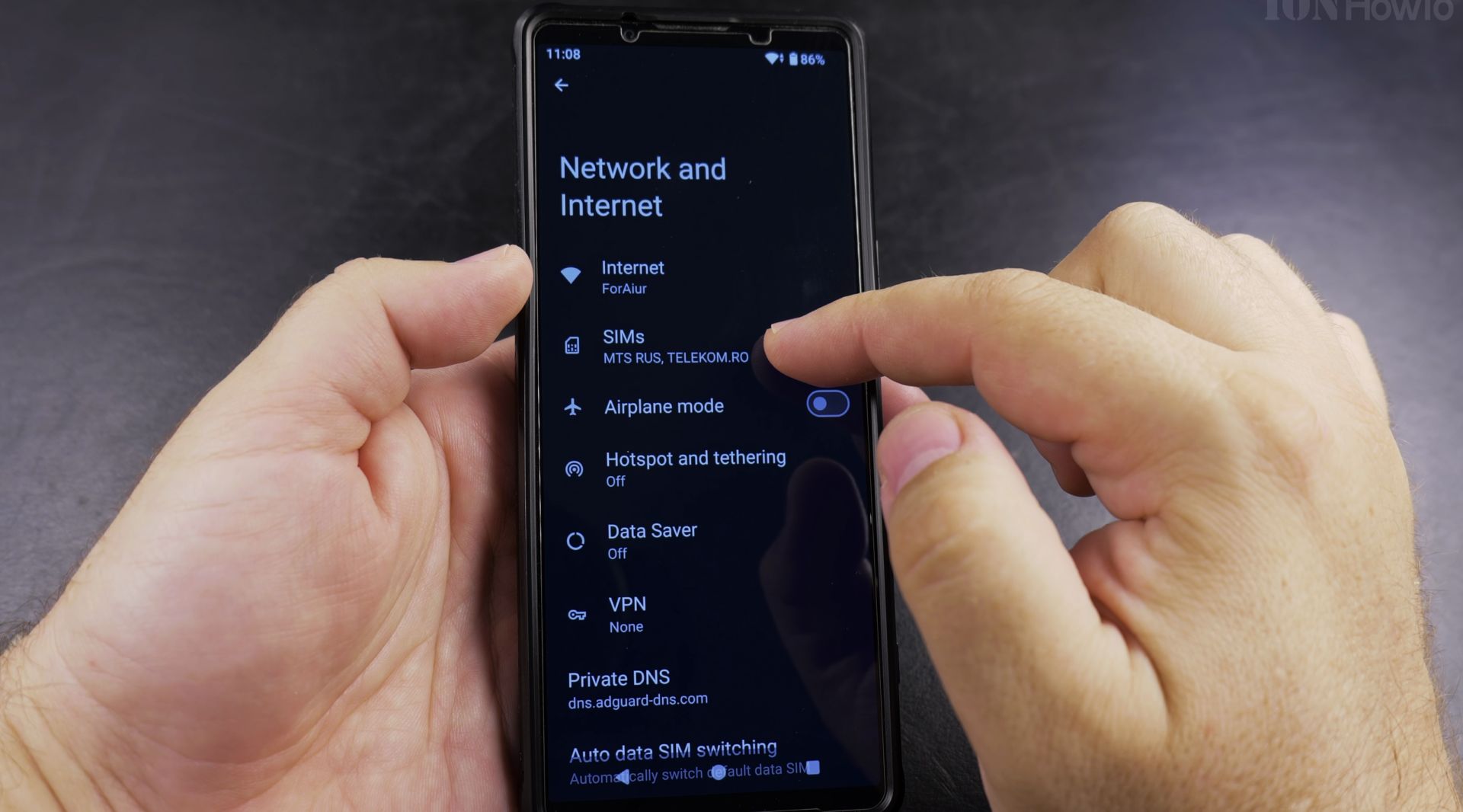
2. Go to “Network & internet” (or “Connections”
Go to “Network & internet” (or “Connections” on some devices).
3. Select “SIM cards” (may be called “Mobile
Select “SIM cards” (may be called “Mobile network”).
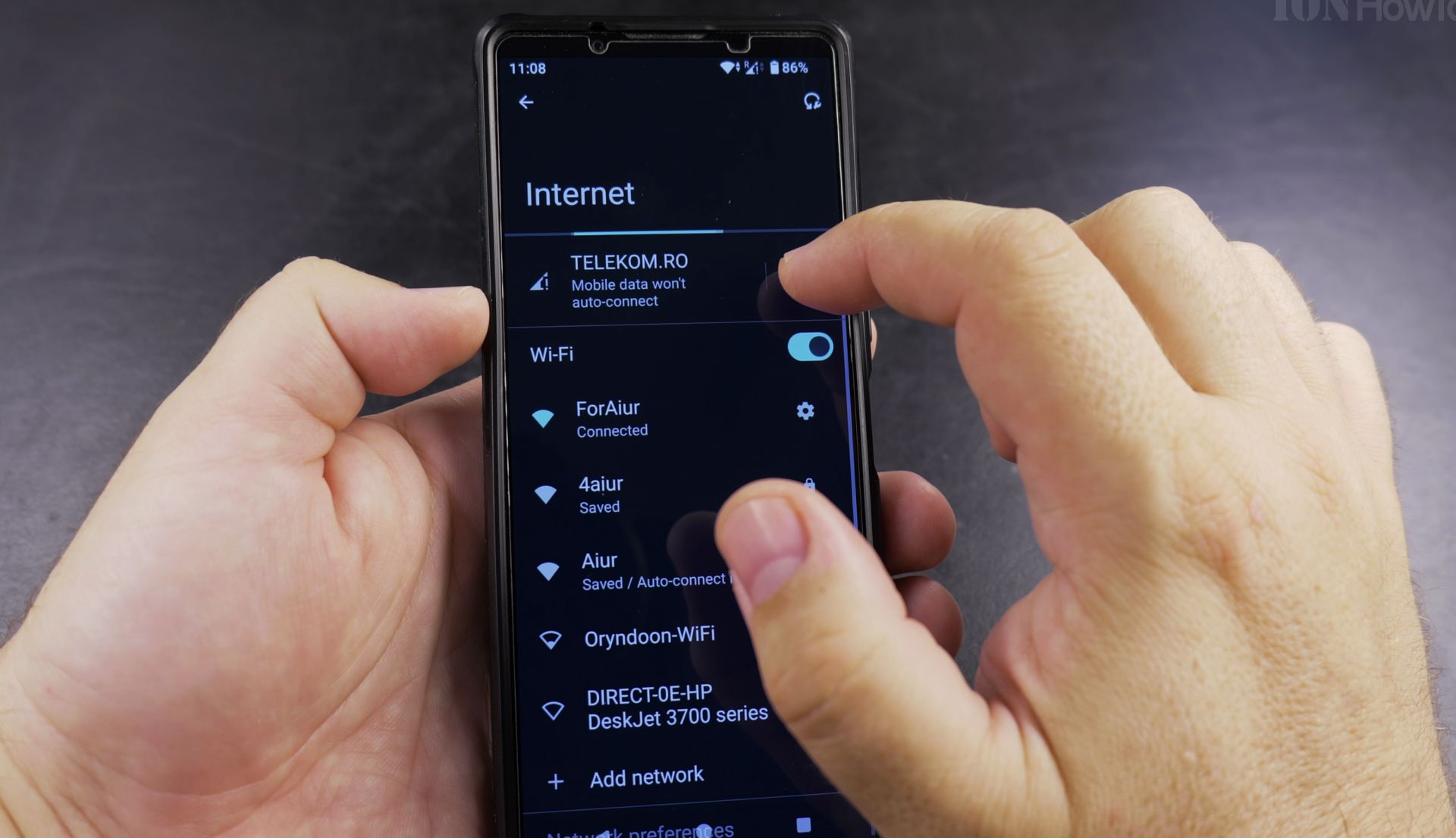
4. Find the disabled SIM card
Find the disabled SIM card.
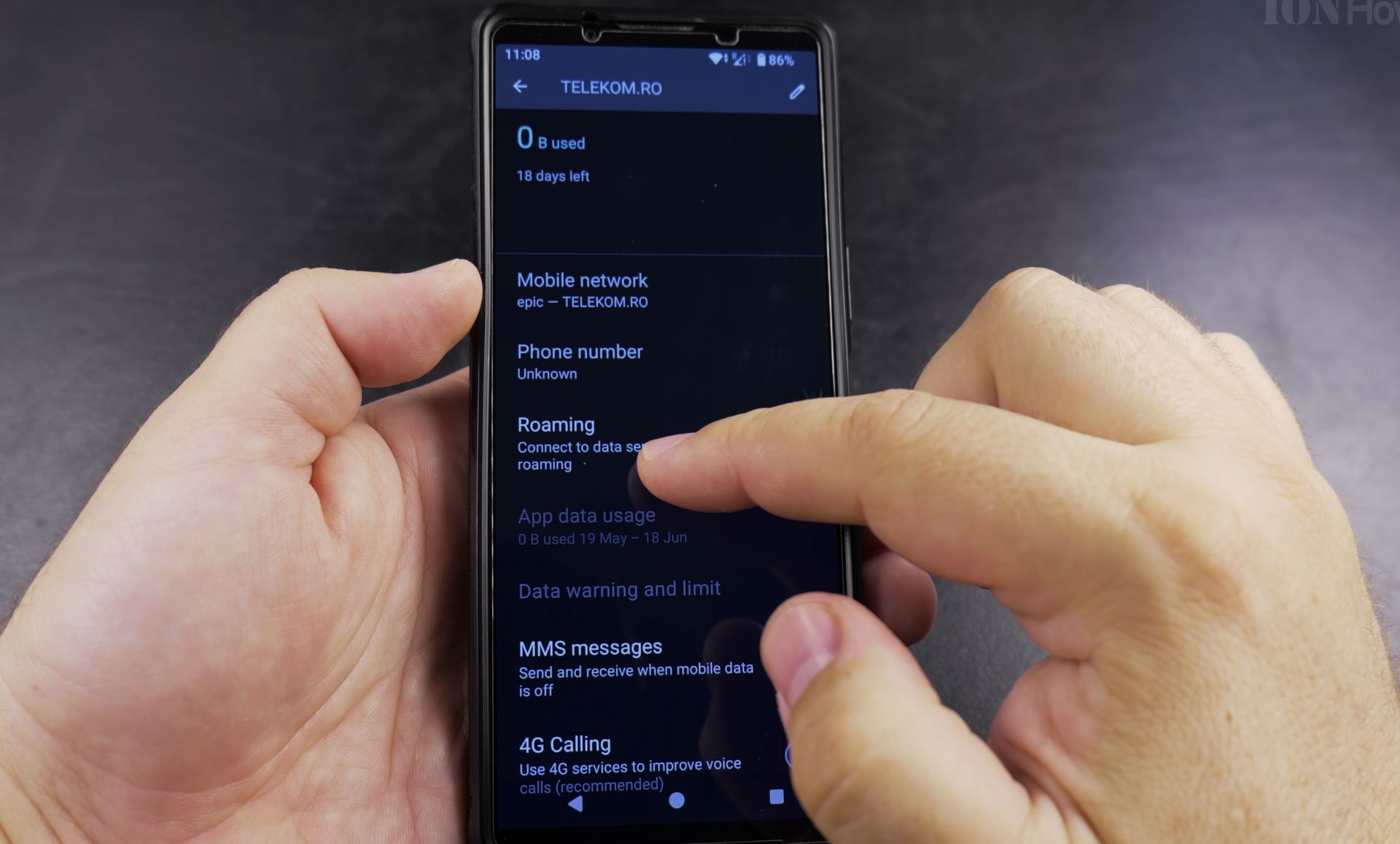
5. Toggle the switch to “On” position
Toggle the switch to “On” position.
What to Do If Your SIM Isn’t Detected
- Restart your phone – This often fixes temporary detection issues
- Check the SIM tray:
- Power off your device
- Remove and reinsert the SIM card
- Make sure it’s properly seated
- Clean the SIM card:
- Gently wipe the gold contacts with a soft cloth
- Try another SIM slot if your phone has dual SIM
How to Enable Both SIMs on Dual SIM Phones
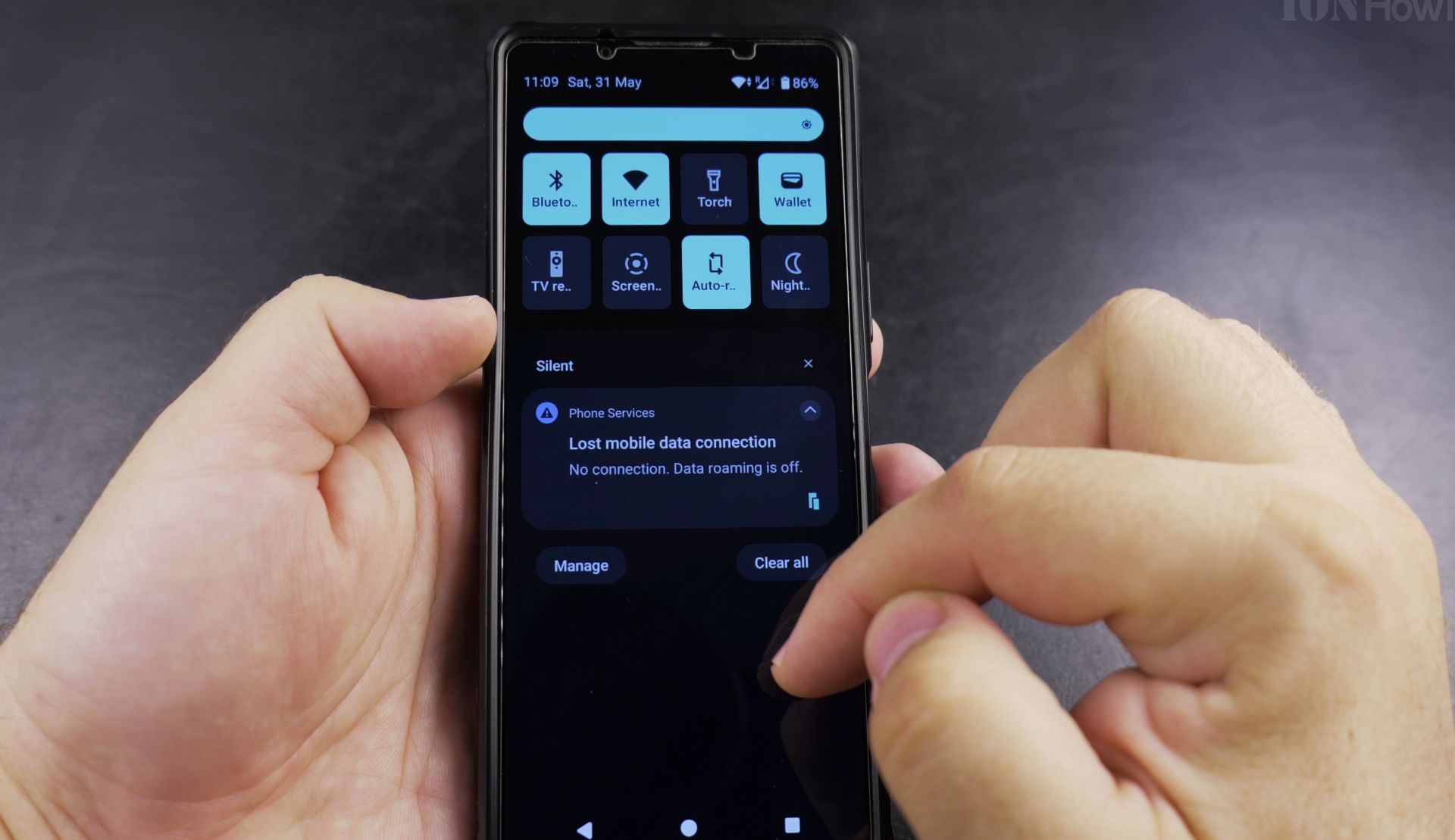
6. Go to Settings > Network & internet
Go to Settings > Network & internet > SIM cards.
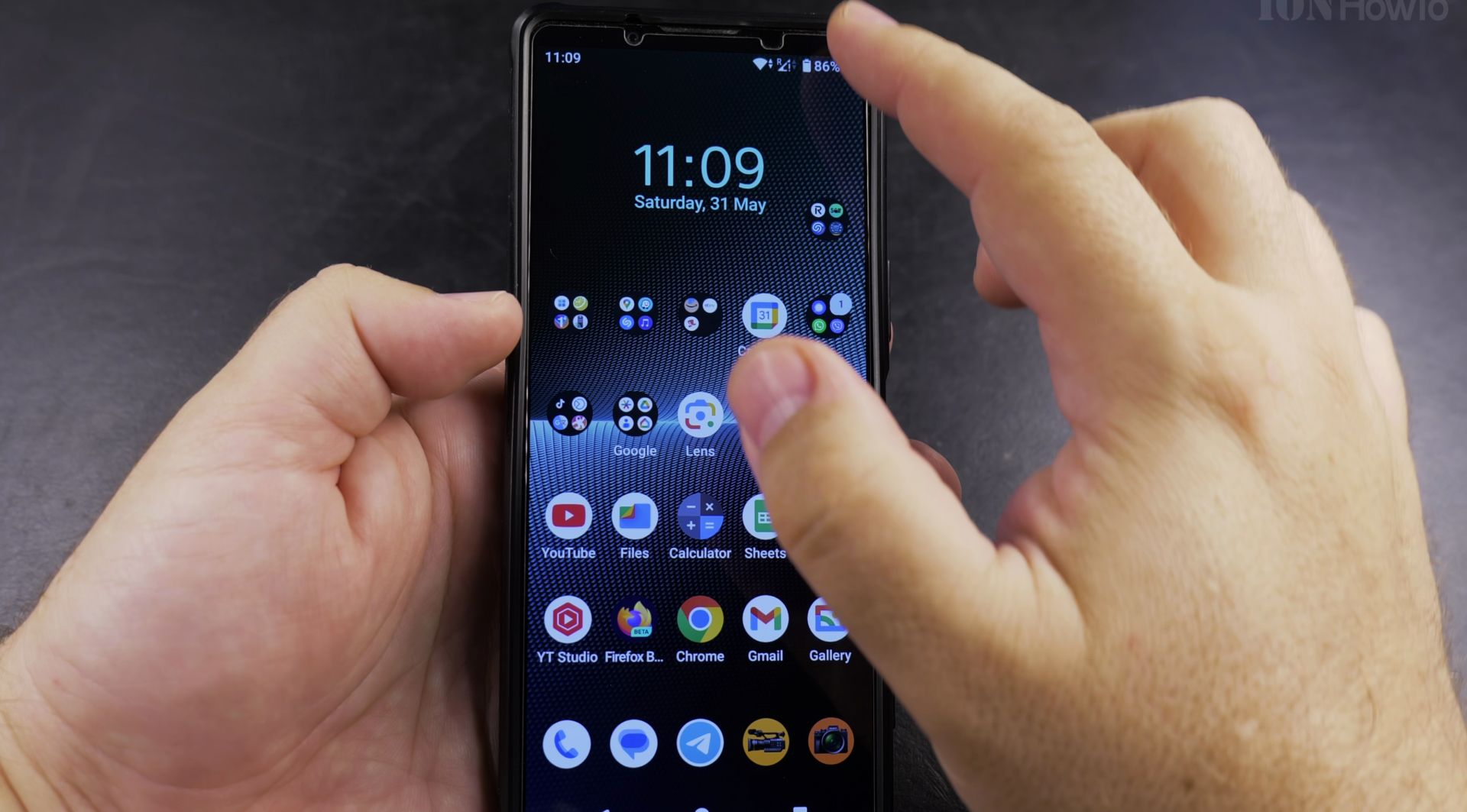
7. Toggle on both SIM cards
Toggle on both SIM cards.
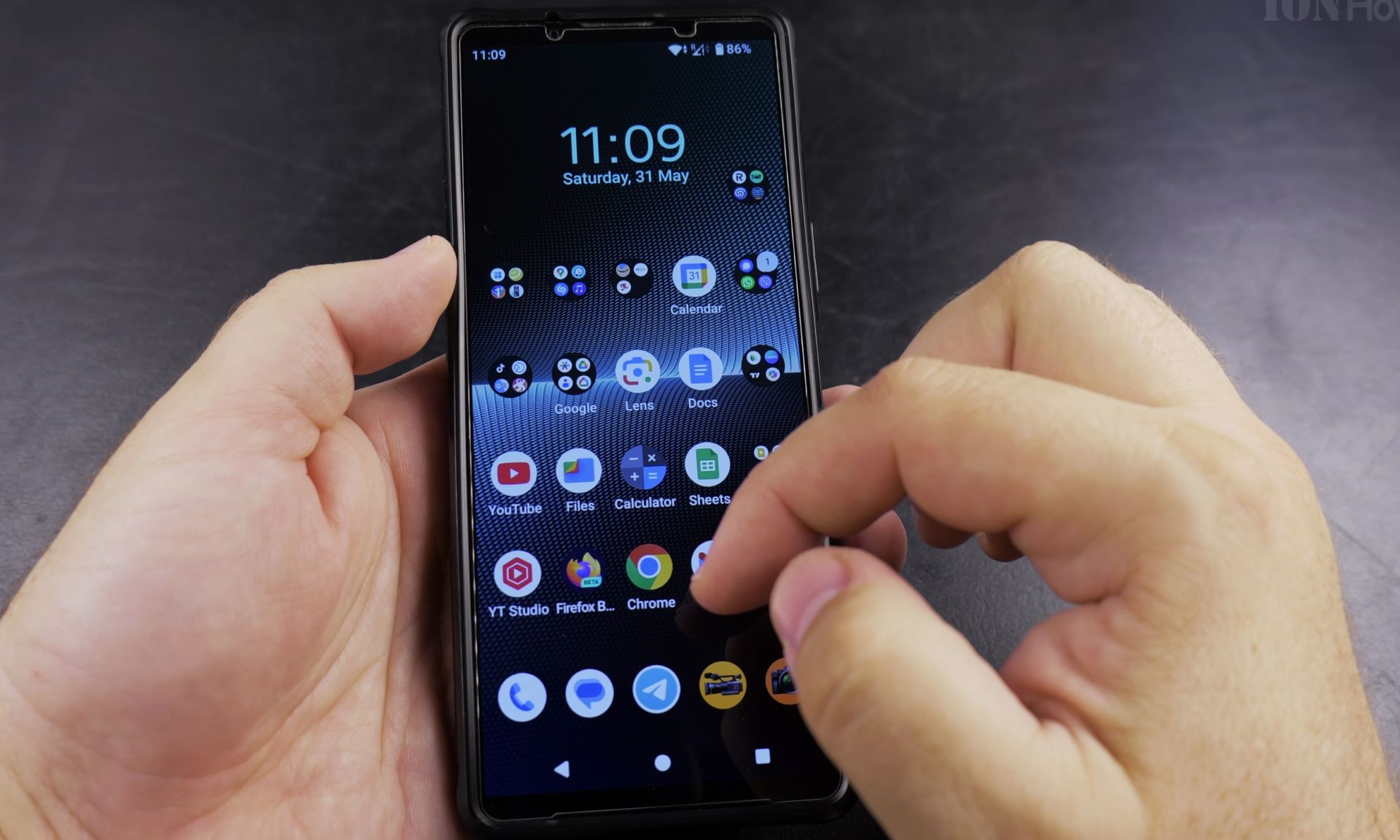
8. Set your preferred SIM for calls
Set your preferred SIM for calls, messages, and data.
After Enabling Your SIM
- Wait 1-2 minutes for network connection
- Check for signal bars in the status bar
- Try making a test call
- Send a test text message
- Verify mobile data works
Troubleshooting Tips
If your SIM still isn’t working:
- Check for carrier updates in Settings > System > System update
- Reset network settings (Settings > System > Reset > Reset Wi-Fi, mobile & Bluetooth)
- Contact your carrier to verify SIM activation
This method works on most Android phones including Samsung Galaxy, Google Pixel, and OnePlus devices. The menu names might vary slightly depending on your phone model.
Remember that after enabling your SIM, it may take a few minutes to fully connect to your carrier’s network. If you continue having issues, your carrier can help determine if you need a replacement SIM card.
Helpful Tips
Take your time and check the screen carefully after each tap so you can confirm the setting changed as expected. If an option appears in a slightly different spot on your device, watch the embedded video above for a closer look.
Related Guides
- Activate New SIM Card on Android – How to Activate a New SIM Card on Android.
- How to Activate a New SIM Card on Android – Learn how to activate a new SIM card on your Android phone.
- Samsung Android Remove and Replace SIM Card – How to Remove and Replace SIM Card and microSD Card on Samsung Galaxy and Other Android Phones
- Android & Mobile Guides – Browse more tutorials and practical guides in this section.


Leave a Reply