
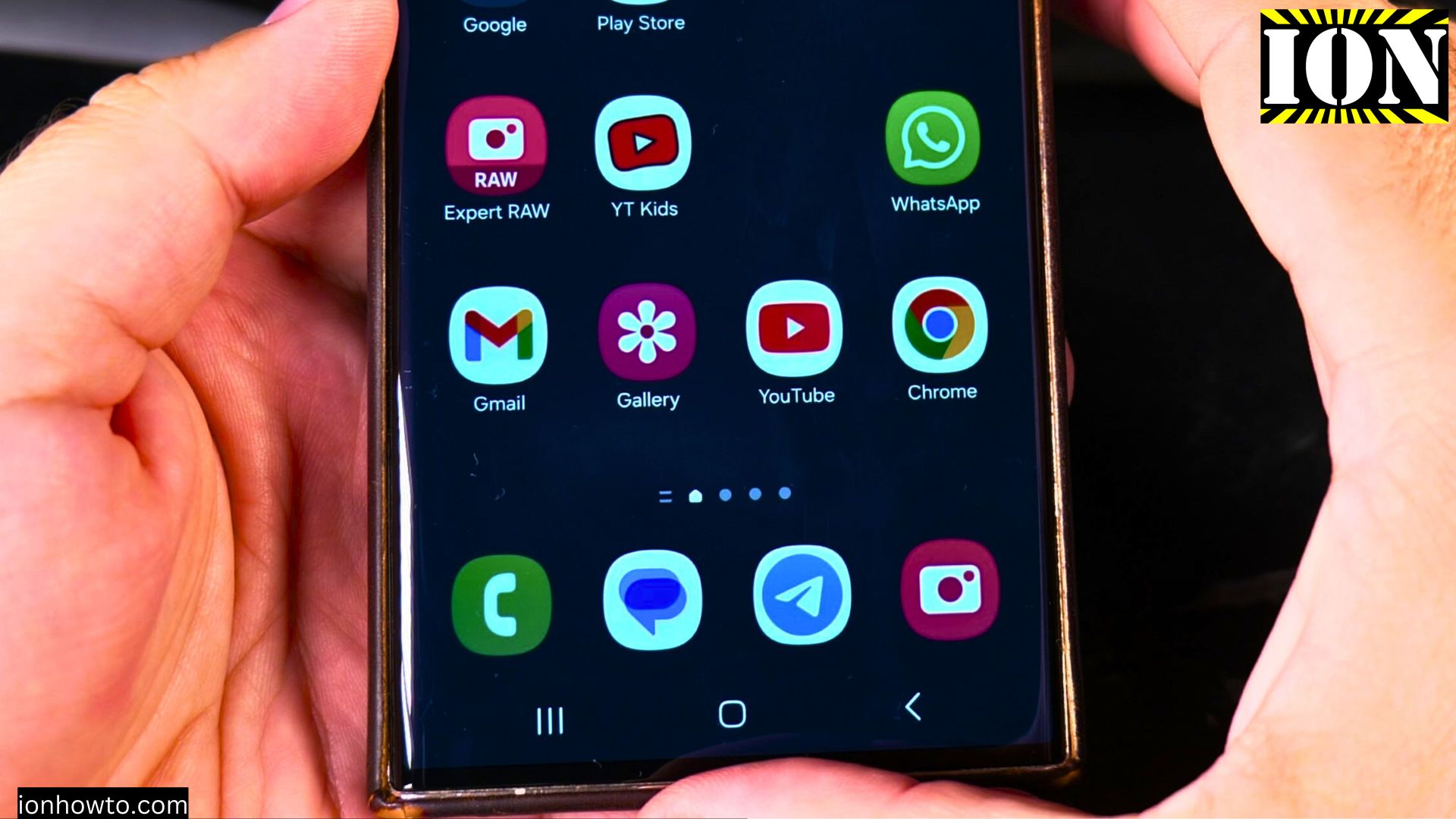
Your device has a built-in voice typing feature that lets you input text by speaking! I will show you how to enable and use voice input or voice typing on your Samsung Android device.
Amazon links
As an Amazon Associate I earn from qualifying purchases:
- Phone Accessories
- Screen protectors
- Phone Cases
- Mobile Tripods
- Usb-c charger
- Usb-c cable
- Docking stations
- Wireless car chargers
- Wireless charger stand
- SIM card removal tool
- SIM card holder
I show you how to set up both Google Voice Typing and Samsung Voice Input, so you can choose the option that works best for you.
What You Need
- A Samsung Android device (In the video I’m using the Samsung Galaxy S23 Ultra running Android 14 with OneUI 6.1).
- A stable internet connection (for Google Voice Typing).
- A few minutes to customize your settings.
1. Open The Keyboard Settings
- Open any app that uses the keyboard, like Messages, Notes, or Gmail.
- Tap on a text field to bring up the keyboard.
- Look for the gear icon (settings) on the keyboard toolbar and tap it. If you don’t see it, swipe left or right on the toolbar to find it.
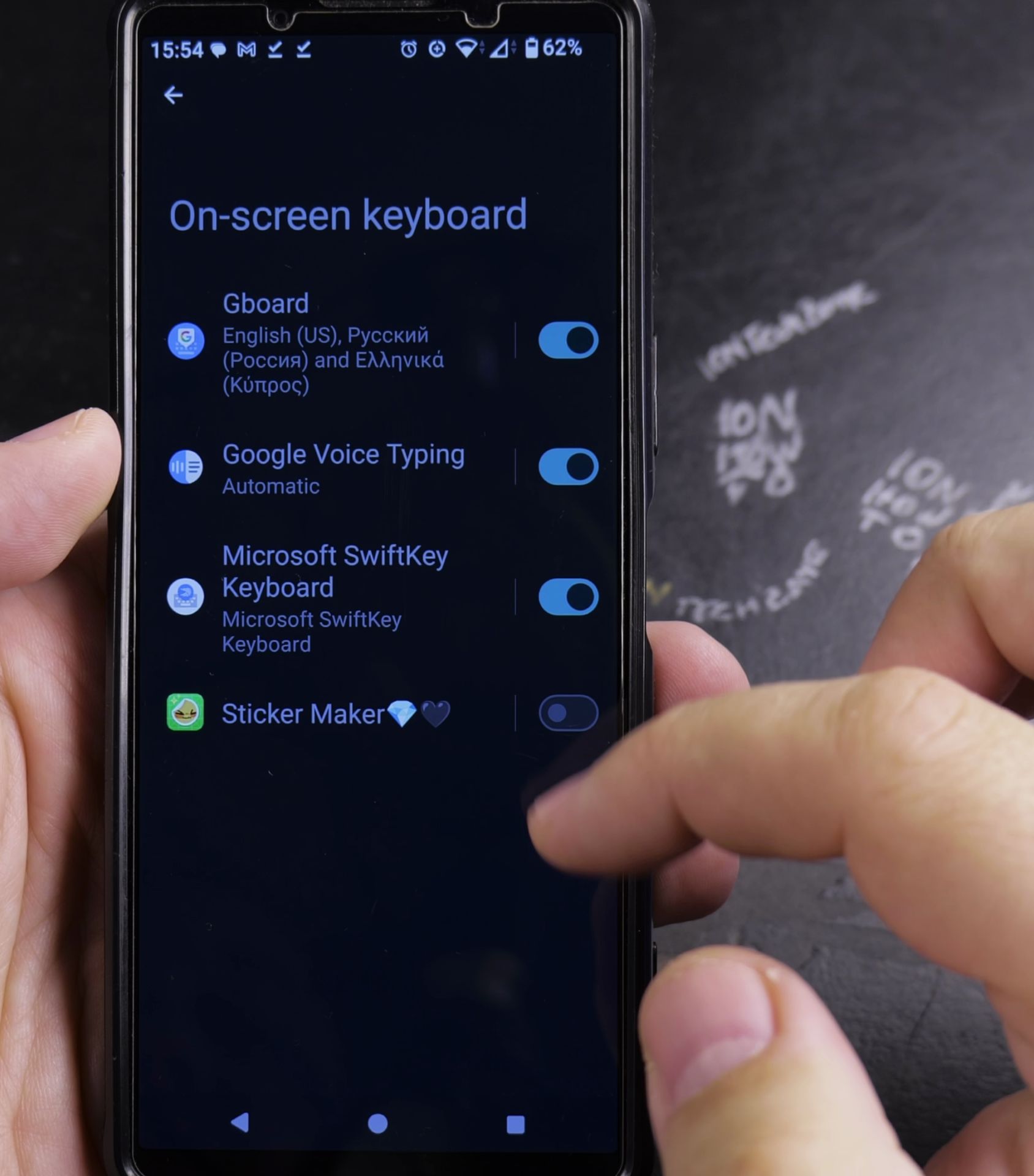
2. Enable Voice Typing
- In the keyboard settings menu, find and select “Voice typing” or “Voice input.”
- You should see two options:
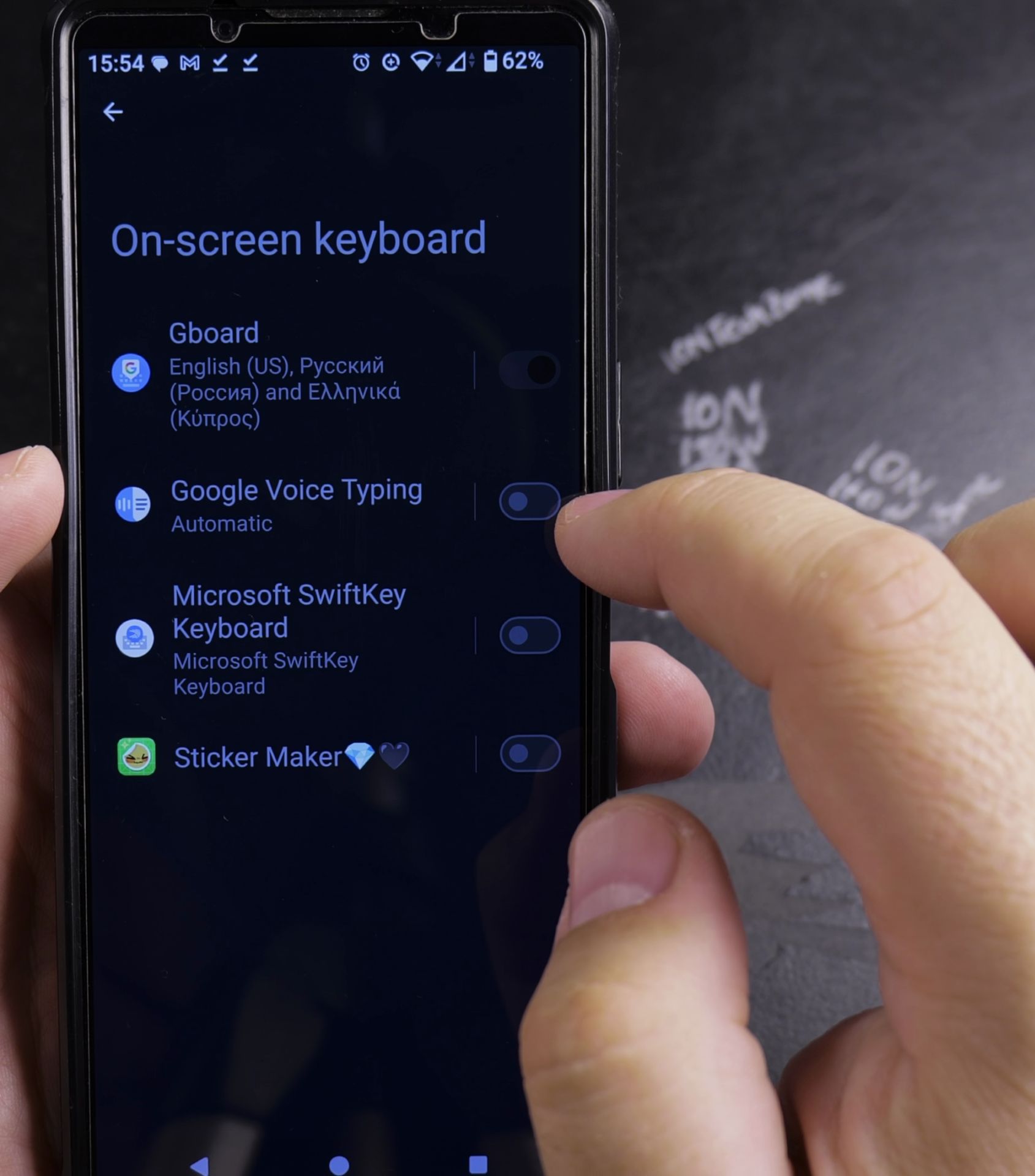
- Google Voice Typing: Powered by Google’s speech recognition technology.
- Samsung Voice Input: Samsung’s built-in voice typing feature.
- Press the option you prefer.
3. Customize Voice Typing Settings
To make sure voice typing works for you, customize the settings:
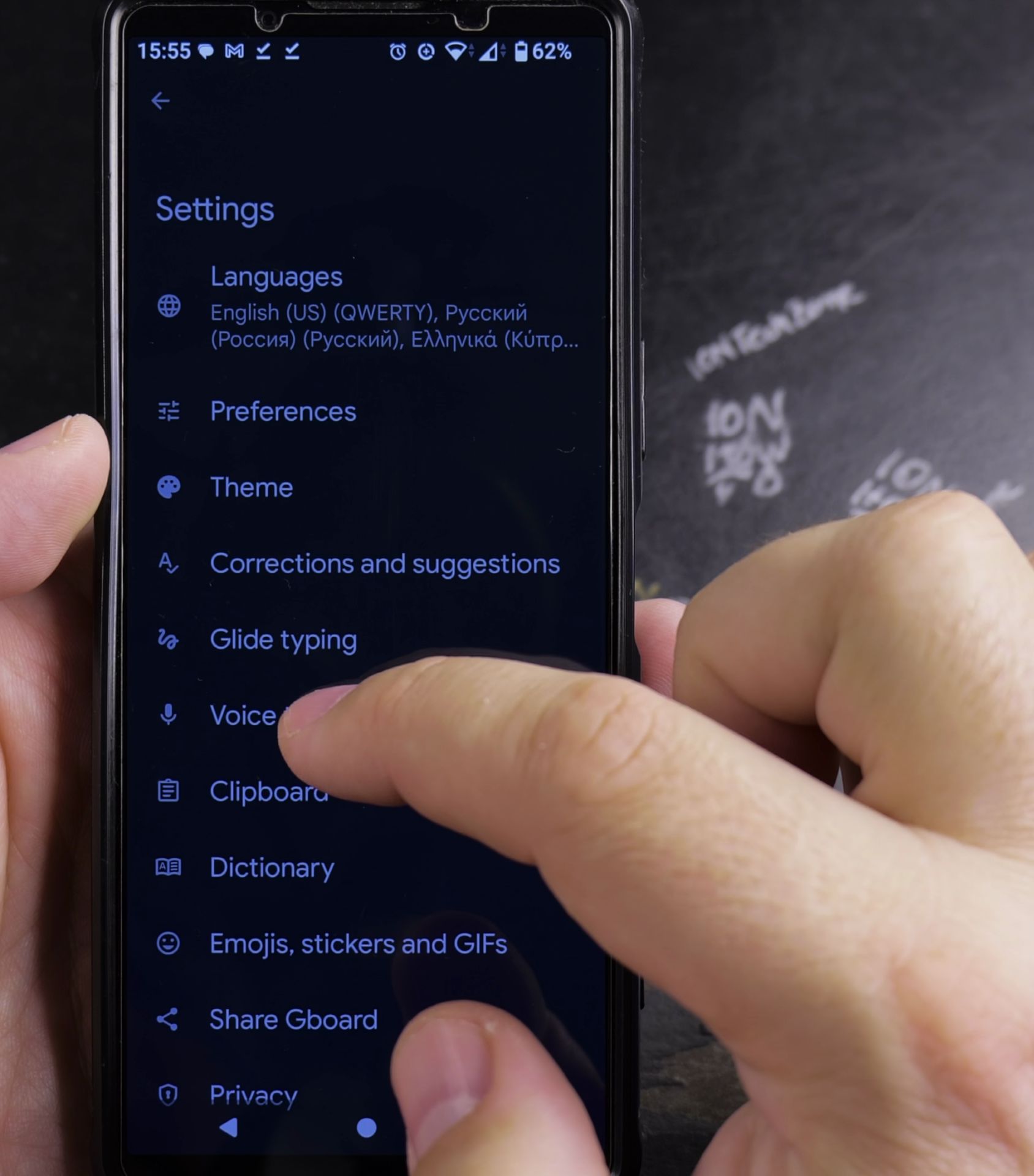
- Language Settings:
- Tap on “Languages” to select a preferred language.
- You can add multiple languages for voice typing.
- Voice Feedback:
- Enable or disable voice feedback (where the device reads back what you type).
- Offline Speech Recognition (for Google Voice Typing):
- Download offline language packs if you want to use voice typing without an internet connection.
4. Start Using Voice Typing
- Open any app where you can type text.
- Tap on a text field to bring up the keyboard.
- Look for the microphone icon on the keyboard (usually near the spacebar).
- Tap the microphone icon and start speaking. Your words will automatically be converted into text.
- Samsung Voice Input microphone icon location is very low on the left side of the keyboard. Look in the corner of the phone for it. You will only see the microphone button when voice input is enabled.
- For the Google Keyboard or Gboard the microphone button is on top of the keyboard above number 0 on the right side of the keyboard.
Tips for a Better Voice Typing Experience
- Speak Clearly: Enunciate your words to improve accuracy.
- Use Punctuation Commands: Say “period,” “comma,” “question mark,” etc., to add punctuation.
- While voice typing is pretty accurate, you may need to make minor corrections. Proof-read your messages before sending.
- Practice: The more you use it, the better it gets at recognizing your voice and speech patterns.
Google Voice Typing vs. Samsung Voice Input
- Google Voice Typing: is really good since you already use Google services. It’s accurate and supports many languages. Requires an internet connection for full functionality.
- Samsung Voice Input: A solid built-in option that works offline too.
Conclusion
Enabling voice typing on your Samsung Android device is super useful for productivity and convenience. When writing emails, sending texts, or jotting down notes, this hands-free feature can save you time and effort.
What’s better about the Samsung Voice Input is that it tries to understand sentences and adds punctuation.
Google Gboard won’t add punctuation signs unless you tell it to. Maybe it does but I don’t know how to use it yet.
Helpful Tips
Take your time and check the screen carefully after each tap so you can confirm the setting changed as expected. If an option appears in a slightly different spot on your device, watch the embedded video above for a closer look.
Related Guides
- How to Change Google Gemini Voice on Samsung Galaxy Android – If you don't like the default voice of your Google Gemini assistant, you can choose from a range of friendly and natural…
- Google Search Without Typing Using Voice Commands on Android – How to Search on Google Without Typing Using Voice Commands in Google Assistant or Gemini AI on Android Devices.
- How to Access Network Share on Samsung Galaxy Android Phone – If you have movies, photos, or documents on your home computer or network drive, you can open them right from your phone.
- Samsung Android Guides – Browse more tutorials and practical guides in this section.


Leave a Reply