
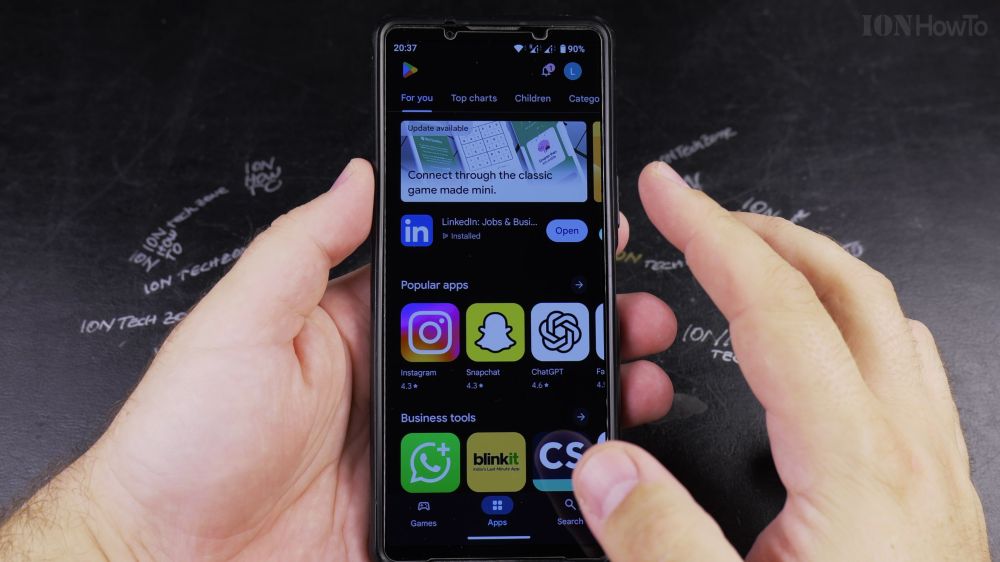
If you want to download a new game, ride service, or messaging app on your phone, the Google Play Store is the safest place to get it. I’ll show you how to search and install any app in a few simple taps.
1. Open Google Play Store
Tap the colorful triangular **Play Store** app icon on your home screen or app drawer.
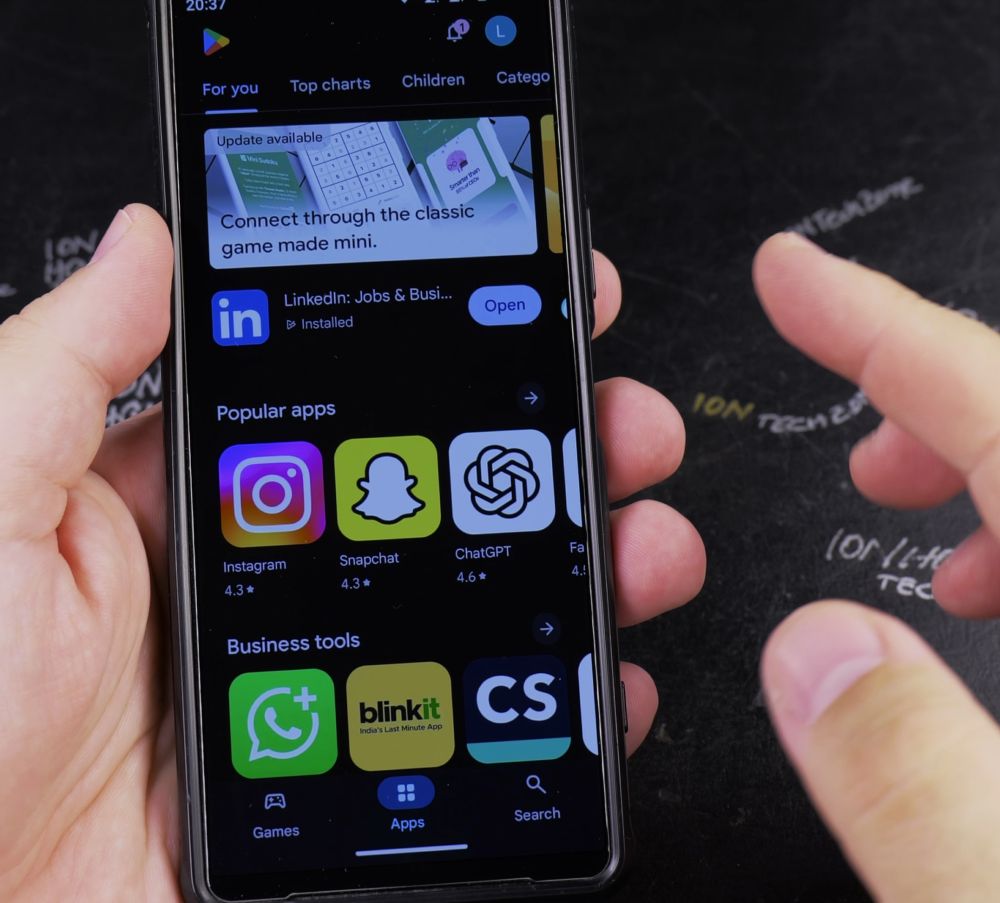
2. Search for Your App
Tap the **Search for apps & games** bar at the top and type the name of the app you want.
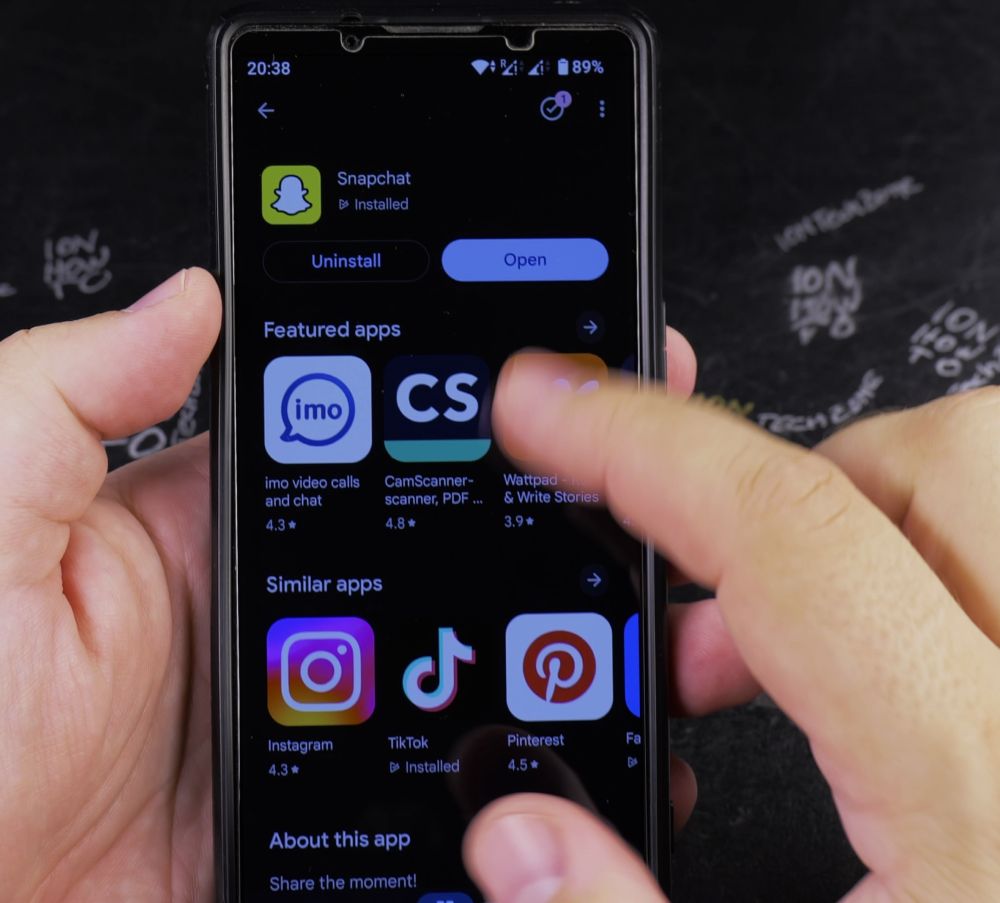
3. Tap the Green Install Button
Find the verified app in the search results and tap the green **Install** button.
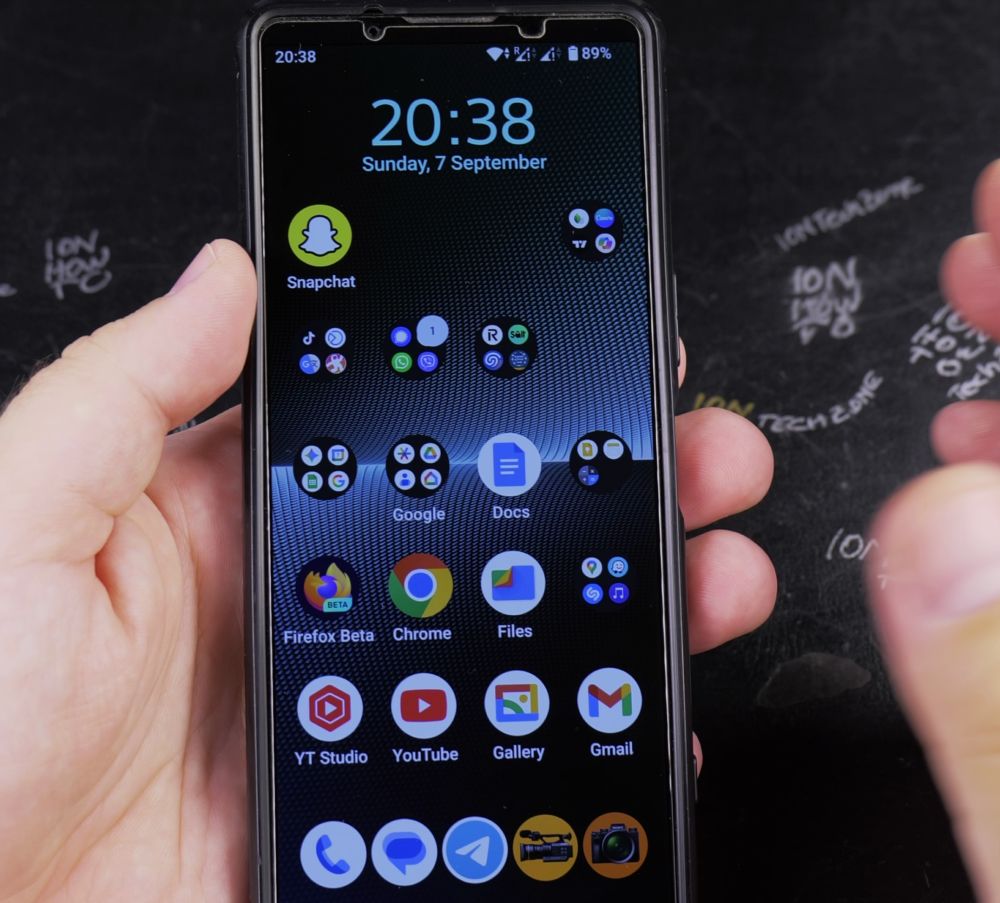
4. Wait for Download and Installation
Your phone downloads the file and installs it automatically within seconds.
5. Open Your New App
Tap the green **Open** button right inside the store, or tap the new app icon that appears on your home screen.
Helpful Tips
Make sure your phone is connected to Wi-Fi if downloading large apps or games so you don’t use up your cellular data plan. To learn how to clear out apps you no longer need, check out our guide on Android Guides.


Leave a Reply