
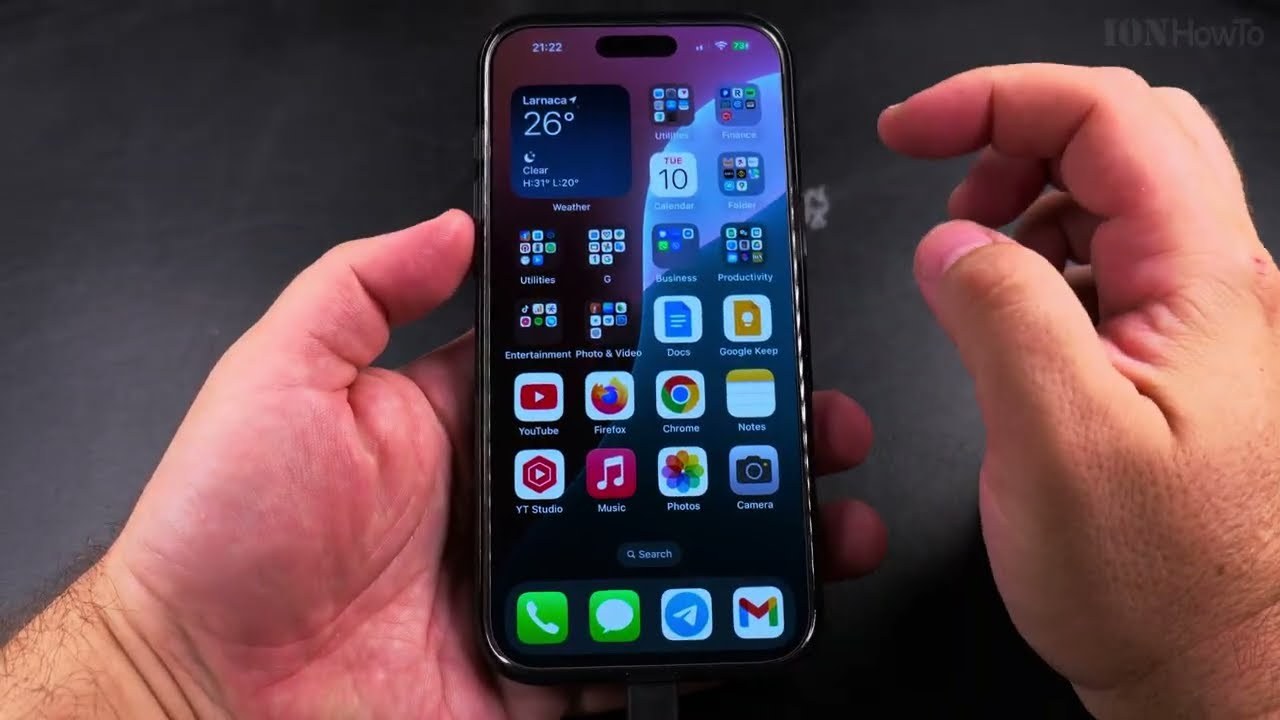
Want to try the new iOS 26 Liquid Glass interface on your iPhone 16 Pro Max before the public rollout, or simply make sure your update goes smoothly without errors?
Here is the exact checklist I followed to back up my iPhone, enable the update option, and complete the iOS 26 installation safely.
Quick Steps
- Back Up Your iPhone and Check Free Storage
- Plug In Your Charger and Open Software Update
- Select Beta Updates If You Want Early Access
- Download, Install, and Wait Through the Restarts
1. Back Up Your iPhone and Check Free Storage
Before installing a major iOS update or beta, back up your iPhone to iCloud or a computer using an encrypted backup so your passwords and health data stay safe. Also check Settings > General > iPhone Storage to make sure you have plenty of free space.
2. Plug In Your Charger and Open Software Update
Connect your iPhone 16 Pro Max to a reliable USB-C charger so the battery stays full during restarts. Open Settings, tap General, and then tap Software Update.
3. Select Beta Updates If You Want Early Access
If iOS 26 is not yet listed under standard updates, tap Beta Updates at the top of the Software Update screen. Choose the iOS 26 option (Public Beta when available, or Developer Beta if enrolled), then go back one screen.
4. Download, Install, and Wait Through the Restarts
Tap Update Now (or Download and Install) and enter your passcode if asked. Your iPhone will show the Apple logo and progress bar a few times while restarting, so leave it plugged in until the Hello and iOS 26 welcome screens appear.
Helpful Tips
- Never turn off or unplug your iPhone while the Apple logo and progress bar are on screen.
- If you prefer to review updates before they install overnight, tap Automatic Updates and choose Download Only.
Helpful Accessories on Amazon
As an Amazon Associate I earn from qualifying purchases.
Related Guides
- iPhone iOS 26 vs Android 15 Compared – Learn how the latest versions of iOS and Android stack up in this comparison of iOS 26 and Android 15.
- Asus Router RTBE92U Setup Install with iPhone – Setting up a modern Wi-Fi 7 router no longer requires a desktop computer or complicated cables.
- MacBook Air M5 13-Inch First Time Setup as a New Mac Using an iPhone (macOS 26.5) – When you open a brand-new 13-inch MacBook Air M5 for the first time, macOS 26.5 lets you either configure the laptop…
- iPhone How-To Guides – Browse more tutorials and practical guides in this section.


Leave a Reply