
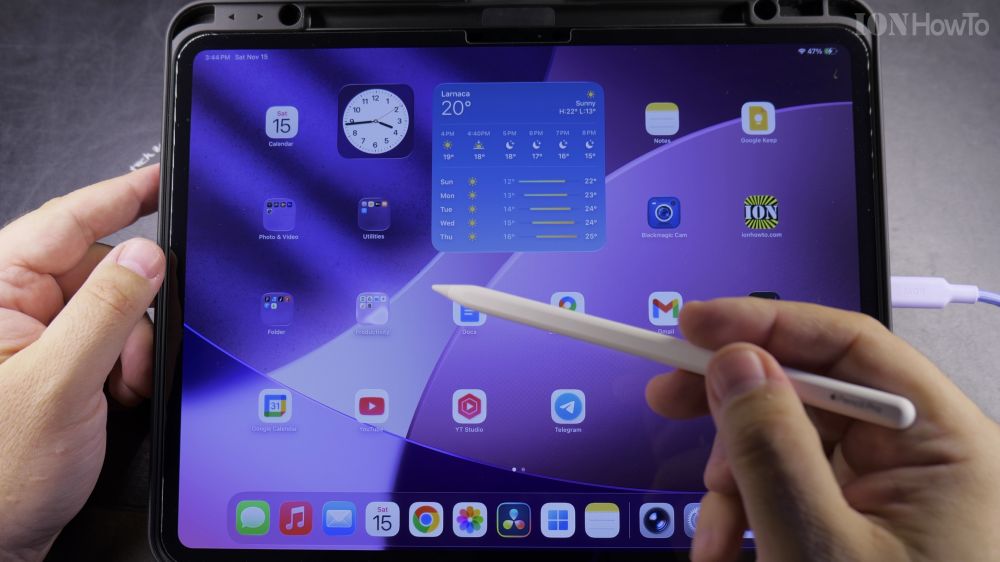
If you just unboxed an Apple Pencil Pro or it disconnected from your tablet, pairing takes just a single snap. I’ll show you how to magnetically attach and pair your Apple Pencil Pro in seconds.
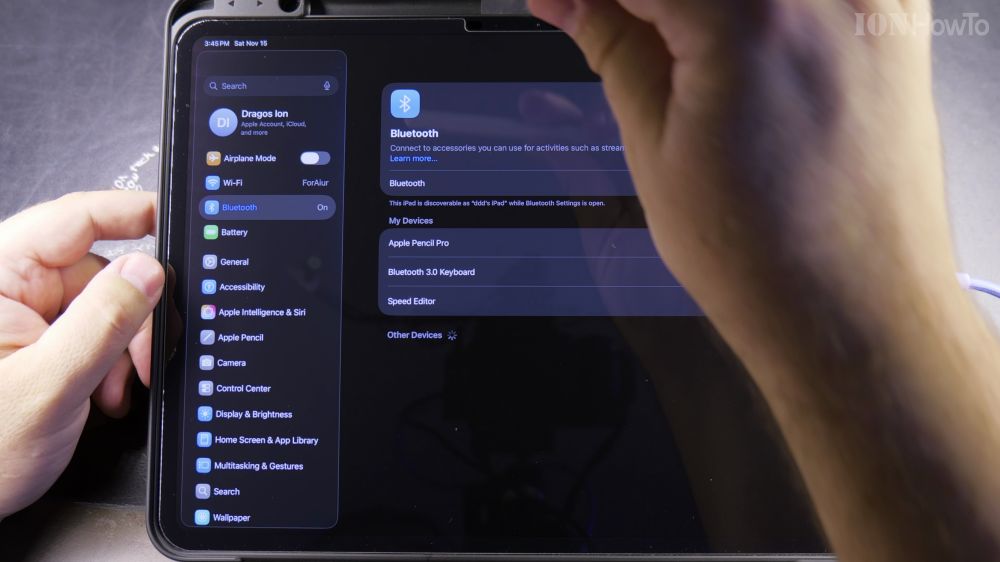
1. Turn On Bluetooth
Open **Settings** on your iPad, tap **Bluetooth**, and make sure the switch is turned **On**.
2. Locate the Magnetic Strip
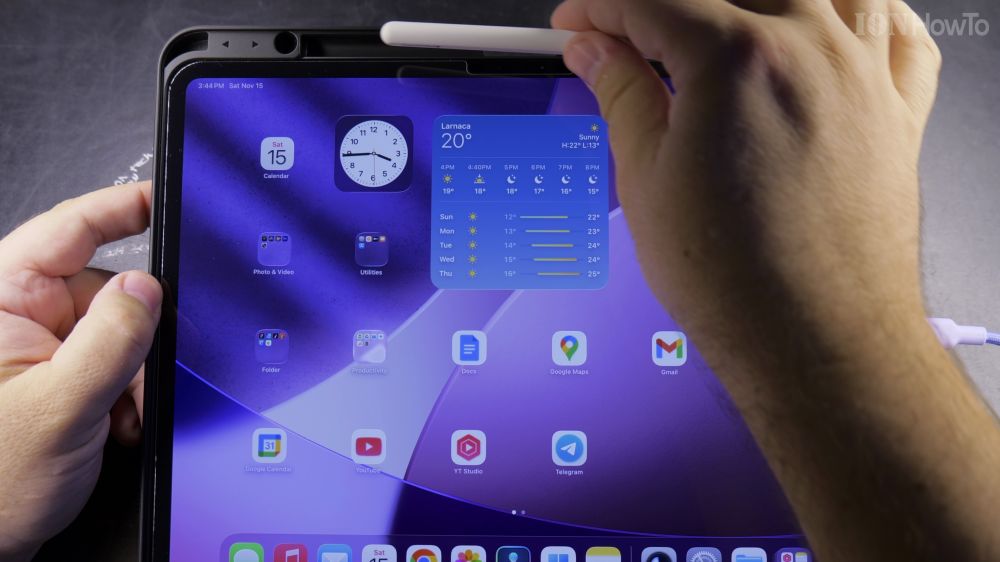
Find the flat magnetic strip centered on the long edge of your iPad frame (under the volume keys).
3. Snap the Pencil onto the Edge
Center the flat edge of your Apple Pencil Pro against the magnetic connector until it snaps into place.
4. Tap Connect on the Pairing Banner
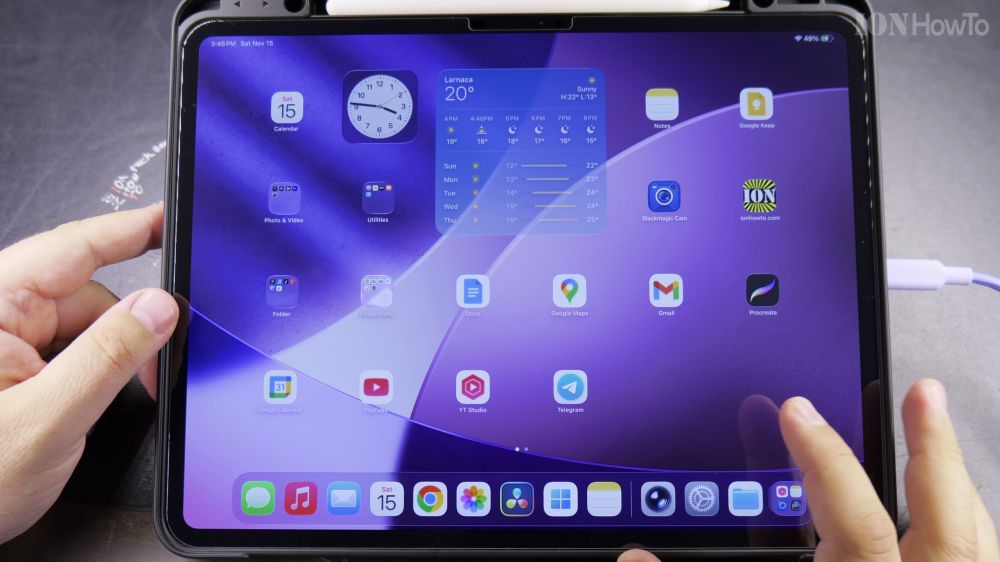
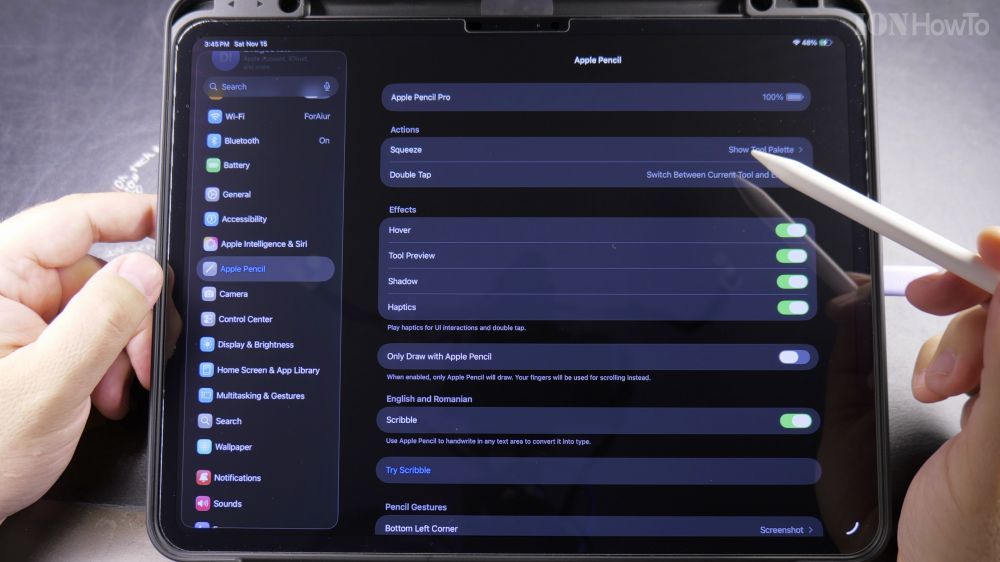
An animated prompt showing your Apple Pencil and its current battery percentage will drop down from the top edge. Tap **Connect** to finish.
Helpful Tips
Apple Pencil Pro works exclusively with M4 iPad Pro, M2/M4 iPad Air, and newer models. For stylus troubleshooting, check our guide on Apple Pencil Pro Battery Life When Unused or explore our Apple iPad hub.


Leave a Reply