
Amazon links
As an Amazon Associate I earn from qualifying purchases:
- iPhone Accessories
- iPhone Charger
- iPhone Cases
- iPhone Screen protector
- iPhone Magsafe
- iPhone Wallet
- iPhone Usb c cable
Got a new AirTag and ready to start tracking your stuff? Setting it up with your iPhone is quick and easy. Here’s everything you need to know to get started.
How to Set Up an Apple AirTag with iPhone First Time Setup.
Quick Steps and Scenarios Overview
| What You Need to Do | Quick Jump |
|---|---|
| What You'll Need | Jump to Step 1 |
| Step-by-Step AirTag Setup | Jump to Step 2 |
| Using Your AirTag | Jump to Step 3 |
| Privacy and Safety Features | Jump to Step 4 |
| Compatibility Notes | Jump to Step 5 |
What You’ll Need
- An iPhone or iPad with iOS/iPadOS 14.5 or later
- Bluetooth turned on
- Apple ID with two-factor authentication
- The Find My app installed
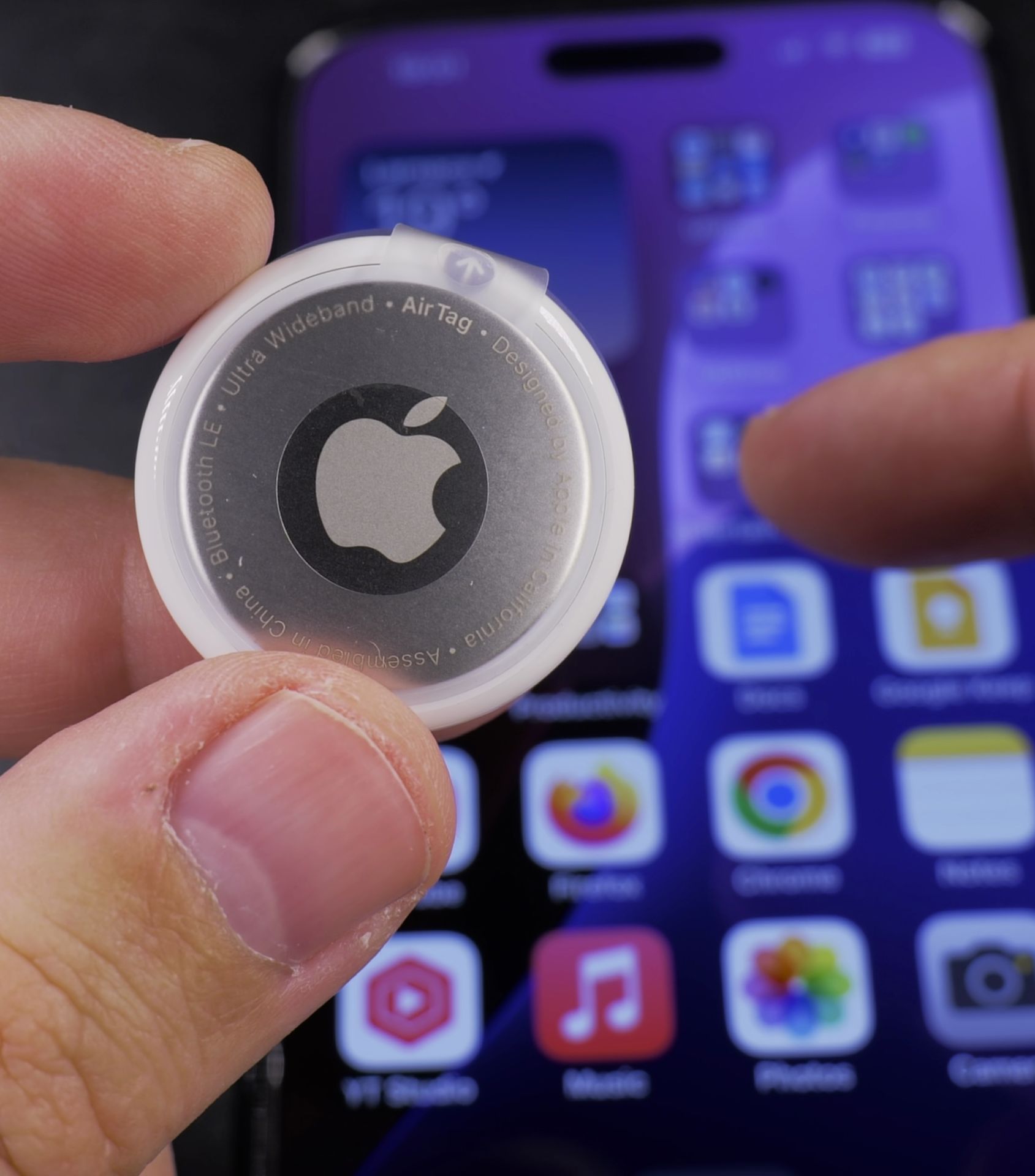
Step-by-Step AirTag Setup
1. Activate Your AirTag
- Remove the plastic tab from your new AirTag (this turns it on)
- You should hear a startup chime
2. Start the Pairing Process
- Hold the AirTag near your iPhone
- Wait for the pairing animation to appear on your screen
- Tap “Connect”
Tip: If the prompt doesn’t appear:
- Make sure Bluetooth is enabled
- Move the AirTag closer to your iPhone
- Try locking and unlocking your iPhone
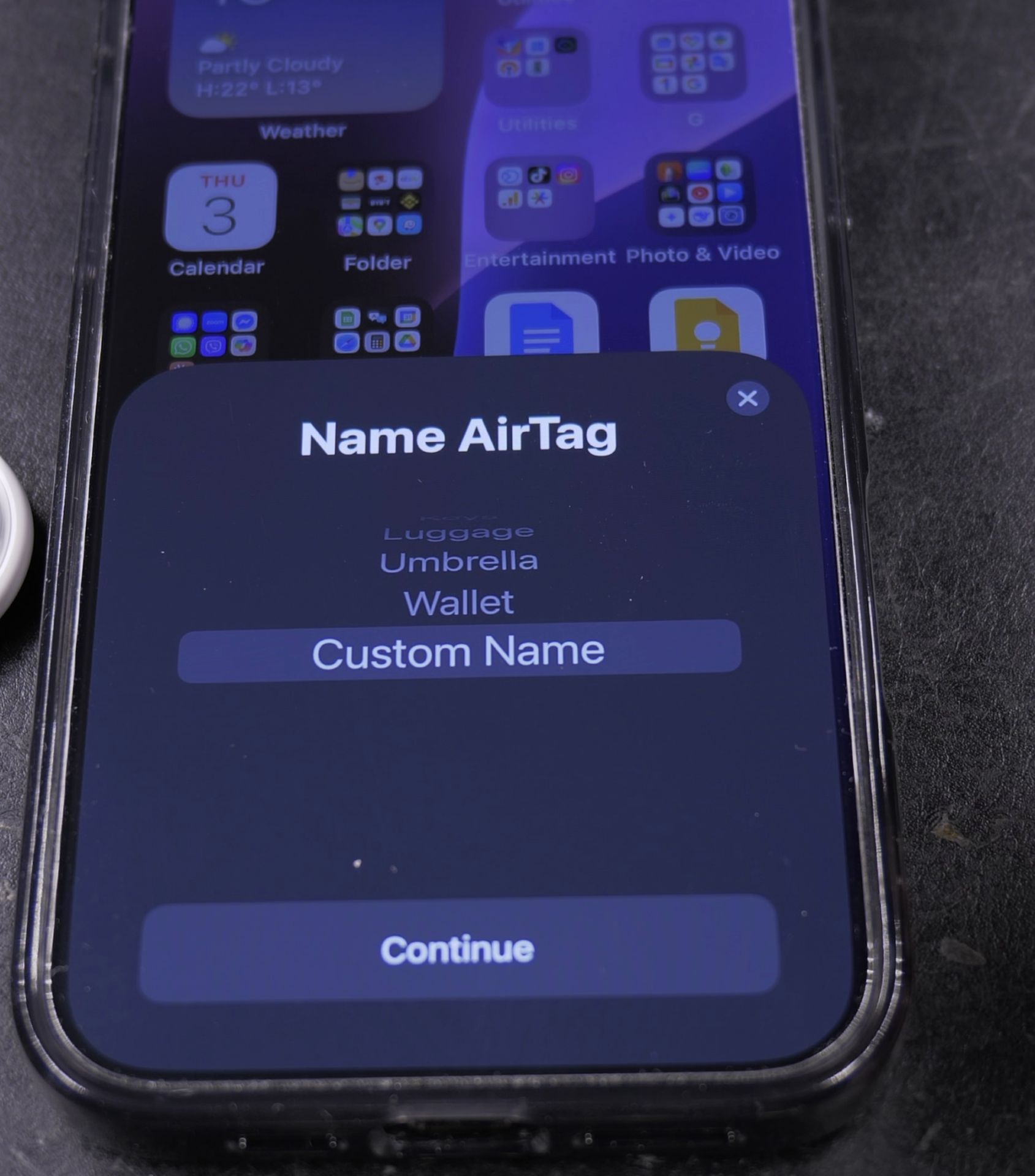
3. Name Your AirTag
- Choose from suggested names (Keys, Bag, Jacket, etc.)
- Or select “Custom Name” to create your own
4. Assign to Your Apple ID
- The AirTag will automatically register to your Apple ID
- You’ll see a confirmation message when complete
5. Finish Setup
- Tap “Continue” then “Done”
- Your AirTag is now ready to use
Using Your AirTag
To Find Your Item:
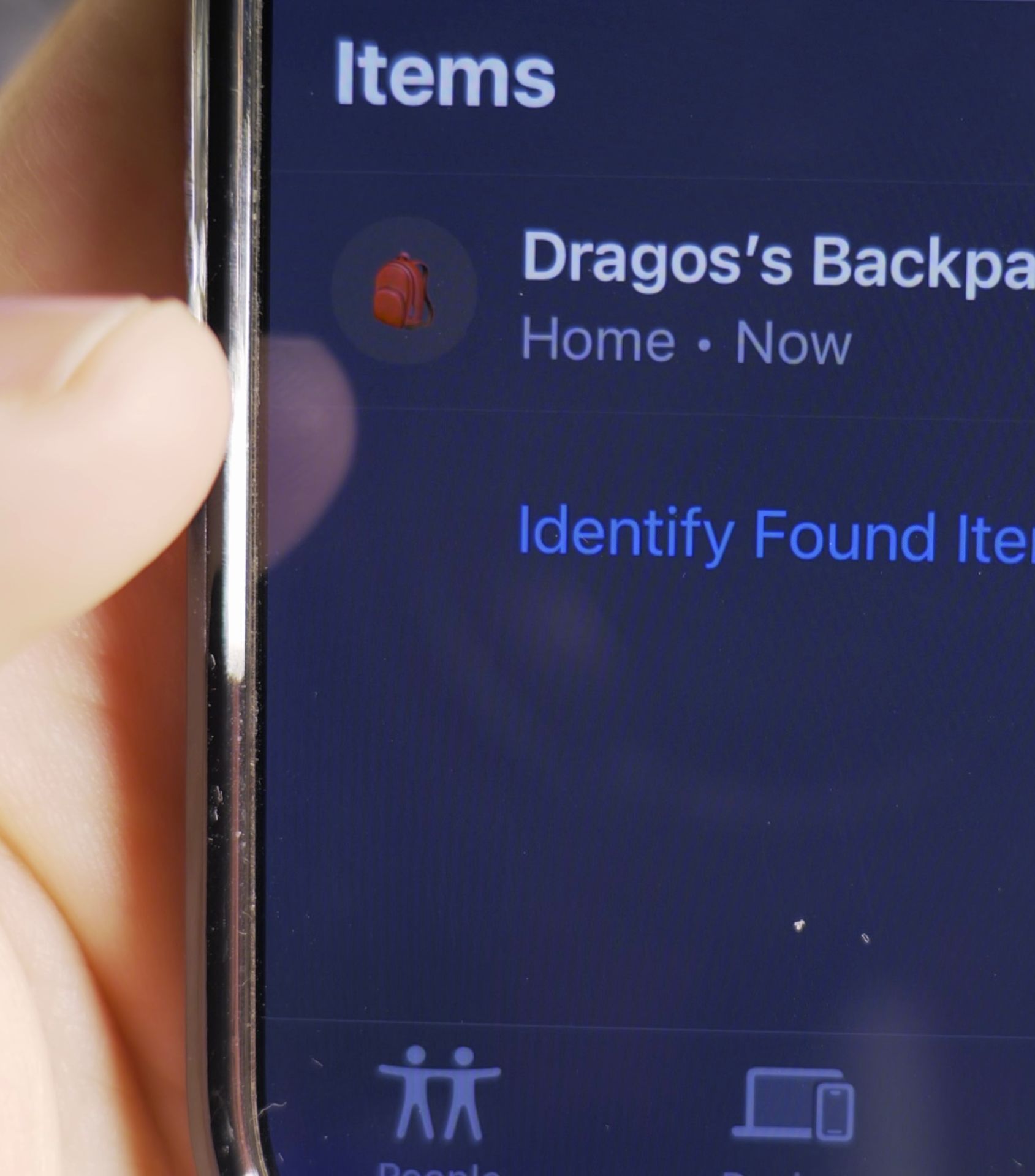
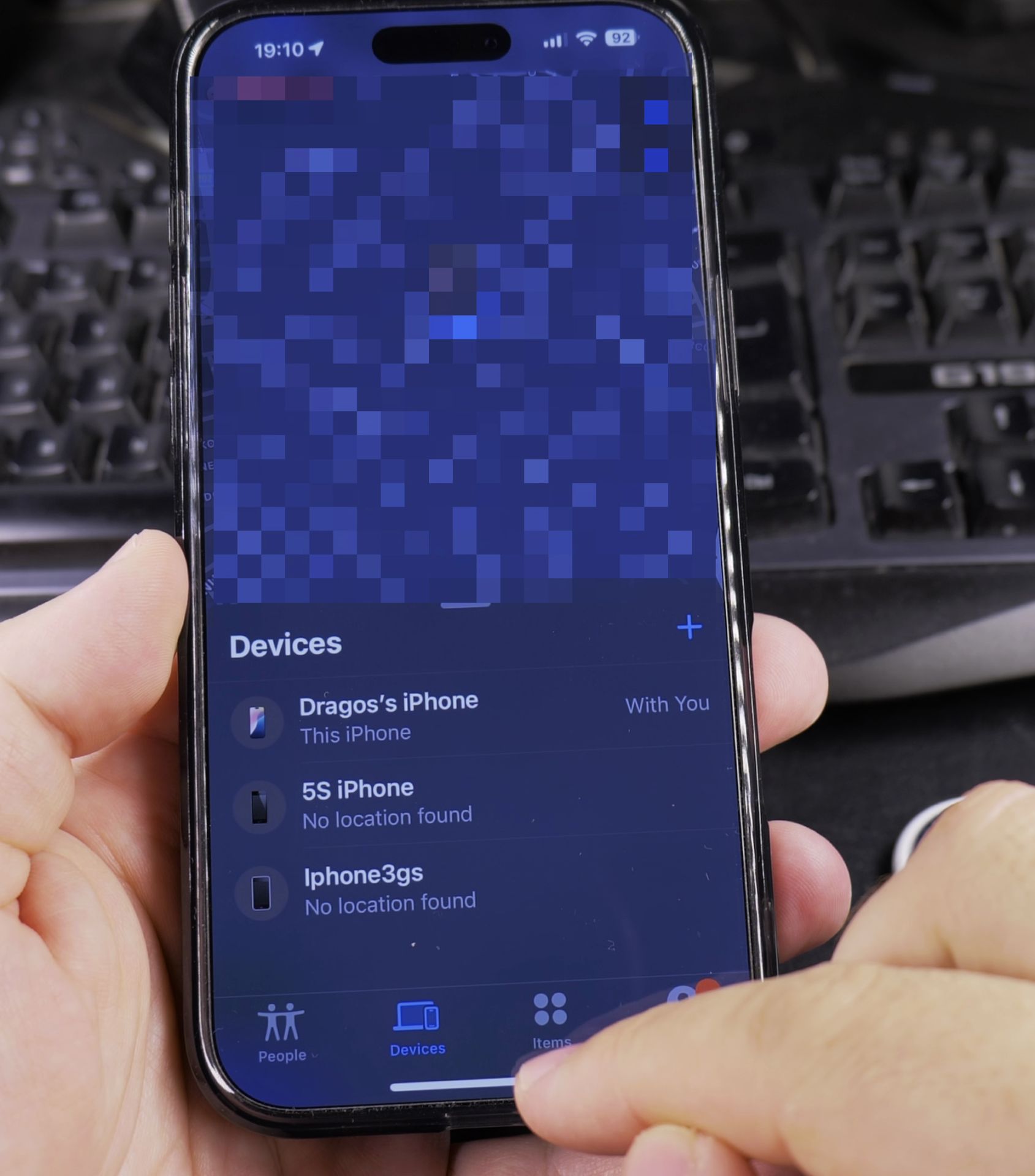
- Open the Find My app
- Go to the Items tab
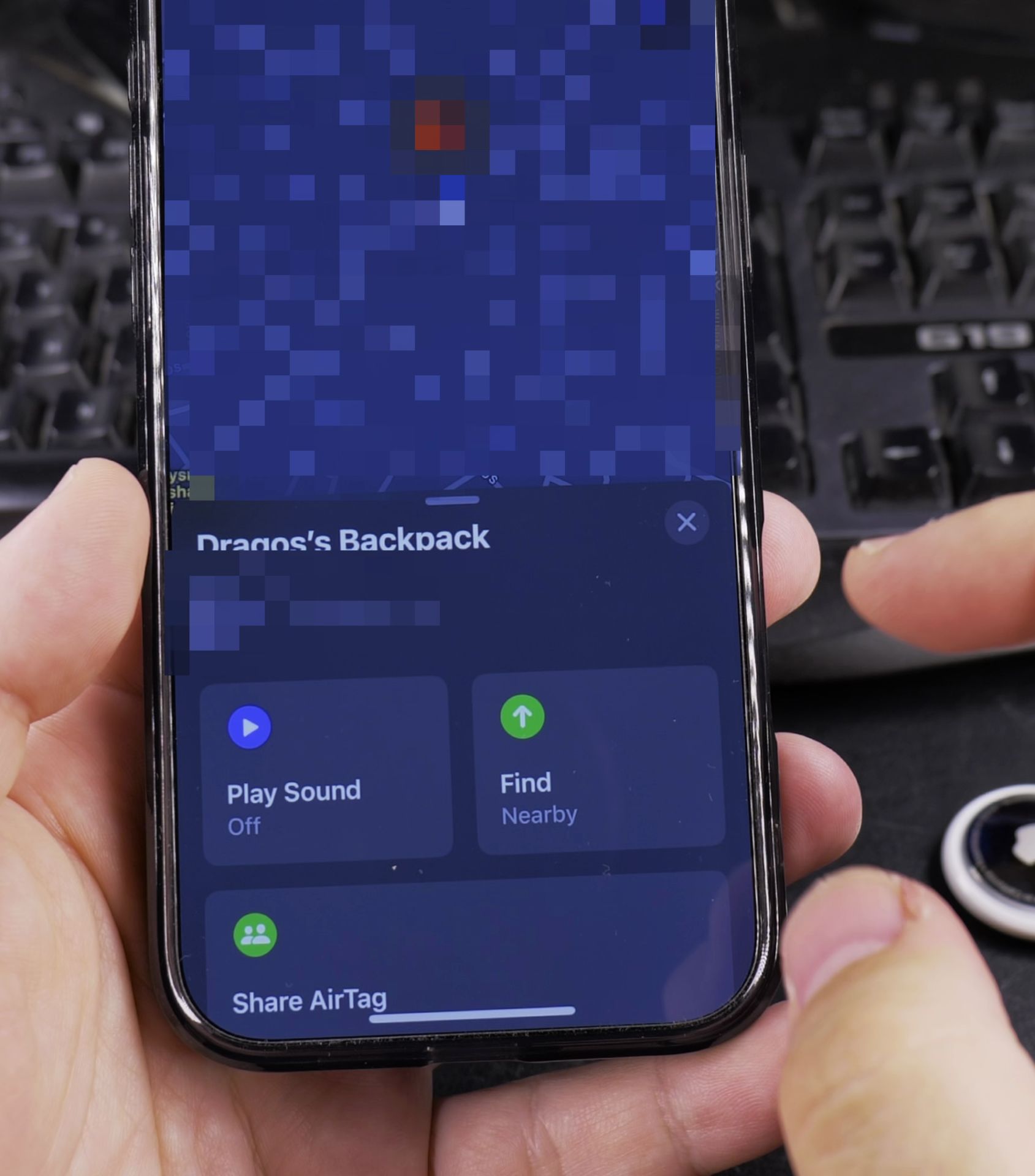
- Select your AirTag
- Choose “Play Sound” or follow the on-screen directions
To Check Battery Life:
- In the Find My app, select your AirTag
- The battery status appears under the item’s name
Privacy and Safety Features
If You Find an Unknown AirTag:
- Tap it with an NFC-enabled phone
- Follow the instructions to see owner info (if available)
- You can disable it by removing the battery
Unwanted Tracking Alerts:
- Your iPhone will notify you if an unknown AirTag is moving with you
- These alerts help prevent unwanted tracking
Troubleshooting Tips
If you’re having issues:
- Restart your iPhone
- Make sure you’re signed in to iCloud
- Check that Location Services are enabled
- Replace the battery if the AirTag isn’t working
Compatibility Notes
This guide was tested on:
- iPhone 16 Pro Max running iOS 18.3.2
- Works with all iPhones that support iOS 14.5+
Now you’re ready to attach your AirTag to your keys, wallet, or anything else you don’t want to lose. Happy tracking!
Remember: AirTags are designed to help you find your belongings, not to track people without their consent. Always use them responsibly.
Helpful Tips
Take your time and check the screen carefully after each tap so you can confirm the setting changed as expected. If an option appears in a slightly different spot on your device, watch the embedded video above for a closer look.
Related Guides
- Set Up Your New iPad Pro M5 with iPhone and iCloud – How to Set Up Your New iPad Pro M5 with iPhone and iCloud Backup.
- Set Up Face ID on iPhone – How to Set Up Face ID on iPhone 16 Pro Max Step-by-Step Guide.
- Set Up iPhone Personal Hotspot & Connect Android Devices – How to Set Up iPhone 16 Pro Max Personal Hotspot & Connect Android Devices.
- iPhone How-To Guides – Browse more tutorials and practical guides in this section.


Leave a Reply