
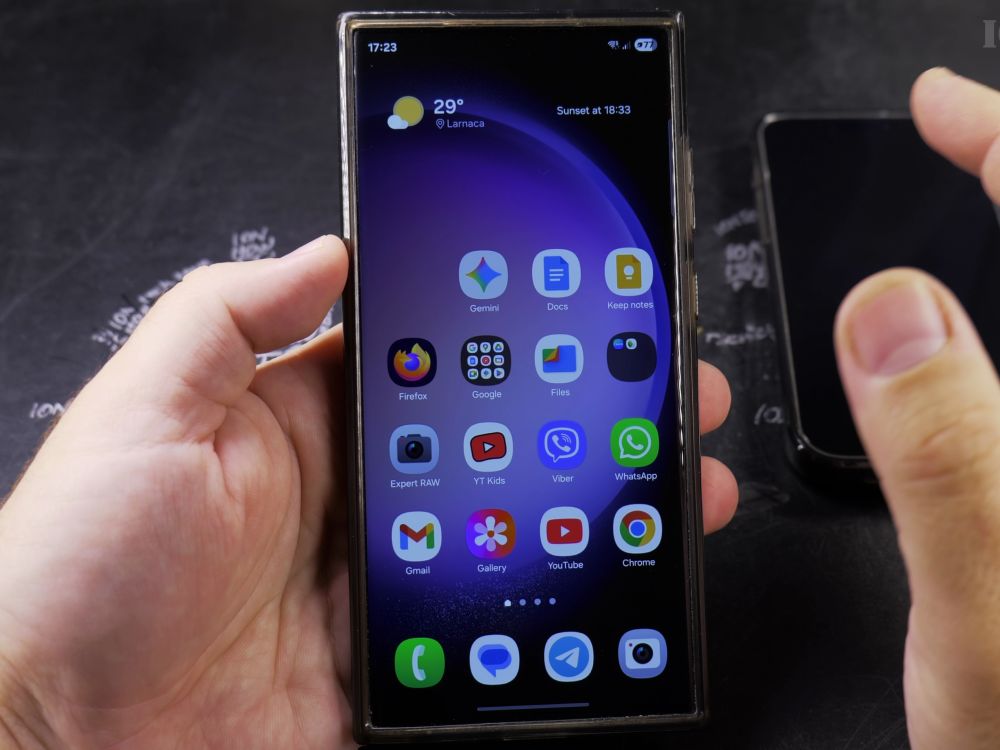
If your Samsung phone is set to block caller ID, your calls may be sent straight to voicemail by spam filters. I’ll show you how to remove the block and ensure your caller ID displays reliably on every outgoing call.
1. Open the Phone App
Tap the green **Phone** app icon on your home screen or app drawer.
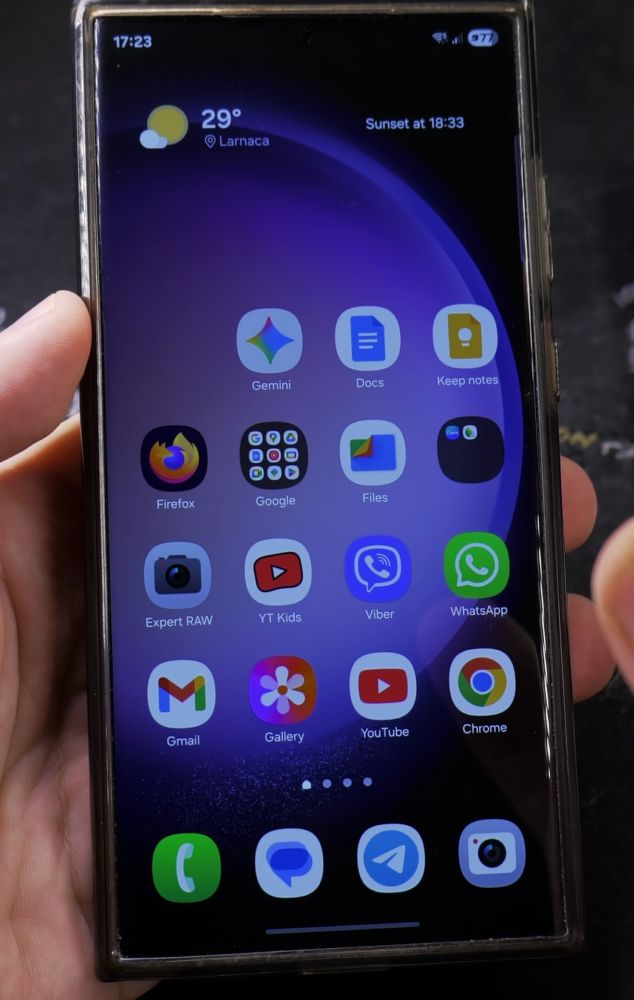
2. Open Call Settings
Tap the **three dots** in the upper-right corner of the dialer and choose **Settings**.
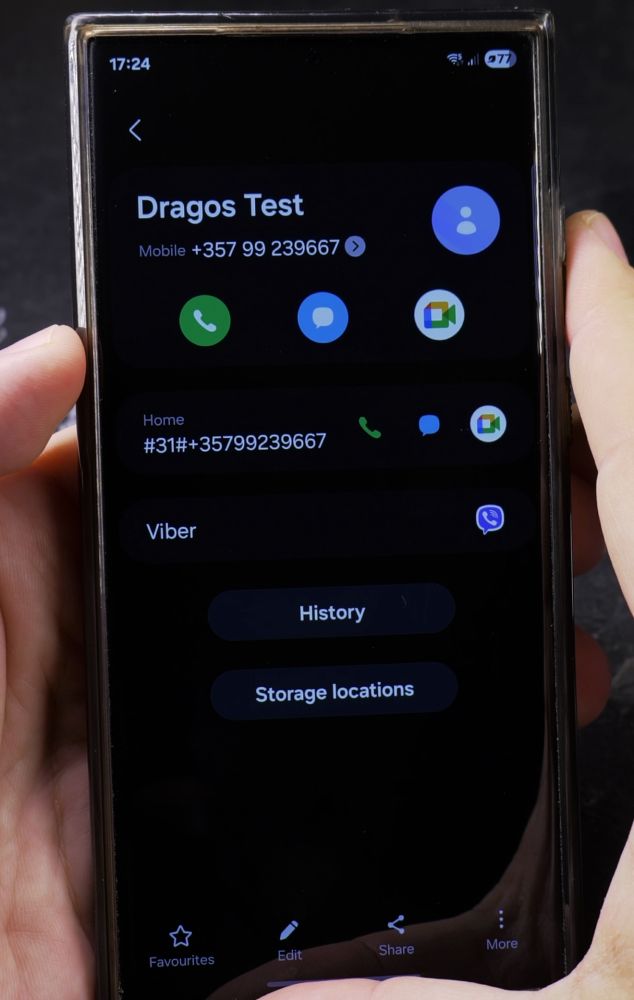
3. Open Supplementary Services
Scroll down the list and tap **Supplementary services**.
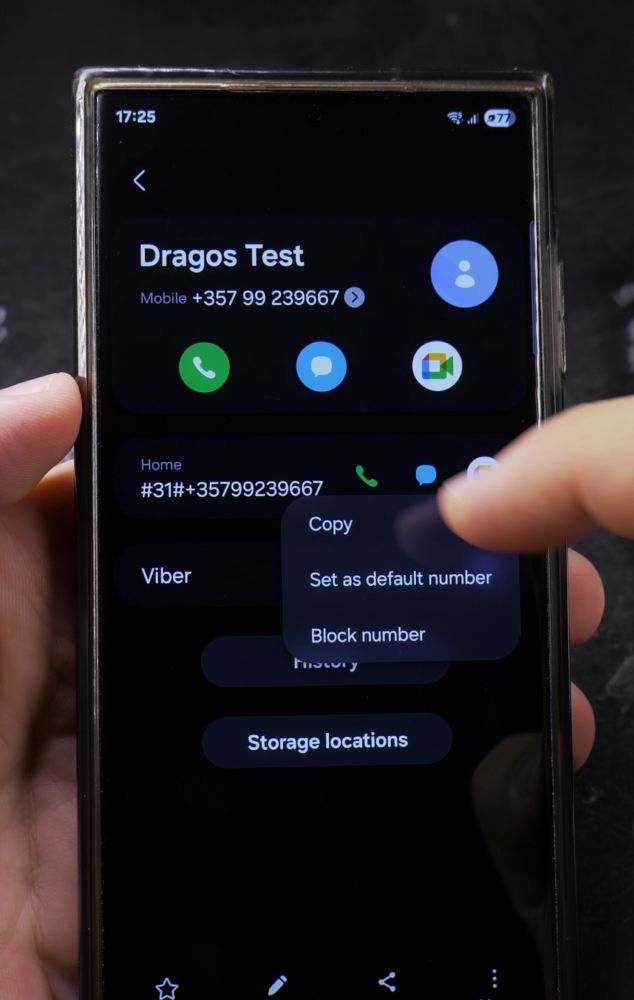
4. Tap Show Your Caller ID
Wait for the carrier status check to finish, then tap **Show your caller ID**.
5. Select Always
Choose **Always** from the list. Your phone number will now display clearly on all outgoing calls.
Helpful Tips
Some mobile carriers also offer spam protection and verified caller ID services in the Phone app under Caller ID and spam protection. For more device optimization tips, explore our Android Guides section.


Leave a Reply