
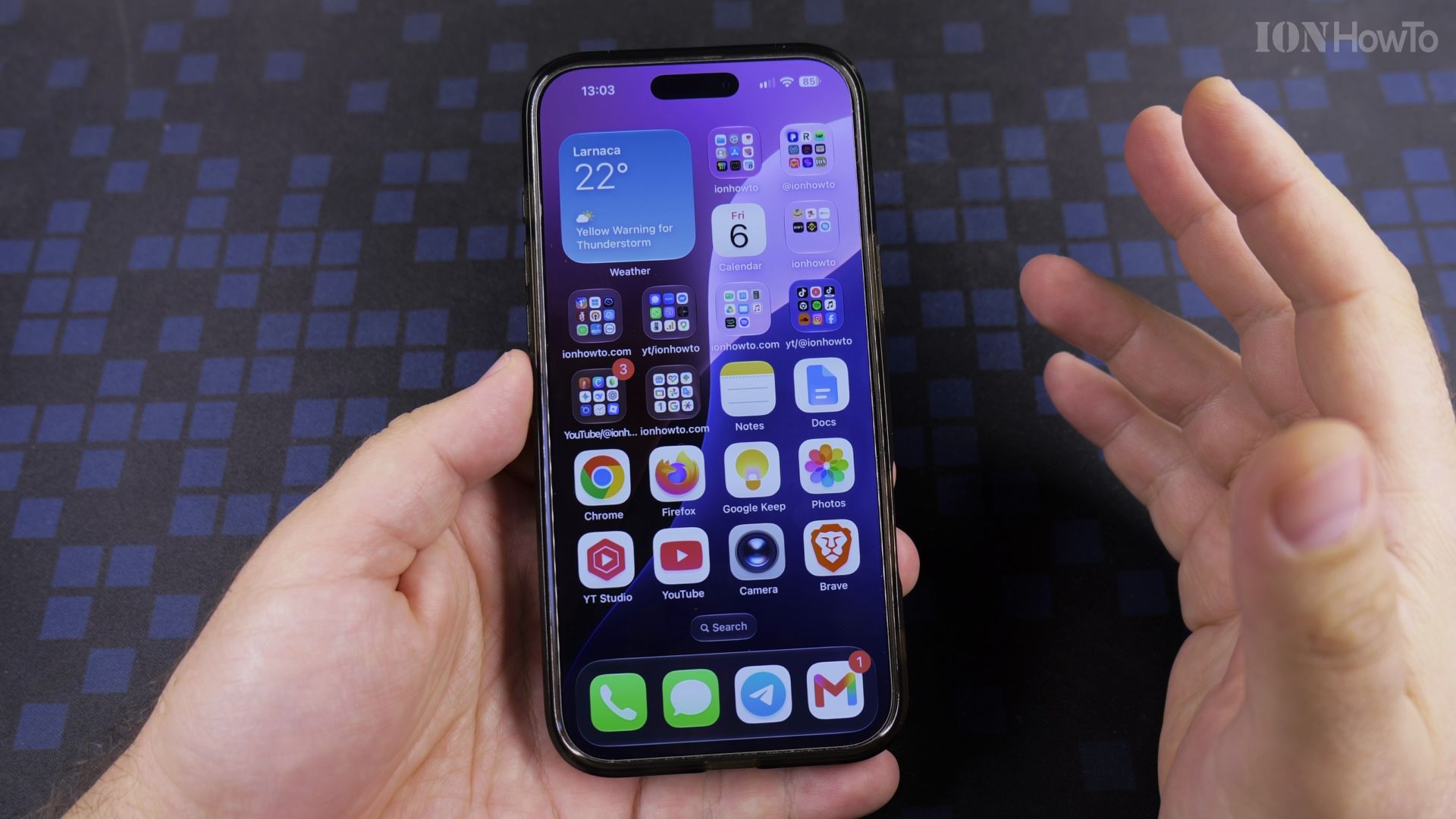
Does your whole screen suddenly slide down by accident? That is Reachability, also called One-Handed mode. Here is how to switch it off.
Jump straight to a step
Recommended Amazon Gear and Accessories
Disclosure: This article contains Amazon affiliate links. As an Amazon Associate, we earn from qualifying purchases at no extra cost to you.
- iPhone Accessories
- iPhone Charger
- iPhone USB-C Cable
- iPhone MagSafe Accessories
- iPhone Case
- iPhone Screen Protector
1. Why the screen keeps dropping
A slight downward swipe at the bottom edge triggers it, often when you are just reaching for the Home bar.
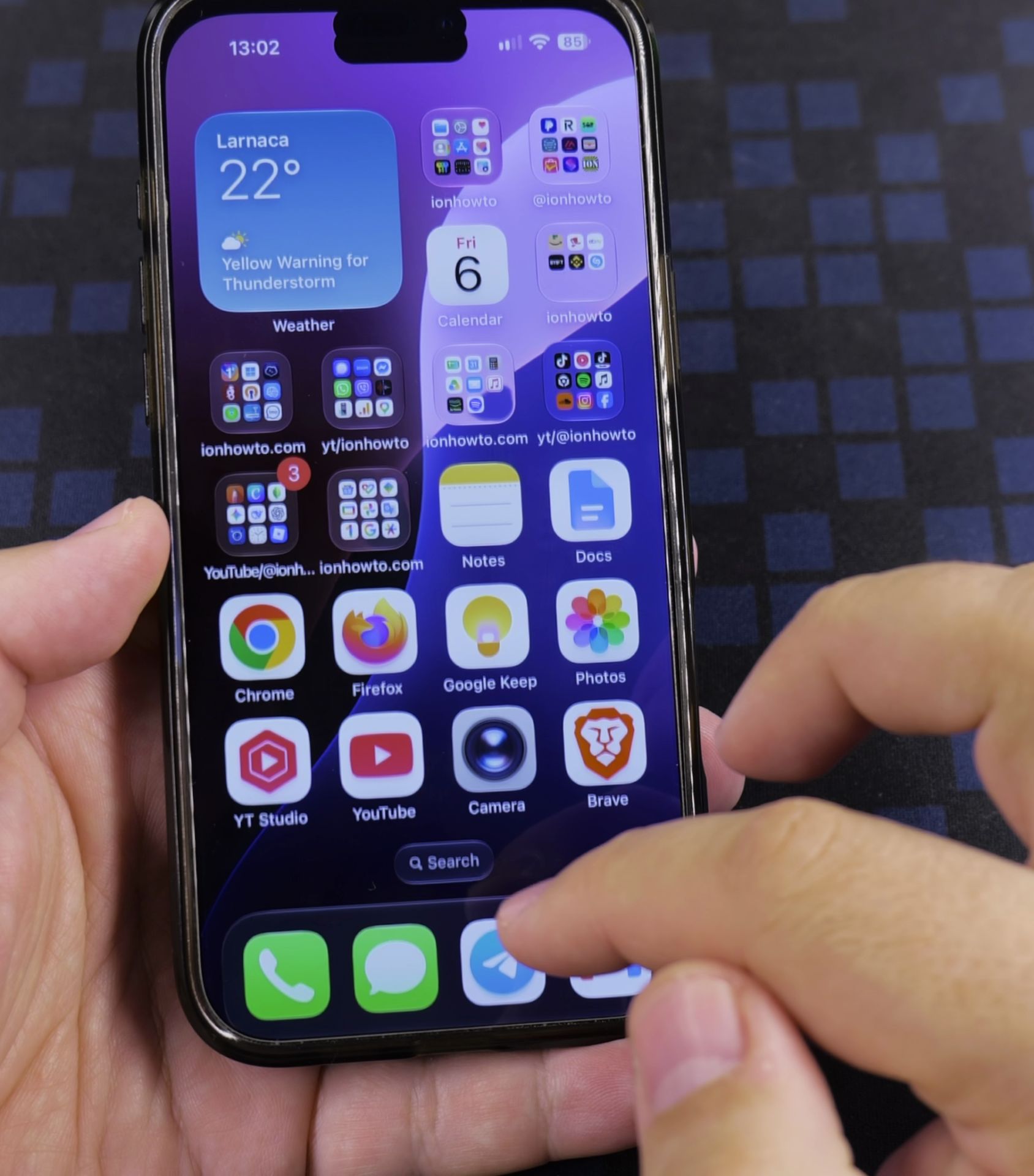
2. Open Settings and Accessibility
Open **Settings**, then tap **Accessibility** and **Touch**.
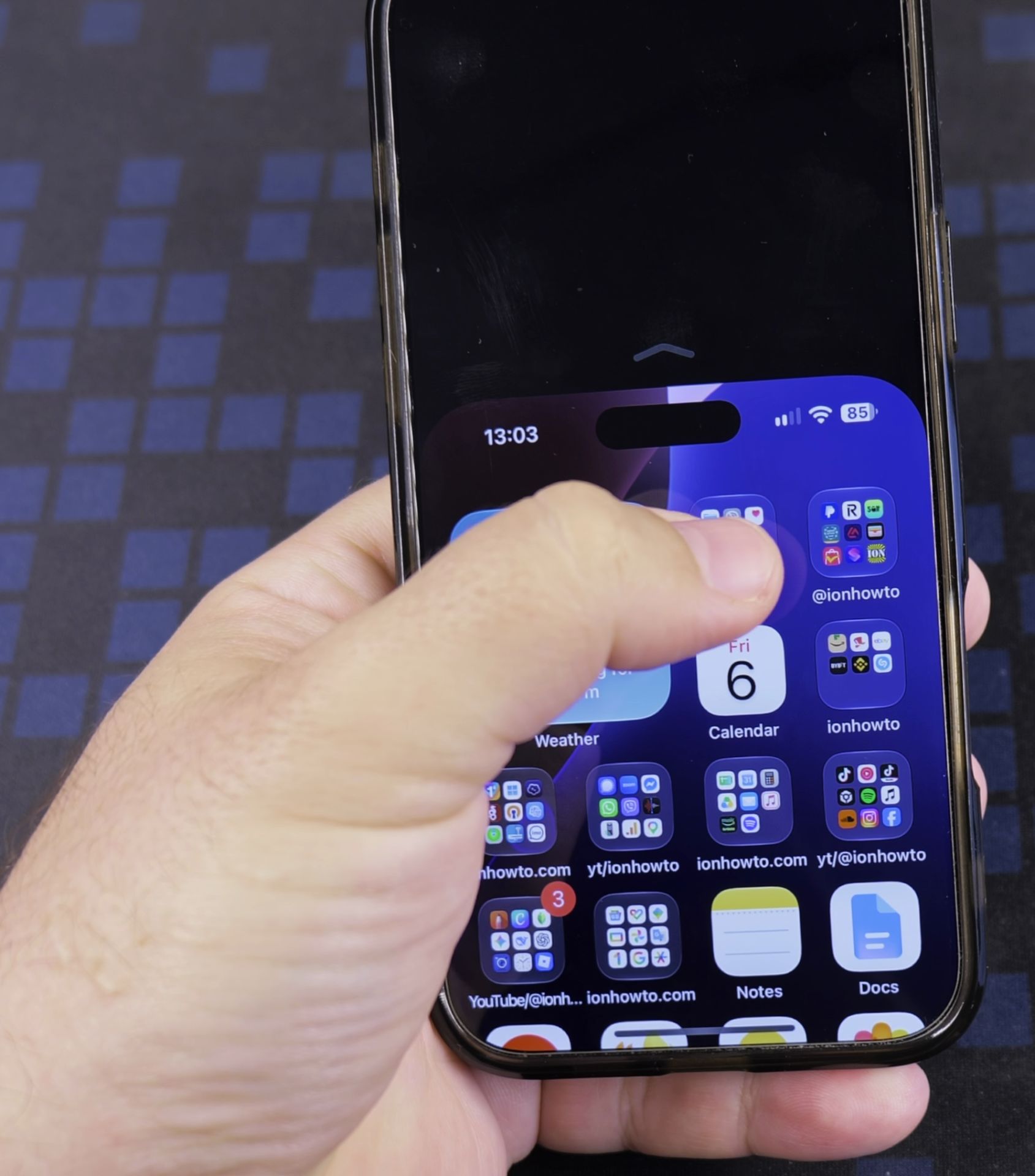
3. Turn Reachability off
Tap the **Reachability** switch so it turns grey.
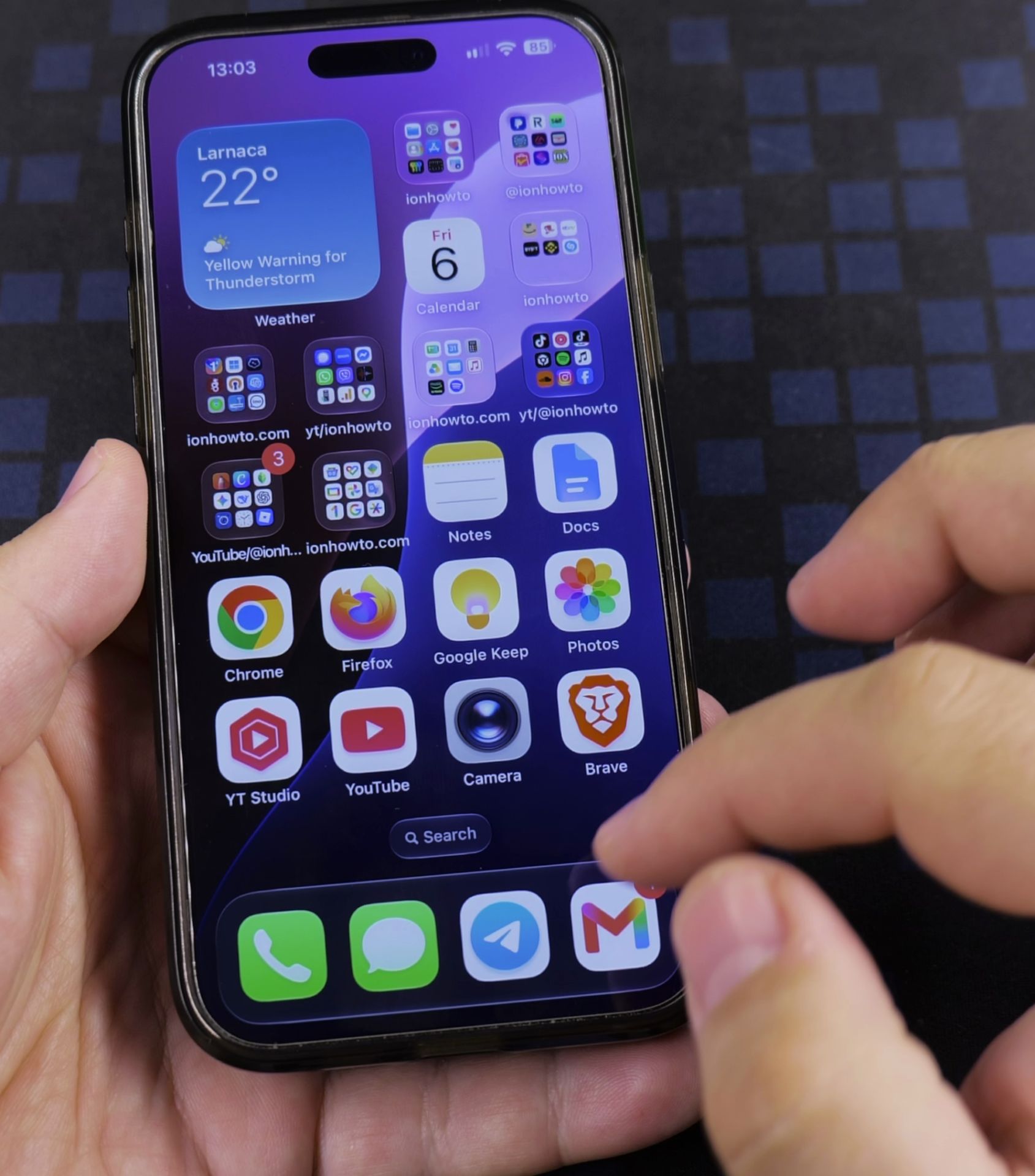
Helpful Tips
- Want it back later? Turn the same switch on again.
- Reachability is handy on big iPhones, but turn it off if it triggers by accident.
Related Guides
- iPhone How to Show App Labels Customize Home Screen – If the names beneath your iPhone app icons disappeared after updating, your icons were switched to the large view.
- How to Add an App Icon Back to the Home Screen on iPhone – If an application icon disappeared from your iPhone Home Screen even though the app is still installed on your device, it is…
- Customize iPhone Home Screen Widgets Apps Folders – How to Customize iPhone 16 Pro Max Home Screen Widgets, Apps, Folders & More.
- iPhone How-To Guides – Browse more tutorials and practical guides in this section.


Leave a Reply