
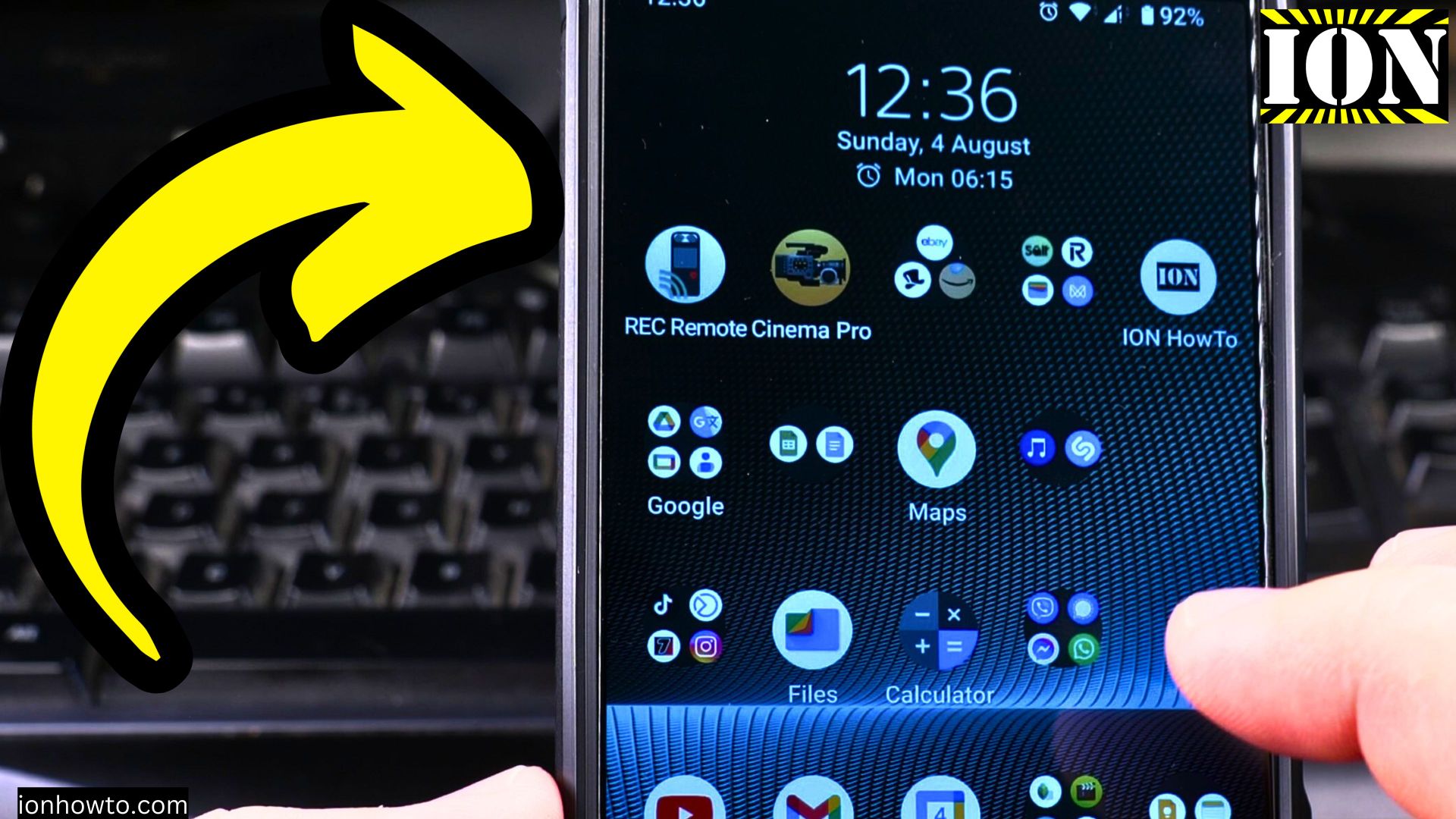
Learn how to enable Wi-Fi on your Android device to connect to wireless networks. I show you the steps to turn on Wi-Fi if you’re setting up a new device or reconnecting to your home network.
Amazon links
As an Amazon Associate I earn from qualifying purchases:
- Phone Cases
- Mobile Tripods
- Usb-c charger
- Usb-c cable
- Docking stations
- Wireless car chargers
- Wireless charger stand
- SIM card removal tool
- SIM card holder
How to Turn On Wi-Fi on Android Phones video.
Quick Steps and Scenarios Overview
| What You Need to Do | Quick Jump |
|---|---|
| Method 1: Turn On Wi-Fi Using Quick Settings | Jump to Step 1 |
| Method 2: Enable Wi-Fi Through Settings | Jump to Step 2 |
| How to Connect to a Wi-Fi Network | Jump to Step 3 |
| Make sure Wi-Fi is enabled | Jump to Step 1 |
| Select your network from the available list | Jump to Step 2 |
| Enter the password if required | Jump to Step 3 |
Method 1: Turn On Wi-Fi Using Quick Settings
- Swipe down from the top of your screen
- Swipe down again to expand the quick settings panel
- Tap the Wi-Fi icon (it will highlight when active)
- Hold the Wi-Fi icon to open full Wi-Fi settings
Method 2: Enable Wi-Fi Through Settings
- Open the Settings app
- Tap “Network & internet” (or “Connections”)
- Select “Wi-Fi”
- Toggle the switch to “On”
How to Connect to a Wi-Fi Network
1. Make sure Wi-Fi is enabled
Make sure Wi-Fi is enabled.
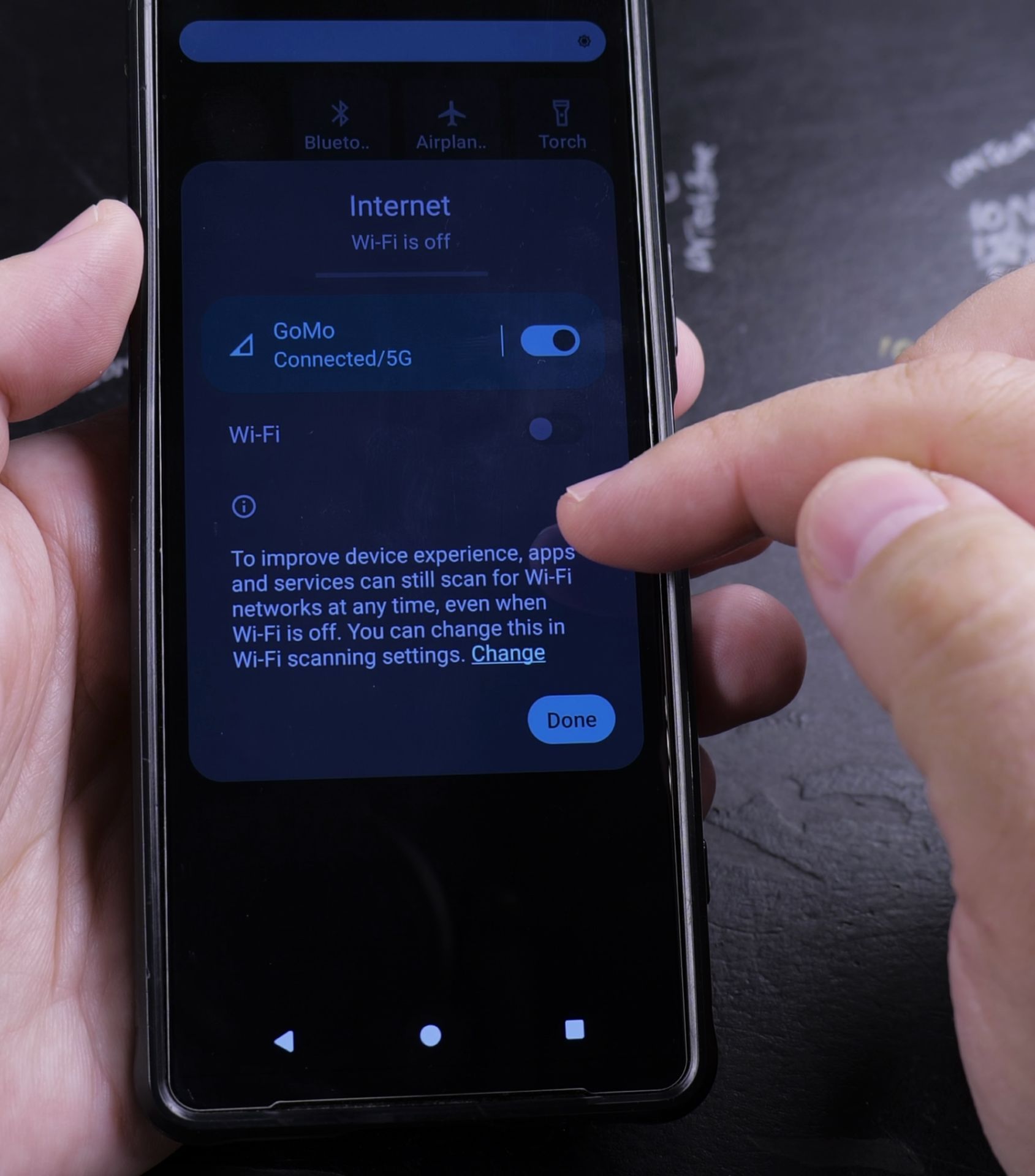
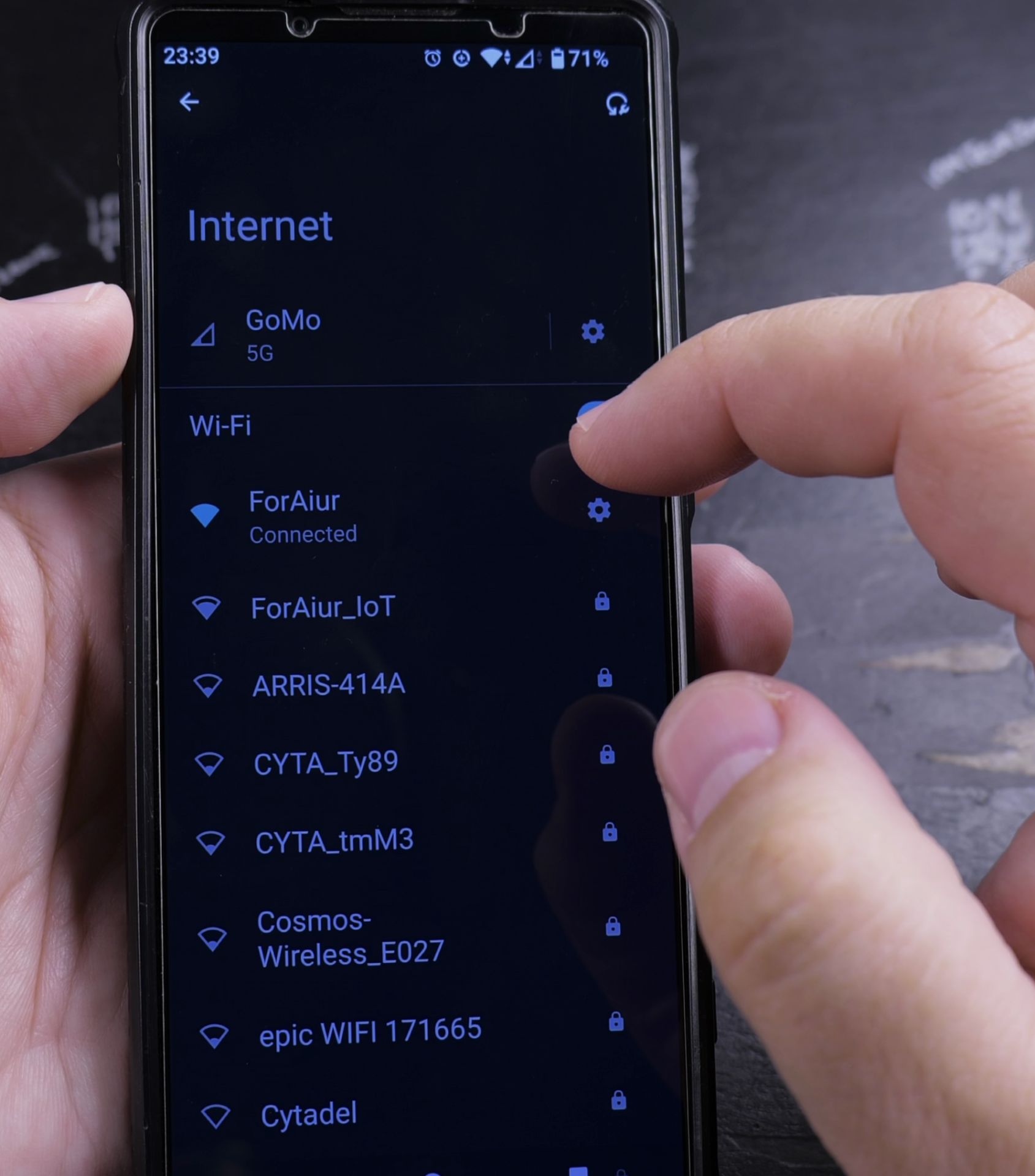
2. Select your network from the available list
Select your network from the available list.
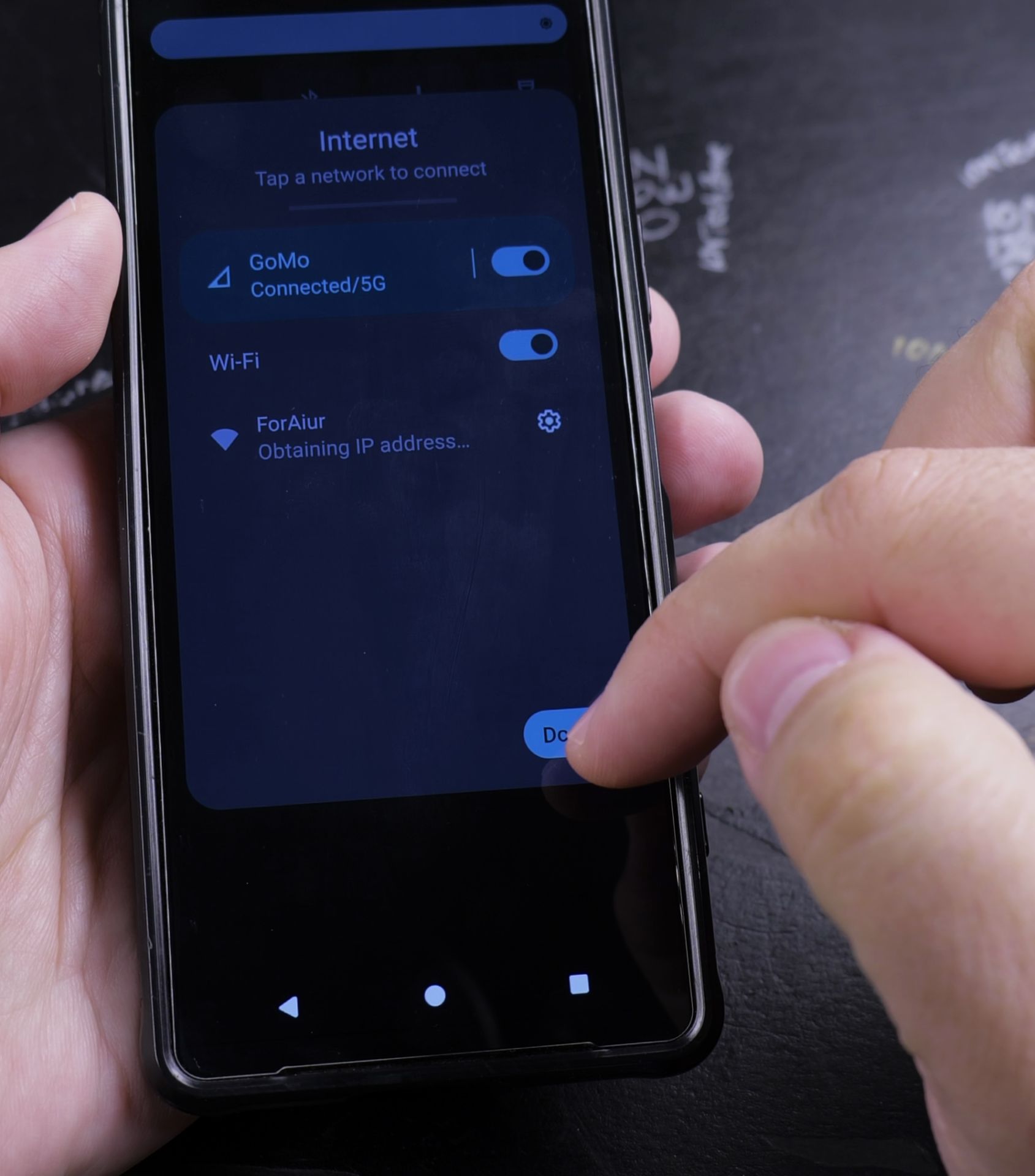
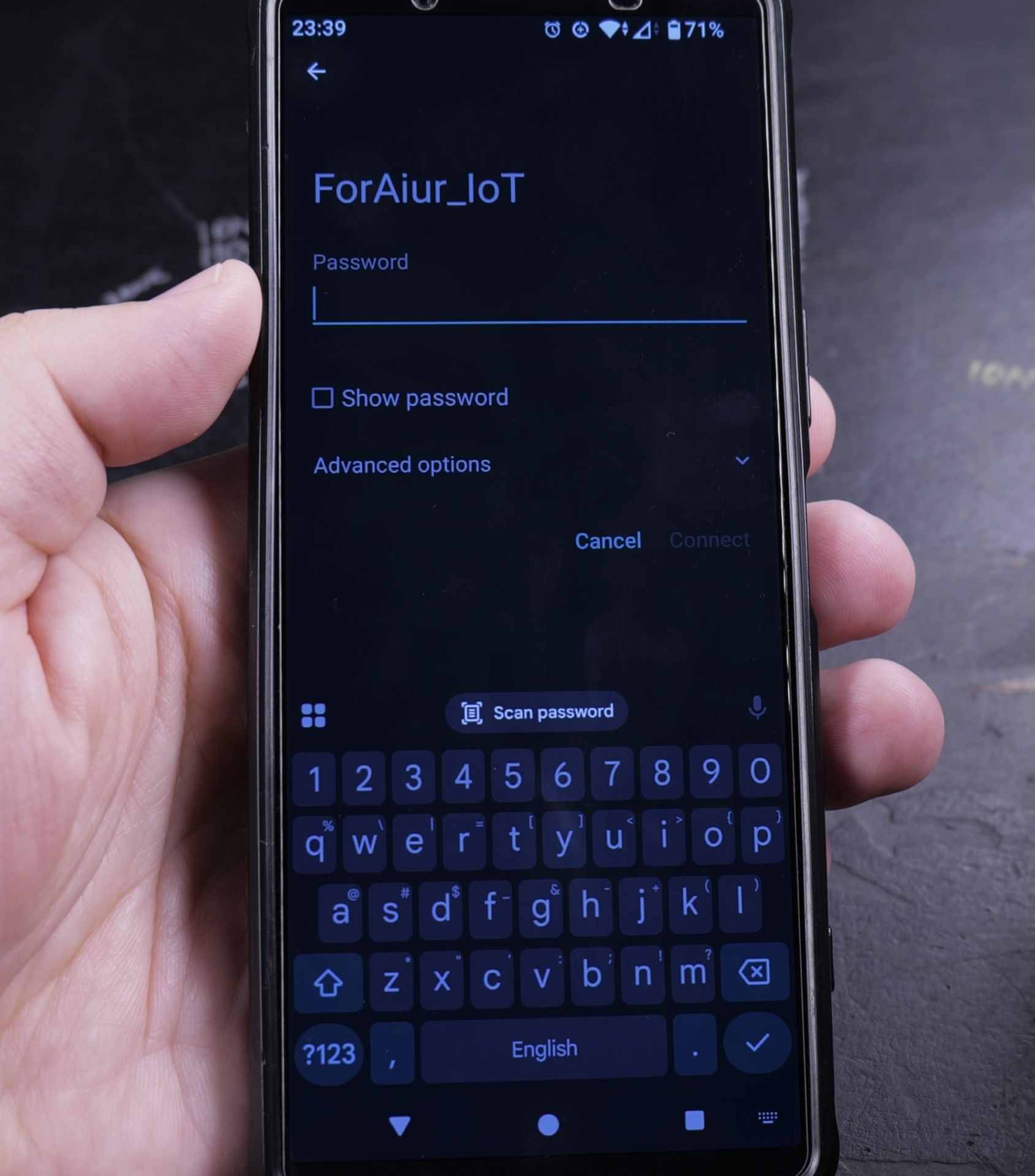
3. Enter the password if required
Enter the password if required.
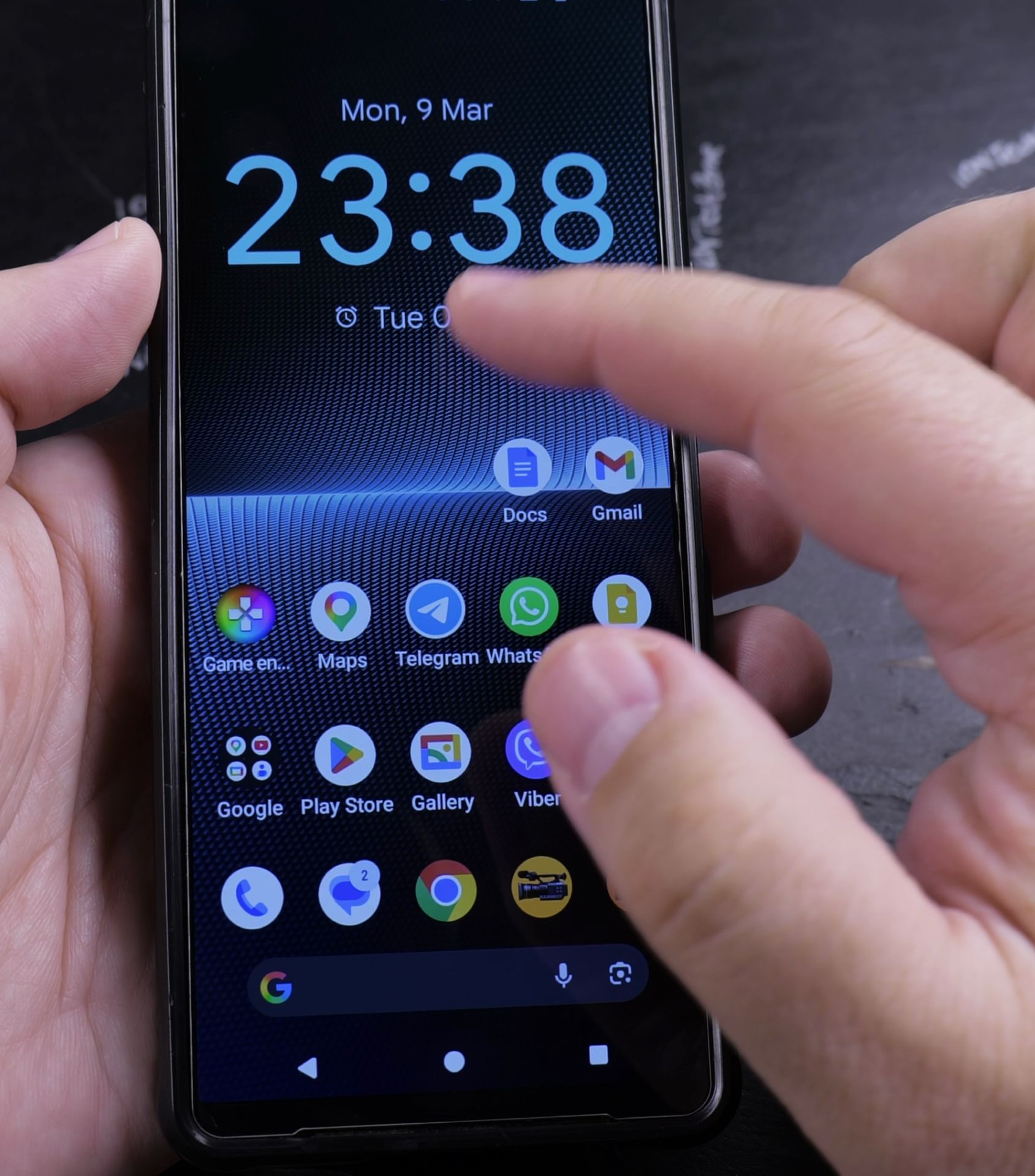
4. Tap “Connect”
Tap “Connect”.
5. Wait for the “Connected” confirmation
Wait for the “Connected” confirmation.
Troubleshooting Wi-Fi Connection Issues
If you can’t connect:
- Move closer to your router
- Restart your phone and router
- Forget the network and reconnect:
- Go to Wi-Fi settings
- Tap the network name
- Select “Forget”
- Try connecting again
- Check for Android updates in Settings > System
Wi-Fi Connection Tips
- Saved networks connect automatically when in range
- Use the quick settings toggle for fastest access
- Public networks may require extra login steps
- The lock icon means the network is secured
This guide works for most Android phones including Samsung, Google Pixel, and other brands. The exact menu names might look slightly different depending on your device.
If you still have connection problems after trying these steps, check if other devices can connect to the same network. If they can’t, the issue might be with your router or internet service.
Helpful Tips
Take your time and check the screen carefully after each tap so you can confirm the setting changed as expected. If an option appears in a slightly different spot on your device, watch the embedded video above for a closer look.
Related Guides
- Remove Apps from Samsung Android Home Screen – How to Remove Apps from Home Screen on Samsung Android.
- Remove App From Android Home Screen – How to Remove an App from Your Home Screen on Android.
- Change Wallpaper on Android Lock Screen and Home Screen – How to Change Wallpaper on Android Lock Screen and Home Screen.
- Android & Mobile Guides – Browse more tutorials and practical guides in this section.


Leave a Reply