
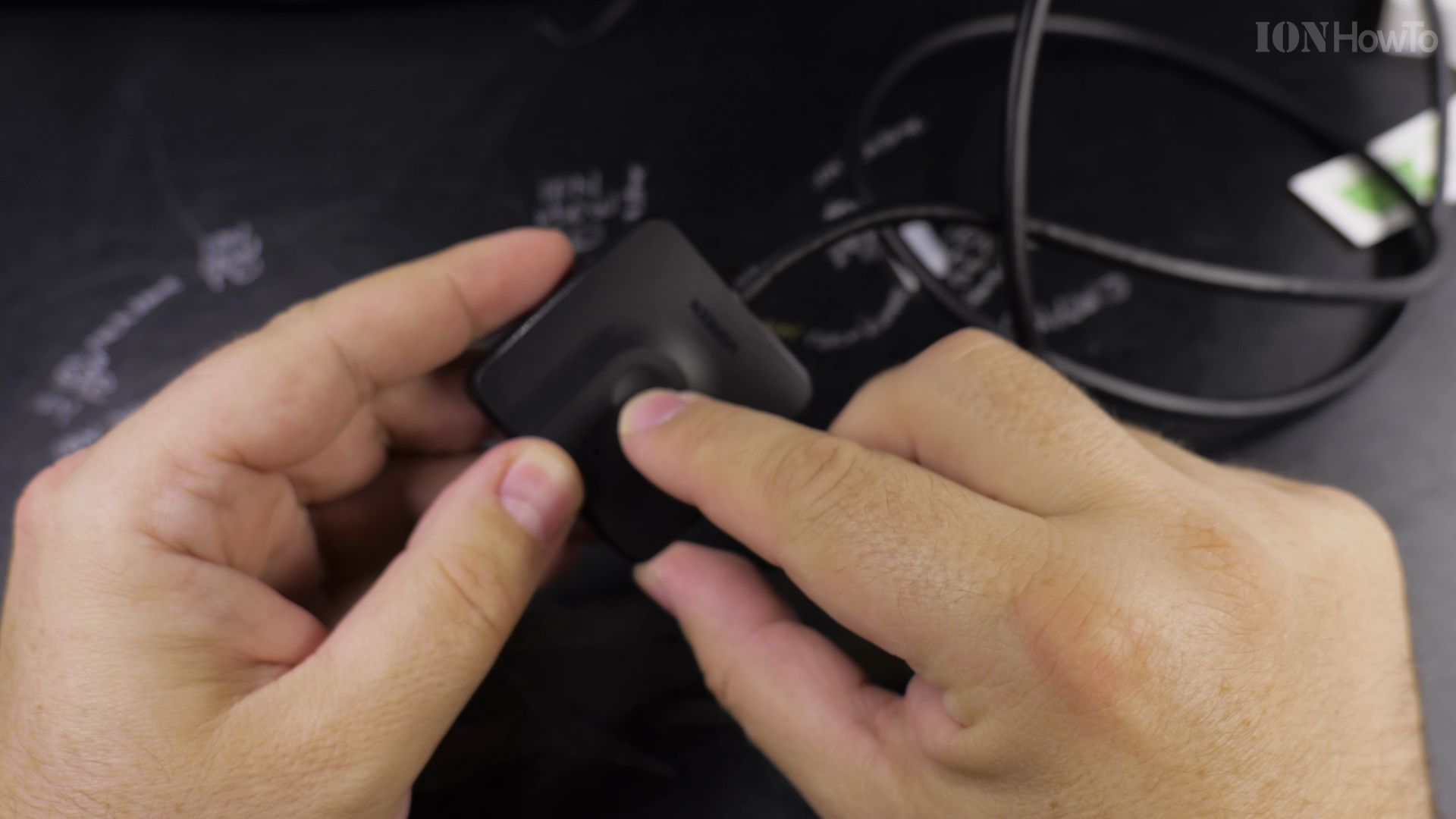
If your monitor has only one HDMI port and you need to switch between two computers, this compact adapter solves the problem. I’ll show you how to install the Ugreen HDMI bi-directional switch in just a few minutes.
1. Connect Your First Video Source to Port 1
Take an HDMI cable from your first computer or game console. Plug it firmly into the port labeled **1** on the Ugreen switch.
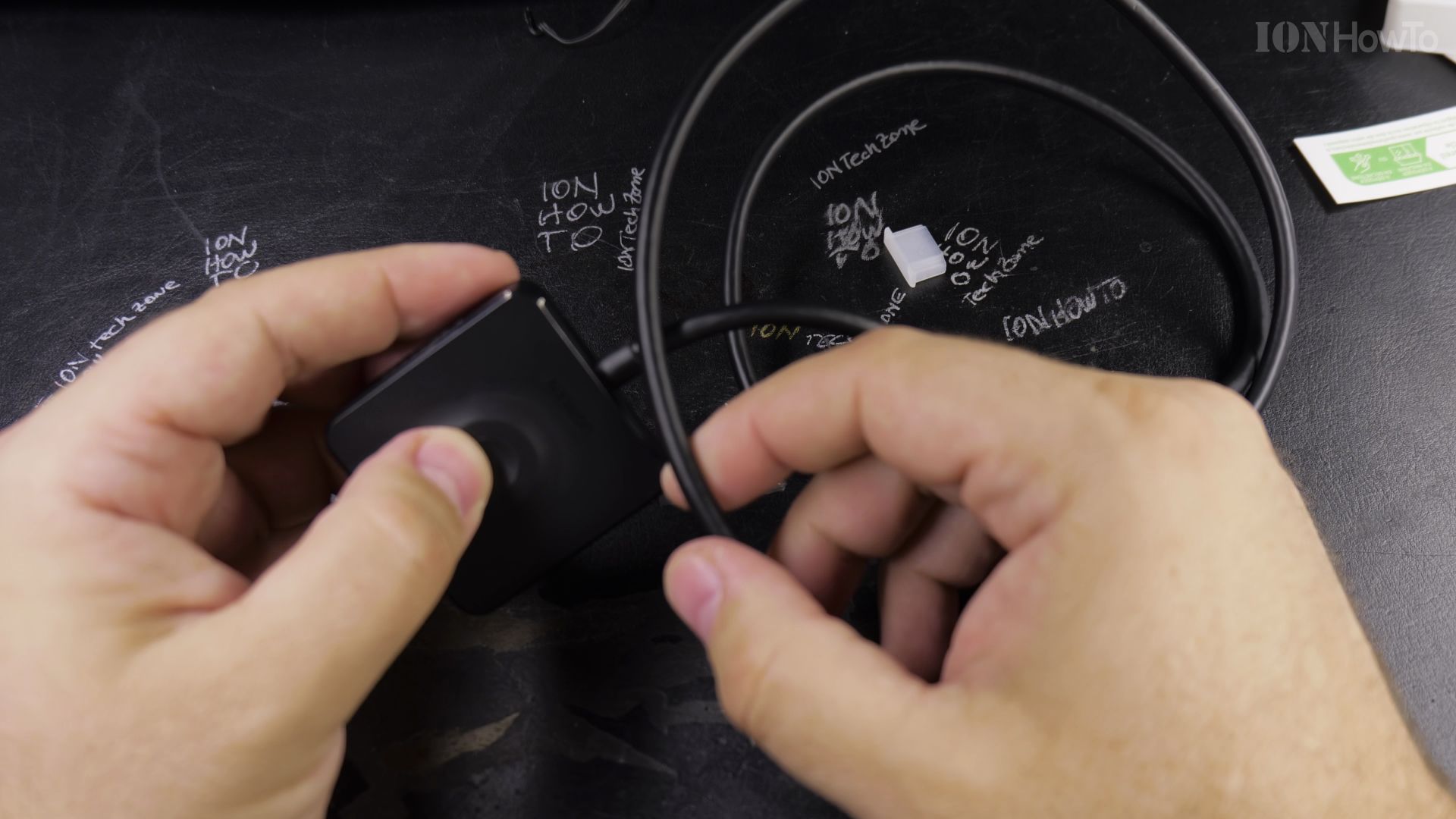
2. Plug Your Second Video Source into Port 2
Take a second HDMI cable from your other computer. Plug it into the port labeled **2** on the side of the switch.
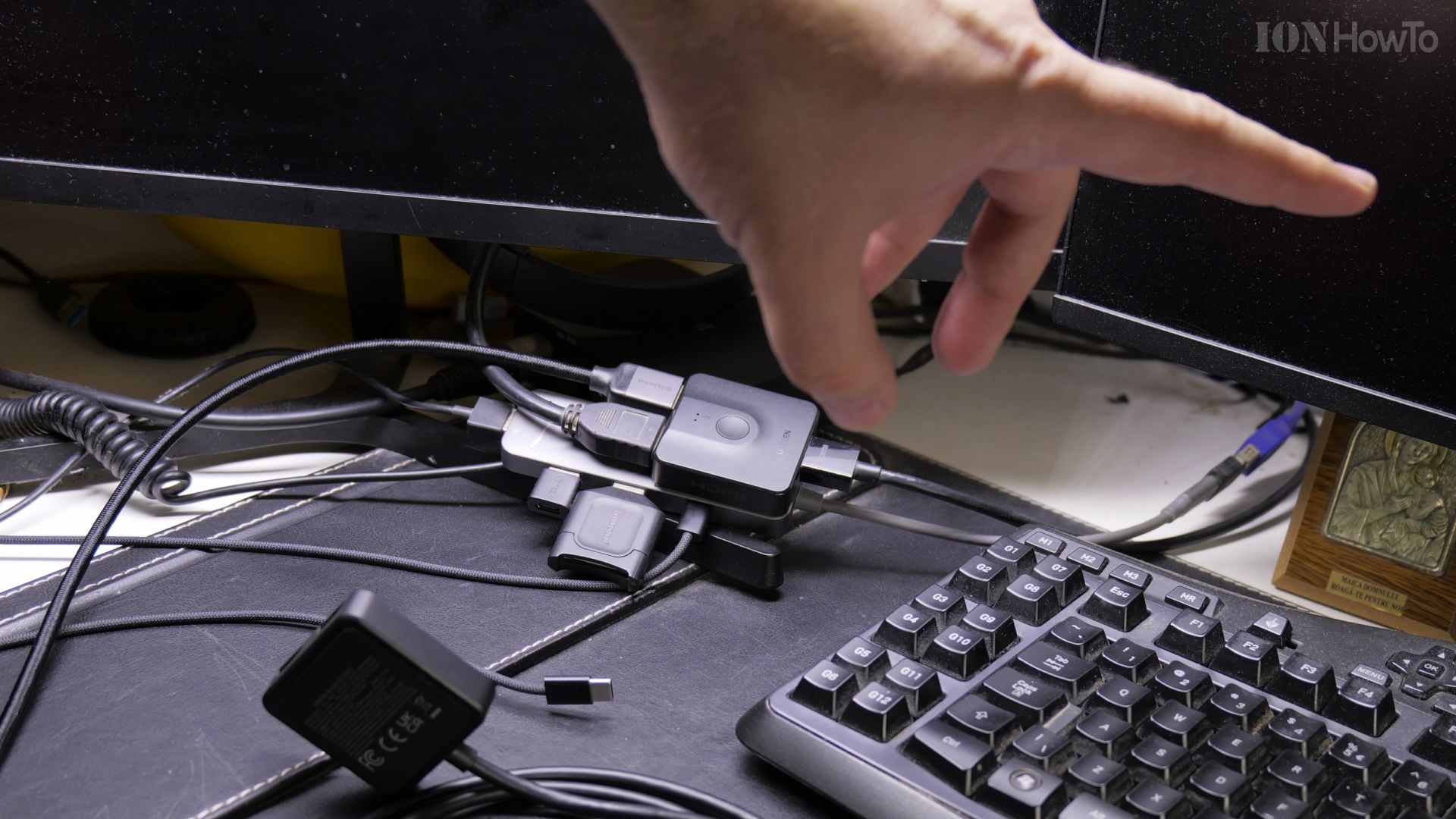
3. Run the Single Cable to Your Display
Plug the third HDMI cable into the single port on the opposite end. Run the other end of this cable directly into your TV or computer monitor.
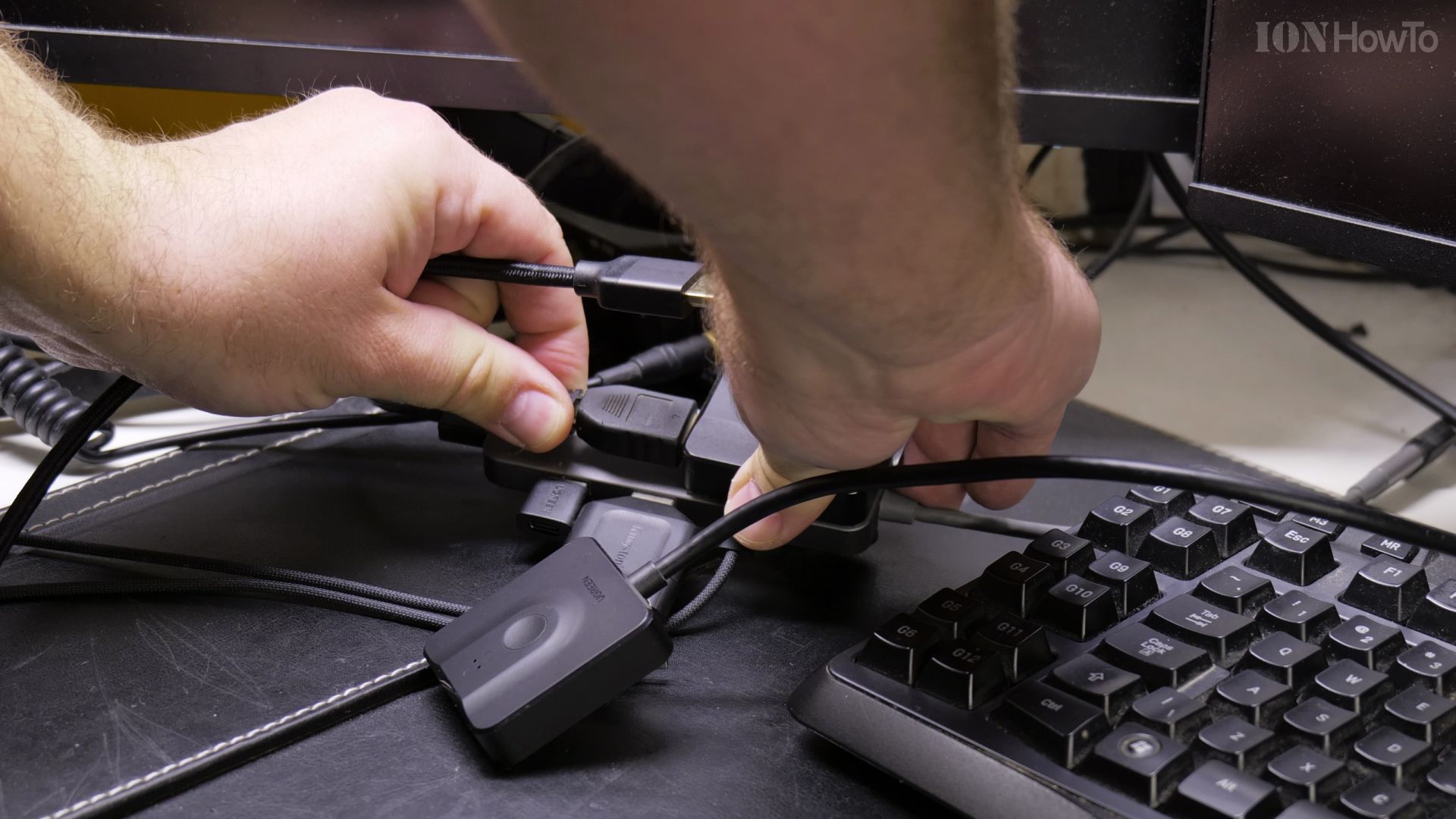
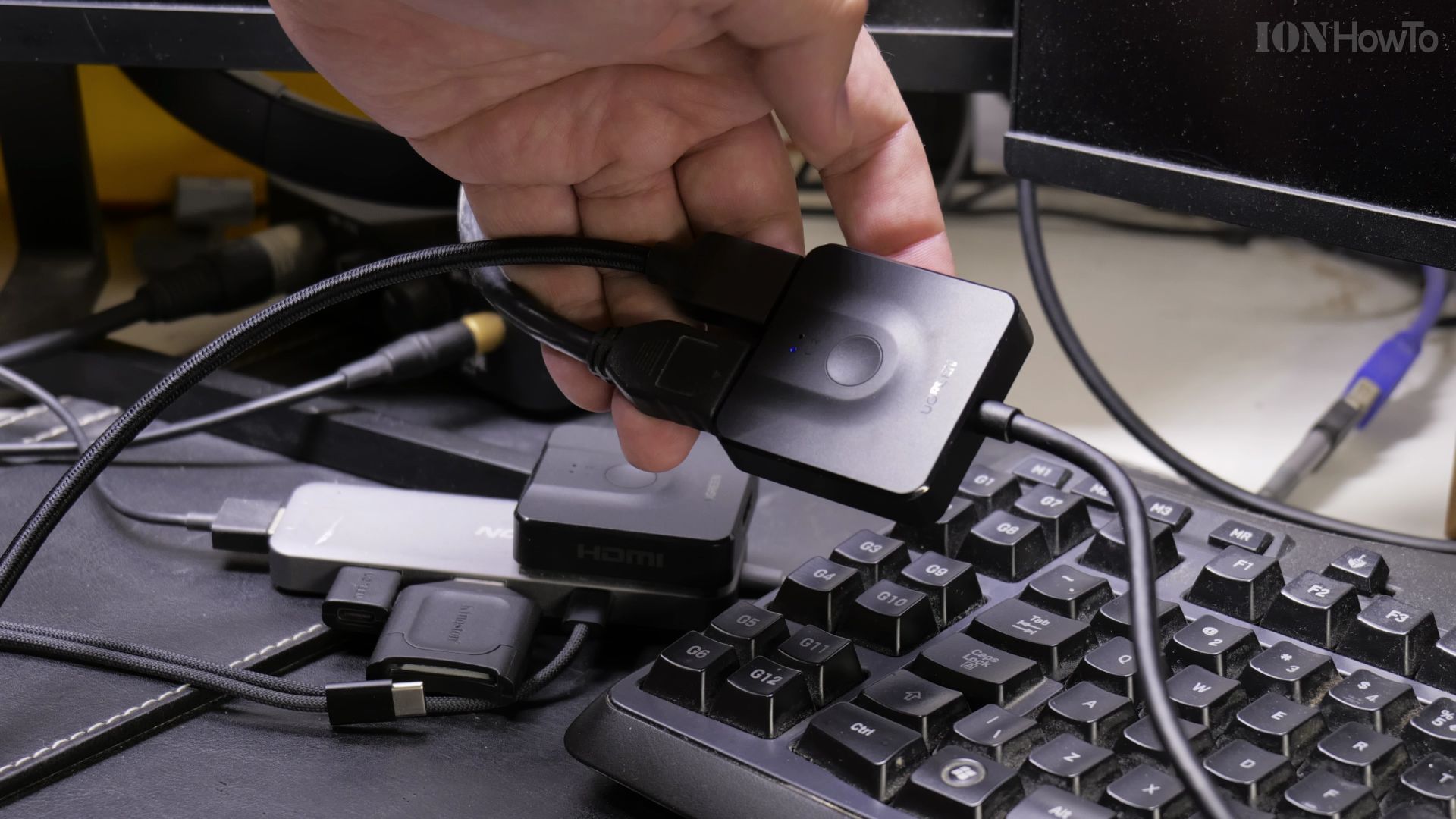
4. Press the Center Button to Switch Displays
Turn on your equipment. Tap the round button on top of the switch to flip between computer 1 and computer 2 instantly.
Helpful Tips
This adapter requires no external power brick because it draws power directly from the active HDMI signal. If your screen flickers at 4K resolution, make sure your HDMI cables are rated for HDMI 2.0 or higher. For more display setup tips, browse our Cables & Adapters category or explore our How-To guides.


Leave a Reply