
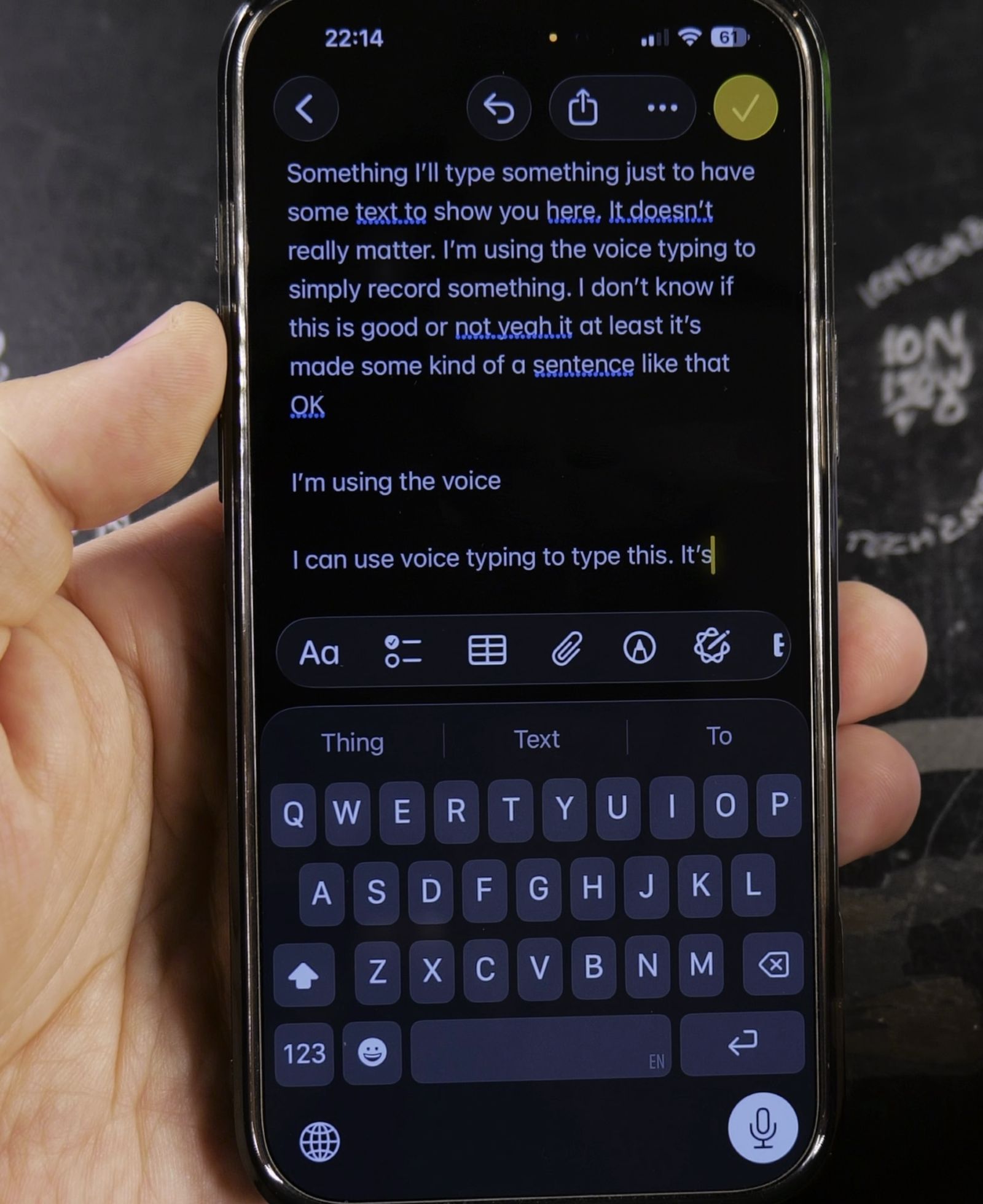
If you accidentally delete text or want to restore typed words without shaking your phone, iOS includes built-in three-finger finger gestures. I’ll show you how to undo and redo typing on your iPhone in just a quick swipe.
1. Locate the Standard Undo Arrow in Notes
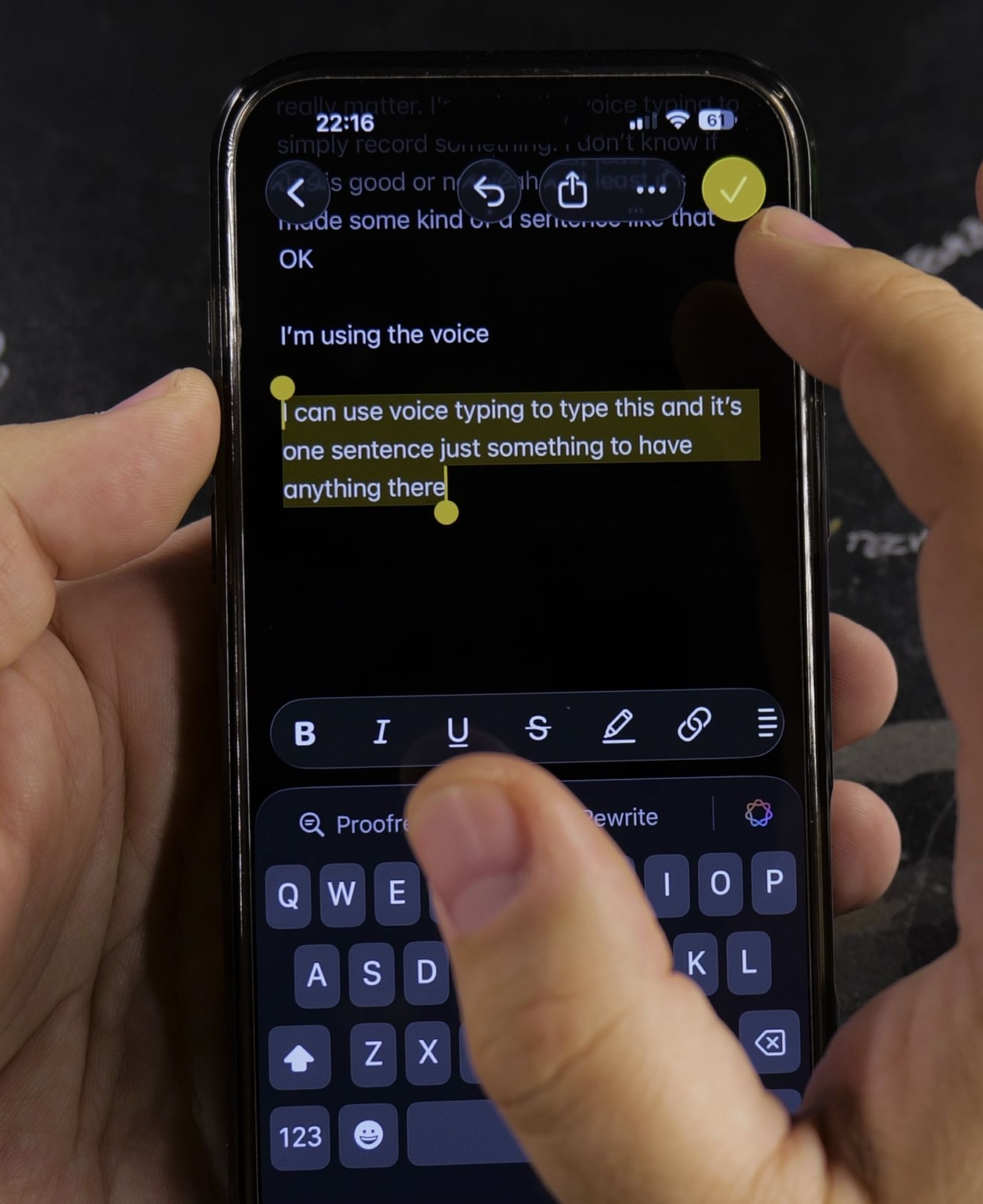
Open the Notes app on your iPhone and tap inside any note to open your keyboard.
Type a sentence or use voice dictation to enter some sample text.
Look at the editing toolbar directly above your keyboard keys.
In the top-left area of the keyboard bar, tap the curved Undo arrow to remove your last change.
You can also touch and hold the arrow to reveal a small popup with the Redo option.
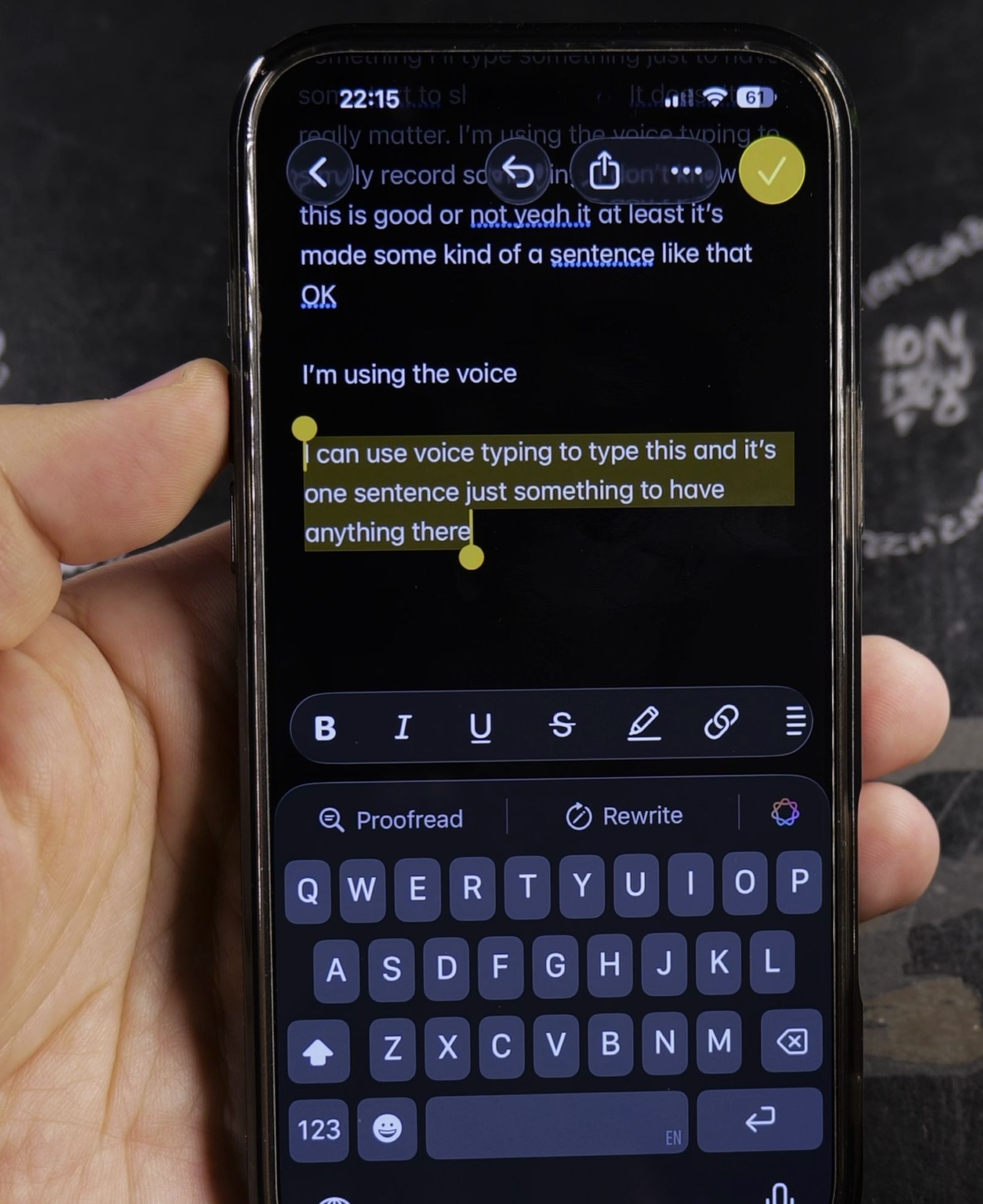
2. Swipe Left with Three Fingers to Undo Typing
Place three fingertips lightly on the center of your screen.
Swipe your three fingers quickly from right to left across the display.
Your iPhone will immediately erase your most recent word or sentence.
Swipe left again to step backward through older changes.
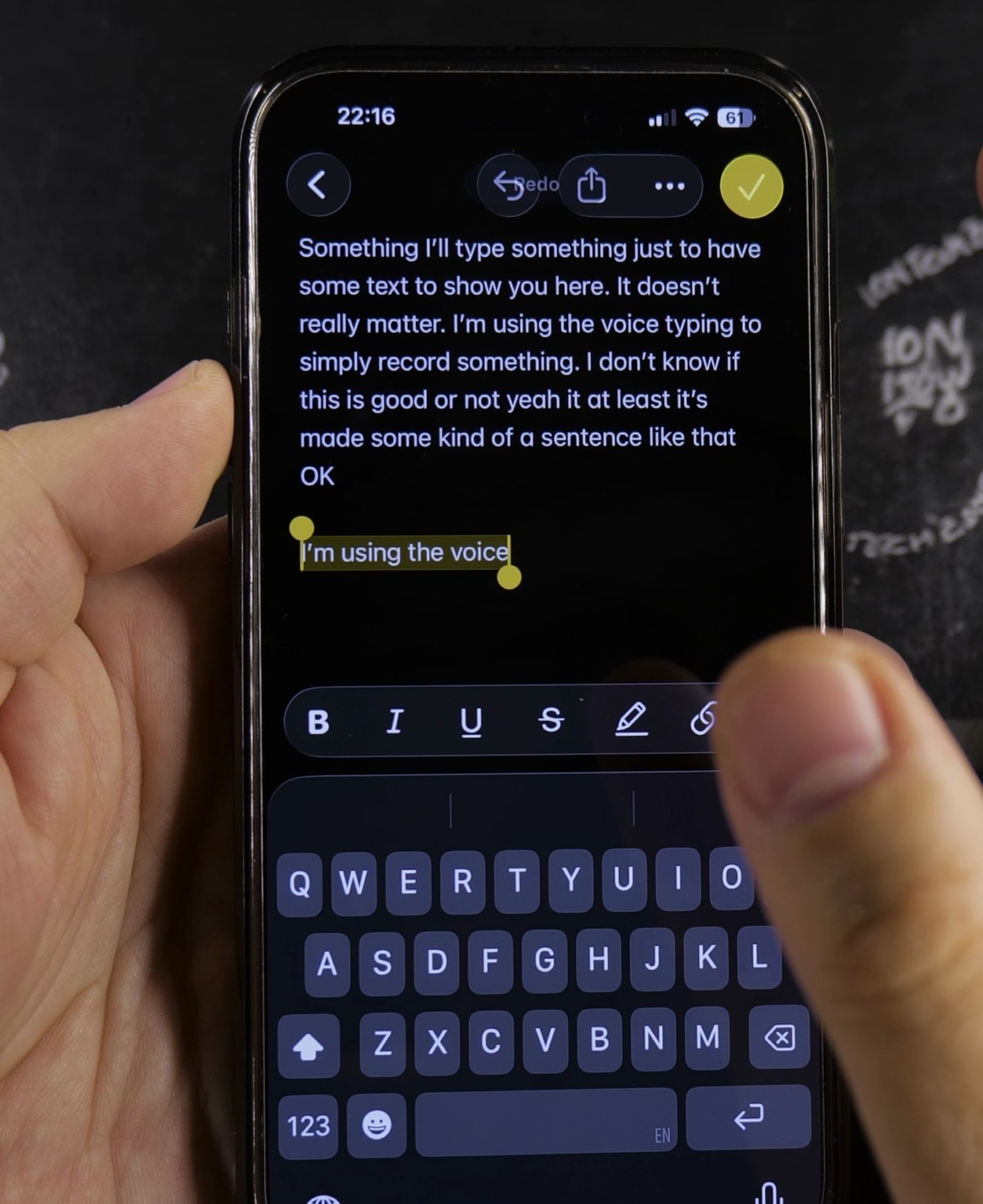
3. Swipe Right with Three Fingers to Redo Text
If you undid too much text by mistake, you can bring it right back.
Place three fingertips on the screen and swipe firmly from left to right.
Your previous edits will reappear on the screen one step at a time.
Repeat the swipe right until your entire deleted sentence is restored.
4. Check the Top Confirmation Status Banner
Look at the top of your iPhone screen whenever you perform a gesture.
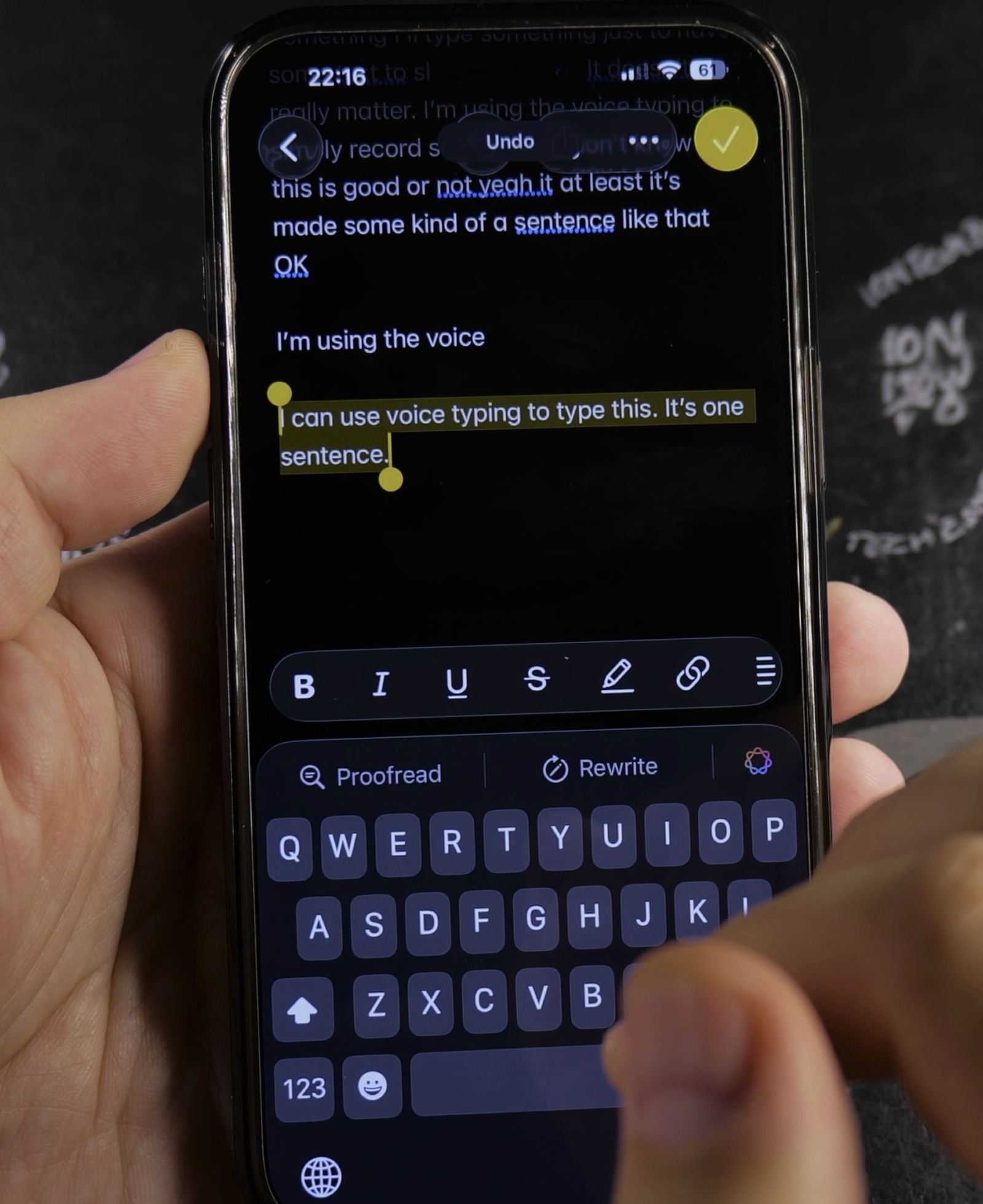
A small gray notification pill will briefly drop down confirming Undo or Redo.
If there are no further changes left in memory, the banner will read Nothing to Redo.
Helpful Tips
Double-tapping the screen with three fingers brings up a floating quick-action bar with buttons for Cut, Copy, Paste, Undo, and Redo.
These same three-finger gestures work universally across all native Apple apps including Mail, Messages, and Safari address bars.
For more handy mobile shortcuts and tips, check our guide on setting up Wi-Fi routers with your iPhone, or explore our iPhone Guides section.


Leave a Reply