
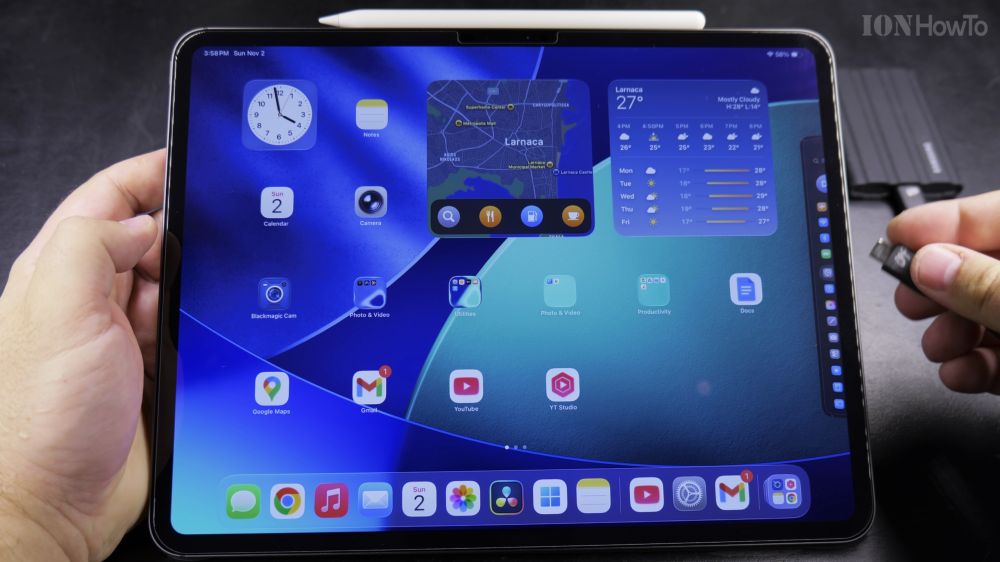
If you work with large 4K video files or heavy photo backups on your iPad, fast external storage saves hours of waiting. I’ll show you real-world read and write speed tests connecting a portable SSD to the iPad Pro M5.
1. Prepare Your External SSD and High-Speed Cable
Use a fast NVMe portable SSD and ensure you use a certified USB 3.2 Gen 2 or Thunderbolt cable for maximum transfer speeds.
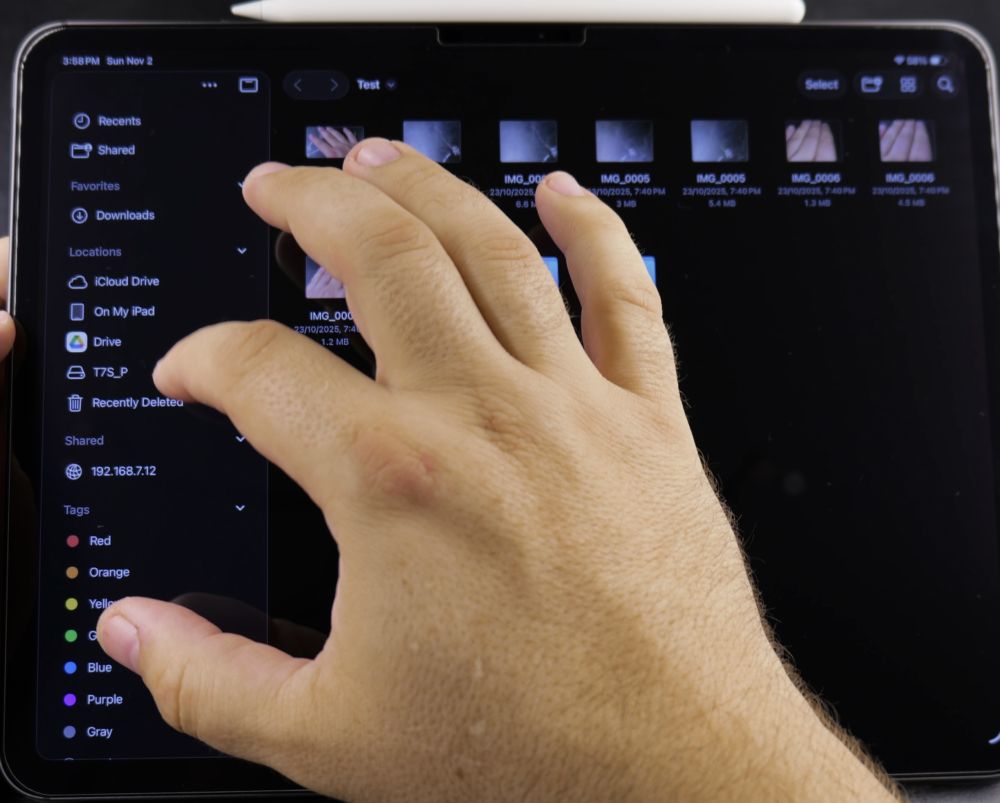
2. Connect the SSD to Your iPad Pro USB-C Port
Plug the USB-C cable directly into the port at the bottom edge of your iPad Pro. The drive will mount automatically in the Files app.
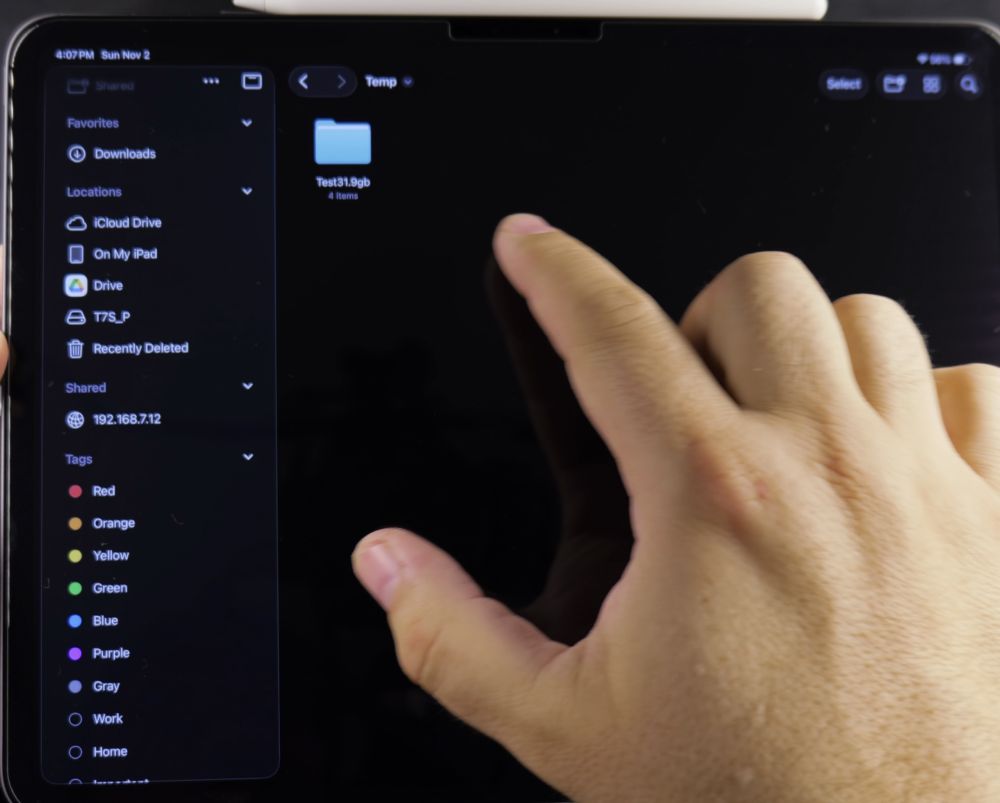
3. Open the Files App and Locate Your Test Files
Open the **Files** app from your home screen. In the left sidebar under Locations, tap your external drive name to verify it is recognized.
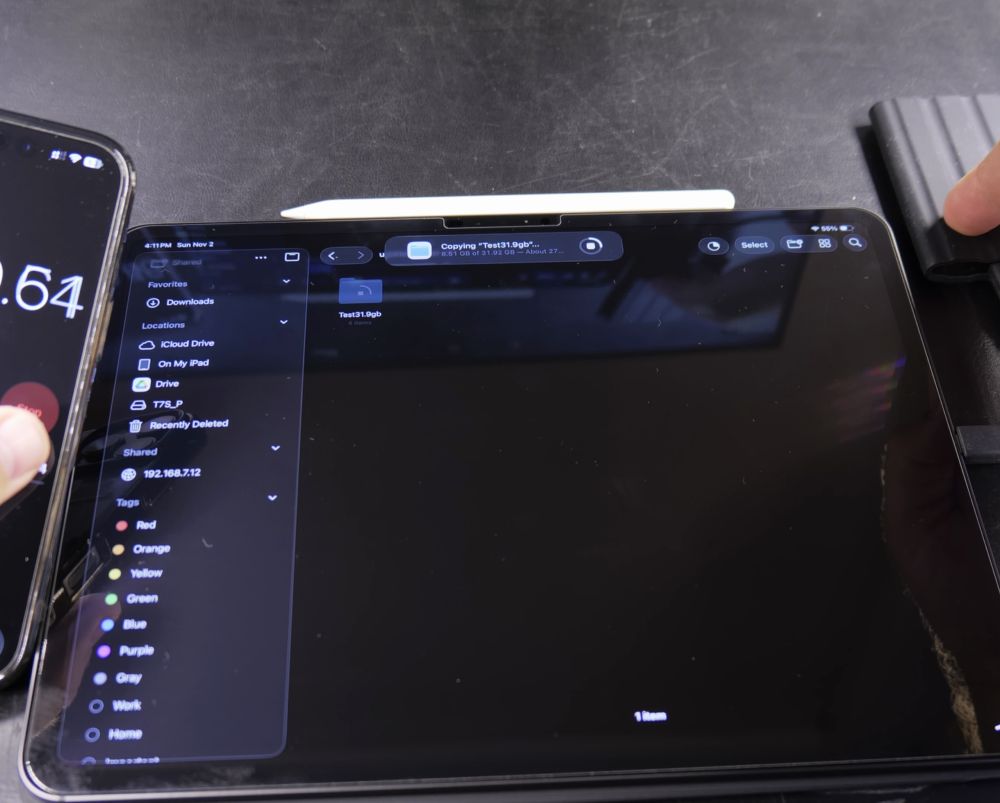
4. Copy Files Between Internal Storage and SSD
Select a large video file or backup folder, tap **Copy**, navigate to your external SSD folder, and tap **Paste** to begin transferring.

5. Calculate Your Real-World Read and Write Speeds
Divide your total file size in megabytes by the transfer time in seconds to see your actual real-world transfer speed.
Helpful Tips
Always use the high-speed USB 3.2 Gen 2 or Thunderbolt cable included with your drive rather than a standard charging cable, which caps speeds at slow USB 2.0 rates. For more tablet performance tests, visit our iPad Guides hub.


Leave a Reply