
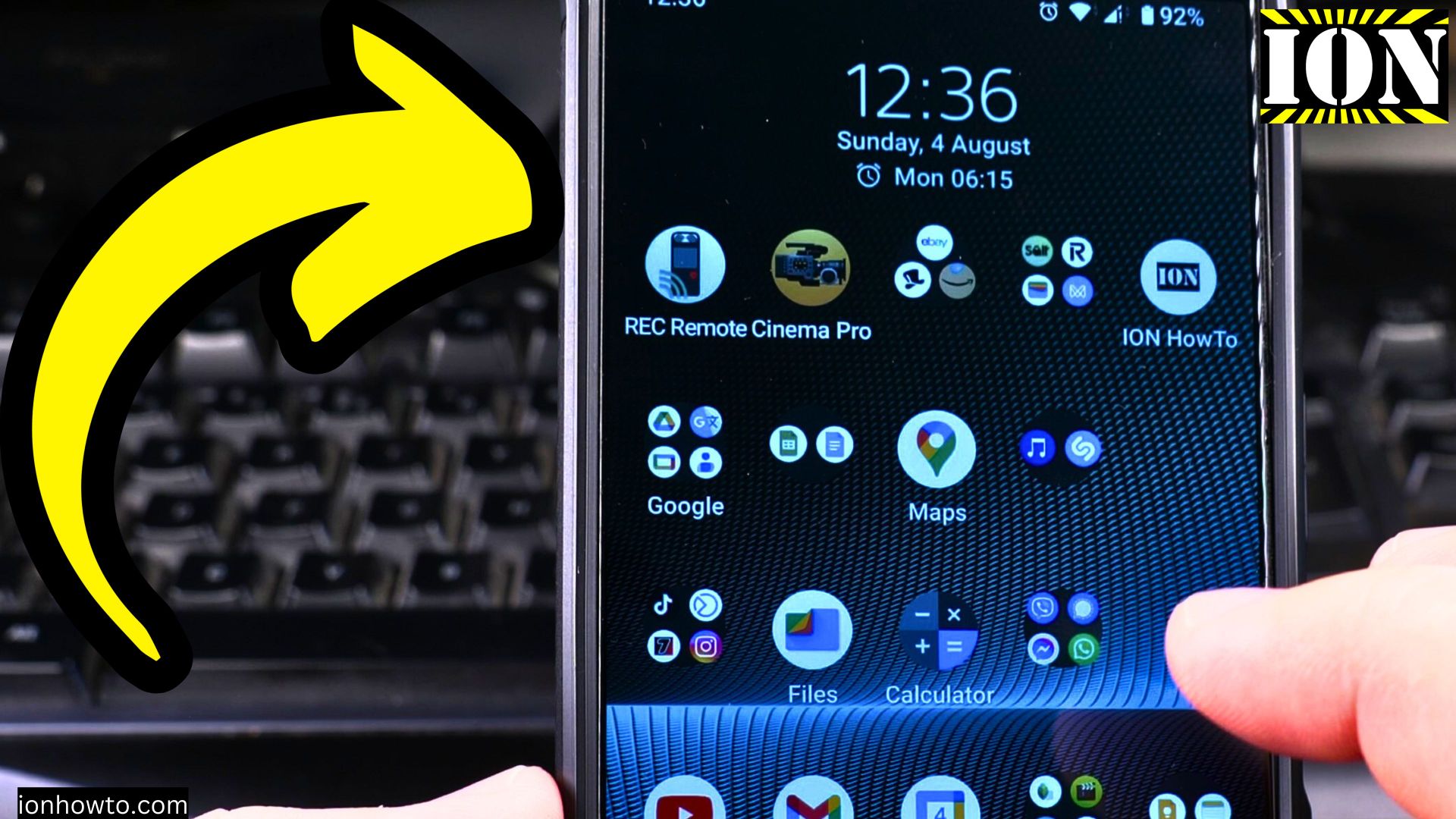
How to Remove Apps from Your Android Home Screen (Without Uninstalling Them).
Is your Android home screen getting a little messy? Do you have apps scattered everywhere that you hardly ever use? Learn how to clean it up by removing app icons without deleting the apps themselves. This is a super simple trick to declutter your screen and make it look neat and organized.
Amazon links
As an Amazon Associate I earn from qualifying purchases:
- Phone Accessories
- Screen protectors
- Phone Cases
- Mobile Tripods
- Usb-c charger
- Usb-c cable
- Docking stations
- Wireless car chargers
- Wireless charger stand
- SIM card removal tool
- SIM card holder
I’ll show you the steps to tidy up your home screen in less than a minute. We used a Sony Xperia 1V running Android 14, but this process is almost the same on any modern Android phone.
The Steps to Remove an App Icon
Removing an app from your home screen is easy and safe. The app will still be fully installed on your phone and accessible in your app drawer.
- Find the app: On your home screen, find the icon of the app you want to remove.
- Press and hold: Tap and hold your finger on the app icon. After a second, you’ll feel a haptic buzz (vibration) and a menu will pop up.
- Drag to remove: Without lifting your finger, drag the icon. Look for a Remove option or a trash can icon that appears at the top or bottom of the screen. On some phones, the word “Remove” might appear directly on the icon itself.
- Drop it: Drag the icon over the “Remove” option and let go.
That’s it! The icon will vanish from your home screen. Remember, you have not uninstalled the app.
Where Did the App Go?
Don’t worry, the app is still right where it should be! All your apps live in a place called the app drawer.
- To find it, simply swipe up from the bottom of your home screen.
- This will open a list of every single app installed on your phone, in alphabetical order.
- You can find the app you just “removed” here anytime you need it.
Why This is a Useful Trick
Keeping a clean home screen has some great benefits:
- Less Clutter: It helps you focus on the apps you use every day without the distraction of dozens of other icons.
- Better Organization: You can create a clean, minimalist look or make sure your most important widgets are easy to see.
- No Mistakes: It’s the perfect solution if you’re worried about accidentally tapping the wrong app icon. You can remove it knowing you can still get it back from the app drawer whenever you want.
So go ahead and give your home screen a quick refresh. It’s one of the easiest ways to make your phone feel new again.


Leave a Reply