
WiFi Is Connected, But There’s No Internet? Here’s How to Fix Your Fiber Connection.
Learn how to fix that incredibly annoying internet problem. You’re connected to your home WiFi, but nothing loads – no web pages, no apps, no internet. If you have a fiber optic connection, this guide will help you solve it quickly. I’ll show you the common setup and the steps that fix the problem most of the time.
Understanding Your Fiber Internet Boxes
It helps to know what the different boxes do. Your fiber internet comes through a thin glass cable from your Internet Service Provider (ISP). The setup usually looks like this:
- The Fiber Wall Box: This is on your wall. The main fiber line from the street connects here.
- The Fiber Patch Cord: This is a thin, usually green, cord that runs from the wall box to the next device. It carries light, not electricity, through a glass fiber inside. Be very gentle with it. Never bend it sharply or put heavy things on it. Loose loops are fine.
- The GPON Converter Box: This box is a translator. It takes the light signals from the fiber cord and converts them into an electrical signal your router can understand. It often has brand names like Huawei on it.
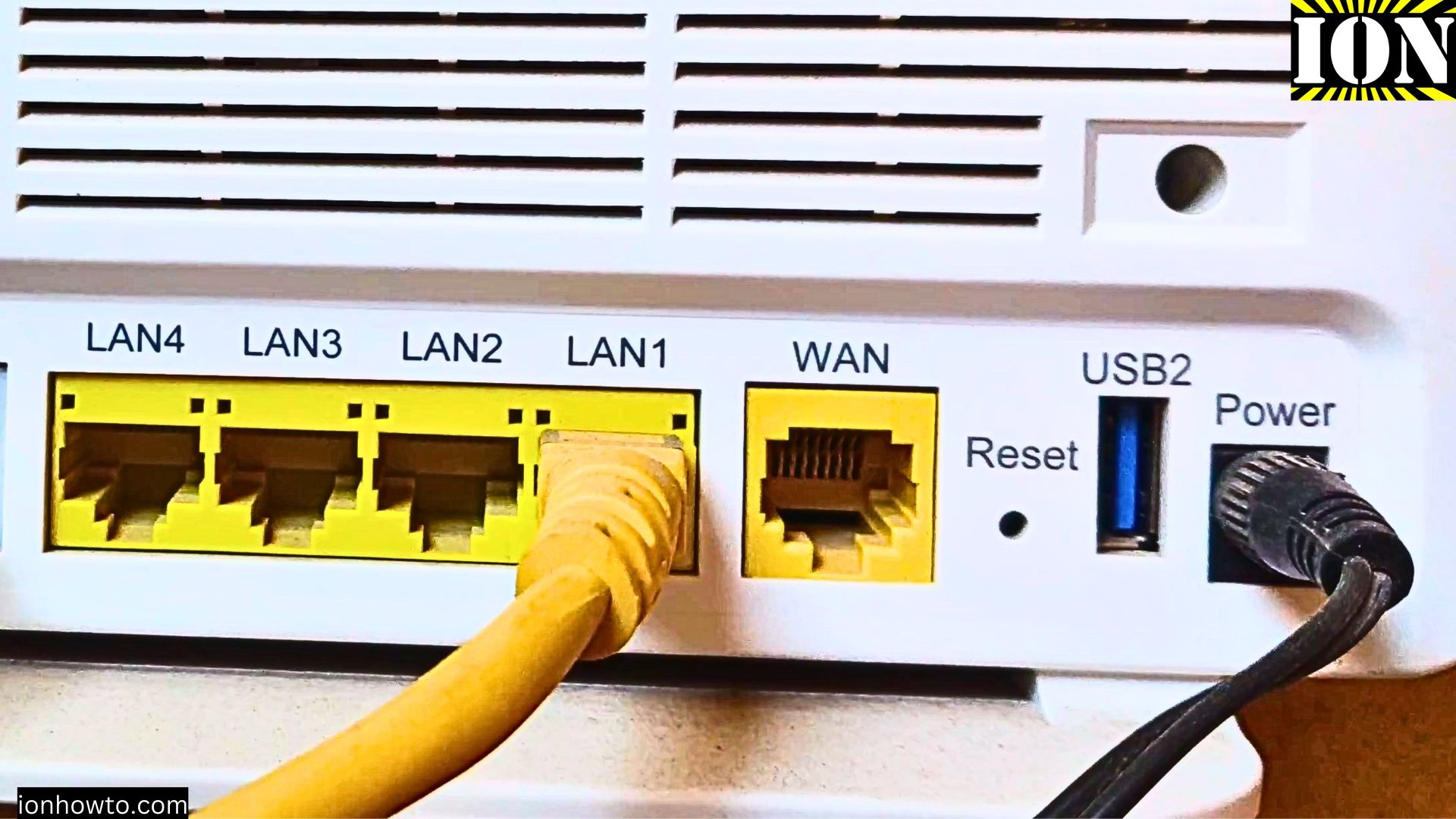
- The ISP’s Router/Modem: This box is from your internet company (like the Mikrotik Hex shown in the video). The converter plugs into it.
- Your Personal WiFi Router: Your own router plugs into the ISP’s box to broadcast your home WiFi signal.
The 90% Solution: The Full System Restart
A complete restart of all your equipment solves about 90% of “connected but no internet” problems. Here’s how to do it right.
Follow these steps:
- Turn everything off. Find the power plugs for:
- Your personal WiFi router.
- The ISP’s modem or router box.
- The GPON fiber converter box.
Unplug all of them.
- Wait. Give it a full 10 seconds. This lets all devices completely power down and clear their memory.
- Turn everything back on. Plug all the power cords back in. You don’t need to do it in a special order.
- Wait again. Be patient. It can take 2-5 minutes for all the boxes to boot up, talk to each other, and reconnect to your ISP’s network. The lights will flash and settle.
- Test your connection. On your router, look for an “Internet” or “WAN” light. It should be solid or flashing steadily. Now, try to use the internet on your phone or computer.
What to Do If a Restart Doesn’t Work
If you’ve powered everything off and on and you’re still stuck, try these next steps.
Check Your Fiber Optic Cord
Since the fiber cord carries delicate glass, it’s a potential point of failure.
- Look for damage: Check the thin green fiber patch cord for any sharp bends, kinks, or places where it might be crushed.
- Check the connections: Make sure the cord is firmly plugged into both the wall box and the GPON converter. The connector has a small tab and only fits one way.
- A quick tip: If you think the cord is damaged, you can replace just that short patch cord. You don’t need to replace the entire line coming into your house.
Fiber Internet Setup
Time to Call Your Internet Provider
If the restart and cord check don’t help, the issue is likely outside your home.
- Contact your ISP’s customer support.
- Explain: “My WiFi is connected, but I have no internet access. I’ve already done a full power cycle of my router, your modem, and the fiber converter box.”
- They can check for outages in your area, reset your connection from their side, or guide you through further steps.
Quick Troubleshooting Checklist
To summarize, here’s your action plan:
- Step 1: Perform a full system restart. Turn off your router, the ISP modem, and the fiber converter. Wait 10 seconds, then turn them all back on. Wait a few minutes before testing.
- Step 2: Inspect the green fiber optic cord for damage and ensure it’s plugged in securely at both ends.
- Step 3: If problems continue, contact your Internet Service Provider for help.


Leave a Reply