
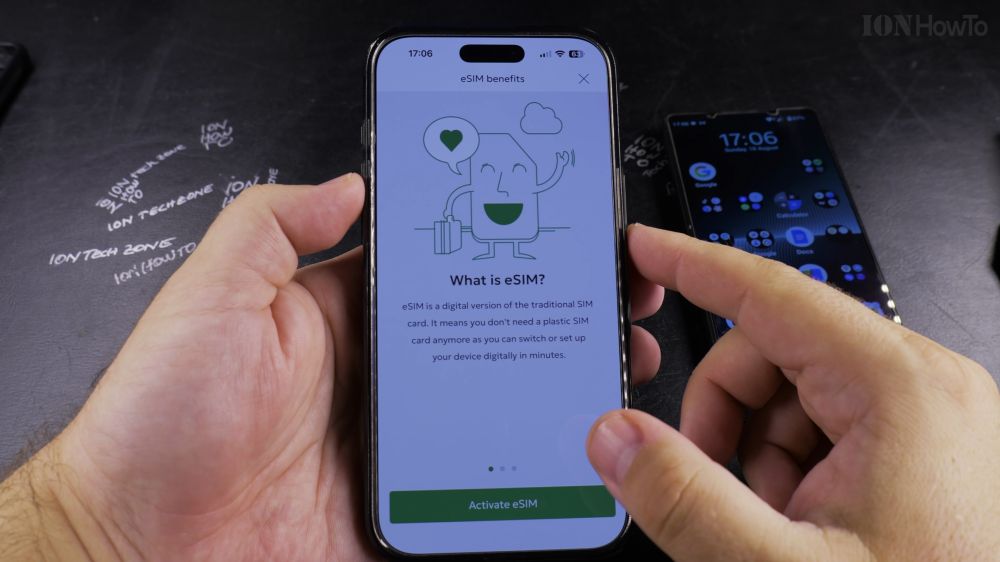
If you want to free up your iPhone’s SIM tray for international travel, you can switch your current plastic SIM card to an electronic eSIM. I’ll show you how to convert your physical SIM to an eSIM directly on your phone.
1. Open Your Carrier’s App
Open your mobile provider’s official app (such as Cyta, Vodafone, T-Mobile, or AT&T) and log in to your account.
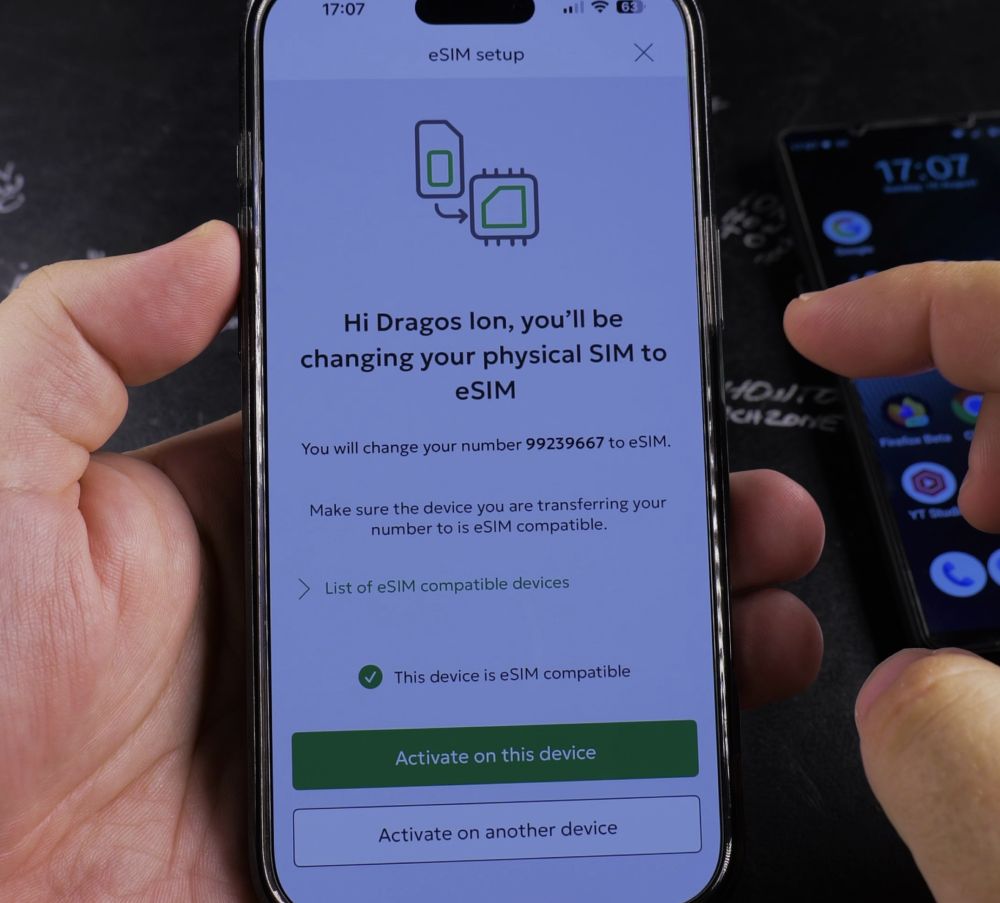
2. Locate the eSIM Option
Go to your account services menu and tap **Activate eSIM** (or **Convert to eSIM**).
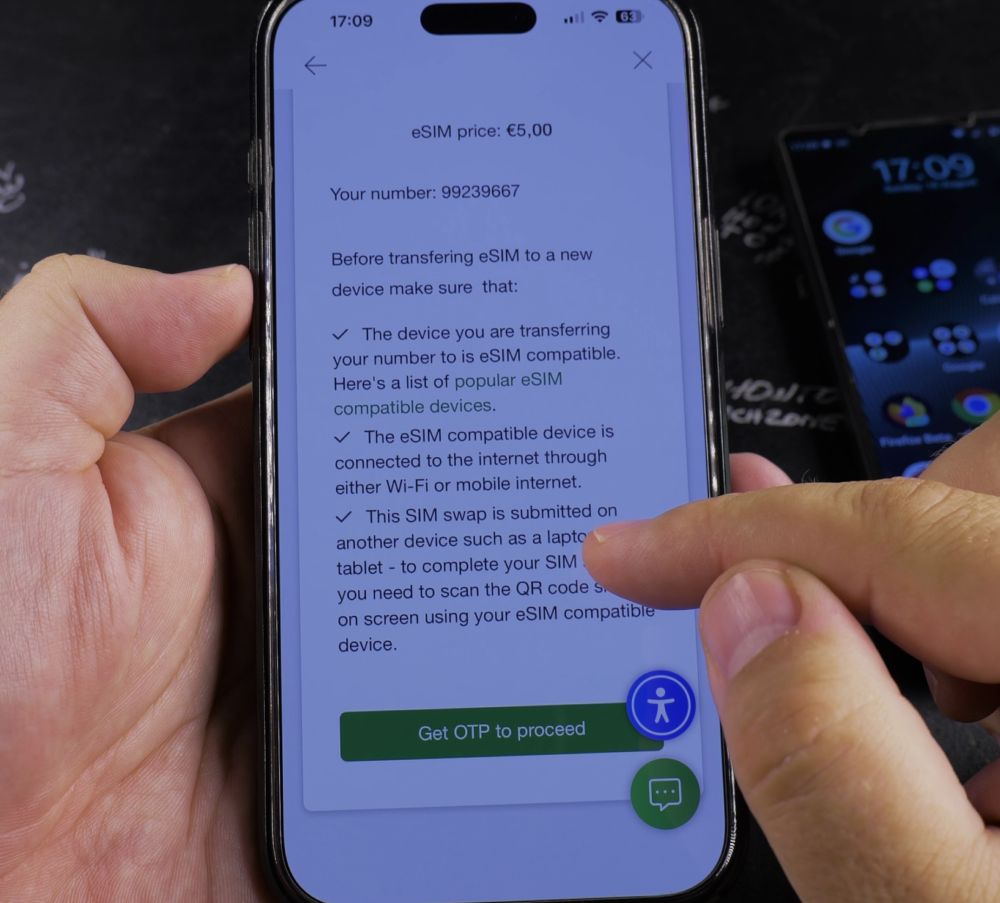
3. Select Your Mobile Number
Choose the phone number you want to switch from a physical SIM to an electronic card.
4. Confirm the Conversion
Follow the on-screen prompts and tap **Confirm**. Your provider will generate your digital eSIM profile and email you an activation QR code.
5. Install the Profile
Go to your iPhone **Settings** > **Cellular** > **Add eSIM**, scan the QR code received, and tap **Continue** to activate your line.
Helpful Tips
Once your new eSIM activates and receives signal bars, your old physical plastic SIM card is permanently disabled. You can safely remove the old card from the SIM tray. For more cellular guides, visit our iPhone Guides collection.


Leave a Reply