
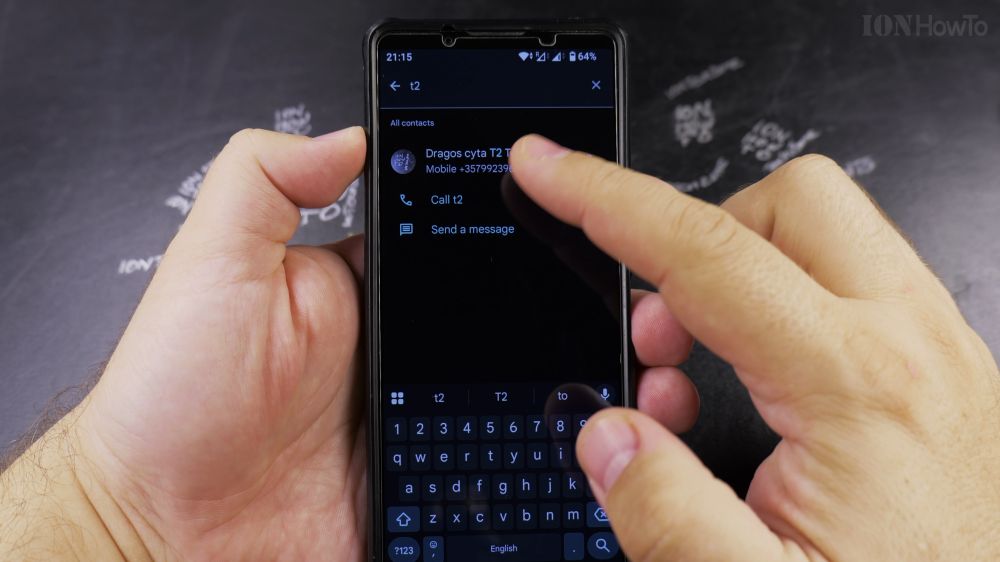
If a family member got a new hairstyle or you want a clearer picture when they call, replacing their contact photo is simple. I’ll show you how to swap any contact photo on Android using your gallery or camera.
1. Open Your Contacts
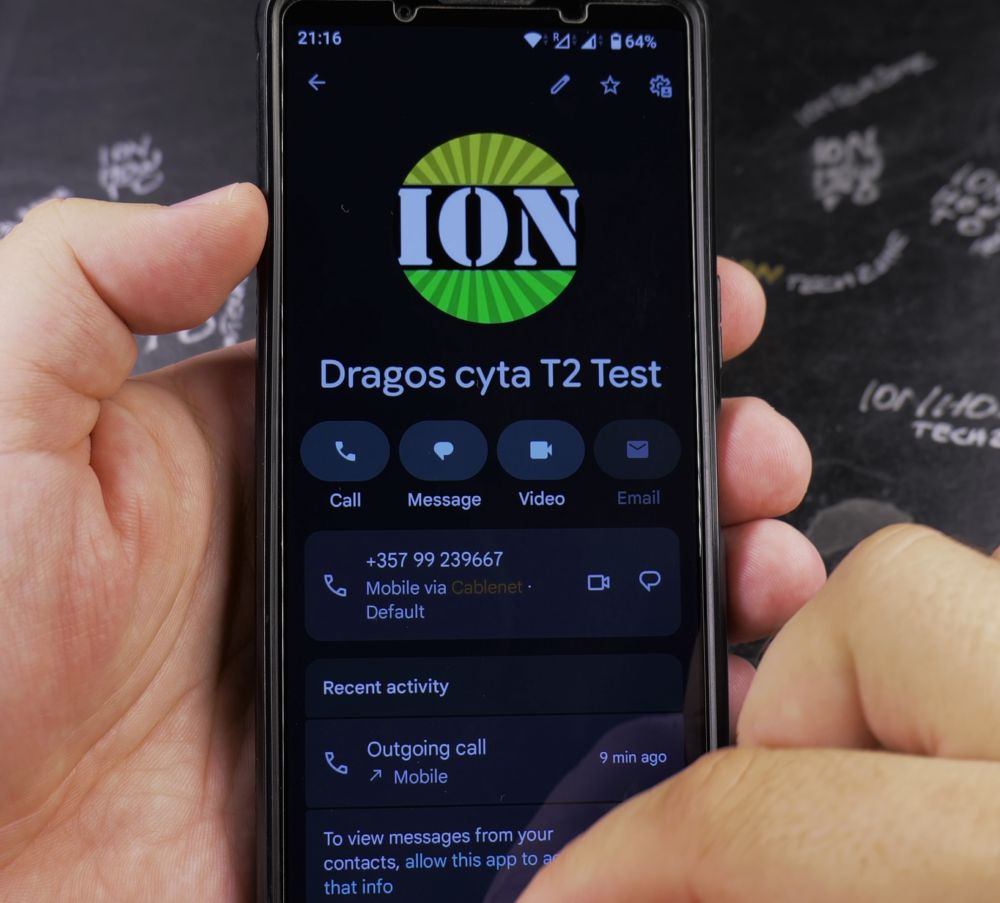
Open the **Phone** app, tap the **Contacts** tab at the bottom, and tap the person whose picture you want to update.
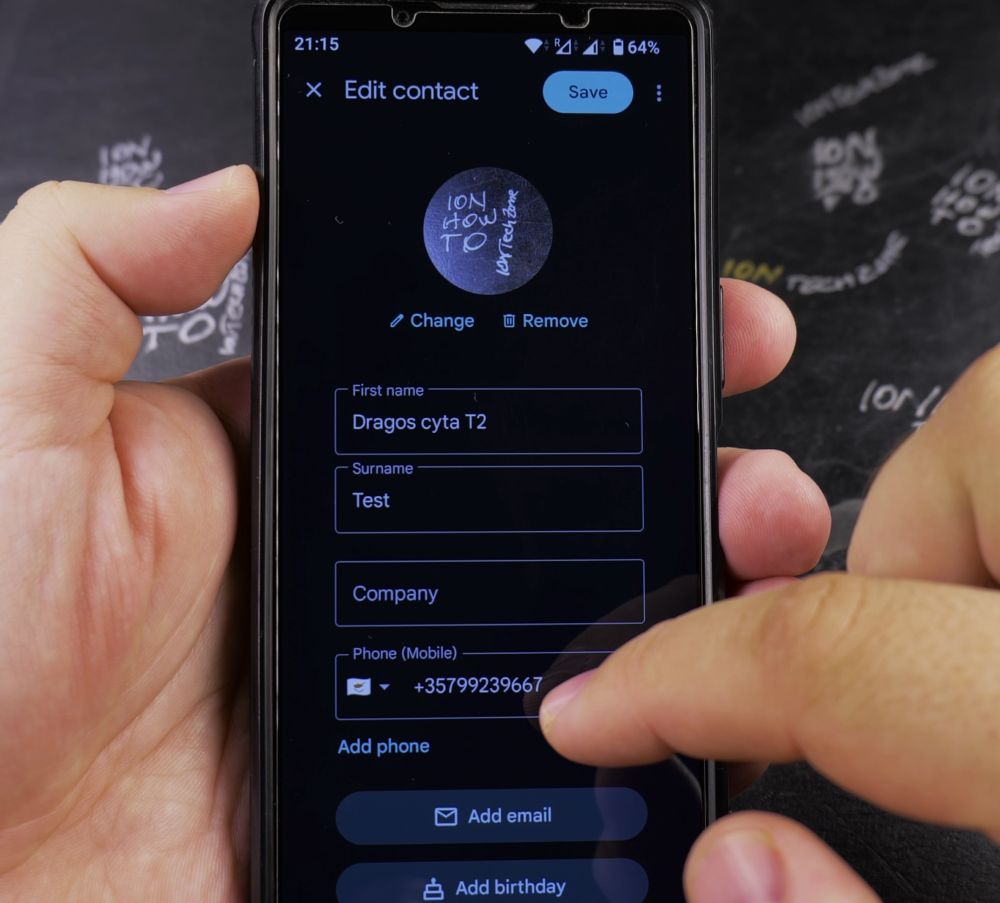
2. Tap the Edit Pencil
In the top-right corner of their contact card, tap the **pencil (Edit)** icon.
3. Tap the Photo Circle
Tap the large circular profile picture at the top, then tap **Change**.
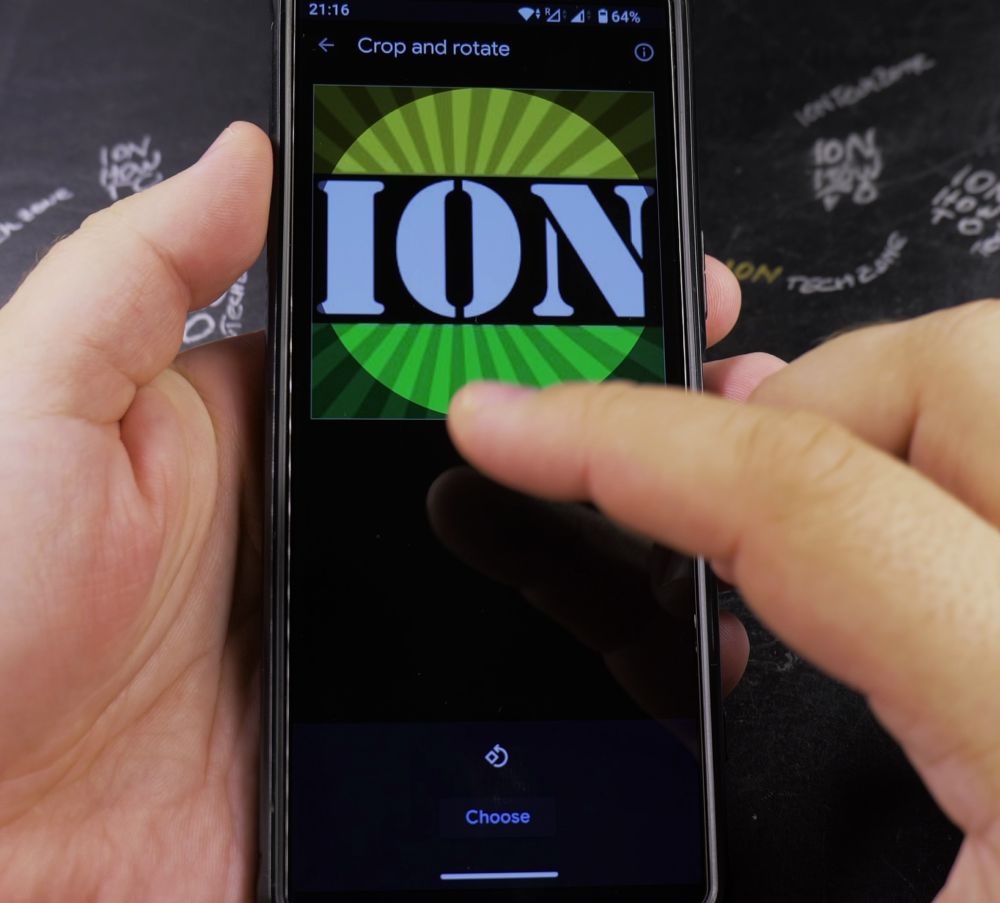
4. Pick a New Photo
Tap **Device photos** to select a fresh image from your gallery, or tap **Camera** to snap a new photo on the spot.
5. Save Your Changes
Crop the picture within the circle and tap **Save as contact photo**, then tap **Save** in the top-right corner.
Helpful Tips
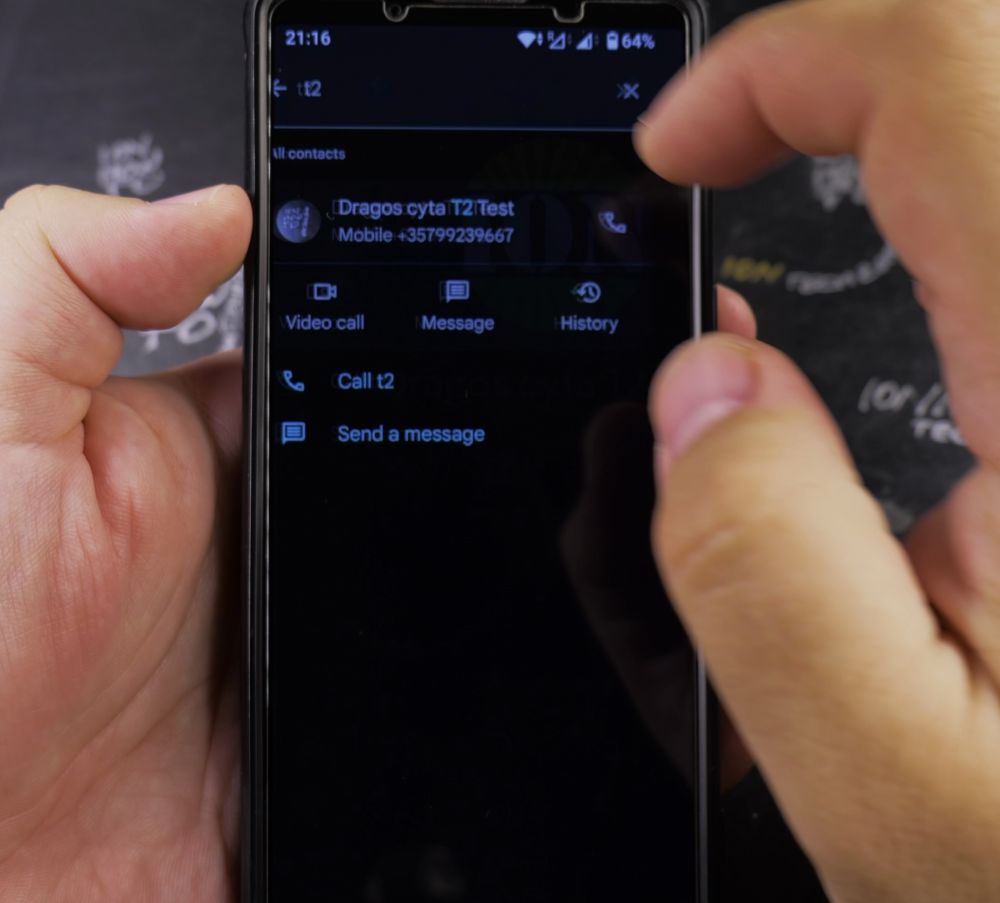
If the updated picture doesn’t appear immediately in your messages or recent calls list, close and reopen the Phone app so Android refreshes its contact cache. For more phone tips, visit our Android Guides hub.


Leave a Reply