
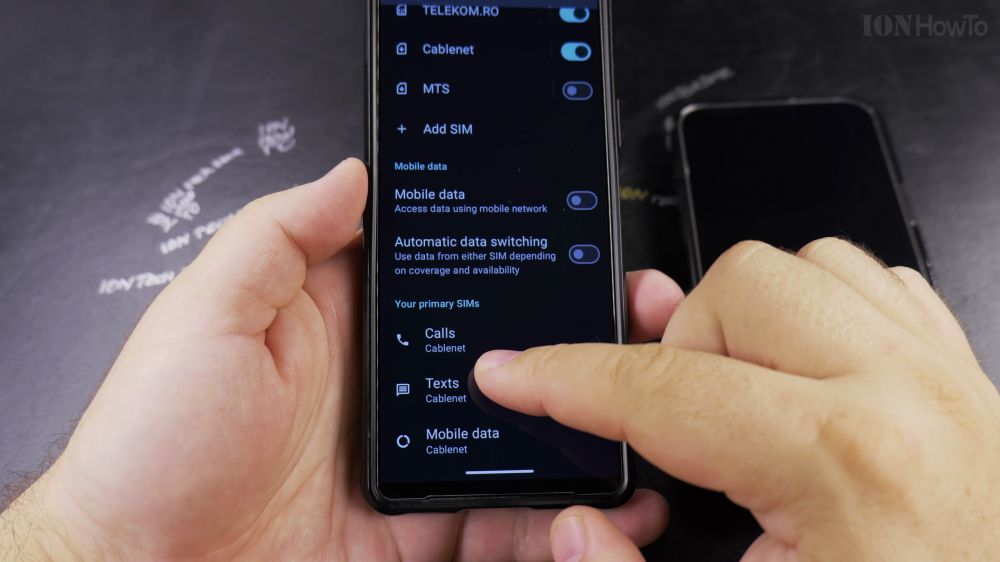
When your phone has two phone numbers, dialing from the wrong SIM can mix up your business and personal lines. I’ll show you how to pick your calling SIM card or make the phone ask you before every call.
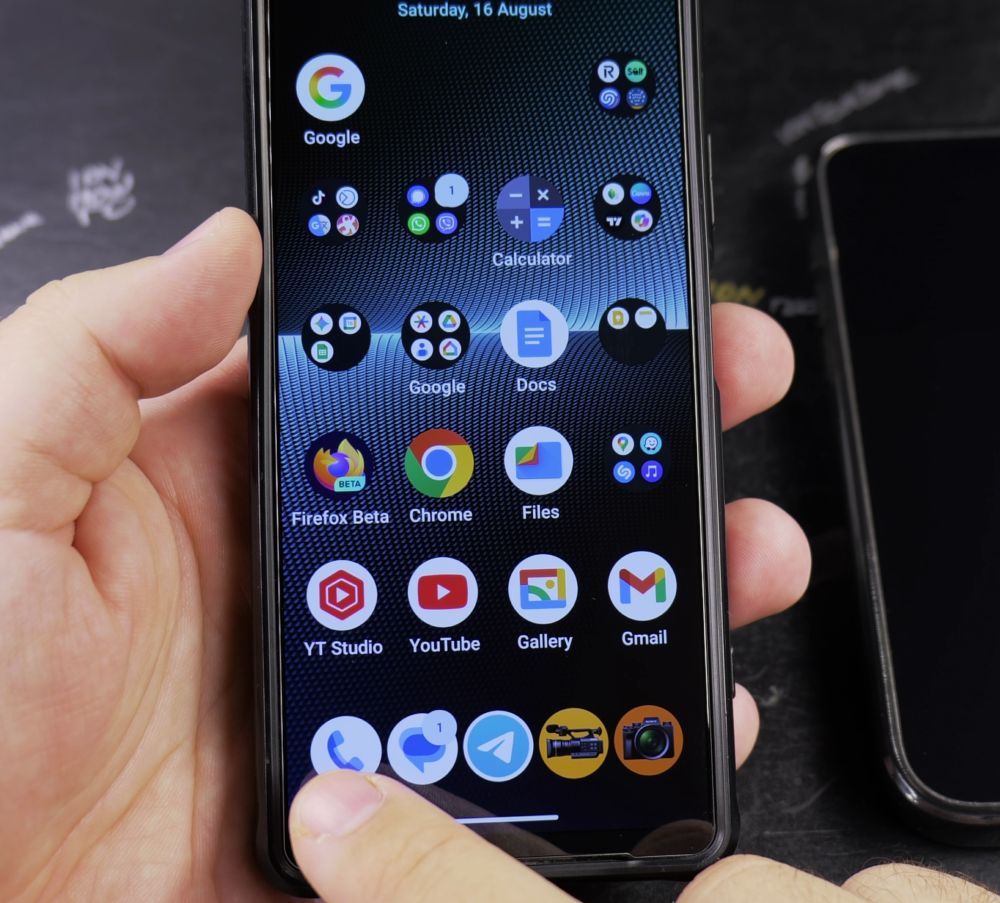
1. Open the Phone App
Tap the **Phone** app icon on your home screen.
2. Switch on the Keypad
When dialing a number on the keypad, look above the green call button. Tap the **SIM card badge** to flip between SIM 1 and SIM 2 before tapping call.
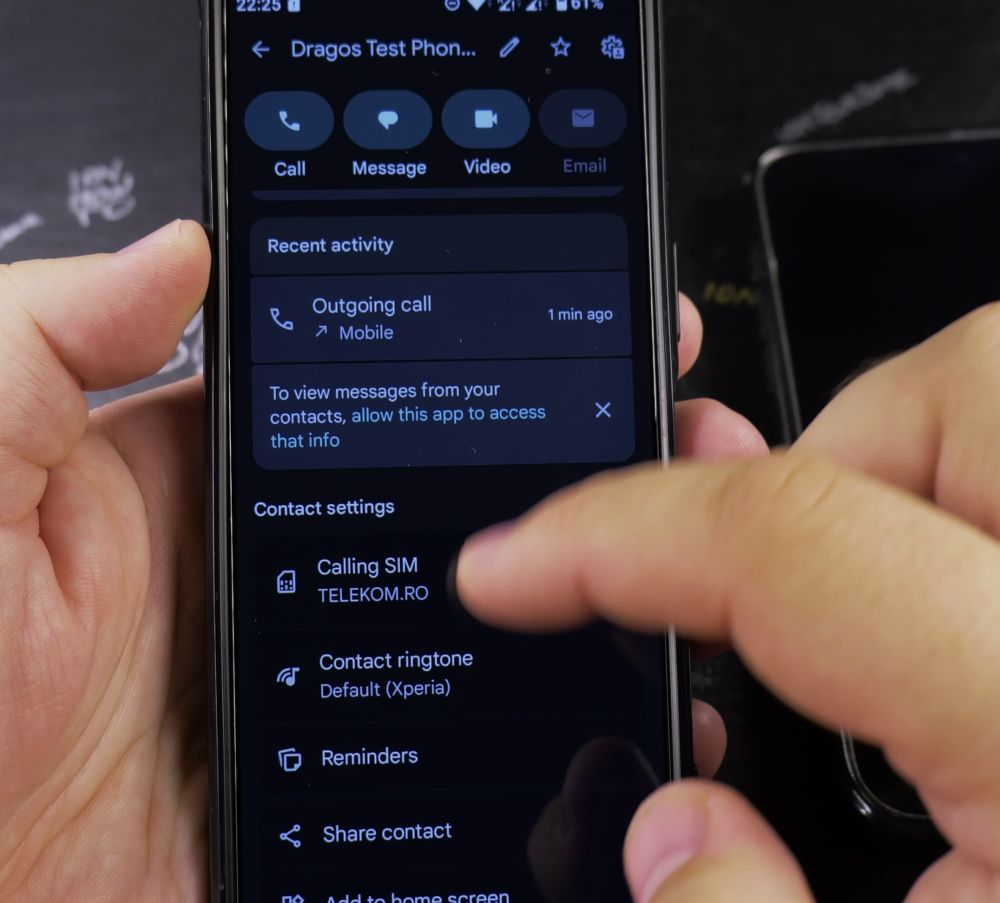
3. Open Calling Accounts
To change your global default, tap the **three dots** in the top-right corner, choose **Settings**, and tap **Calling accounts**.
4. Tap Calls Preference
Tap **Calls preference** (or **Make calls with**).
5. Choose Ask Every Time
Tap **Ask every time** (or pick a permanent SIM). Now, every time you tap a contact or dial a number, a clean popup lets you choose which line to use.
Helpful Tips
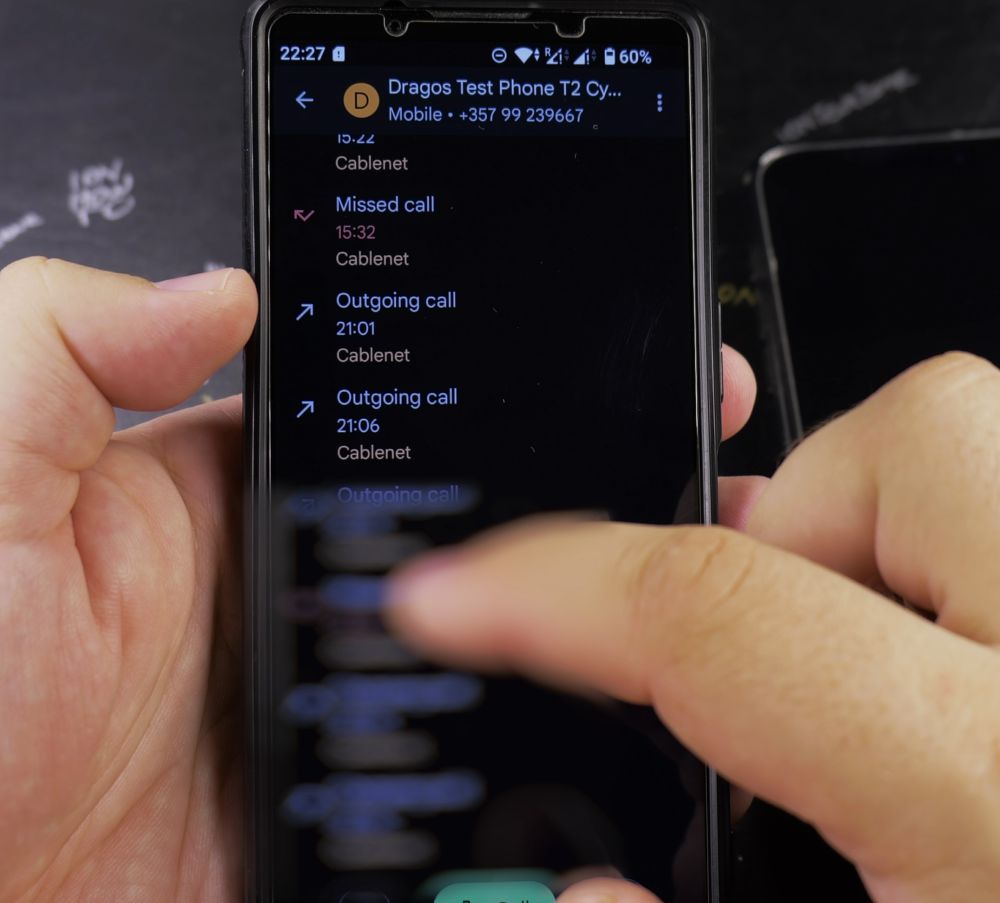
Your call log in the Recents tab shows a small badge next to each caller (like ‘SIM 1’ or ‘SIM 2’) so you always know which number they reached you on. For more helpful phone advice, visit our Android Guides hub.


Leave a Reply