
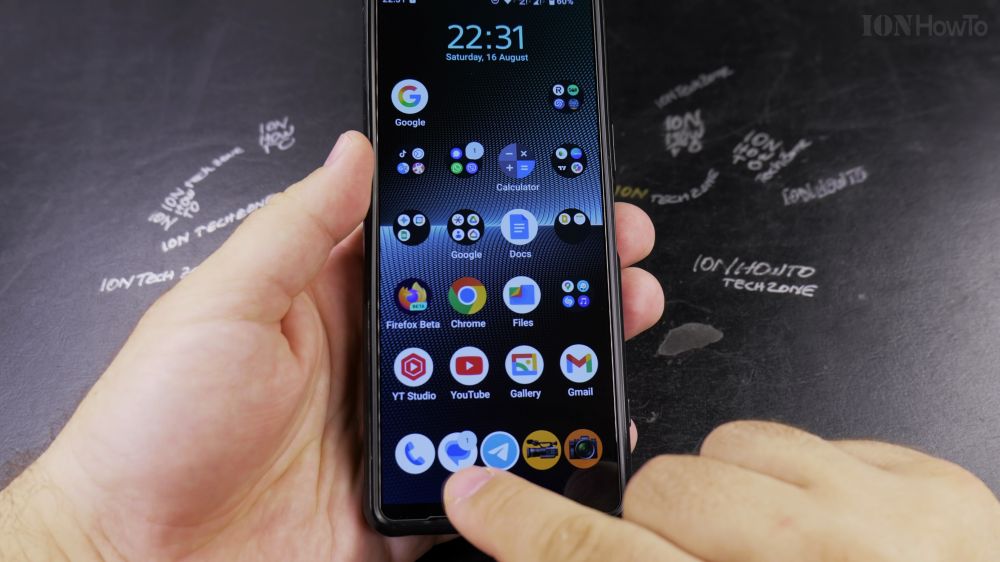
If you have two SIM cards in your phone, sending a text from the wrong number can cost you expensive roaming fees. I’ll show you how to switch between SIM cards right inside the Google Messages app.
1. Open Messages
Tap the blue **Messages** app icon on your home screen or app drawer.
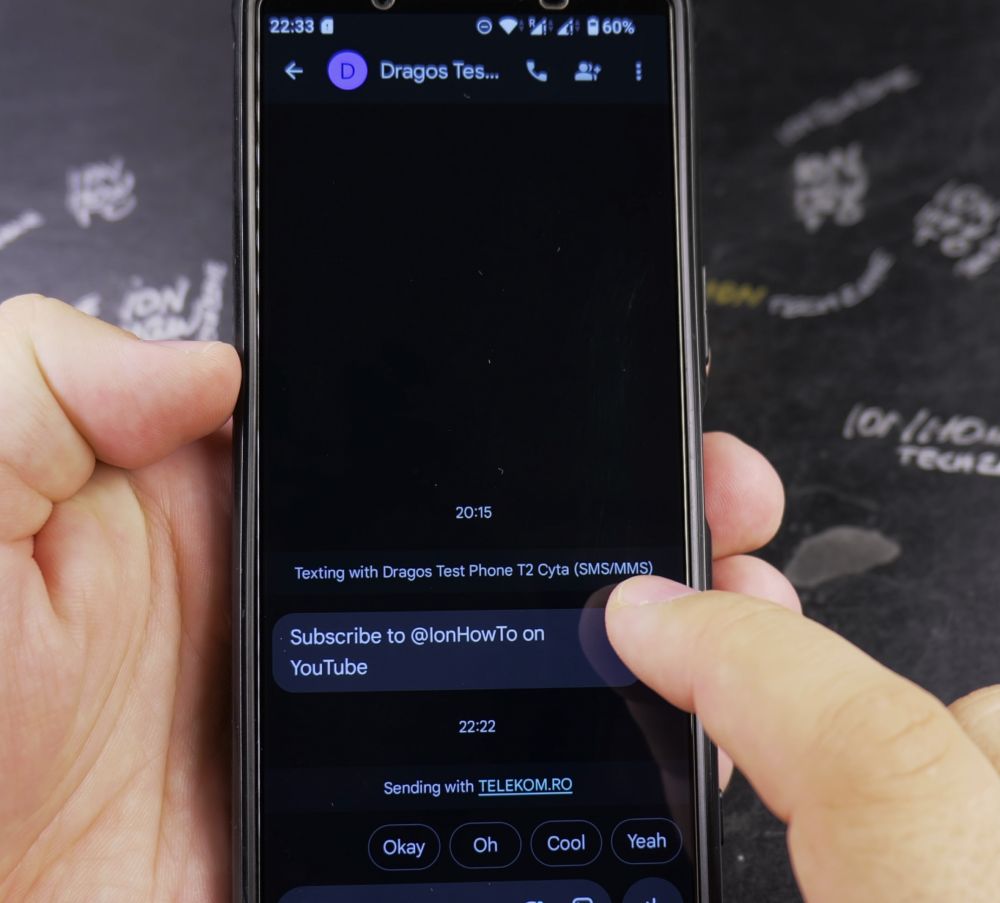
2. Open a Conversation
Tap on any existing chat thread, or tap **Start chat** and pick a recipient.
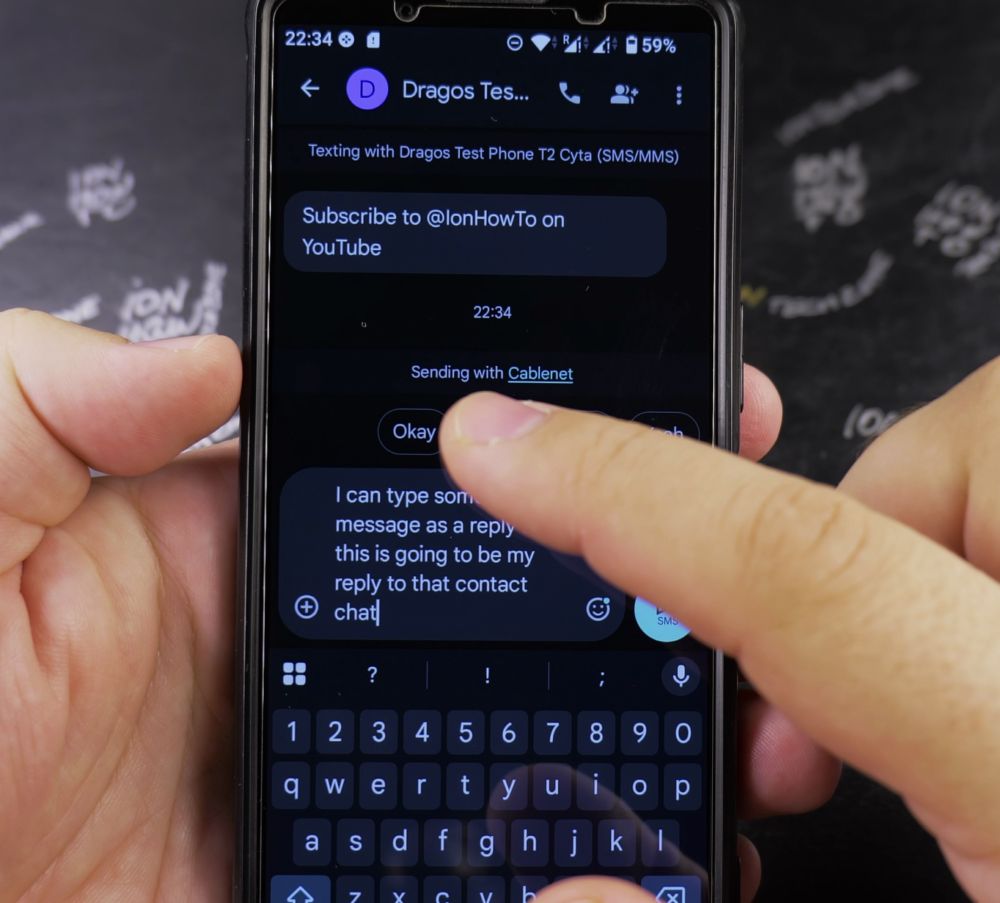
3. Look at the Text Bar
Look right below the text entry field at the bottom. You will see a small label indicating which carrier is currently active (such as *Sending with Telecom*).
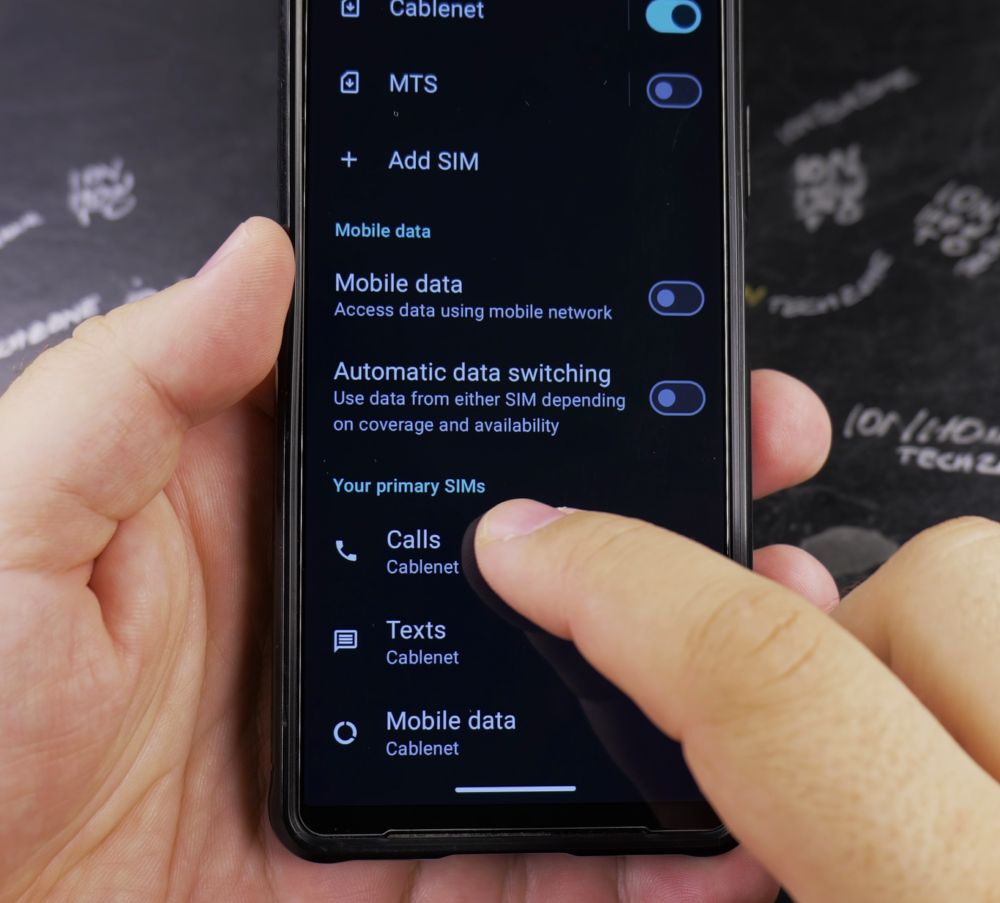
4. Tap the SIM Switcher
Tap the small **SIM card icon** next to the send button or inside the text box.
5. Select Your Desired SIM
Tap the name of the second SIM card or eSIM. The indicator updates immediately so your next text sends from that number.
Helpful Tips
To set a permanent default SIM for all text messages, open phone **Settings** > **Network & internet** > **SIMs** > **SMS preferences** and choose your preferred line. For more cellular tricks, explore our Android Guides hub.


Leave a Reply