
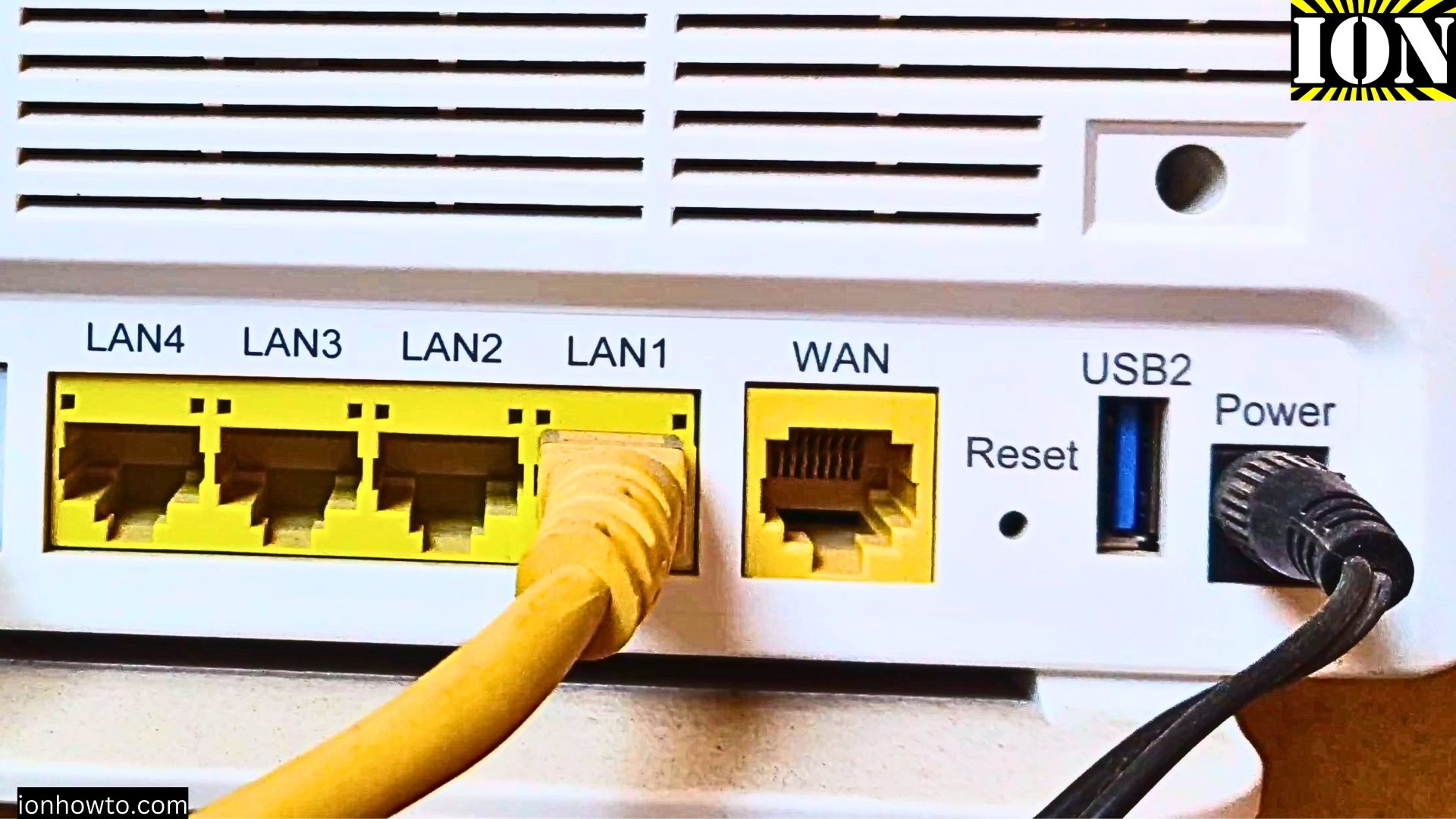
You can connect your Android phone or tablet to the internet using an Ethernet cable.
Amazon links
As an Amazon Associate I earn from qualifying purchases:
- Phone Cases
- Mobile Tripods
- Usb-c charger
- Usb-c cable
- Docking stations
- Wireless car chargers
- Wireless charger stand
- SIM card removal tool
- SIM card holder
Wi-Fi and mobile data are the most common options for most people, using an Ethernet adapter can be great in situations where Wi-Fi is too busy or you need the most stable connection.
Quick Steps and Scenarios Overview
| What You Need to Do | Quick Jump |
|---|---|
| Setup | Jump to Step 1 |
| Check Your Android Device Compatibility | Jump to Step 1 |
| Connect the Ethernet Adapter | Jump to Step 2 |
| Configure Your Android Settings | Jump to Step 3 |
| Test Your Connection | Jump to Step 4 |
| Wi-Fi Router Setup | Jump to Step 2 |
Setup
Make sure you have the following:
- An Android device with a USB-C or micro-USB port (depending on your device).
- A USB-to-Ethernet adapter. These are available online or at electronics stores.
- Ethernet cable.
- A router or modem with an available Ethernet port.
1. Check Your Android Device Compatibility
Not all Android devices support Ethernet connections. To check if yours does:
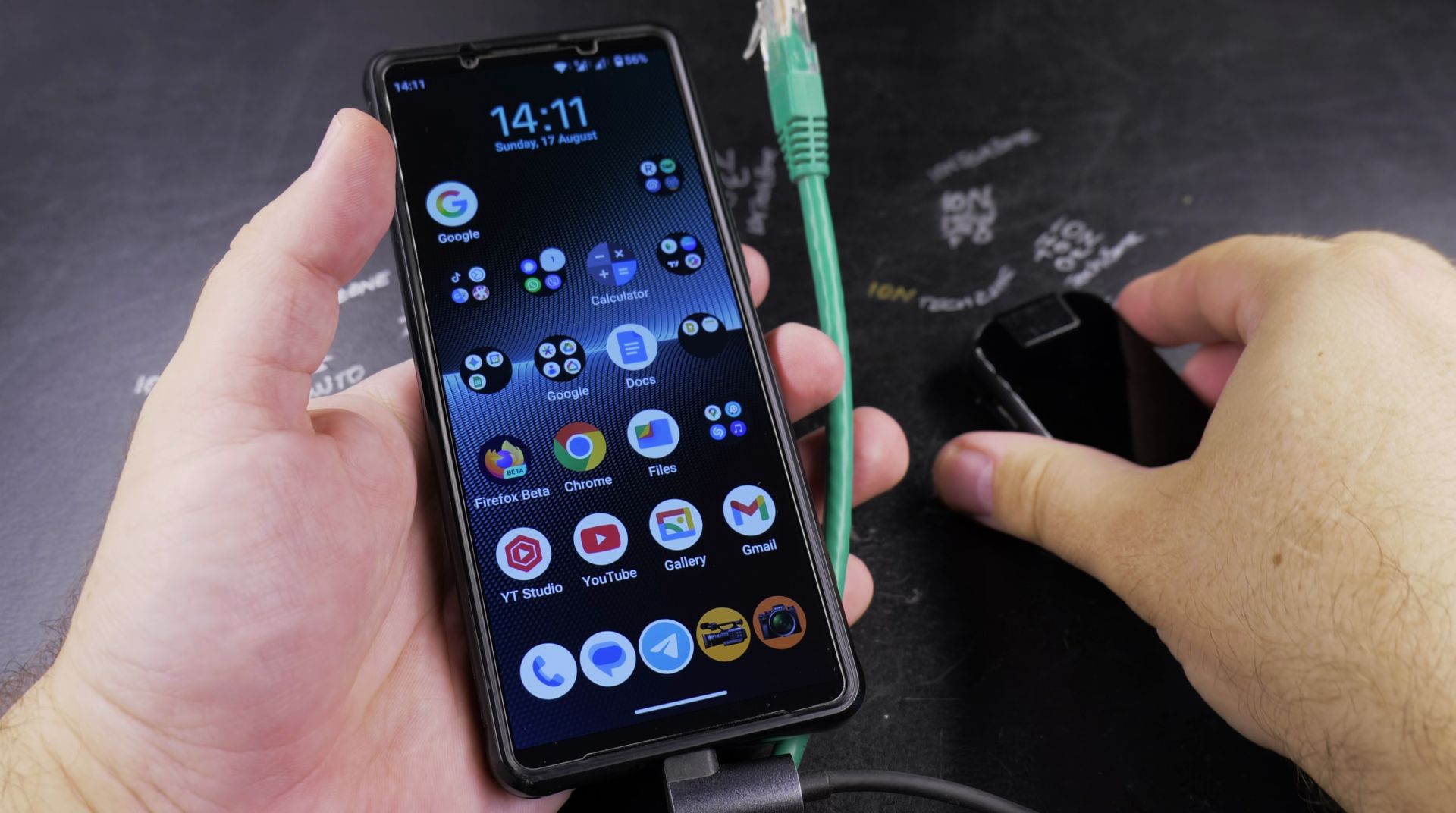
- Look up your device’s specifications online or check the manufacturer’s website.
- Some devices may require additional settings to enable Ethernet connectivity.
2. Connect the Ethernet Adapter
- Plug the USB end of your Ethernet adapter into your Android device’s USB-C or micro-USB port.
- Connect one end of the Ethernet cable to the adapter and the other end to your router or modem.
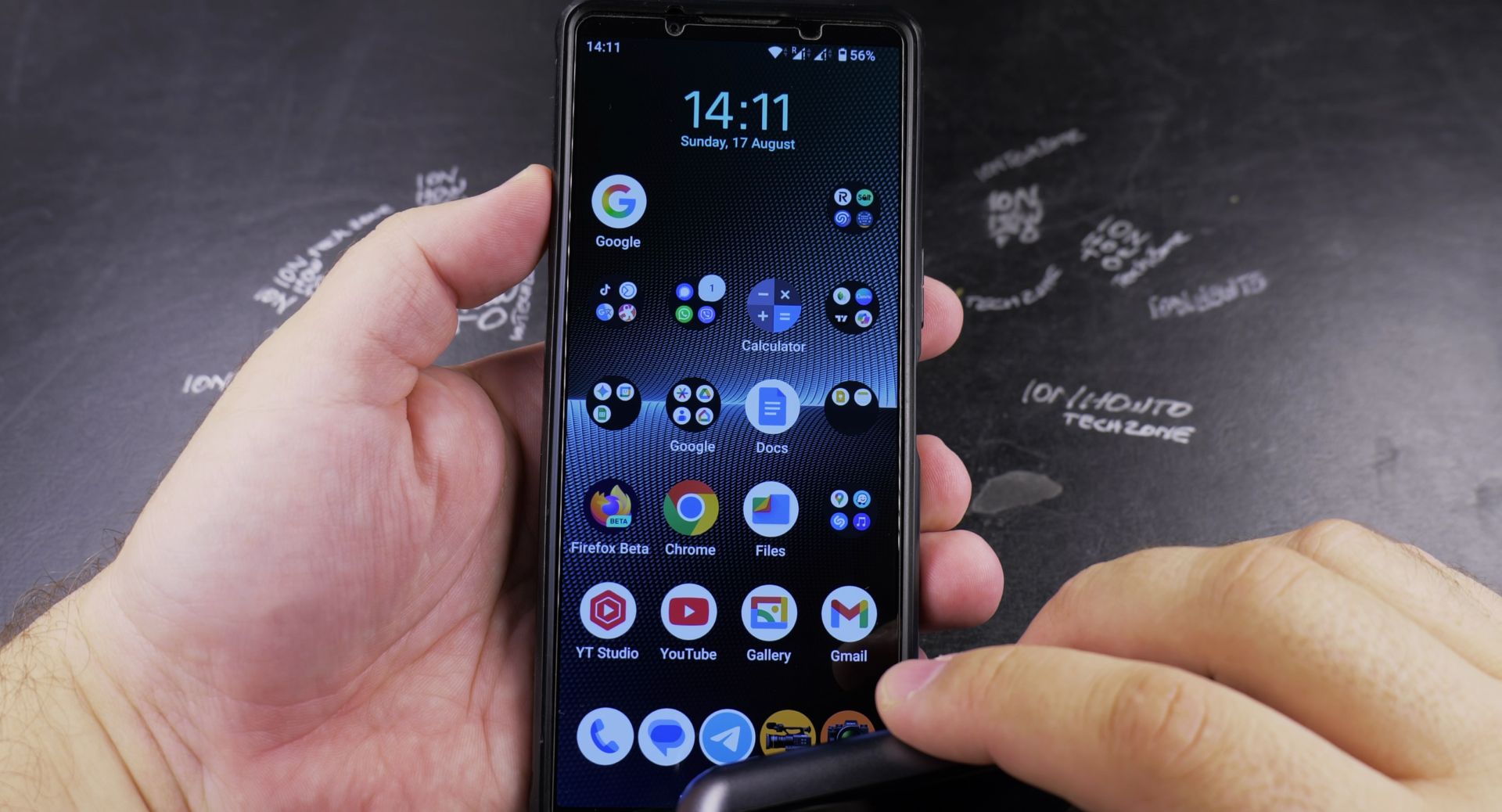
3. Configure Your Android Settings
Once everything is connected, configure your Android device:
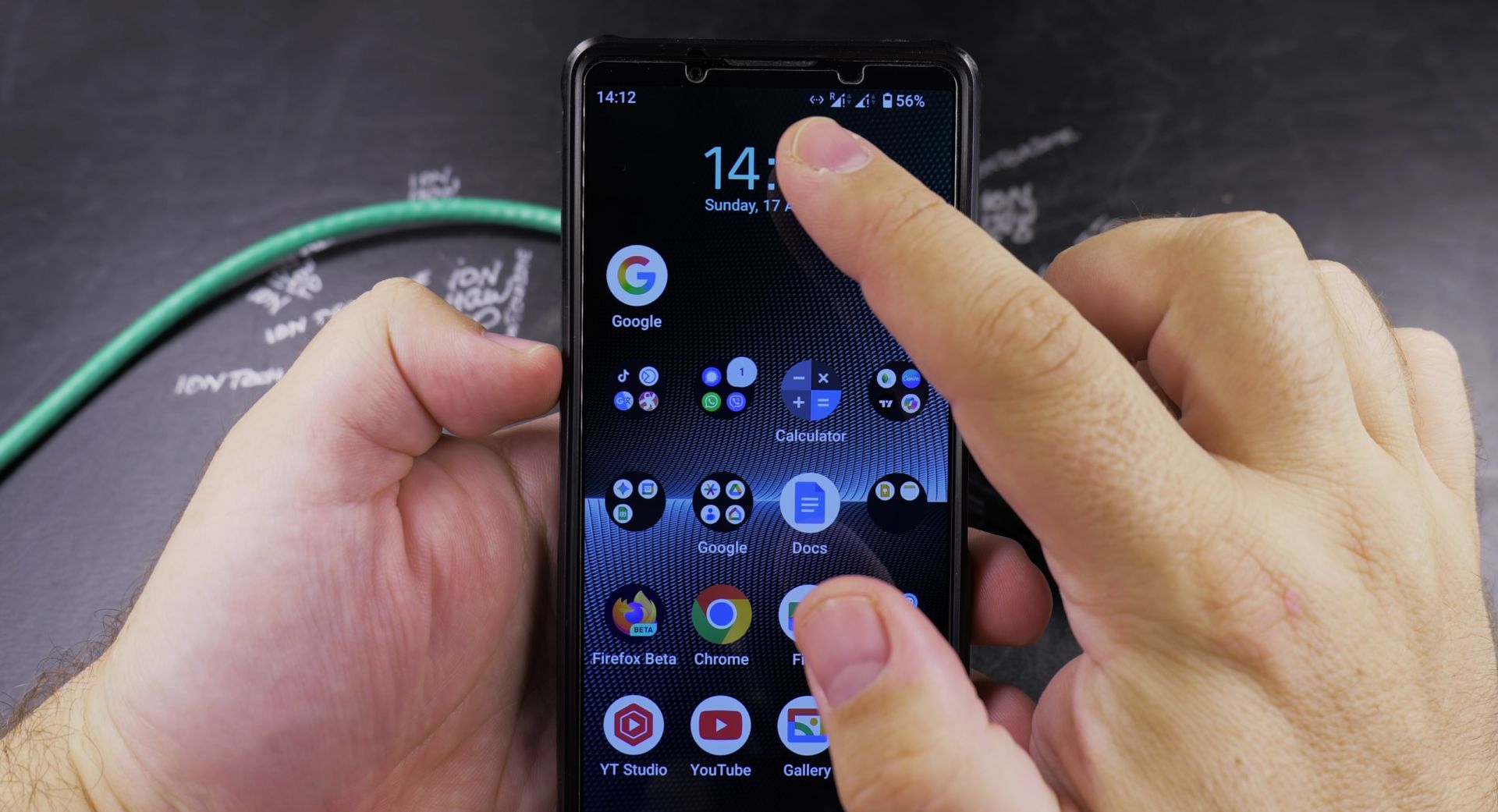
- Open the Settings app on your Android device.
- Go to Network & Internet (this may vary slightly).
- Look for an option like Ethernet or Wired Network. If you don’t see it, your device might not support Ethernet.
- Toggle the Ethernet option to On.
4. Test Your Connection
Once the Ethernet connection is enabled, your Android device should automatically detect the internet connection. To make sure it’s working:
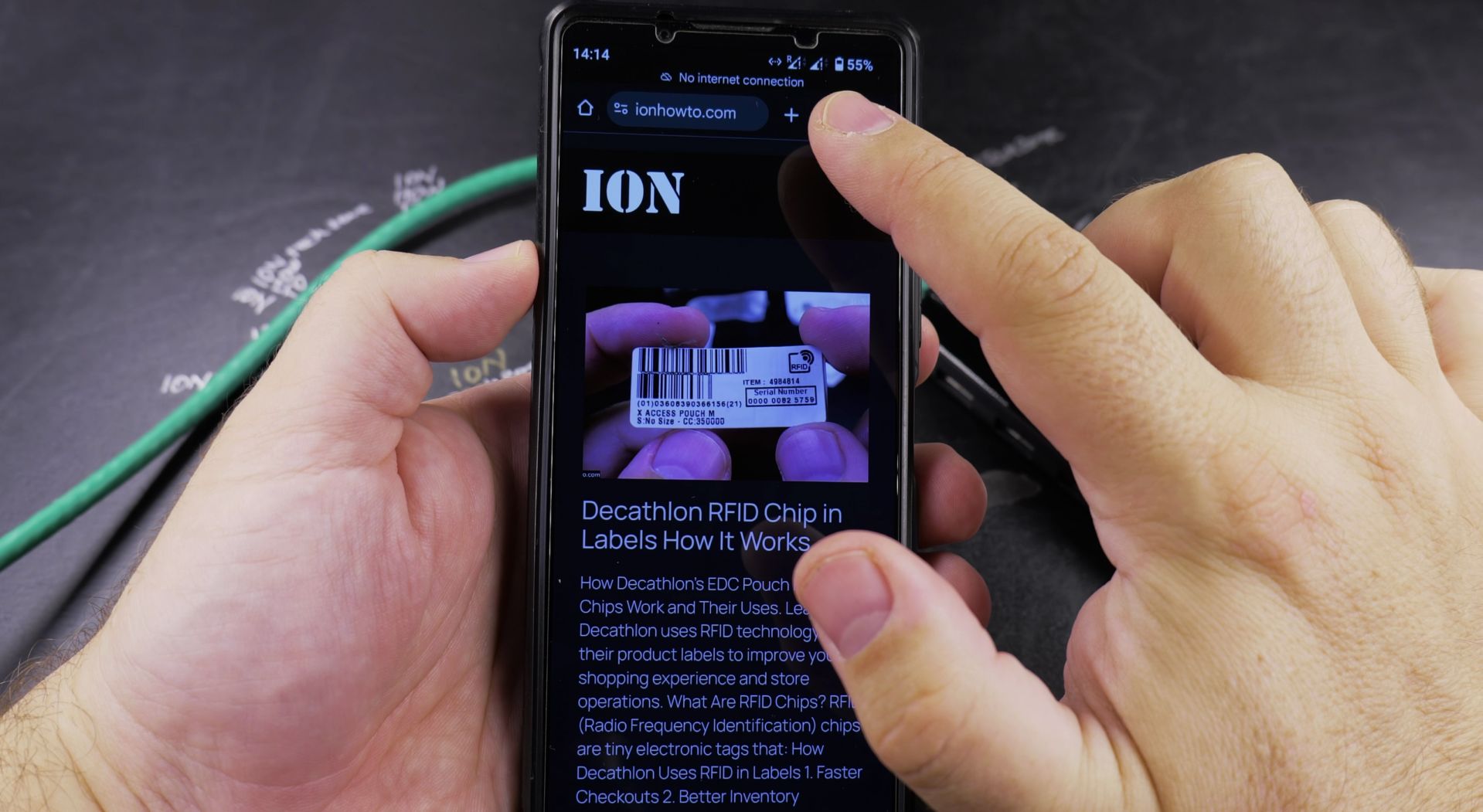
- Open a browser or any app that requires internet access.
- Try loading a webpage or streaming a video to test the connection speed and stability.
Wi-Fi Router Setup
Huawei Wi-Fi Router Unboxing and Setup in Acces Point mode
Tips
- Power Supply: Some Ethernet adapters may require extra power. If your connection isn’t working, try using a powered USB hub.
- Adapter Quality: Use a good-quality Ethernet adapter to avoid connectivity issues.
- No Internet? Check your Ethernet cable and router connection. Restarting your Android device can also help.
Why Use Ethernet on Android?
You might be asking yourself, “Why bother with Ethernet when Wi-Fi is so convenient?” These are a few reasons:
- Stability: Ethernet connections are more stable than Wi-Fi, especially in areas with interference.
- Speed: If you need faster speeds for downloads, streaming, or gaming, Ethernet can often outperform Wi-Fi.
- No Wi-Fi? If you’re in a place with no Wi-Fi but have access to an Ethernet port, this method can help you.
Conclusion
Connecting your Android device to the internet via Ethernet can be used especially when Wi-Fi is too overcrowded from too many networks or too many devices in the area or for using your phone as a home diy server or diy nas.
Fiber Internet Setup Gpon
Fiber Internet Setup Gpon Fiber Converter, Mikrotik hex Router
Make Ethernet Cables
How to Make Ethernet Cables at Home
Helpful Tips
Take your time and check the screen carefully after each tap so you can confirm the setting changed as expected. If an option appears in a slightly different spot on your device, watch the embedded video above for a closer look.
Related Guides
- How to Connect an iPad to Wired Ethernet Internet Using a USB-C Cable – When Wi-Fi is spotty or you need zero-latency internet for gaming, video calls, or large file transfers, connecting your…
- Step-by-Step Replace Ethernet Cable Pull New Cable with Old Cable in Conduit Upgrade Cat5E to Cat6A – If your home network needs 10-gigabit speeds, pulling new wiring through existing wall pipes is much easier than opening drywall.
- Pull New Ethernet Cable Using Old Cable in Conduit – How to Pull New Ethernet Cable Using Old Cable in Conduit: Upgrade Cat5E to Cat6A.
- Android & Mobile Guides – Browse more tutorials and practical guides in this section.


Leave a Reply