
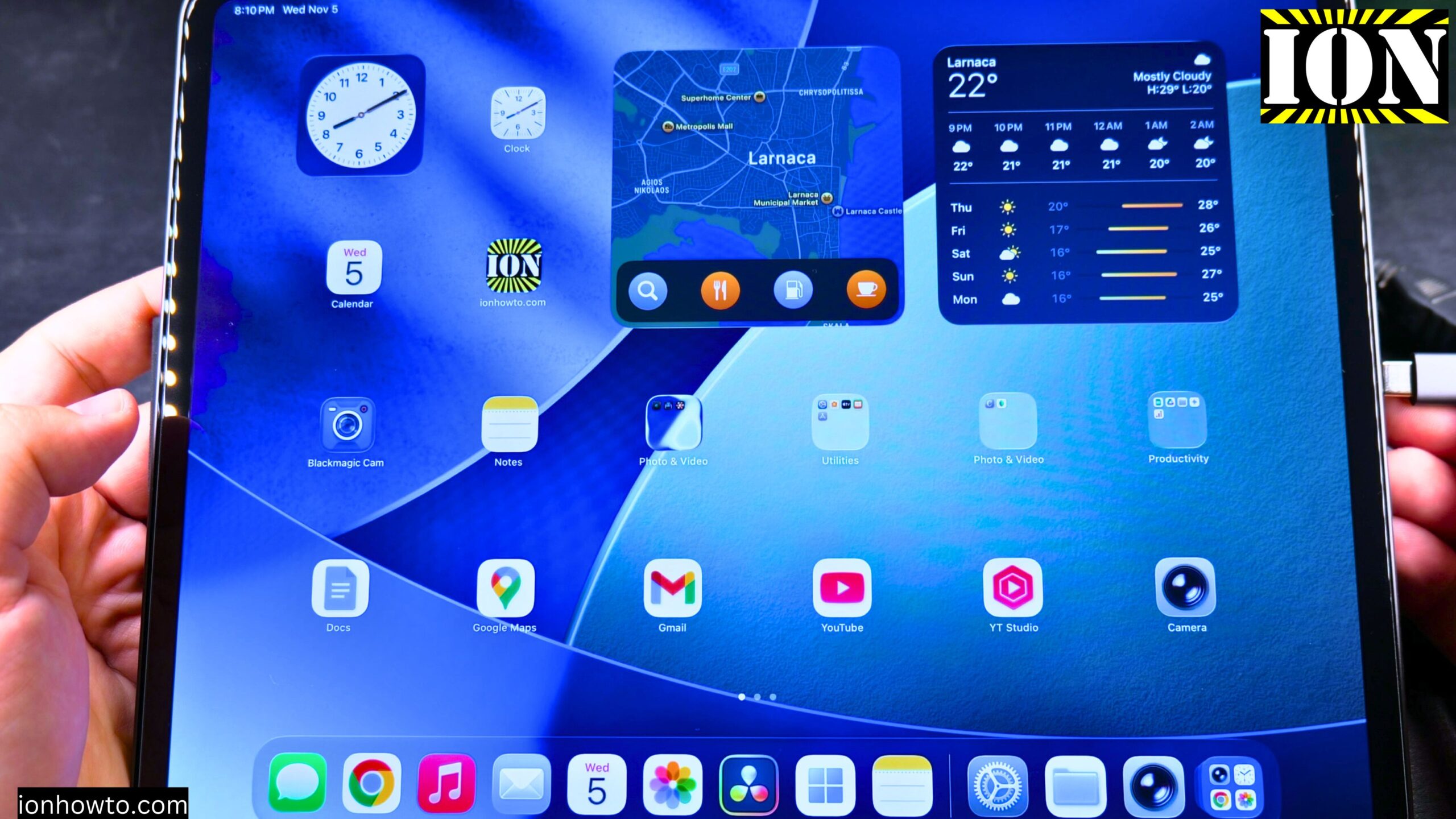
How to Check iPad Display for Stuck Pixels or Lines on Screen.
Learn how to check your iPad display for stuck pixels or lines on the screen. This is helpful if you buy a used iPad or just want to make sure your display is in good shape.
This was shown on iPadOS 26 on iPad Pro M5 13 Inch 2025 model.
iPad Model Code MDYJ4TY/A Model A3360 iPad Pro 13 inch Wi-Fi 256GB Space Black Standard glass
EAN Barcode: 195950398168
Apple Pencil Pro Model MX2D3ZM/A A2538 manufacture date 05/2025.
EAN Barcode: 195949573125
What Are Stuck Pixels and Lines
Stuck pixels are bad pixels on the iPad. They can look like red dots, green dots, or bright dots.
It does not happen often. I do not remember ever seeing any problem with an iPad. But if you get an iPad that is used, you might want to make sure that the display is okay.
iPad How to Check Display for Stuck Pixels or Lines on Screen Video
Step 1: Check for Lines
First check for lines. Any kind of lines, a vertical line, any kind of vertical line. You might have some damage that is horizontal damage also. You might have some hot points.
Step 2: Display Different Colors
The most important thing is to have a way to change between different backgrounds, different colors of the display. Change from black to white, green, red, blue for RGB colors to make sure that nothing stands out and the display has an even look to it.
You can search for a screen tester app or a website that does this.
Step 3: Test the Red Screen
First check the red. A screen tester app can show a red screen.
Move it around. Go around the edges. Make sure there are no areas with anything different than the main color. Go left, right, up, in the corners everywhere.
Step 4: Test the Blue Screen
Change it to blue and also check all the corners.
Step 5: Test the Black Screen
Use the black option. Try to see if there is anything. Some areas might be kind of missing the test, but more or less you would not expect any problems anyway.
Step 6: Test the White Screen
Do the white test. Make sure there are no dark pixels, stuck pixels.
Step 7: Go Through All the Patterns
Go through all the patterns for blue, for green also, and the red.
If there is anything there, it might be dust. Sometimes the dust will stand out when you run these tests.
What to Do If You Find a Stuck Pixel
If you see a stuck pixel, there are a few methods that might help. You can try to use gentle pressure on the screen or a pixel fixing video to try and resolve a stuck pixel. These methods do not always work, but they are worth trying. What is important is to do it gently so you do not damage your screen.
When to Contact Apple
If you have Apple warranty or Apple Care, take your iPad to an Apple service center or Apple Store.
Final Thoughts
This is how you test the display to make sure that the pixels are not stuck. There are no defective pixels on the display. Very unlikely on the iPad. But if you buy an iPad that is used or even an iPhone, it is always good to check if you can before paying for it.
Related Guides and Helpful Resources
If you found this guide helpful, check out these related step-by-step tutorials and category resources on ION HowTo:
- How to Add a Picture to a Contact on Android: Personalize your contacts with custom profile photos for caller identification.
- How to Disable 2G on Android: Enhance network privacy and prevent insecure 2G connections.
- Turn Off Automatic Updates on Samsung Android: Manage app and firmware updates to save battery and mobile data.
- Android Tips and Tricks: Explore our full collection of tutorials and step-by-step articles in this category.


Leave a Reply