
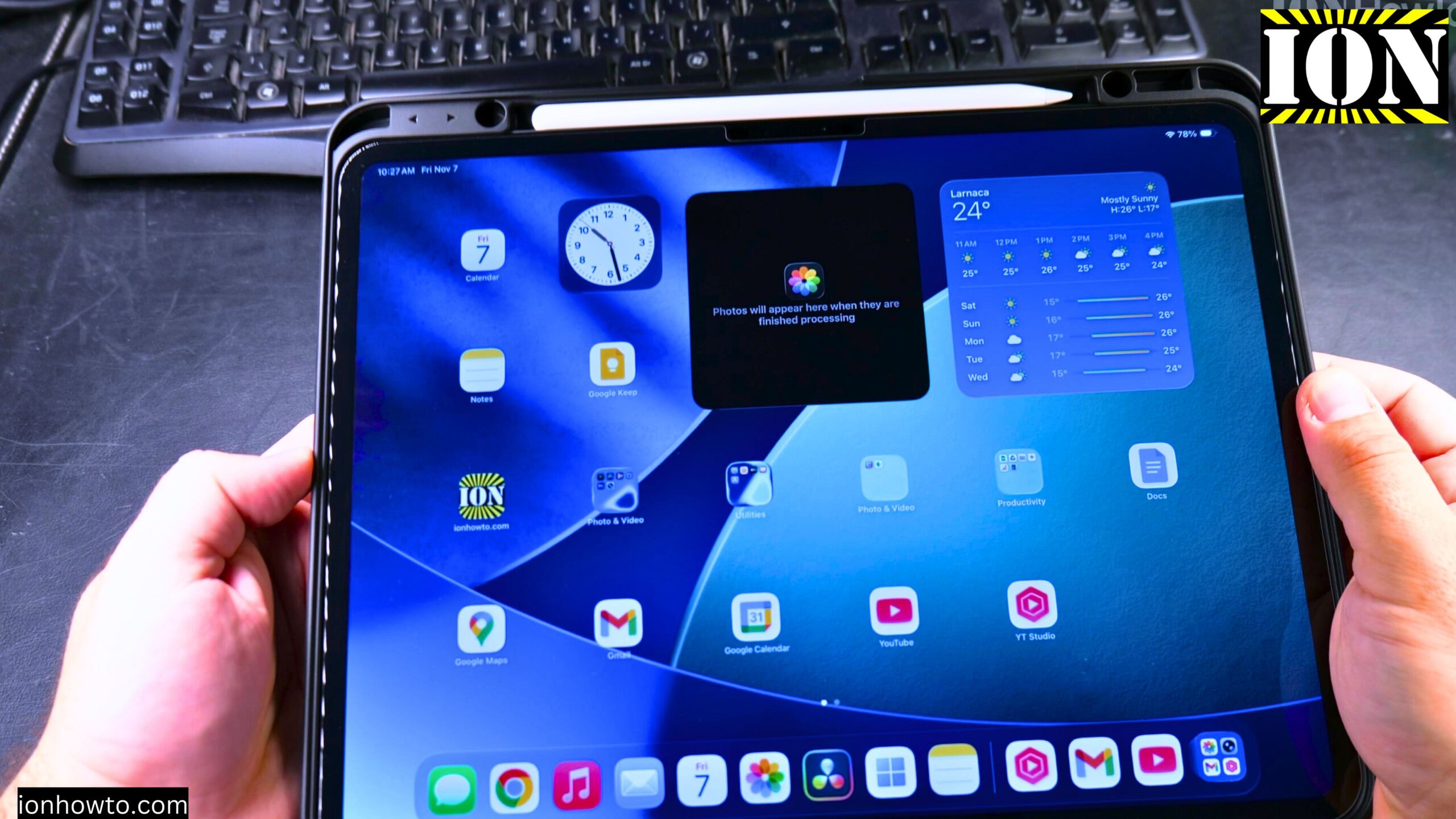
How to Install Chrome on iPad.
In this post, I show you how to install the Chrome browser on your iPad. I guide you through the steps to get Chrome on your iPad using the App Store. This is a simple process, and I’ll show you exactly what to do.
I’ll show you on iPadOS 26 on iPad Pro M5 13 Inch 2025 model.
What I Am Using
For this guide, I am using:
- iPad Pro 13 inch 2025, Model A3360, Model Code MDYJ4TY/A, Wi-Fi 256GB, Space Black, Standard glass, EAN Barcode: 195950398168
- Apple Pencil Pro Model MX2D3ZM/A A2538, manufacture date 05/2025, EAN Barcode: 195949573125
Video iPad How to Install Chrome
How to Check If Chrome Is Already Installed
Before you install Chrome, you can check if you already have it on your iPad. Here is how:
- Go to your Home Screen.
- Swipe down to open the search.
- Type Chrome in the search box.
- If you do not see anything, Chrome is not installed.
If you see the Chrome app, you already have it. If not, it is easy to install it.
How to Install Chrome from the App Store
The easiest way to install Chrome on your iPad is through the App Store. Here are the steps:
- Open the App Store app on your iPad.
- Tap the search tab.
- Type Chrome in the search box.
- Tap on Google Chrome in the results.
- You will see a button that says Get or Open.
- If it says Open, you already have Google Chrome on your iPad.
- If it says Get, tap Get to start the download.
- You might need to double tap the Home Screen, use Face ID, or type your Apple account password.
- If you see a cloud icon with a download arrow, tap it to download Chrome again.
While Chrome is downloading, you can check other apps from Google. They have lots of apps for iPad. When Chrome is installed, you will see the Chrome icon on your Home Screen.
How to Find Chrome on Your iPad
When Chrome finishes installing, you will see the icon for Chrome somewhere on your Home Screen. If you do not see it, go to the App Library and you will find it there. You can also search for it.
How to Open Chrome for the First Time
Once you install Chrome, open the app. Here is what happens:
- You have the option to choose a search engine.
- I choose Google, but you can use any of the search engines shown.
- Chrome is now ready to use.
Learn how to sign in to Chrome with your Google account to sync your bookmarks and history. This is optional but useful if you use Chrome on other devices.
How to Set Chrome as Your Default Browser
Learn how to set Chrome as your default browser on iPad if you want to use it for opening links. Here are the steps:
- Open the Settings app on your iPad.
- Scroll down and tap Apps.
- Search for Chrome.
- Tap on Chrome.
- Tap Default Browser App.
- Choose Chrome.
Now Chrome is set as your default browser. You can open a link and it will open with Chrome.
How to Add Chrome to Your Home Screen or Taskbar
You can add Chrome to your Home Screen for easier access. Here is how:
- Long press on the Chrome icon.
- Drag it to the Home Screen, first page, so it is easier to open.
- You can also pin it to the taskbar by long pressing and dragging it there.
Chrome is a popular browser app, so keeping it in an easy spot makes sense.
How to Switch Between Chrome and Safari
You can always switch between Chrome and Safari if you want. You can also use Firefox or other browsers. Just open the browser you want to use. If you set Chrome as your default, links will open in Chrome. If you want to use Safari for a link, you can copy the link and paste it into Safari.
A Note About Screen Size
This is iPad Pro M5 13 inch. The space here might be less for 11 inch iPads, but I am not sure. Maybe it is the same, just a smaller size.
Final Thoughts
This is how you install Chrome on your iPad. Chrome is ready to use. It is also the default browser now if you set it up that way. Learn how to use Chrome on iPad and how to switch to Chrome on iPad. Learn how to get the most out of Chrome on your iPad.
Thanks for watching.
Related Guides and Helpful Resources
If you found this guide helpful, check out these related step-by-step tutorials and category resources on ION HowTo:
- Disable iPhone eSIM Instead of Deleting: Learn how to temporarily toggle off an electronic SIM without deleting cellular plans.
- Turn Off Siri Caller Name Announcement: Silence Siri from announcing incoming caller names aloud through headphones.
- How to Remove an Apple AirTag Speaker: Step-by-step guide to silencing an AirTag for specialized anti-theft item tracking.
- Apple iPhone Guides: Explore our full collection of tutorials and step-by-step articles in this category.


Leave a Reply