
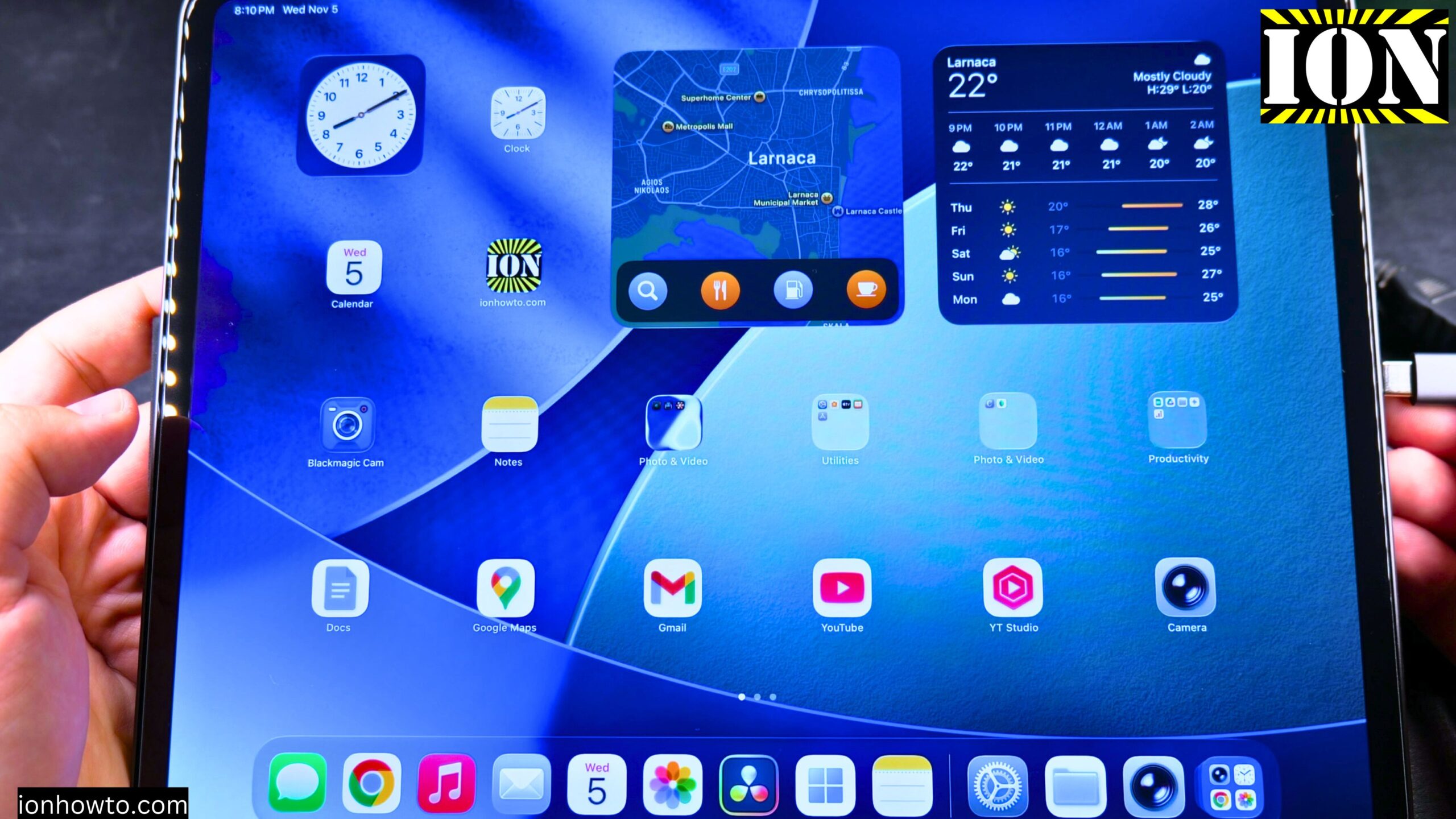
How to Connect an HDMI External Display and Extend Your iPad Screen.
I show you how to connect your iPad to an external display using HDMI and extend your screen. This lets you use the external monitor as a separate workspace, not just a mirror of your iPad.
I’ll show you on iPadOS 26 on iPad Pro M5 13 Inch 2025 model.
What You Need
Here is what you need to connect your iPad to an external display:
- Your iPad Pro with a USB-C port
- A USB-C hub with an HDMI out port
- An HDMI cable
- An external monitor or TV with an HDMI input
For this guide, I am using:
- iPad Pro 13 inch 2025, Model A3360, Model Code MDYJ4TY/A, Wi-Fi 256GB, Space Black, Standard glass, EAN Barcode: 195950398168
- Apple Pencil Pro Model MX2D3ZM/A A2538, manufacture date 05/2025, EAN Barcode: 195949573125
Video How to Connect an HDMI External Display and Extend Your iPad Screen
Which Hub and Cable You Need
Learn which adapters you need for iPad to HDMI connection. I show you how to use a USB-C to HDMI adapter for newer iPad models. This is a common search for anyone wanting to use a larger monitor with their iPad.
The hub I use is a Ugreen Revo USB-C hub. It has:
- Two USB-C ports, one high speed
- Two USB type A ports, the old style
- Power delivery
- An HDMI out port
You can use a USB hub like this to plug in USB devices, charge the iPad, connect an external hard disk, and use the HDMI port for a monitor.
How to Connect the HDMI Display
Here are the steps to connect your iPad to an external display:
- Plug the USB-C hub into the USB-C port on your iPad.
- The hub powers on.
- Plug the HDMI cable into the HDMI port on the hub.
- Plug the other end of the HDMI cable into your monitor or TV.
- The external display options appear on your iPad.
The monitor has its own power supply, so the iPad will not power the whole screen. You can also plug in power delivery to charge the iPad, but it is not required.
How to Set Up the External Display
I demonstrate the steps to set up your external display once it is connected. Learn how to extend iPad display to monitor in the display settings. I show you how to stop screen mirroring and start using the external display as a separate screen.
Once you plug in the external display, open Settings. Then:
- Go to Display and Brightness.
- Look for the display options for the external monitor.
- You will see options for screen mirroring or extended display.
- You can see information about each display.
- You can set the brightness for each one.
The built-in display of the iPad has its own settings. You can change the display zoom. You can also choose a reference mode.
About Reference Mode
Reference mode is for critical color workflows in controlled viewing environments. I would not really go that far with it. When I tried it, the screen became dim. It has to be in a controlled environment. I am not going to use that.
You can also change display zoom to have more space or larger text. I would not change any of that.
How to Arrange Your Displays
Learn how to use iPad with external monitor and how to connect iPad to TV with HDMI. You will see how to arrange your displays so you can drag windows and apps between your iPad screen and the external monitor.
The arrangement option is important. Here is how to use it:
- Turn off mirroring.
- Choose to move the iPad to the right or left of the monitor.
- You can have the iPad on the right and the monitor on the left, or the other way around.
- I leave the iPad below and the monitor above because that matches where they sit in front of me.
Once you set this, it is set to extended. You can always go back to screen mirroring by changing the option between extended and mirroring.
How Extended Display Works in iPadOS
I explain how this extended display mode works in iPadOS and which apps support it. You will know how to create a dual-screen setup with your iPad and an external display. This is useful for multitasking, giving presentations, or simply enjoying content on a larger screen.
When you use extended display, you can drag apps between the iPad screen and the external monitor. For example, I opened DaVinci Resolve and moved it to the external screen.
It is not easy to use this with touch alone. If you use a mouse and keyboard, it is much easier to use the second monitor as an extended display. For now, screen mirroring is easier with just touch.
What Happens When You Unplug
When you unplug the USB hub, the options for the mirror display are gone because they are not needed anymore.
Sometimes there is some flickering on the screen. This may happen when you plug or unplug the hub. It is not ideal, but it usually settles.
Using the Hub as a Docking Station
If you have a keyboard and mouse, or even if you have the Magic Keyboard, this is a great way to have a docking station. You can plug your iPad into this hub and use a full-size keyboard and mouse with it. I did not try it yet, but it should work.
As long as the USB hub is plugged in and the HDMI cable is also plugged in, you have these options. You can set the display to extended or mirroring and change the arrangement.
Final Thoughts
That is how you connect an HDMI external display and extend your iPad screen. The display I used is full HD at 60 frames per second. The iPad has its own retina display, but you can add more monitors like that. You can even use wireless displays, but I did not really use a wireless display with the iPad. That would be an interesting option.
Thanks for watching. I hope this helps you.
Related Guides and Helpful Resources
If you found this guide helpful, check out these related step-by-step tutorials and category resources on ION HowTo:
- Disable iPhone eSIM Instead of Deleting: Learn how to temporarily toggle off an electronic SIM without deleting cellular plans.
- Turn Off Siri Caller Name Announcement: Silence Siri from announcing incoming caller names aloud through headphones.
- How to Remove an Apple AirTag Speaker: Step-by-step guide to silencing an AirTag for specialized anti-theft item tracking.
- Apple iPhone Guides: Explore our full collection of tutorials and step-by-step articles in this category.


Leave a Reply