
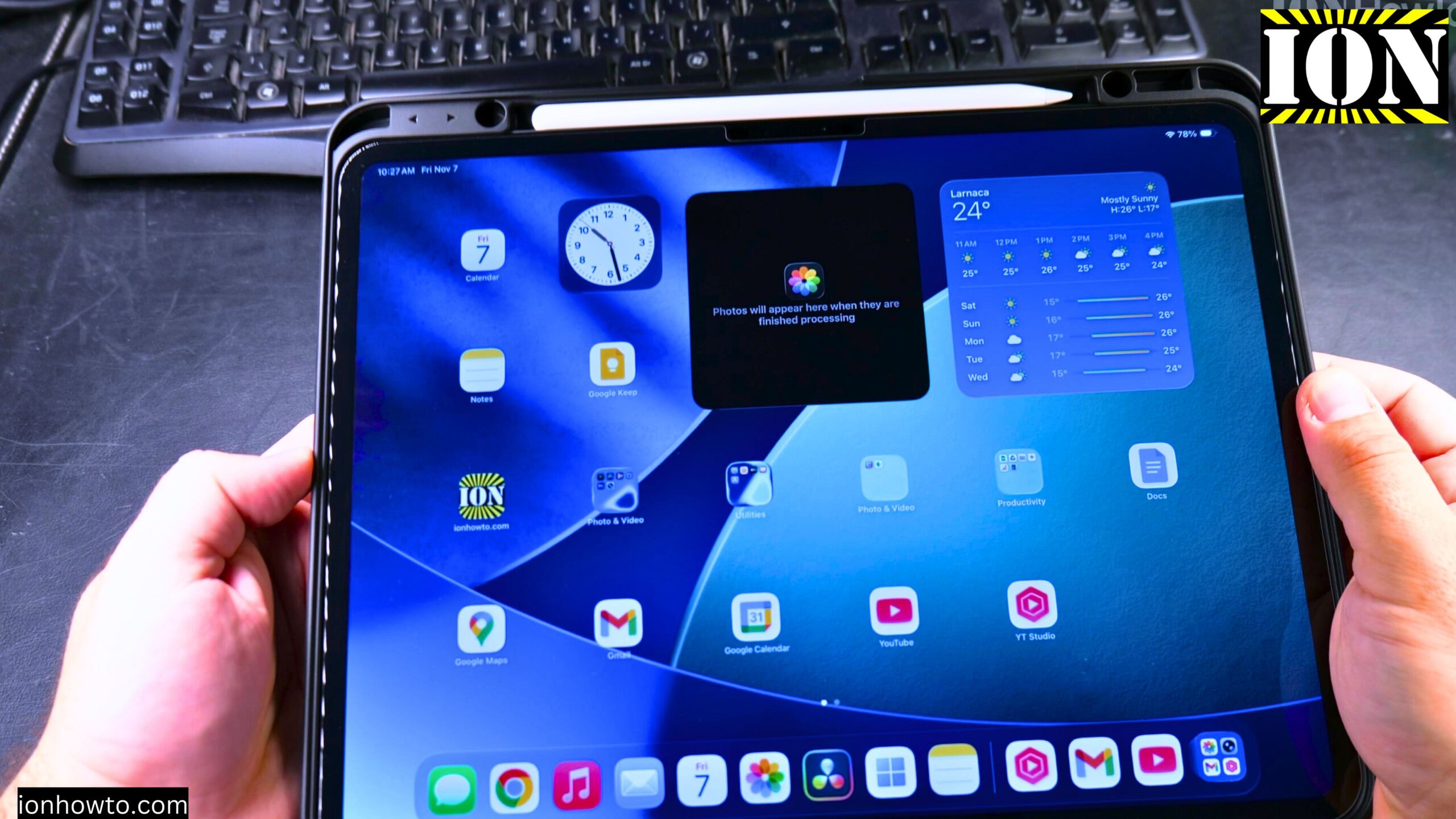
How to Use Wired Headphones with Your iPad Pro USB-C Port.
Learn how to use wired headphones with a 3.5mm jack on your iPad Pro. Since the iPad Pro uses a USB-C port, you need a specific adapter to connect standard headphones.
I’ll show you on iPadOS 26 on iPad Pro M5 13 Inch 2025 model.
What You Need
Before you start, here’s what you’ll need:
- Your iPad Pro with a USB-C port
- A USB-C to 3.5mm headphone jack adapter
- Your wired headphones with a 3.5mm jack
For this guide, I’m using:
- iPad Pro 13 inch 2025, Model A3360, Model Code MDYJ4TY/A, Wi-Fi 256GB, Space Black, Standard glass, EAN Barcode: 195950398168
- Apple Pencil Pro Model MX2D3ZM/A A2538, manufacture date 05/2025, EAN Barcode: 195949573125
Which Adapter You Need
Learn which USB-C to 3.5mm adapter you need for your iPad Pro. The iPad Pro does not have a headphone jack, so you need an adapter to connect standard wired headphones.
Apple makes a USB-C to 3.5mm Headphone Jack Adapter. This adapter supports both audio and microphone functionality. Third-party options also exist, and they can work just as well.
The adapter I use has a USB-C connector on one end and a 3.5mm jack on the other. It also supports microphone input. It has four poles, but it works with regular headphones too.
How to Connect Your Headphones
Here are the steps to connect your wired headphones to your iPad Pro:
- Plug your headphones into the 3.5mm jack on the adapter.
- Plug the USB-C end of the adapter into the USB-C port on your iPad Pro.
- Wait for a notification to appear on your iPad screen. It should say “Headphones.”
- The iPad recognizes the adapter as headphones.
- Your iPad now plays sound through your wired headphones.
That’s it. The iPad automatically detects the headphones and routes audio to them.
How to Check If Your Microphone Works
If your adapter supports microphone input, you can use your wired headset’s microphone for calls, voice recordings, and more.
Learn how to check if your microphone is working:
- Open an app like Voice Memos.
- Start a recording.
- Speak into your headset’s microphone.
- Stop the recording and play it back.
- If you hear your voice, the microphone is working.
You can also test your microphone during a phone call or video call.
How to Use Wired Headphones with Your iPad Pro USB-C Port Video
Troubleshooting Tips
If you are having issues with sound or your mic not working, you can try some basic troubleshooting steps:
- Unplug the adapter and plug it back in.
- Make sure the headphones are fully plugged into the adapter.
- Try a different pair of headphones.
- Try the adapter with another device to see if it works.
- Restart your iPad.
- Check if your iPad has any software updates available.
If the sound is still not working, the adapter or the headphones might be the problem.
What This Setup Is Good For
This video guide is useful if you want to use your favorite wired headphones for:
- Listening to music
- Gaming
- Making clear microphone recordings
- Using an external microphone on your iPad Pro
The 3.5mm to USB-C adapter gives you both audio and microphone functionality with your wired headset.
Final Thoughts
Using wired headphones with your iPad Pro is easy once you have the right adapter. Just plug the headphones into the adapter, plug the adapter into your iPad, and you’re ready to go. The iPad recognizes the headphones automatically, and you can enjoy your audio right away.
Thanks for watching. I hope this helps you.
Related Guides and Helpful Resources
If you found this guide helpful, check out these related step-by-step tutorials and category resources on ION HowTo:
- Disable iPhone eSIM Instead of Deleting: Learn how to temporarily toggle off an electronic SIM without deleting cellular plans.
- Turn Off Siri Caller Name Announcement: Silence Siri from announcing incoming caller names aloud through headphones.
- How to Remove an Apple AirTag Speaker: Step-by-step guide to silencing an AirTag for specialized anti-theft item tracking.
- Apple iPhone Guides: Explore our full collection of tutorials and step-by-step articles in this category.


Leave a Reply