
If an application icon disappeared from your iPhone Home Screen even though the app is still installed on your device, it is stored safely inside the App Library. In this step-by-step guide, I’ll show you how to find any missing app in the iPhone App Library and add its icon right back to your Home Screen.
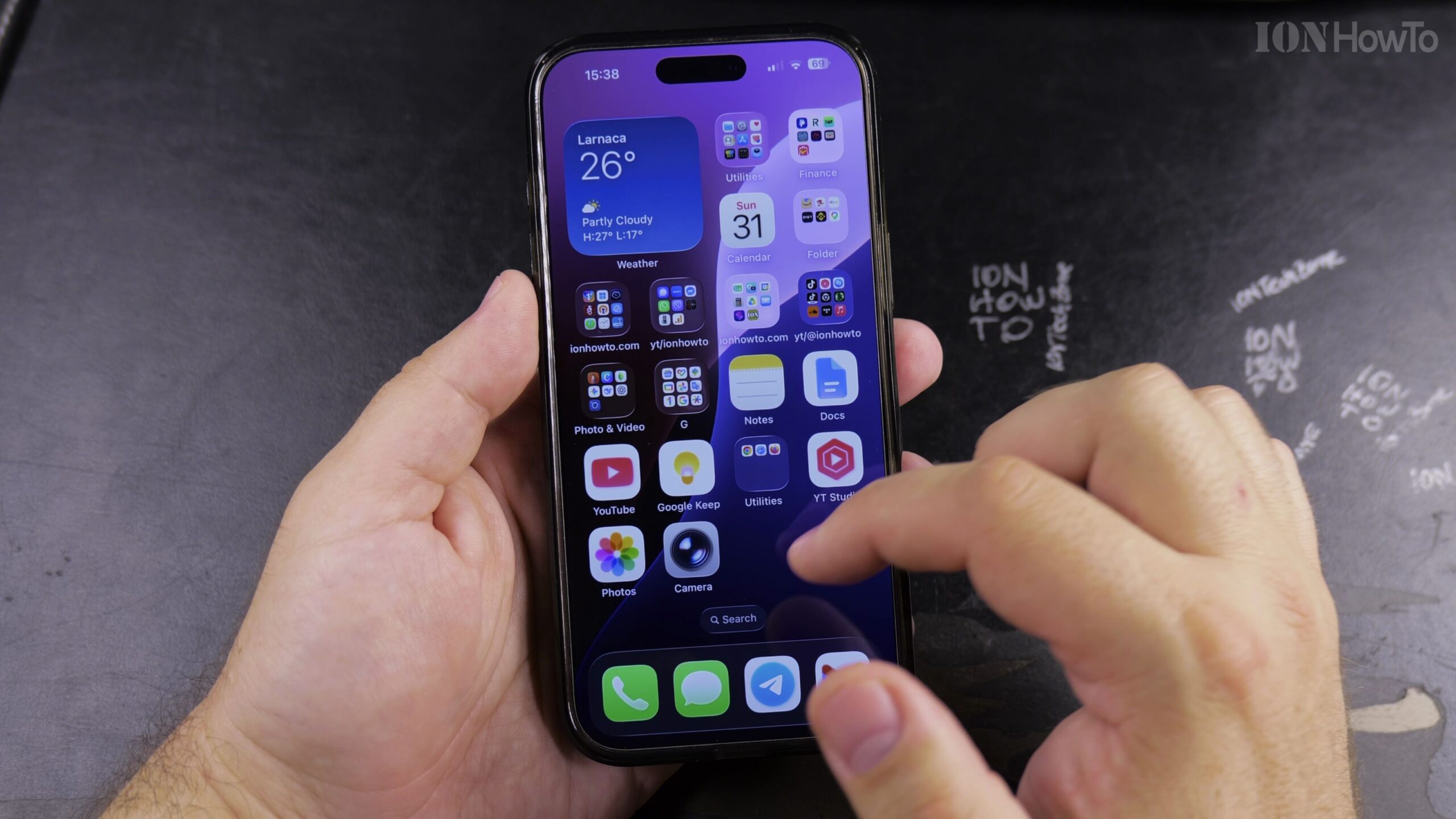
Swipe Left Past Your Last Home Screen Page to Open App Library
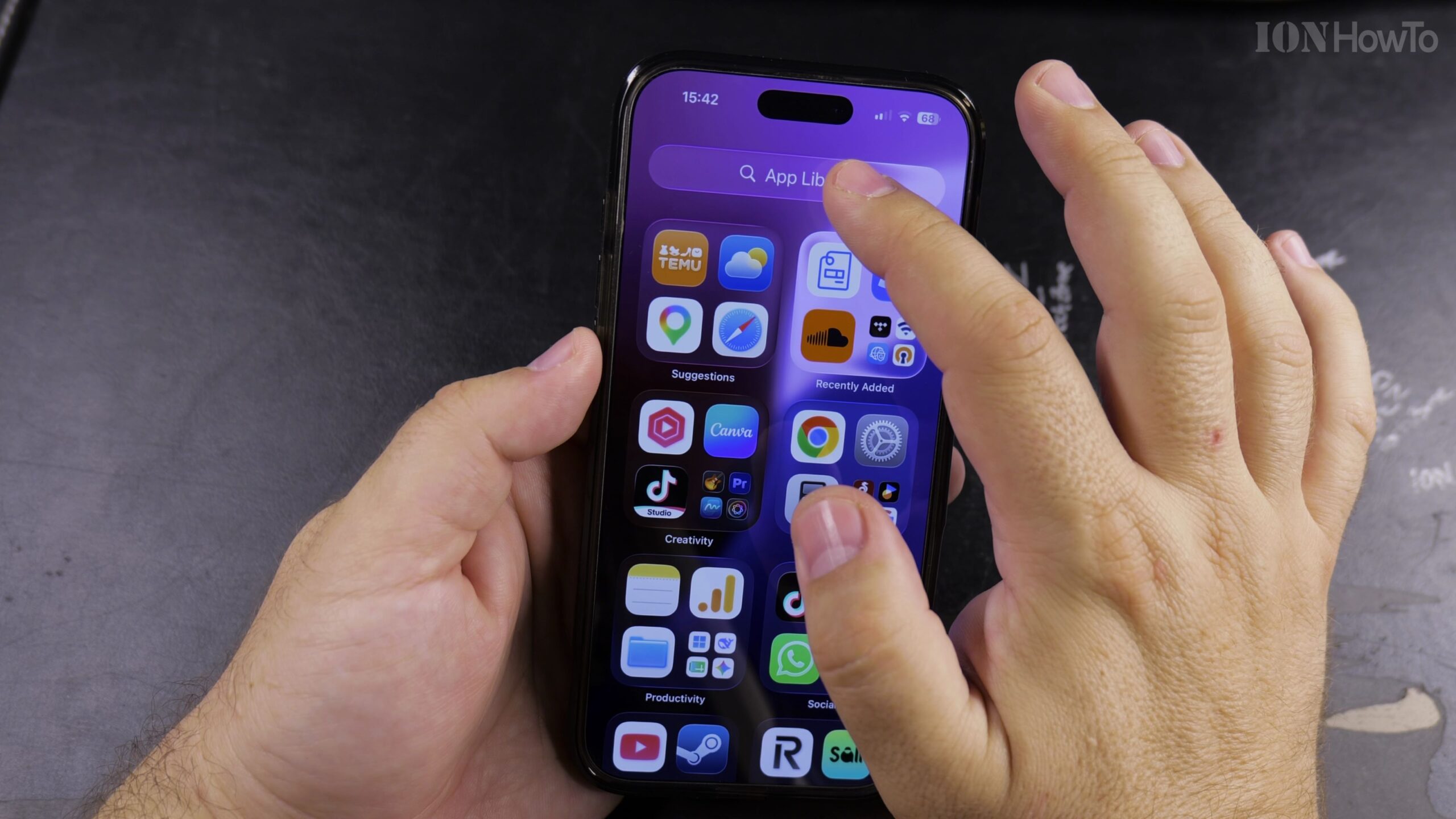
Unlock your iPhone and swipe all the way to the left past your final Home Screen page until you reach the App Library screen, which automatically organizes all installed apps into category folders.
Locate the Missing App in a Folder or Use the Search Bar
Browse the grouped category tiles or tap the App Library search bar at the top of the screen and type the name of the app you want to restore to your Home Screen.
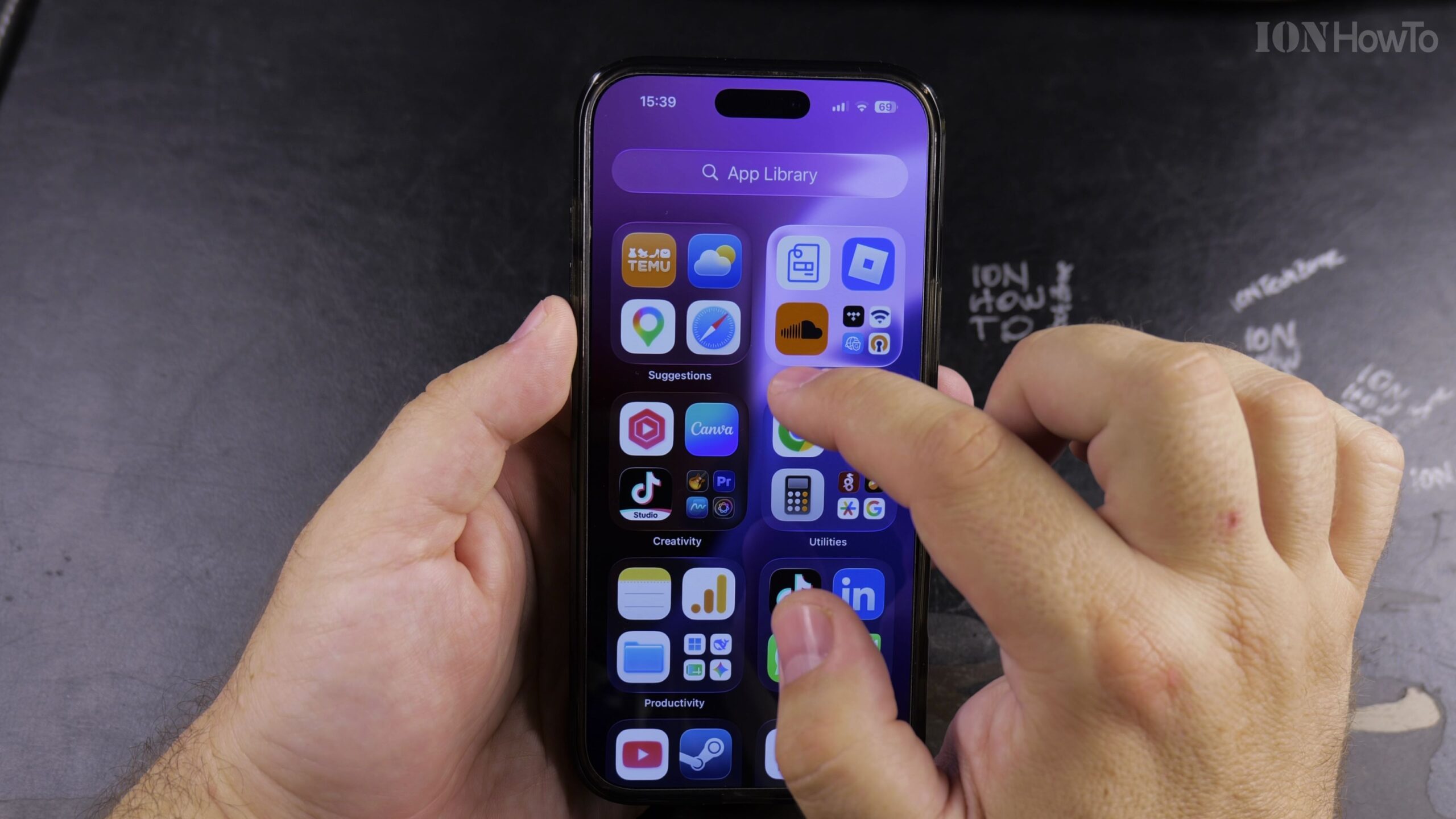
Touch and Hold the App Icon to Open the Quick Actions Menu
Once you see the app icon inside the App Library or search results, press and hold your finger on the icon for a moment until the pop-up context menu appears.
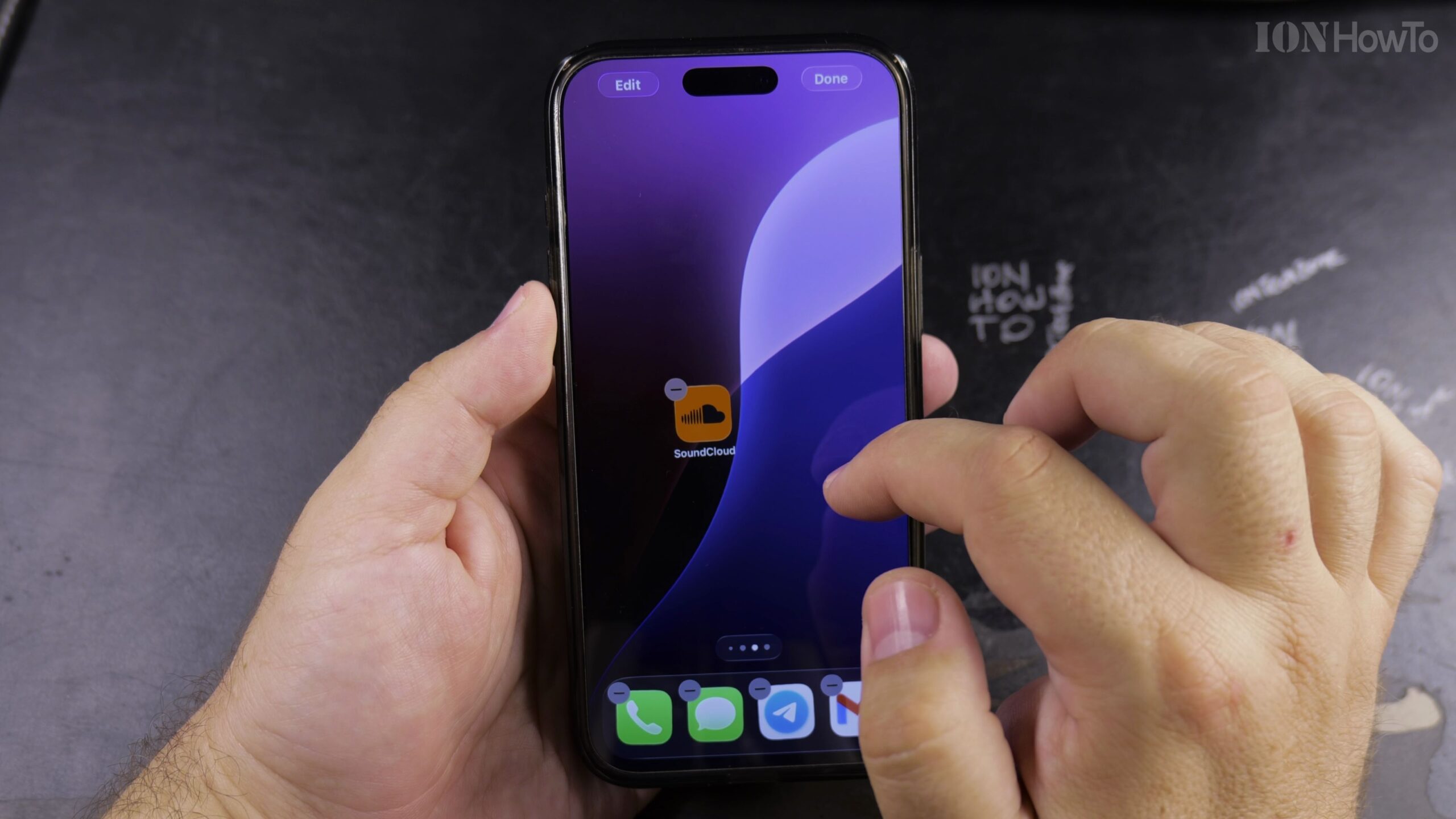
Tap Add to Home Screen or Drag the Icon Left
Tap the Add to Home Screen option in the menu (or continue holding and drag the app icon slightly to the left), which immediately places the shortcut onto the first available spot on your Home Screen.
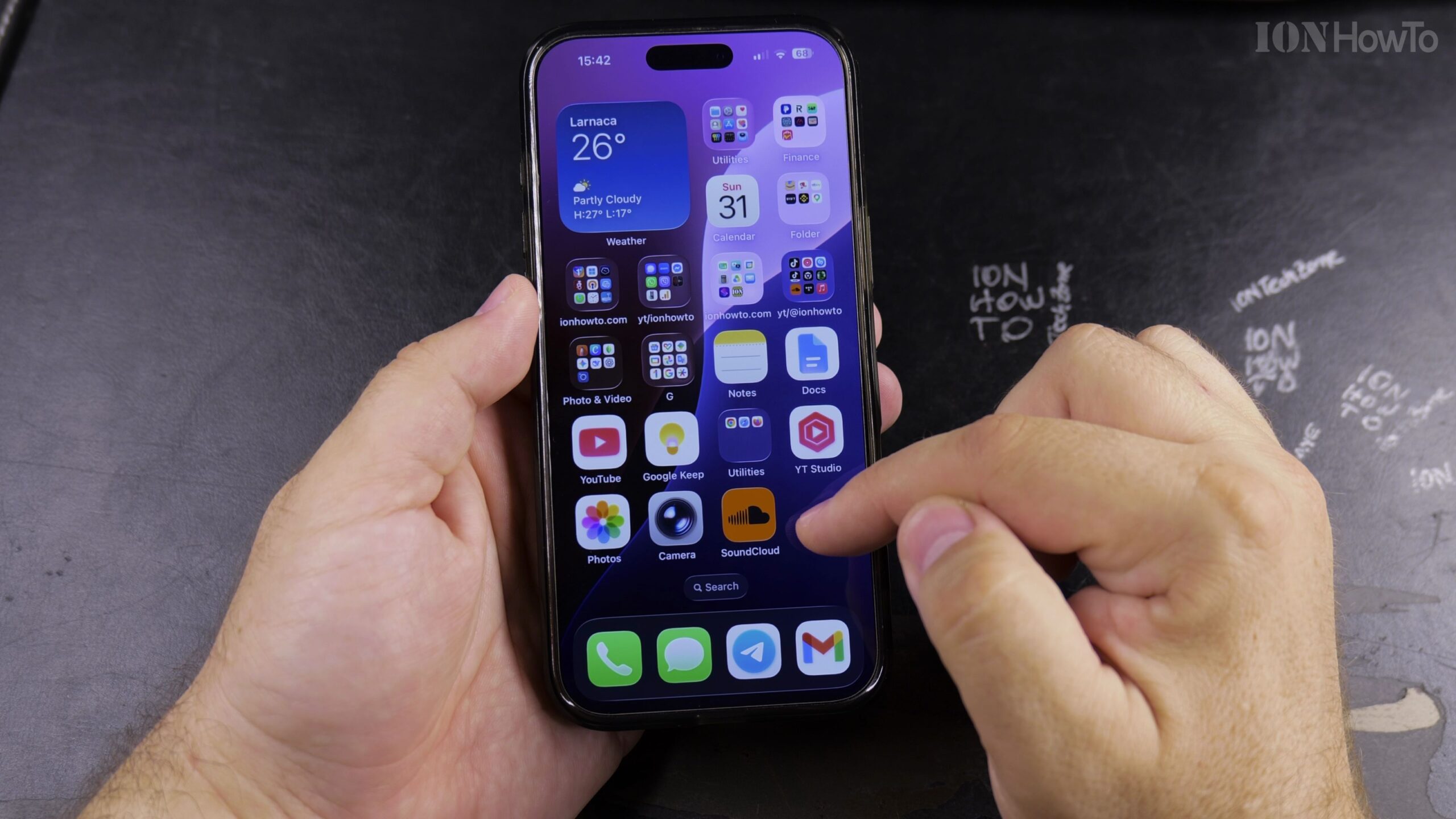
Position the App Icon and Tap Done in the Top Corner
While the icons are jiggling in edit mode, drag the restored app icon to your preferred page or folder, then tap Done in the top-right corner (or swipe up from the bottom bar) to lock your Home Screen layout.
Helpful Tips and Related Guides
Removing an app from the Home Screen without deleting it keeps your main pages tidy while leaving the app accessible in the App Library at any time. For more iOS tutorials, explore our Apple iPhone guides, browse our Apple category, or check out our How-To tutorials.


Leave a Reply