
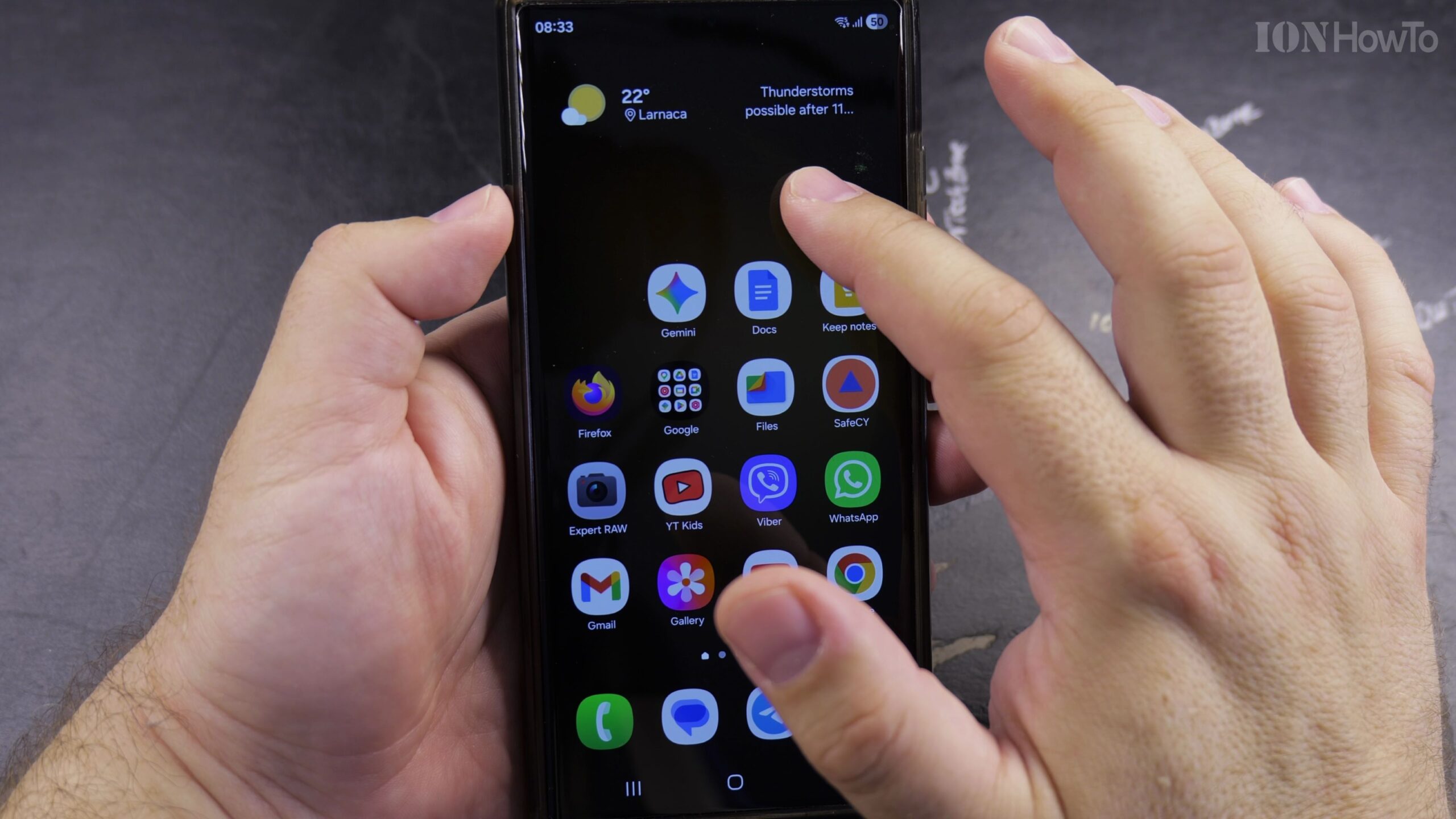
Learning how to long press—also called touch and hold—on a Samsung Galaxy Android smartphone unlocks dozens of helpful hidden shortcut menus across your Home Screen, Quick Settings panel, and apps. Demonstrated on a Samsung Galaxy S23 Ultra running Android 16 and One UI 8, here is how to use the long-press gesture effectively.
Place Your Finger Firmly on an Icon Without Lifting It
Instead of tapping and releasing quickly, rest the pad of your finger gently on an app icon on your Samsung Home Screen and hold it still for about one full second until you feel a slight vibration and see a pop-up menu appear.
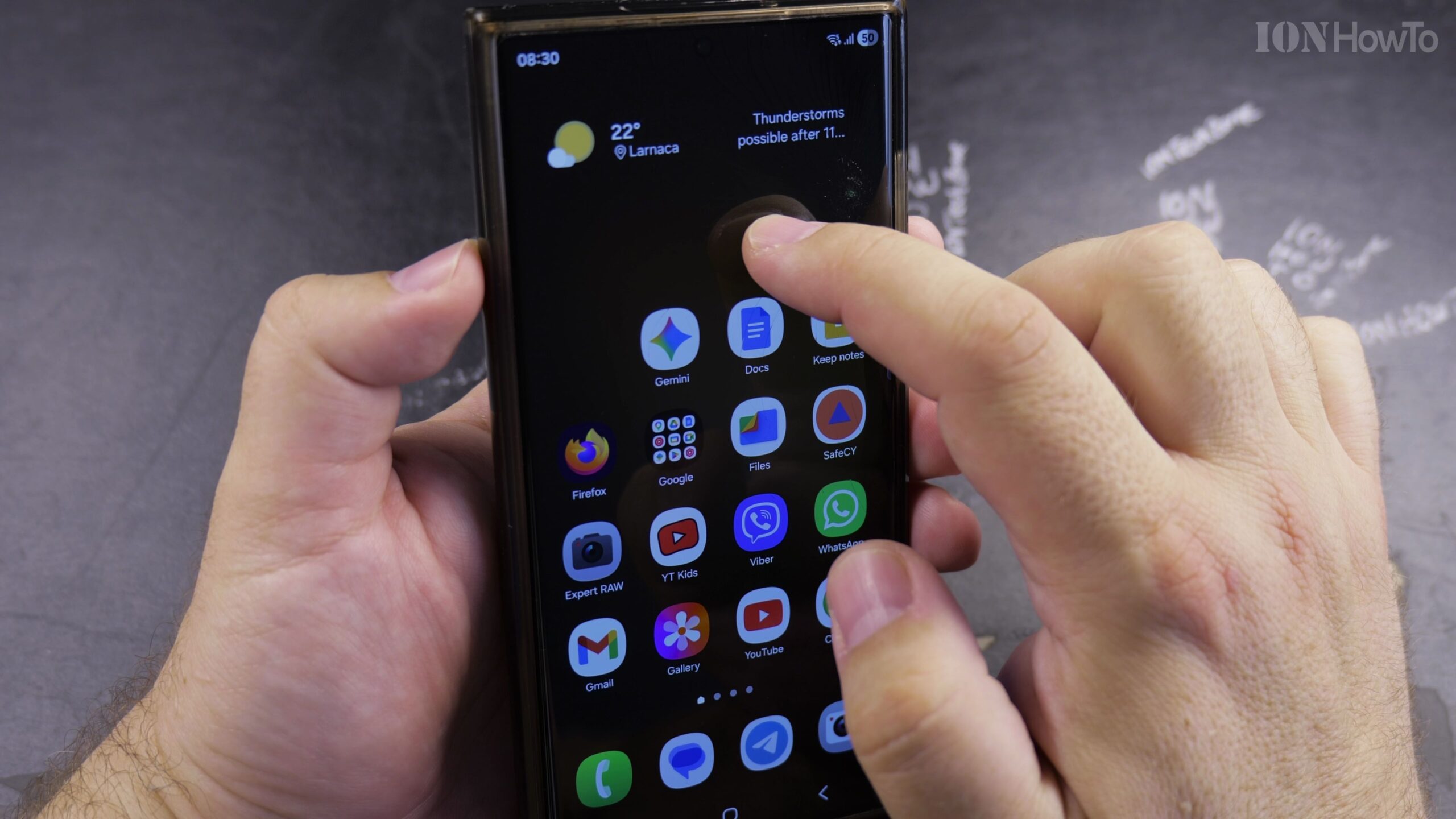
Explore App Quick Actions and Widget Shortcuts
Once the long-press pop-up menu opens above an app icon, you can jump directly to specific app features, remove the icon from the Home Screen, uninstall the app, or tap the Widgets icon without opening the main app first.
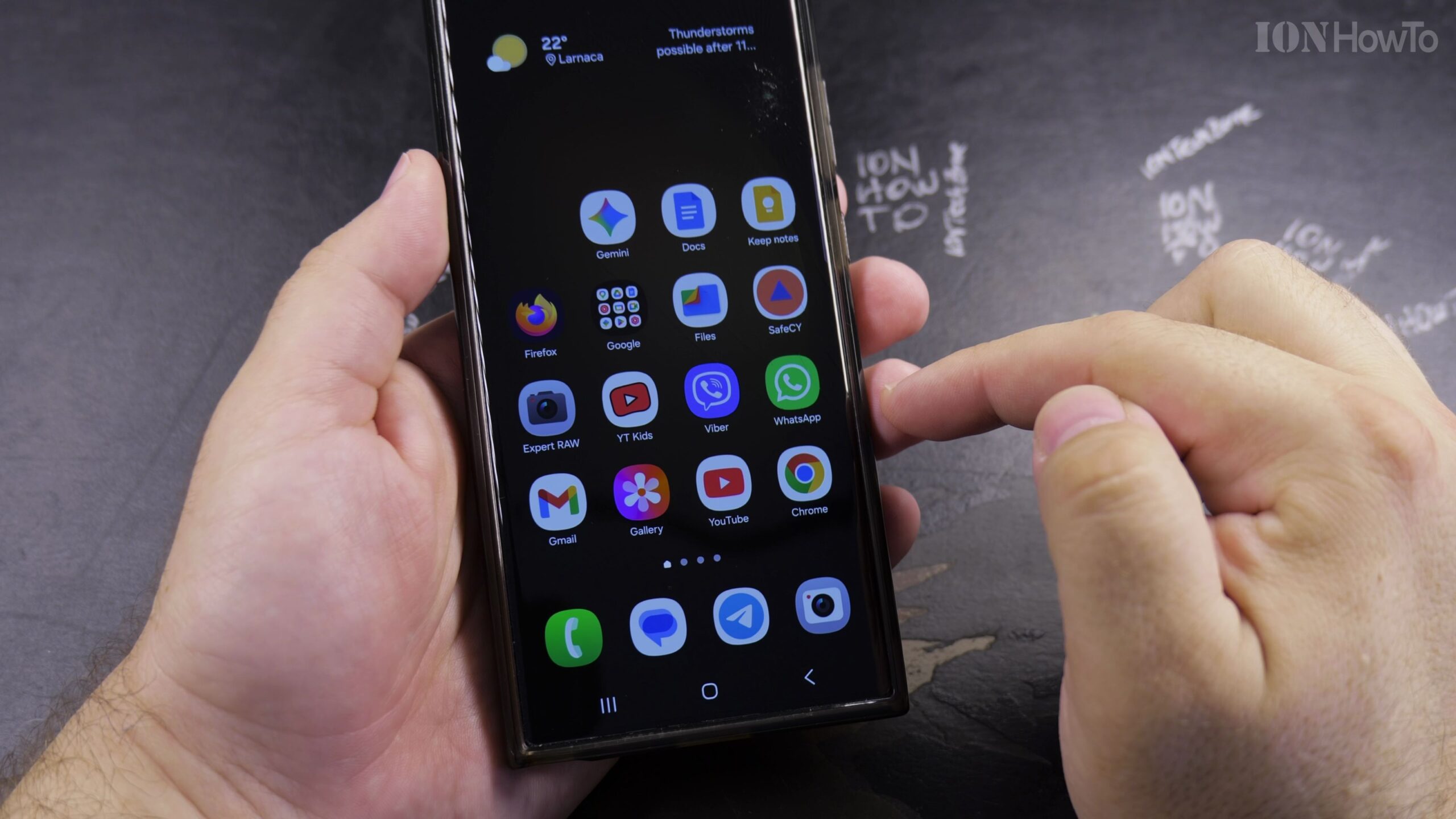
Touch and Hold Empty Home Screen Space to Customize Wallpapers
Press and hold your finger on any blank area of your Samsung Home Screen for one second. The screen will zoom out slightly, revealing bottom controls to change your Wallpaper and style, Themes, Widgets, and Home screen settings.
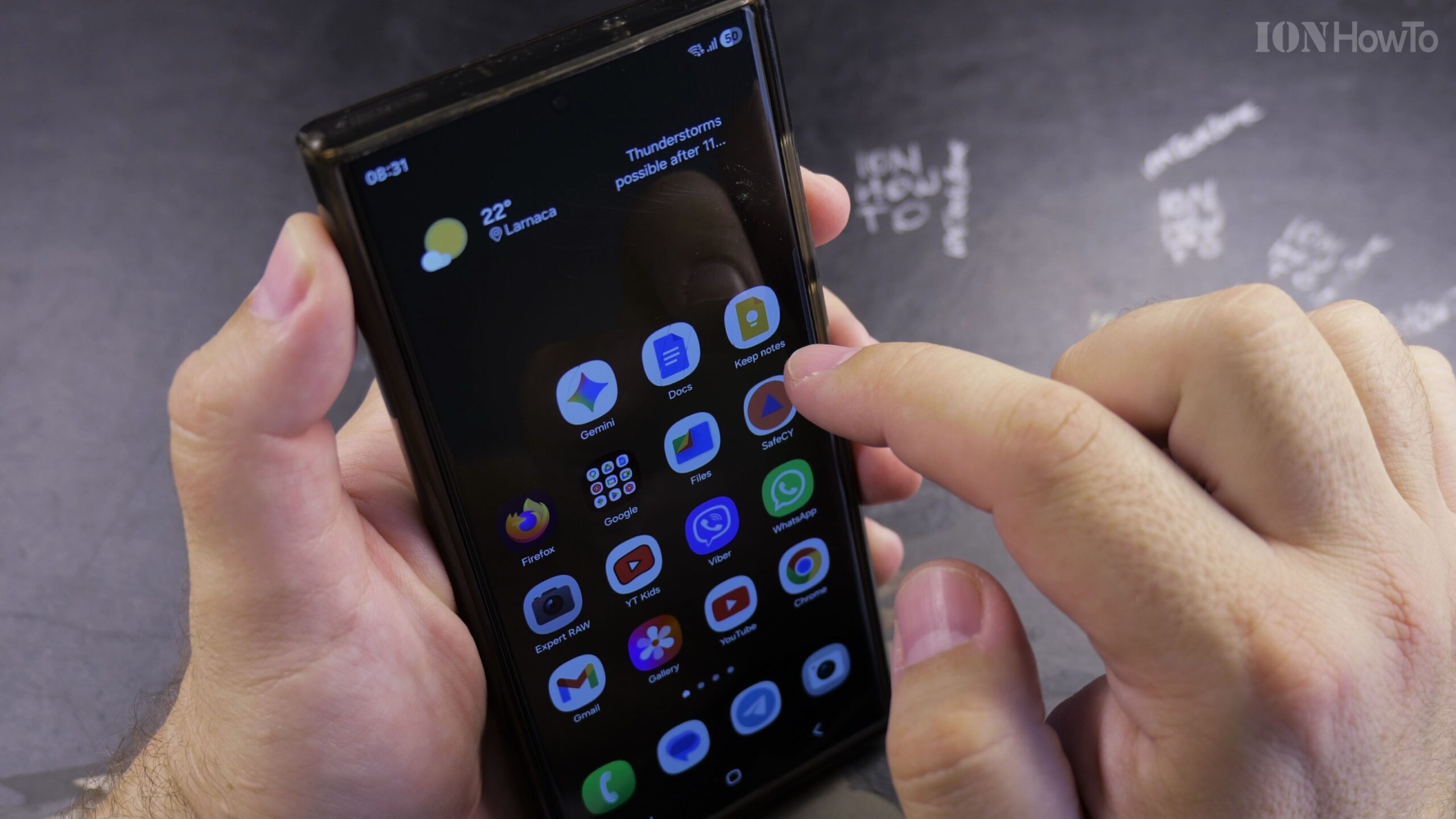
Long Press Quick Settings Tiles in the Notification Panel
Swipe down from the top of the screen to open the One UI Quick Settings panel, then touch and hold icons such as Wi-Fi, Bluetooth, or Flashlight. Long-pressing a tile opens its detailed settings menu right away instead of just toggling it on or off.
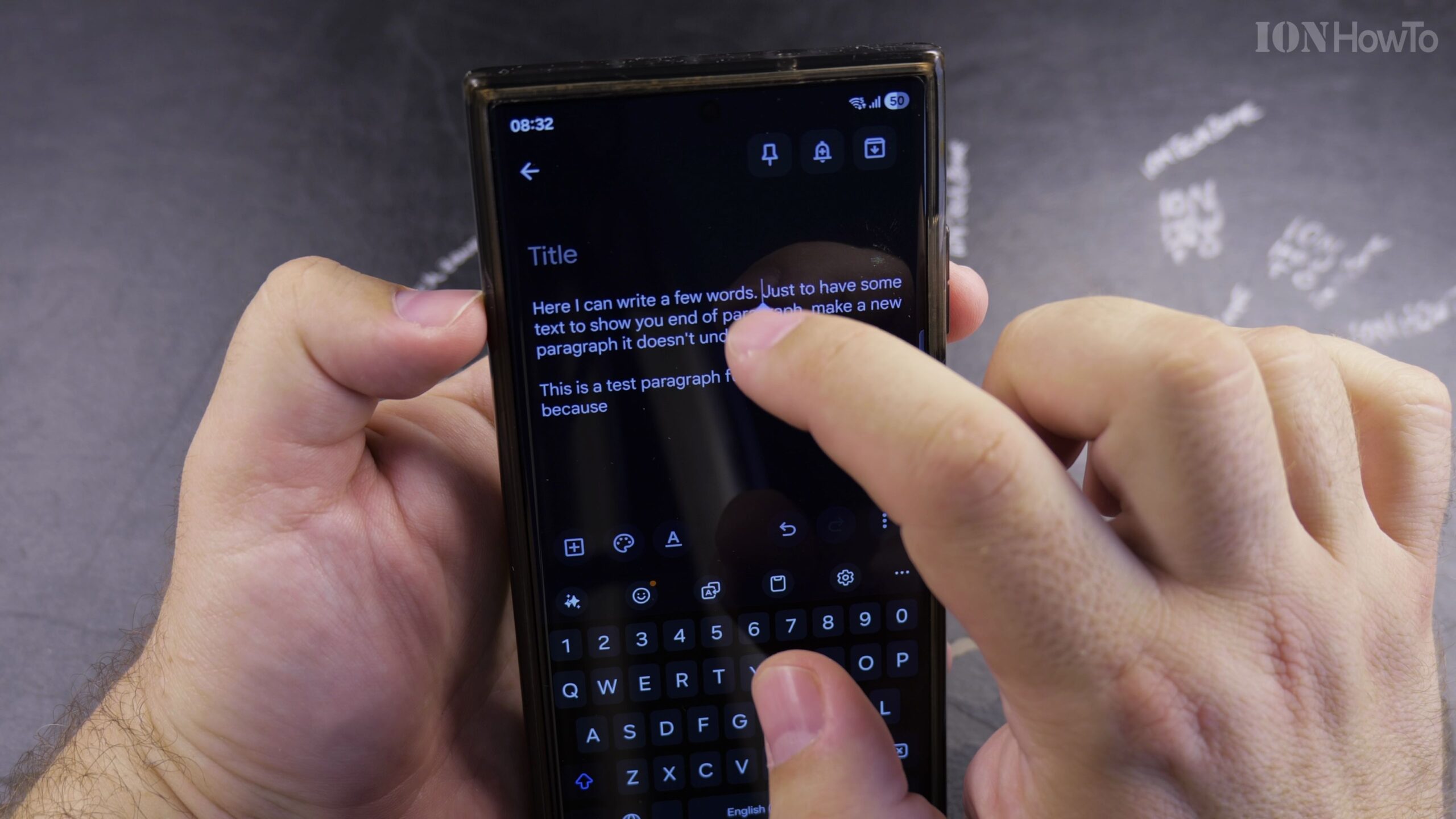
Use Long Press Inside Messages, Photos, and Web Pages
Try holding your finger down on text in a browser to copy or share words, long-pressing a message bubble to add a reaction or delete it, or holding down on a photo in the Samsung Gallery app to select multiple pictures at once.
Helpful Tips and Related Guides
If you find that menus open too quickly or too slowly when you hold your finger down, you can adjust the Touch and hold delay timer inside Samsung Settings under Accessibility and Interaction and dexterity. Explore more mobile tips in our Samsung Phone guides, visit our Android Tips section, or check our Guide to Changing Your Device Name on Android.


Leave a Reply