
Learn how to remove a saved passkey from the iCloud Passwords app on your iPhone. When you want to clean up old login credentials or delete passkeys from iCloud Keychain without accidentally erasing your standard password for an account, I’ll show you exactly where to look inside the Passwords app.
Open the Apple Passwords App on Your iPhone and Unlock with Face ID
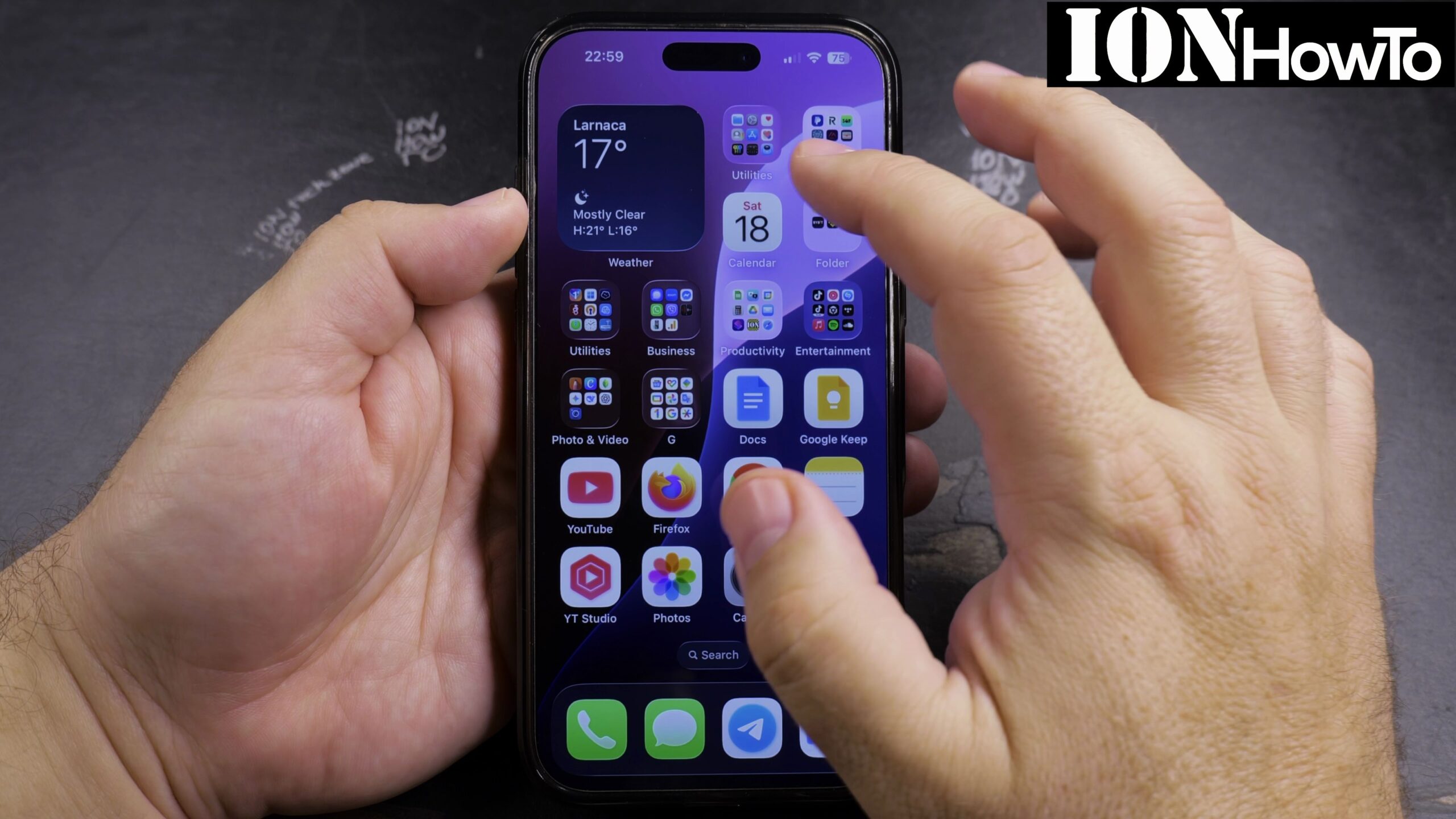
Locate and tap the Passwords app icon on your iPhone Home Screen, then authenticate with Face ID, Touch ID, or your device passcode to view your saved iCloud Keychain logins.
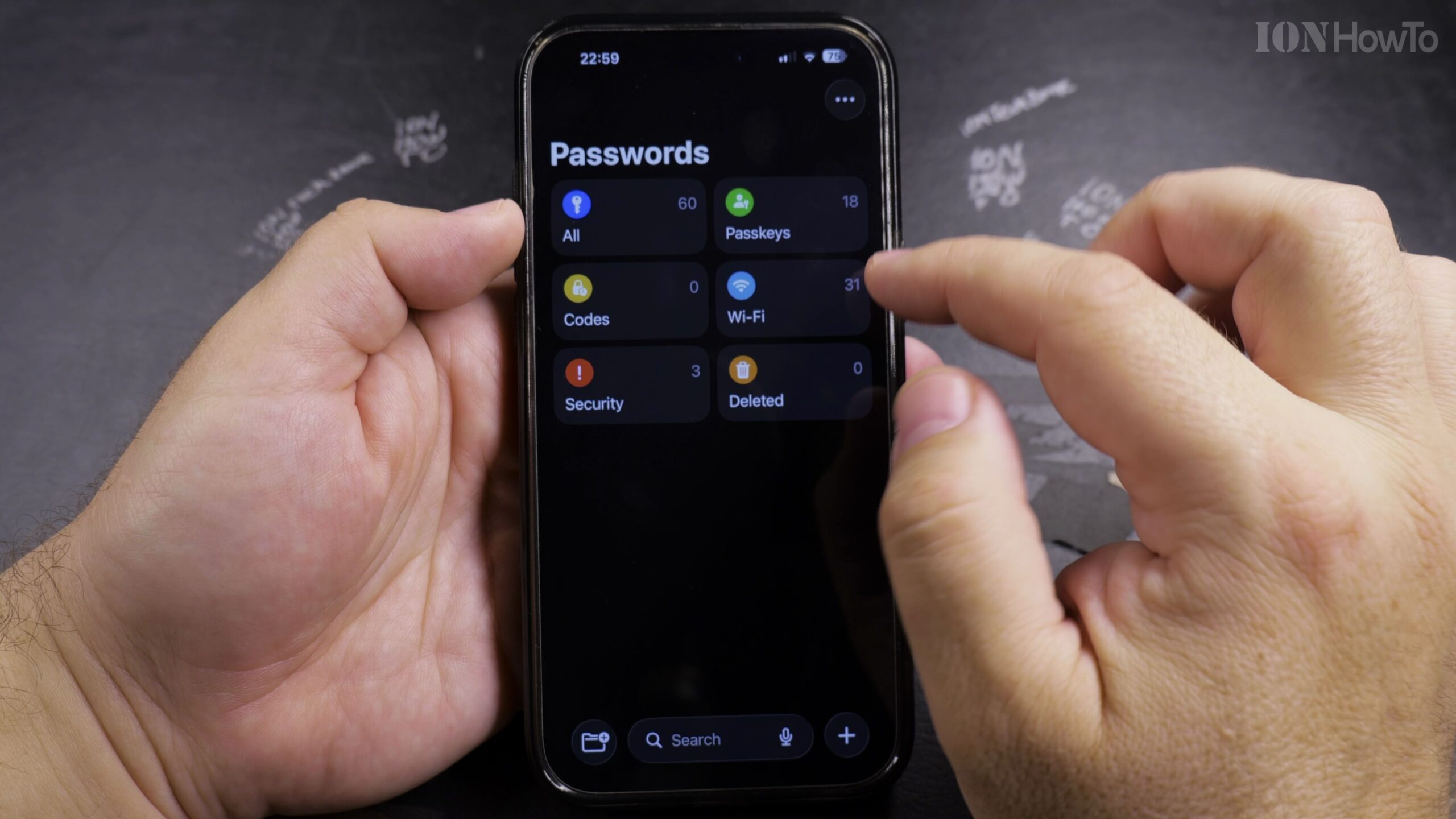
Filter by the Passkeys Category Tile or Search for the Website
Tap the Passkeys category box at the top of the Passwords app to see only accounts that have a saved passkey, or type the website or app name directly into the search bar.
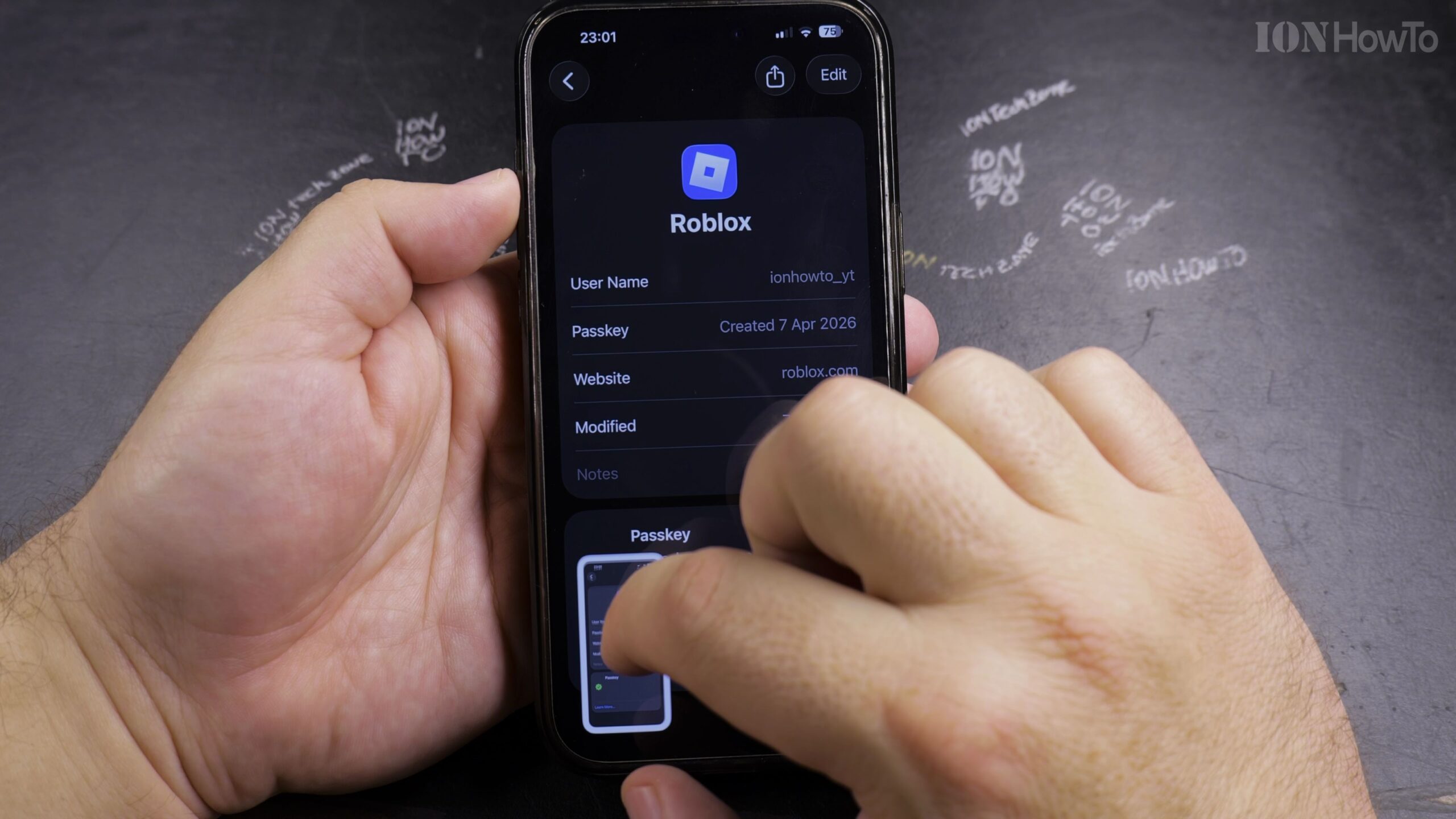
Tap the Account Entry to View Its Passkey and Password Details
Select the specific website or app account from the list to open its credential details page, where you will see the saved Passkey listed separately from any traditional username and password.
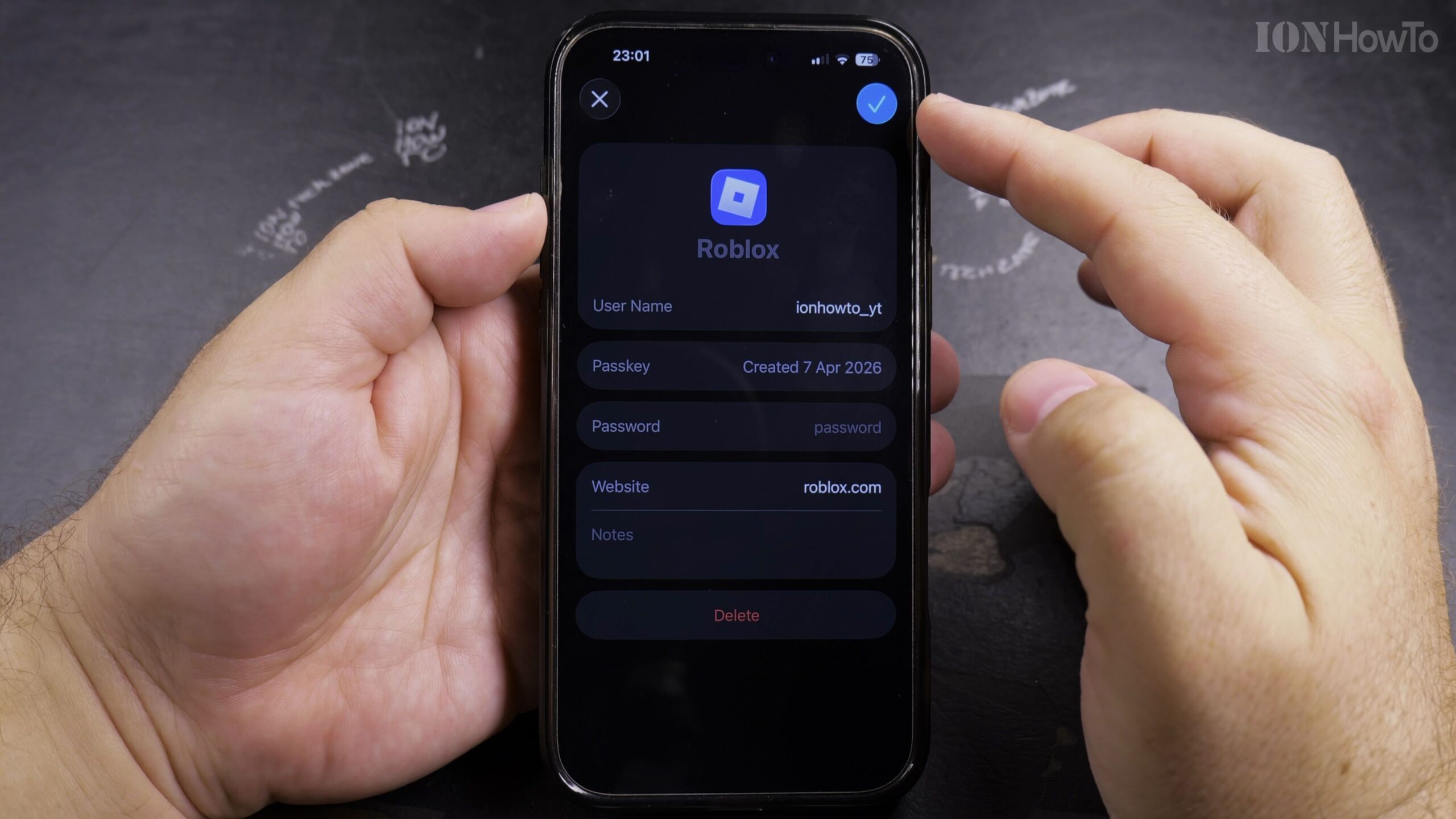
Tap Edit in the Top-Right Corner of the Account Screen
Tap the Edit button in the upper-right corner of the screen so the red minus delete icons appear beside the individual credential fields.
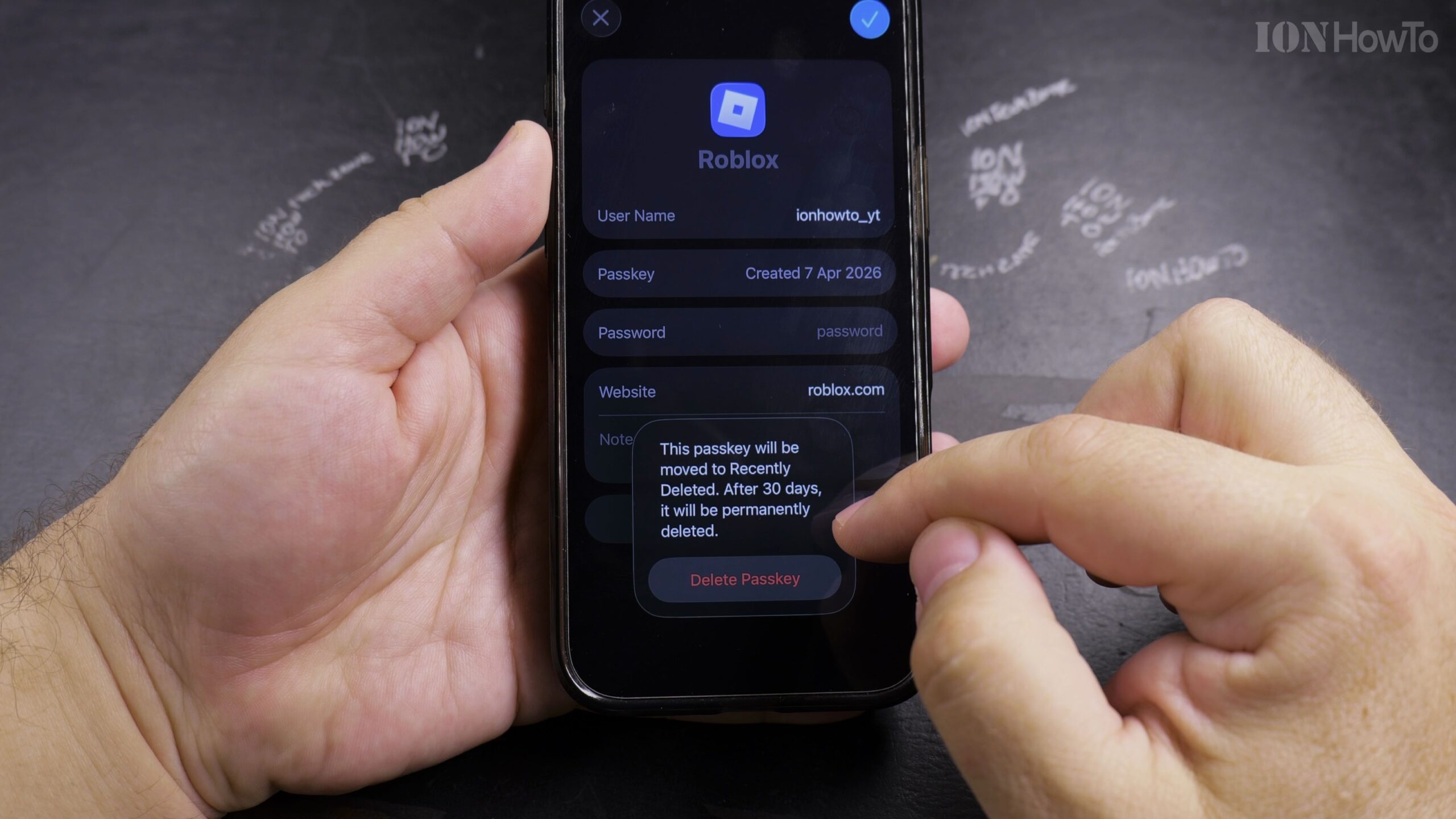
Delete the Saved Passkey and Confirm Removal from iCloud Keychain
Tap the red minus icon next to Passkey (or tap Delete Passkey) and confirm the prompt. The passkey is immediately removed from your iPhone and synced across your iCloud Keychain devices while leaving any regular password intact if one is saved.
Helpful Tips and Related Guides
Before deleting a passkey for an important account, make sure you still have a backup sign-in method—such as a password, recovery code, or two-factor authentication—enabled on that website so you do not get locked out. Browse more tutorials in our Apple iPhone section, check our guide on How to Add an App Icon Back to the iPhone Home Screen, or explore our Apple archive.


Leave a Reply