
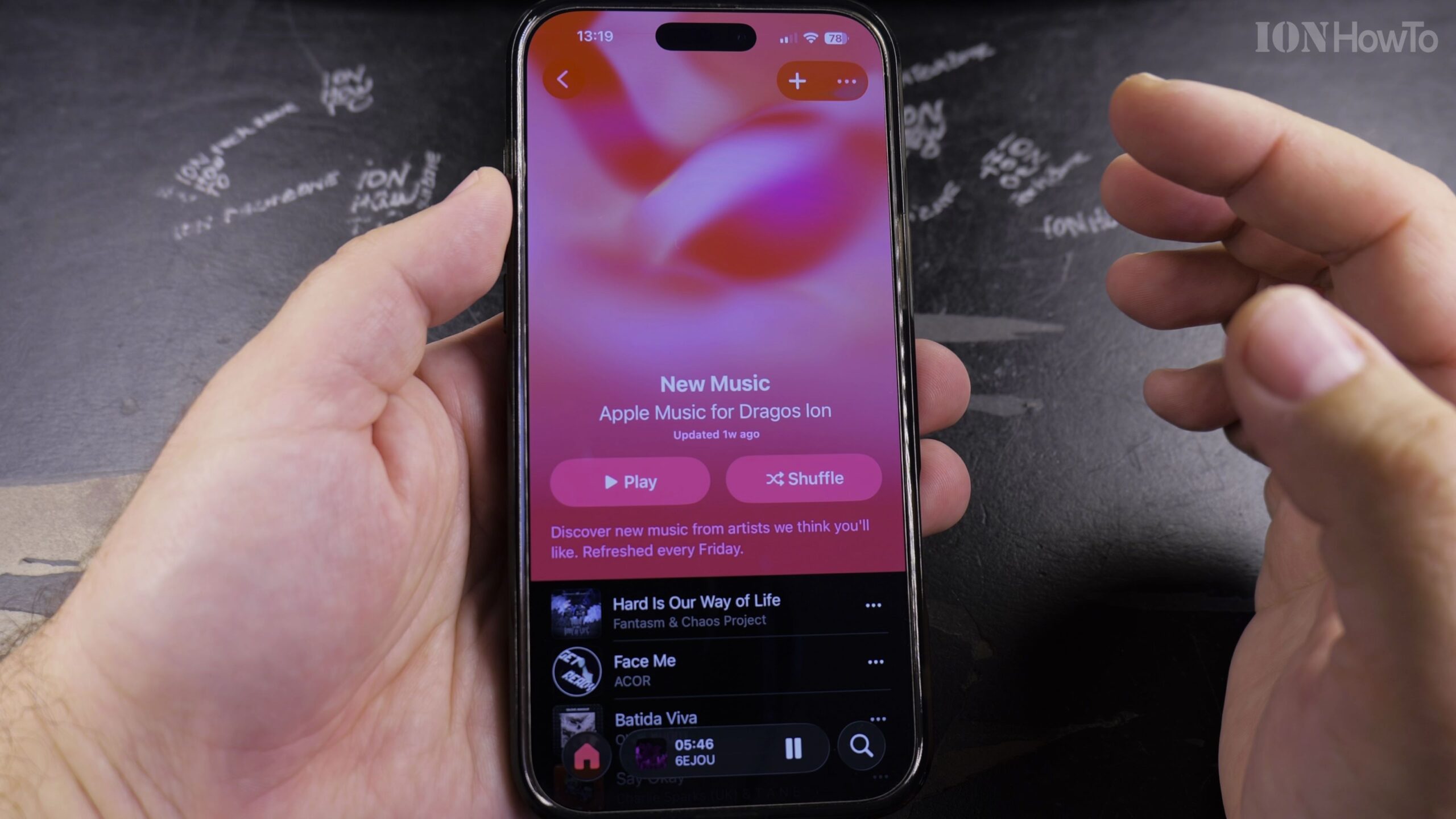
If certain songs in Apple Music appear grayed out with a letter ‘E’ icon and will not play, Screen Time content restrictions are blocking explicit audio. In this guide, I’ll show you how to unlock explicit music in your iPhone or iPad settings.
1. Open Settings on Your iPhone or iPad
Launch the Settings application on your iOS device.
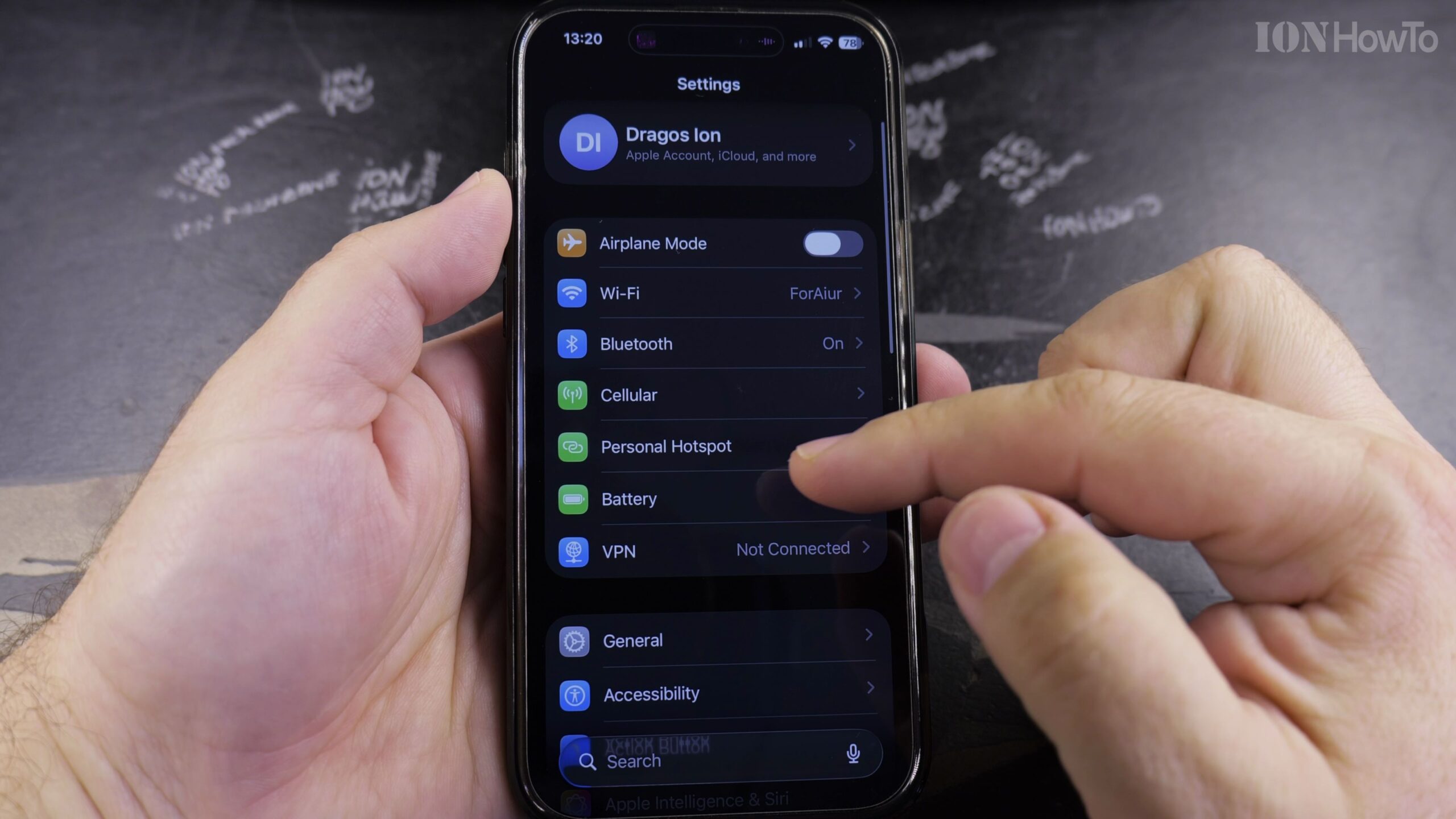
2. Tap Screen Time and Select Content & Privacy Restrictions
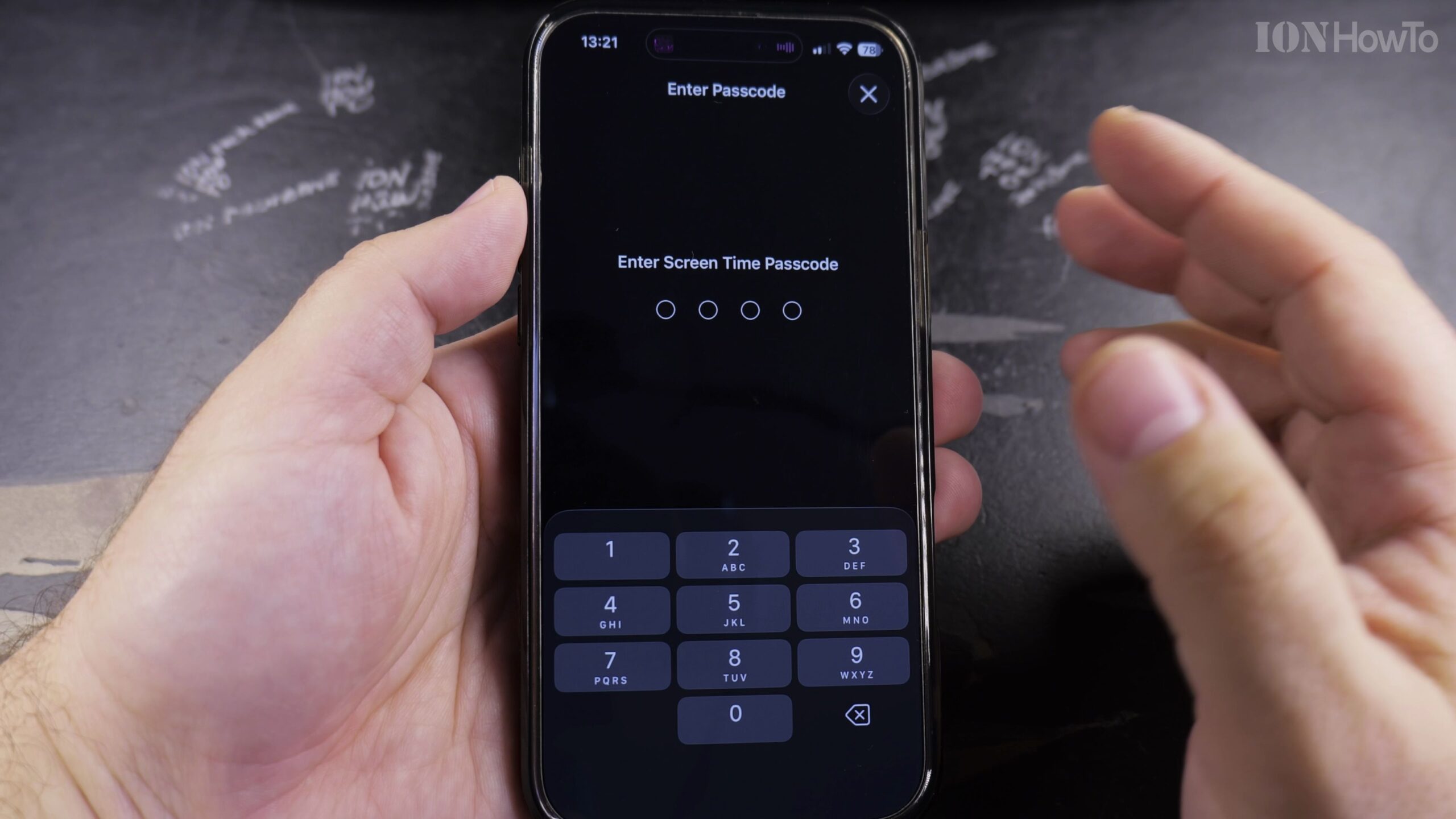
Scroll down to ‘Screen Time’ and tap on ‘Content & Privacy Restrictions’ (enter your Screen Time passcode if prompted).
3. Tap Store, Web, Siri & Game Center Content
Select ‘Store, Web, Siri & Game Center Content’ (or Content Restrictions on earlier iOS versions).
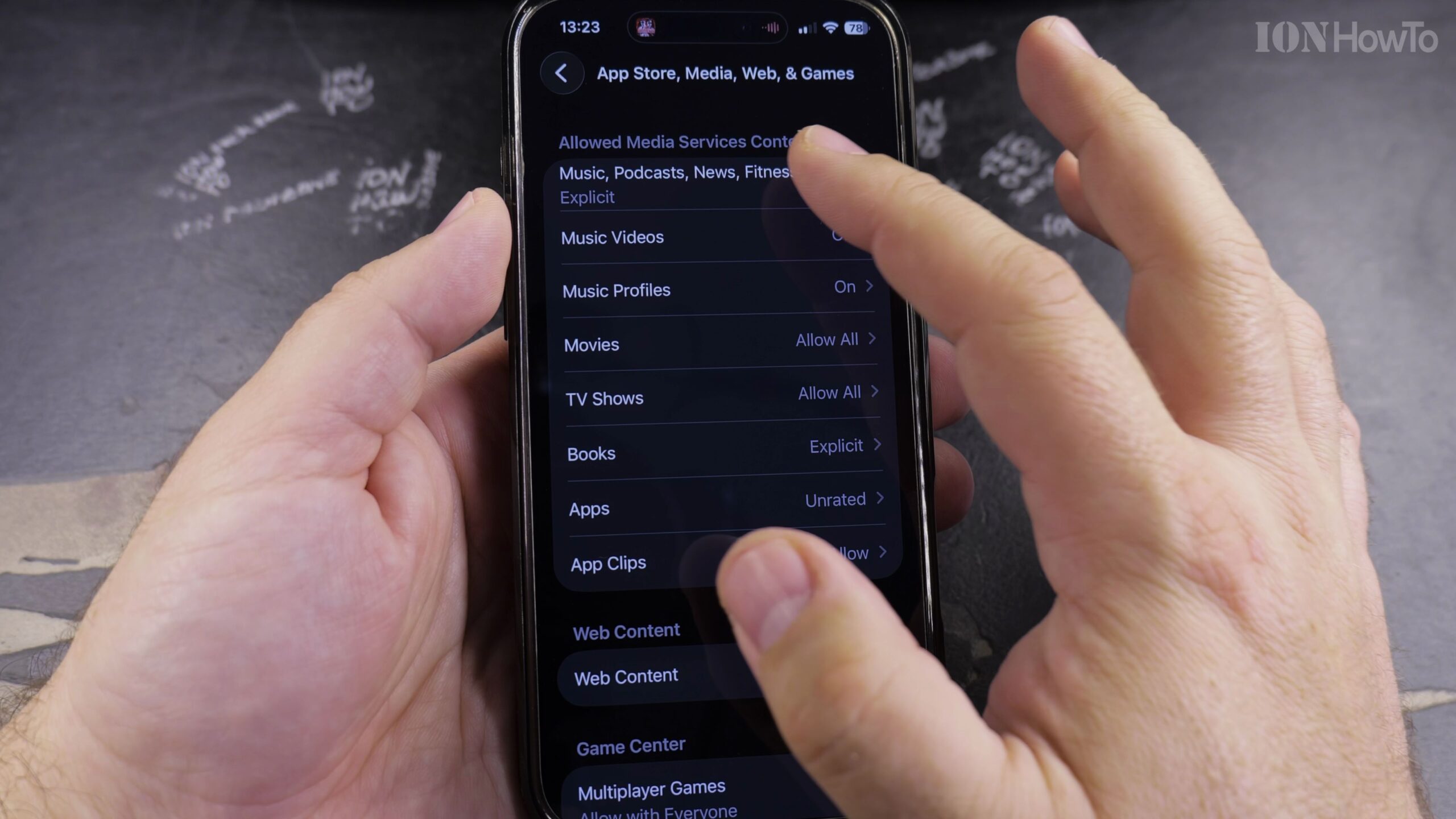
4. Tap Music, Podcasts, News, Fitness and Select Explicit
Tap into the Music row. Change the checkmark from ‘Clean’ to ‘Explicit’ to permit uncensored audio playback.
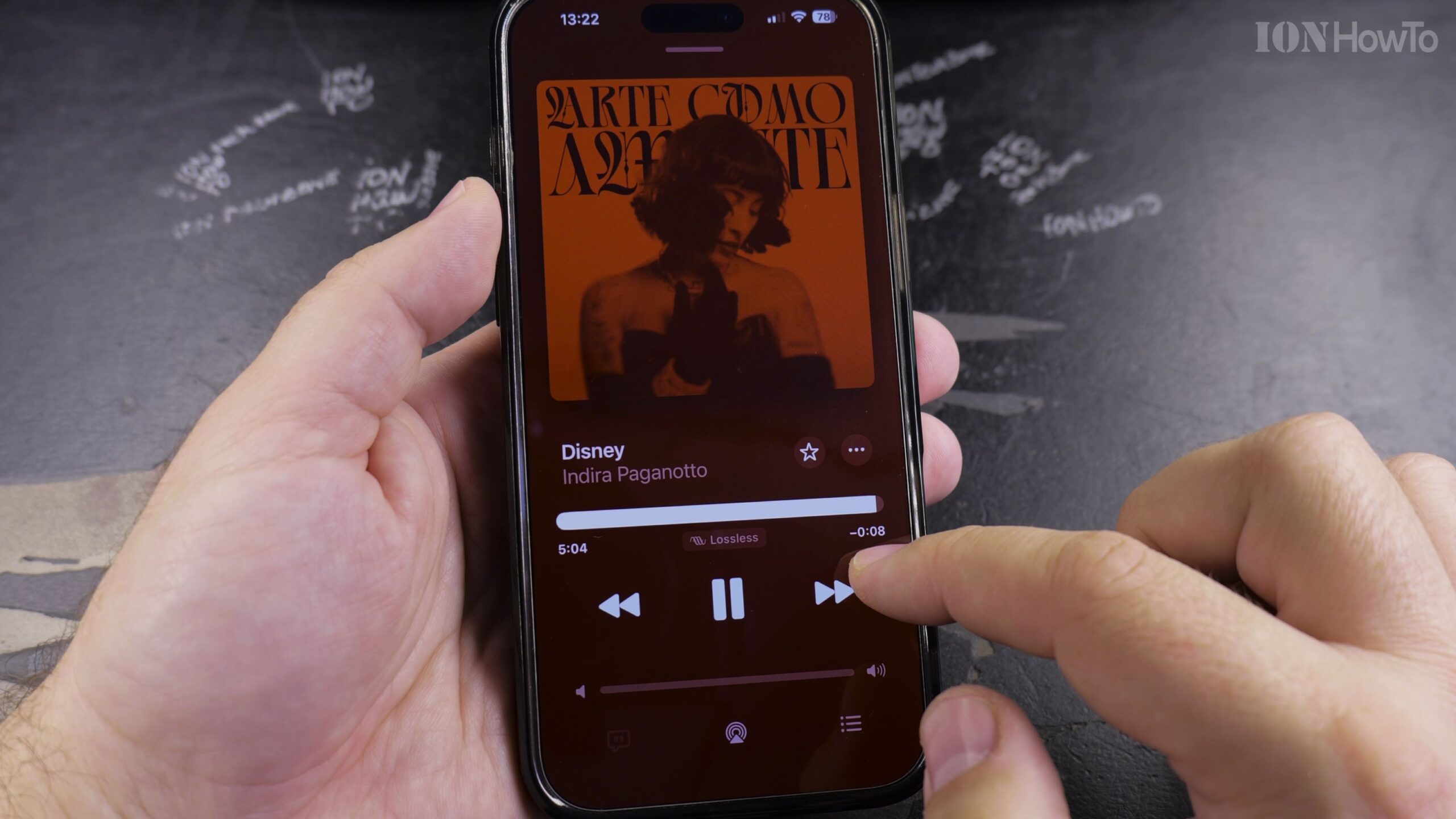
5. Return to Apple Music and Play Grayed-Out Tracks
Open Apple Music. The grayed-out explicit songs will now display normally in full black text and play immediately.
Helpful Tips and Related Guides
If your device is part of a Family Sharing group managed by a parent, explicit permissions must be adjusted on the family organizer’s device. Explore more in our Apple Music category, check our guide on Finding Playlists in Apple Music, or view iPhone Guides.


Leave a Reply