
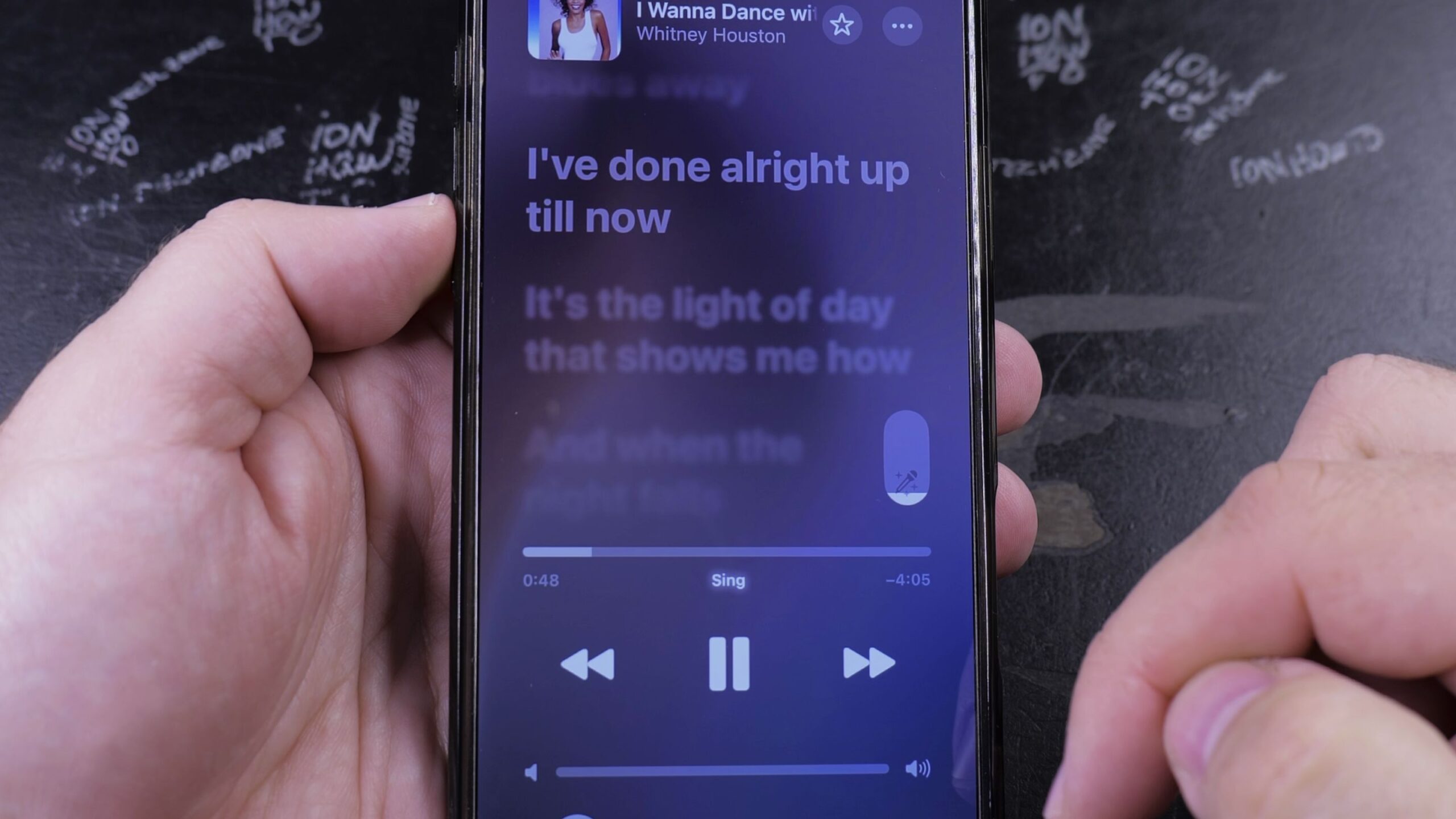
If you want to sing karaoke or listen to only the backing instruments, Apple Music includes a built-in feature to lower or mute singing voices. I’ll show you how to remove vocals on Apple Music on your iPhone in just a few taps.
1. Play a Song and Open the Full Player
Open the Music app on your iPhone and tap any track to start playing.
Tap the narrow mini-player bar near the bottom of your screen to expand it into full-screen view.
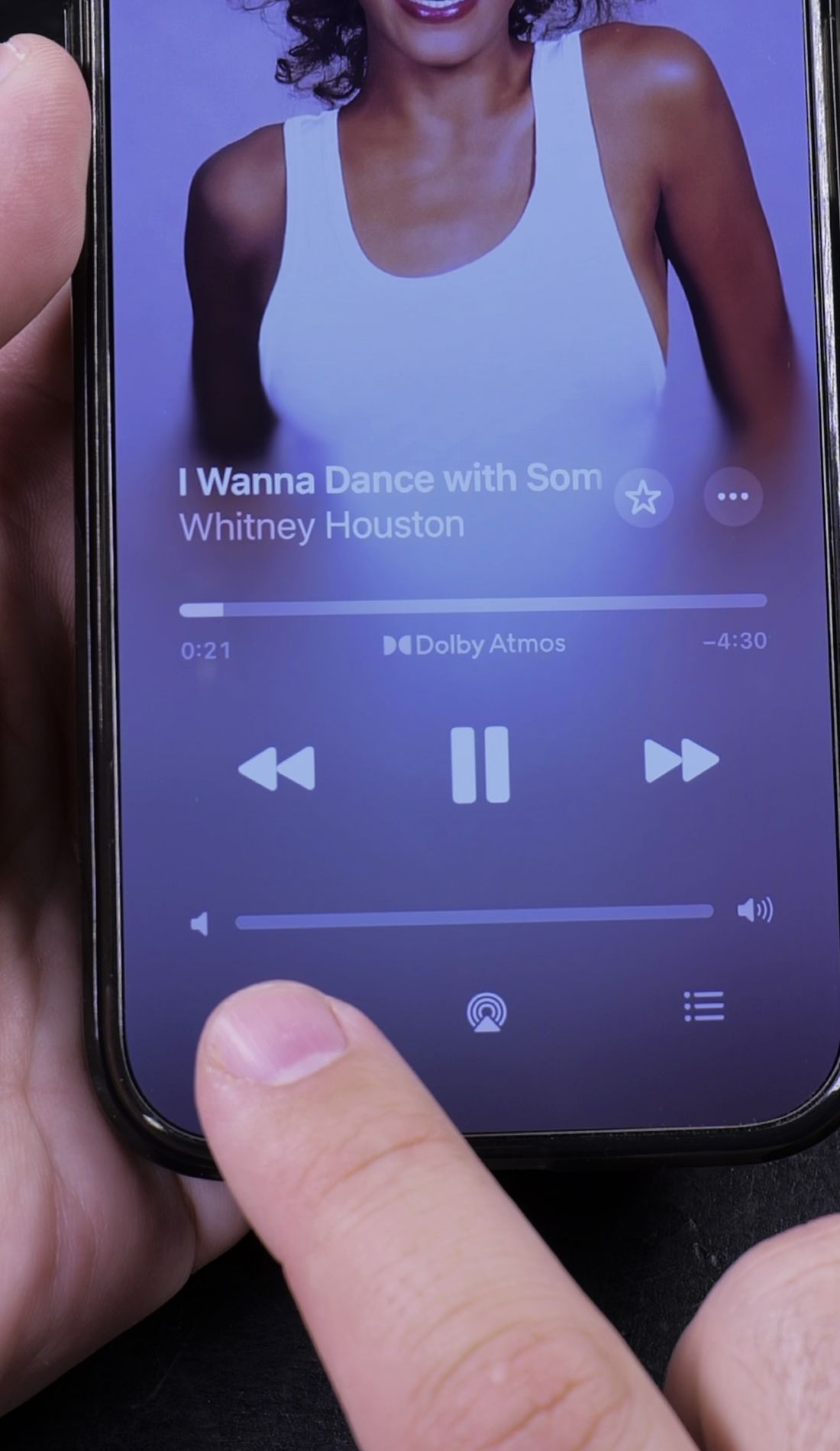
2. Tap the Lyrics Button
Look at the bottom-left corner of the player.
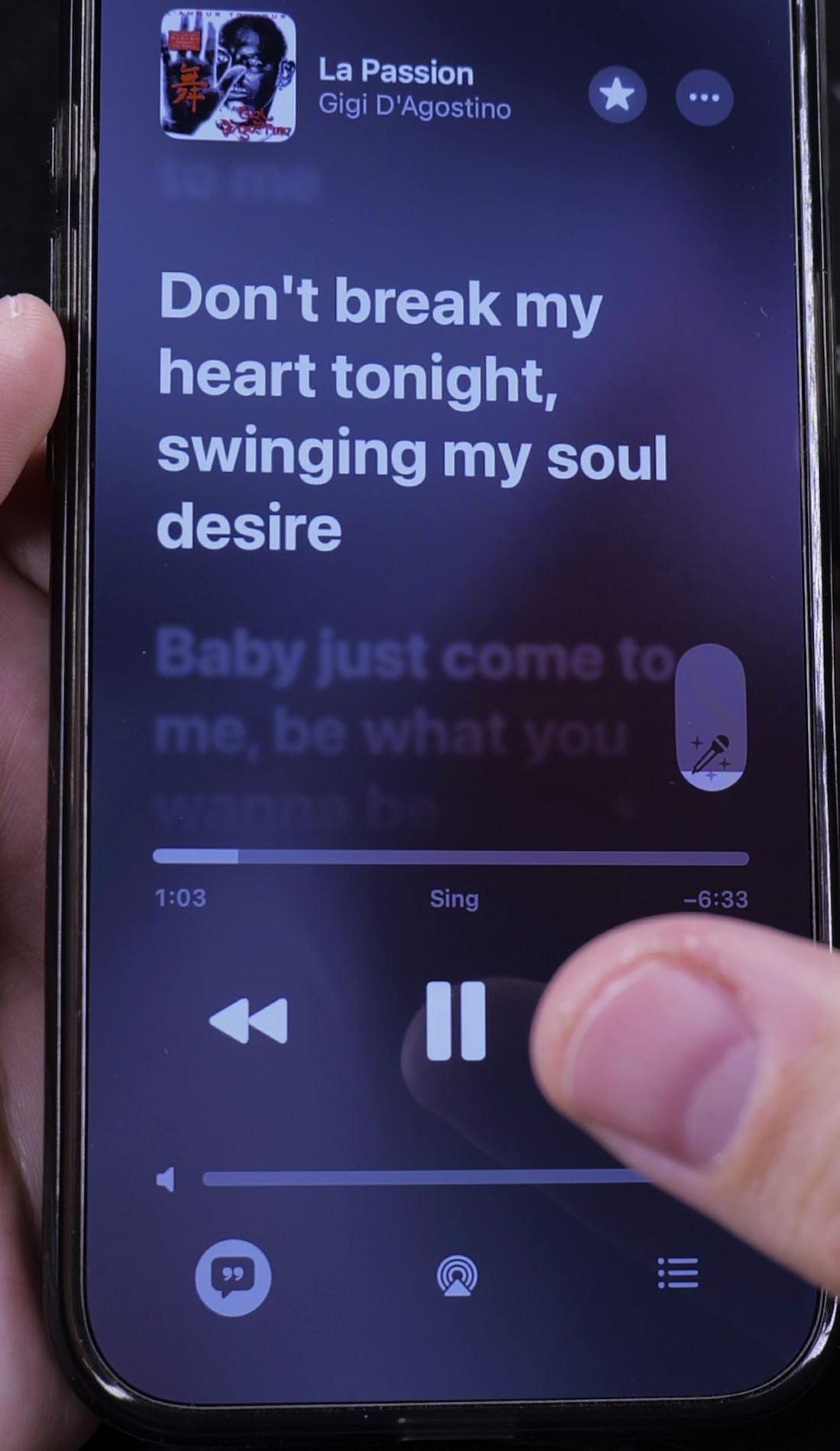
Tap the Lyrics icon, which looks like a speech bubble with quotation marks inside.
The screen switches to large, animated lyrics that scroll along with the music.
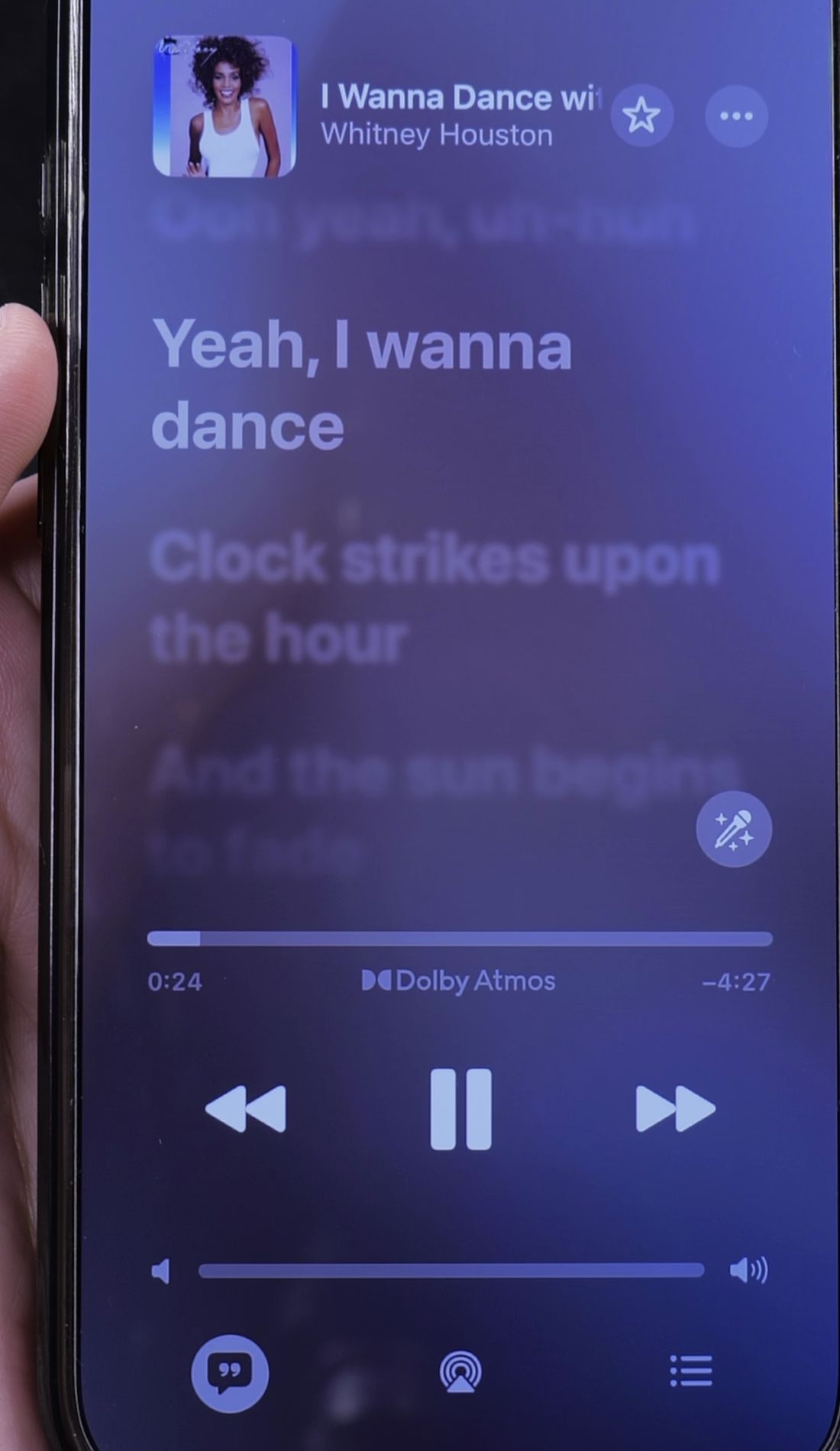
3. Tap the Microphone Icon
On the right side of the screen above the progress bar, look for the small Microphone icon with sparkle stars.
Tap this microphone button to turn on Apple Music Sing.
A vertical volume slider appears directly above the microphone.
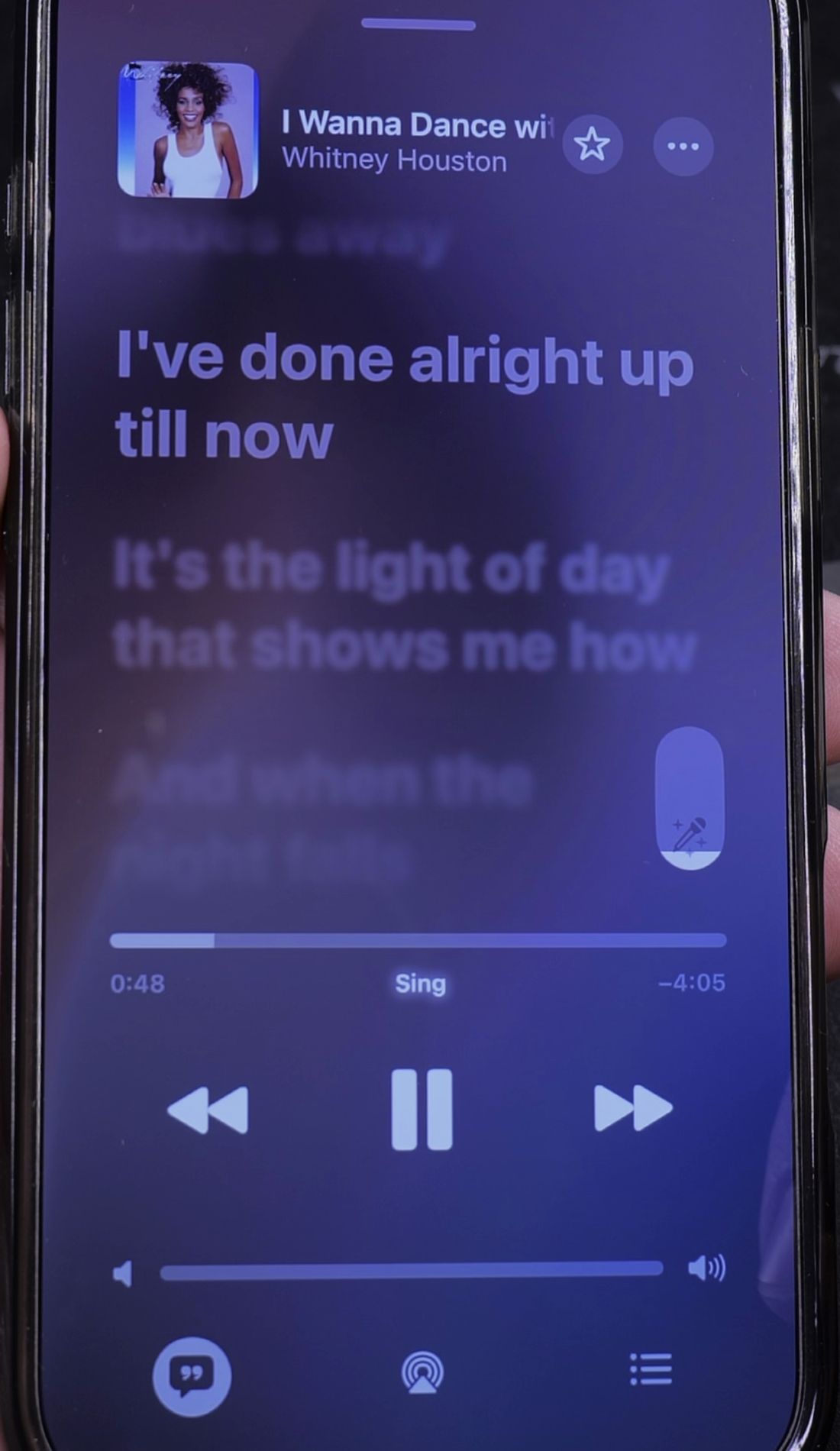
4. Drag the Slider Down to Lower Vocals
Touch and drag the white bar inside the microphone slider downward.
Pulling it all the way down completely mutes the lead singer, leaving pure instrumental music so you can sing along.
You can also stop partway down to mix the original voice softly behind your own singing.
Helpful Tips
Apple Music Sing works on iPhone 11 and newer models running iOS 16.2 or later. If you do not see the microphone button, the track may not have time-synced lyrics available or your phone model might not support the feature.
To organize your favorite sing-along tracks, check our guide on how to create a playlist in Apple Music. You can also learn how to repeat a playlist in Apple Music, or explore our full collection of Apple Music guides.


Leave a Reply