
Moving from an iPhone to a new Android smartphone is much simpler when you use the built-in Transfer to Android feature during initial setup. In this complete guide, we walk through how to set up the Google Pixel 11 Pro XL (Canyon, 512GB with 16GB RAM running Android 17) and copy your settings, contacts, photos, and messages directly from an existing iPhone 16 Pro Max or older Android device.
Power On the Google Pixel 11 Pro XL and Choose Your Language
Begin by pressing and holding the power button on the right edge of your Google Pixel 11 Pro XL until the welcome screen appears. Select your preferred display language and region from the scroll menu, then tap Get Started to launch the Android 17 setup wizard.
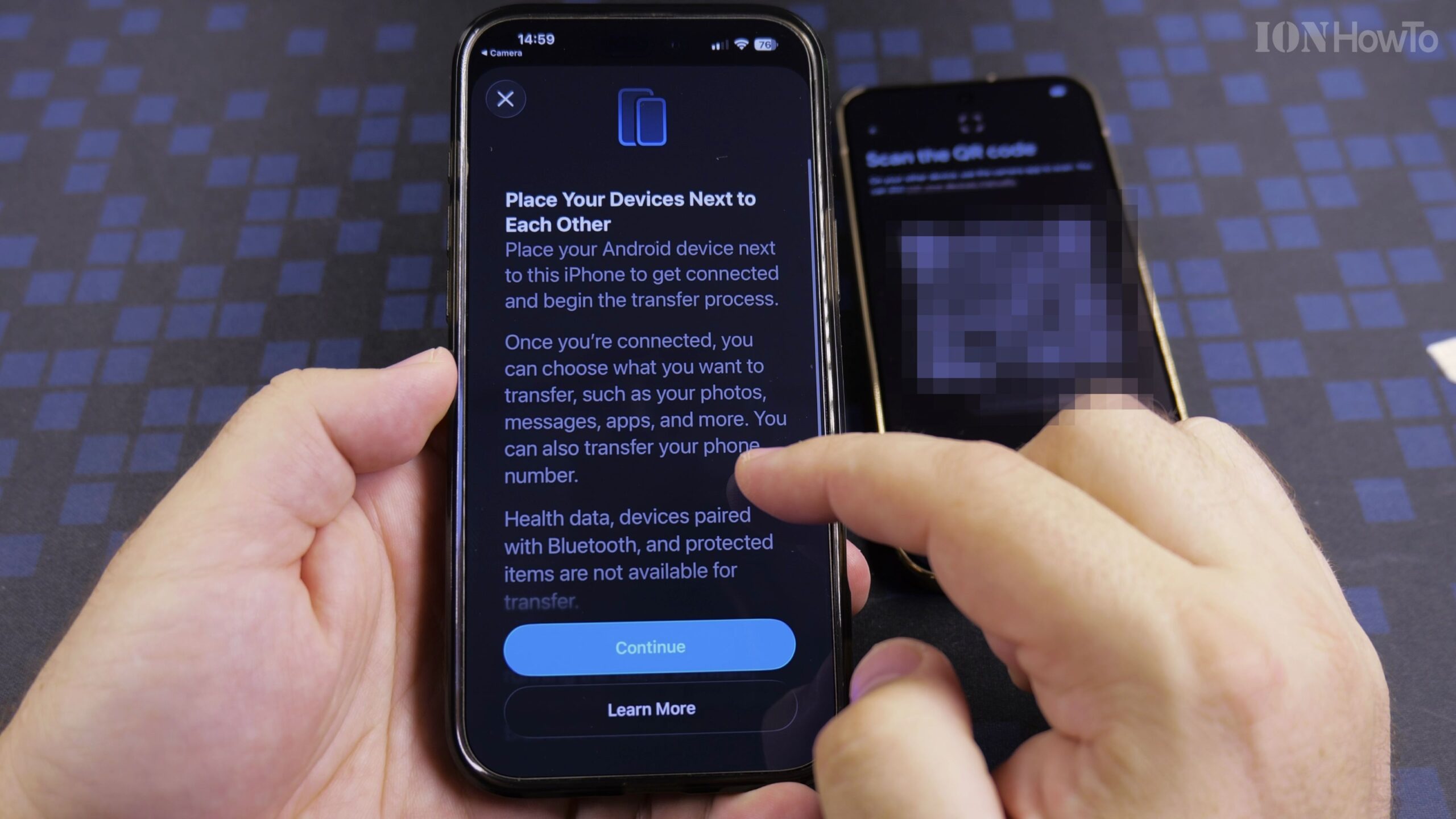
Select the Option to Copy Data from an iPhone or iPad
When prompted to set up using another device, choose the iPhone or iPad option. Keep your existing iPhone unlocked beside the Google Pixel 11 Pro XL so the two phones can recognize each other and initiate the guided transfer assistant.
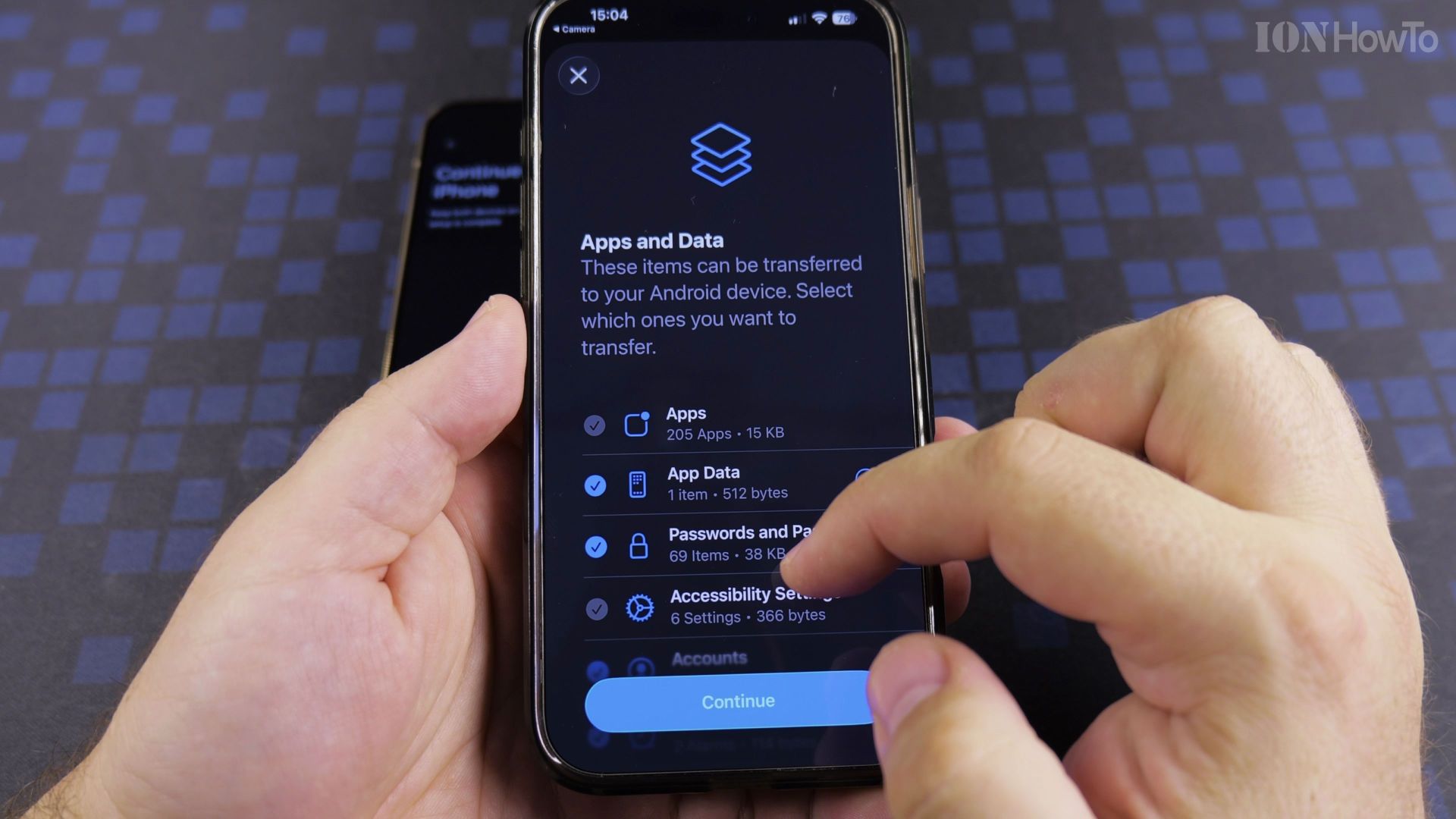
Connect to Wi-Fi and Scan the Setup QR Code
Select your home Wi-Fi network and enter your password so the Pixel 11 Pro XL can download essential system updates. Next, open the camera on your iPhone to scan the QR code displayed on the Pixel screen, which establishes a secure wireless connection or prompts you to attach the included USB-C to USB-C cable for faster wired copying.
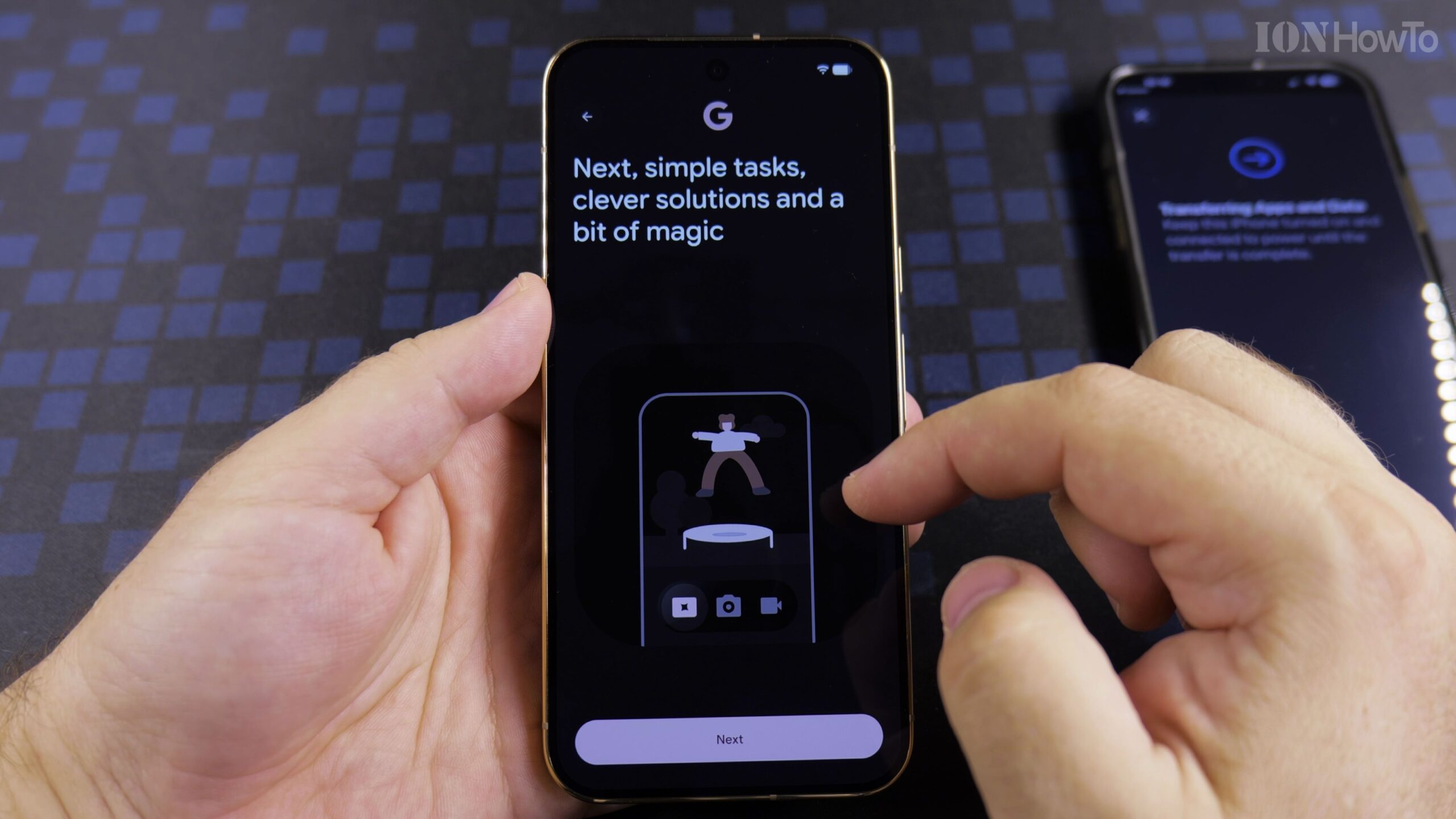
Choose Which Apps, Photos, and Settings to Transfer
Once the connection is verified, review the checklist of items available to copy over. You can select contacts, calendar events, photos, videos, messages, and compatible free applications from your iPhone, then tap Copy to start transferring your data to the 512GB storage.
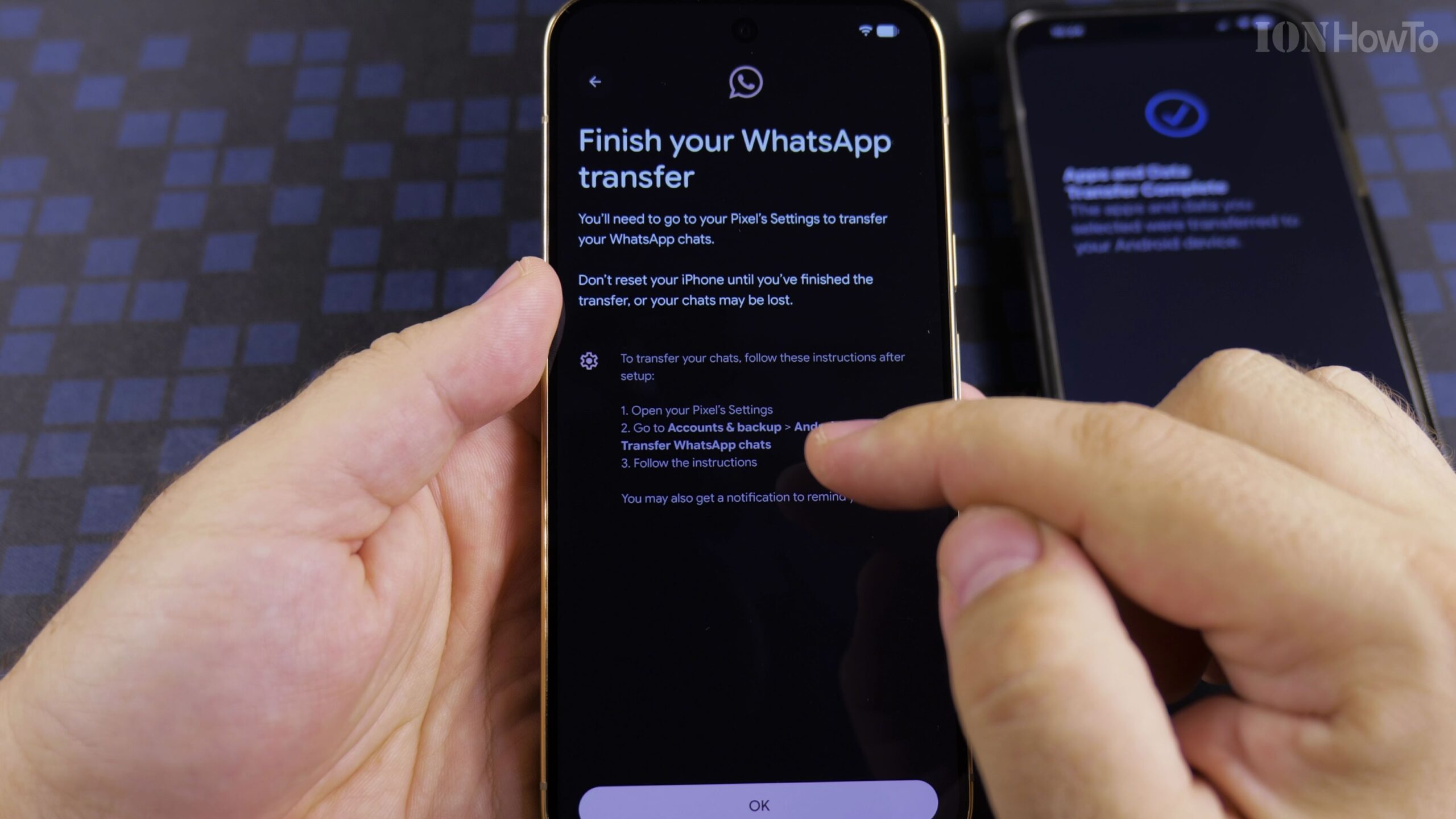
Configure Fingerprint Unlock, Face Unlock, and Android 17 Preferences
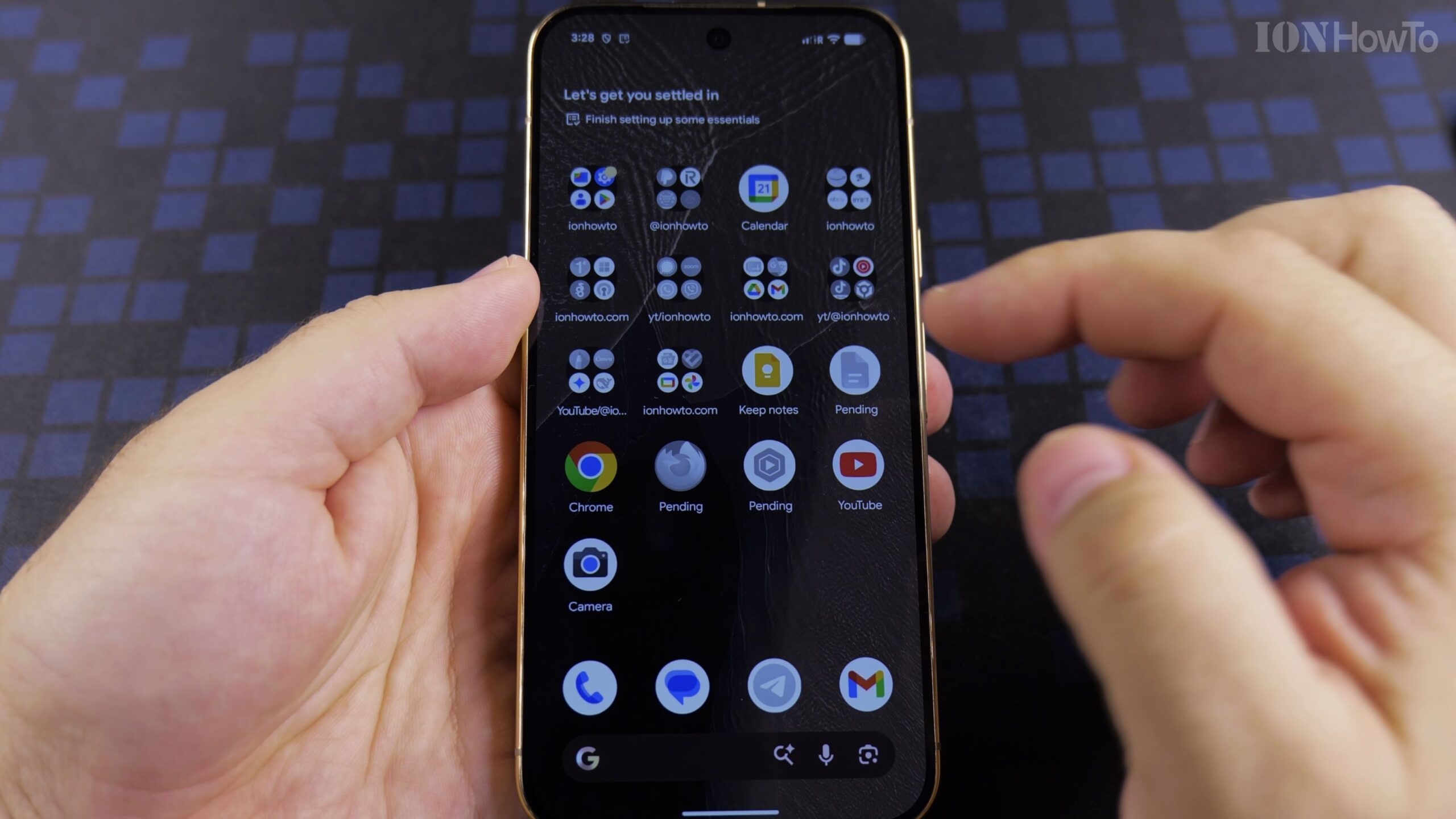
While your files finish transferring in the background, set up a secure PIN along with Fingerprint Unlock and Face Unlock. Review the final Android 17 display and privacy toggles, then swipe up to reach your newly configured Google Pixel 11 Pro XL home screen.
Helpful Tips and Related Guides
Using a direct USB-C to USB-C cable between your old phone and the Google Pixel 11 Pro XL transfers large photo libraries significantly faster than Wi-Fi alone. Notice that upgrading to the 512GB Google Pixel 11 Pro XL also increases system memory from 12GB RAM on the base 256GB model to 16GB RAM. For more mobile tutorials, browse our Google Pixel 11 Pro XL guides, check our Android Tips section, or read our Google Pixel 11 Pro XL Camera Features and Zoom Test.


Leave a Reply