
Amazon links
As an Amazon Associate I earn from qualifying purchases:
- iPhone Accessories
- iPhone Charger
- iPhone Cases
- iPhone Screen protector
- iPhone Magsafe
- iPhone Wallet
- iPhone Usb c cable
Learn how to find out which app is currently accessing your iPhone’s microphone, what the orange dot indicator means, and how to manage microphone permissions for better privacy and battery life.
How to Check Which App is Using Your iPhone Microphone.
Quick Steps and Scenarios Overview
| What You Need to Do | Quick Jump |
|---|---|
| What Does the Orange Dot on iPhone Mean? | Jump to Step 1 |
| How to See Which App is Using Your Microphone | Jump to Step 2 |
| How to Disable Microphone Access for Apps | Jump to Step 3 |
| Why Does the Microphone Icon Keep Appearing? | Jump to Step 4 |
| How to Prevent Apps from Secretly Using Your Microphone | Jump to Step 5 |
Demonstrated on iOS 18.4.1 with iPhone 16 Pro Max Titanium Black 256GB (Global Model A3296 – MYWV3ZD/A).
What Does the Orange Dot on iPhone Mean?
If you see an orange dot in your iPhone’s status bar or Dynamic Island, it means an app is actively using your microphone. This privacy feature was introduced in iOS 14 to help users know when their mic is in use.
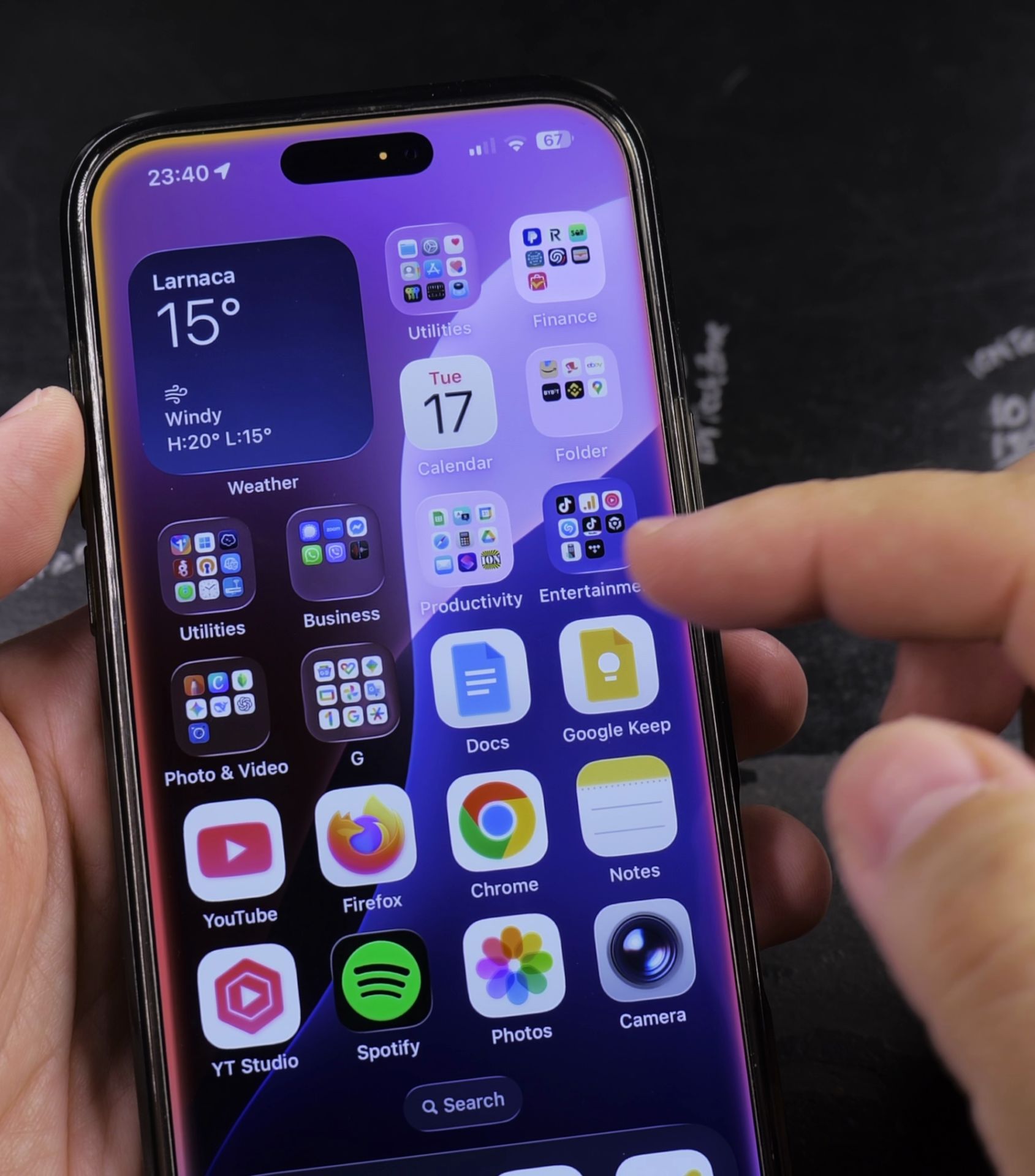
How to See Which App is Using Your Microphone
There are two quick ways to check which app is accessing your mic:
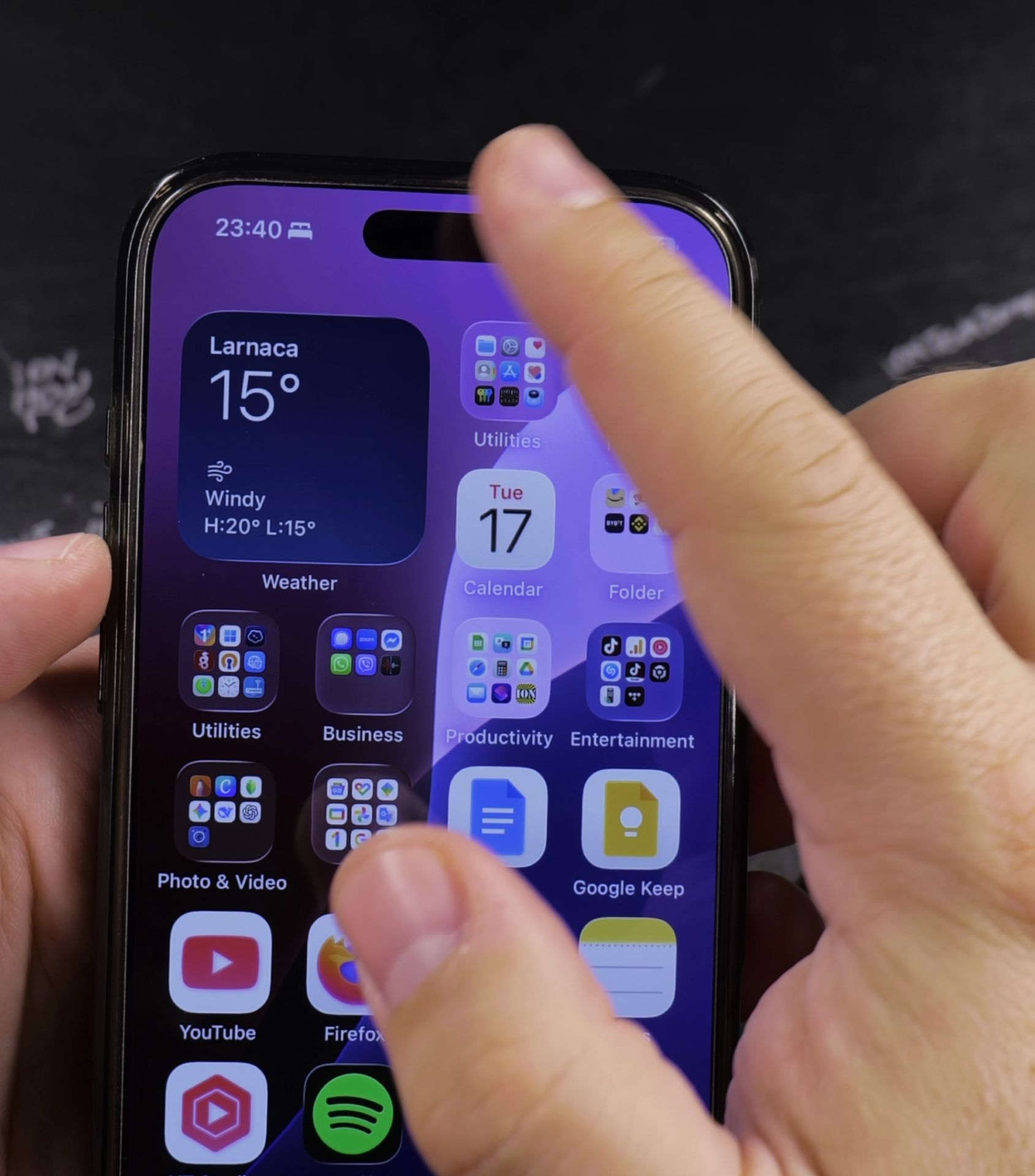
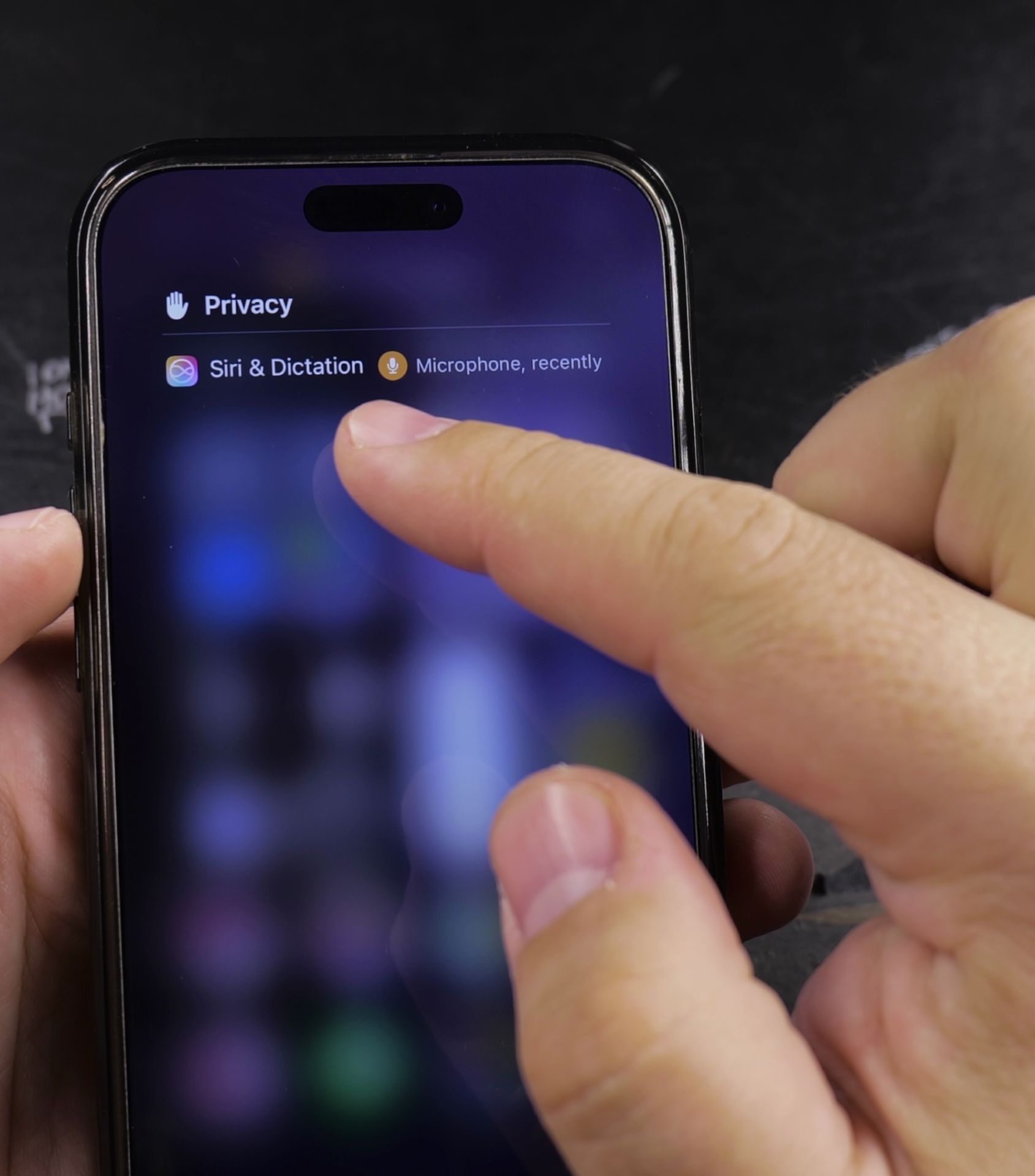
Method 1: Check Control Center
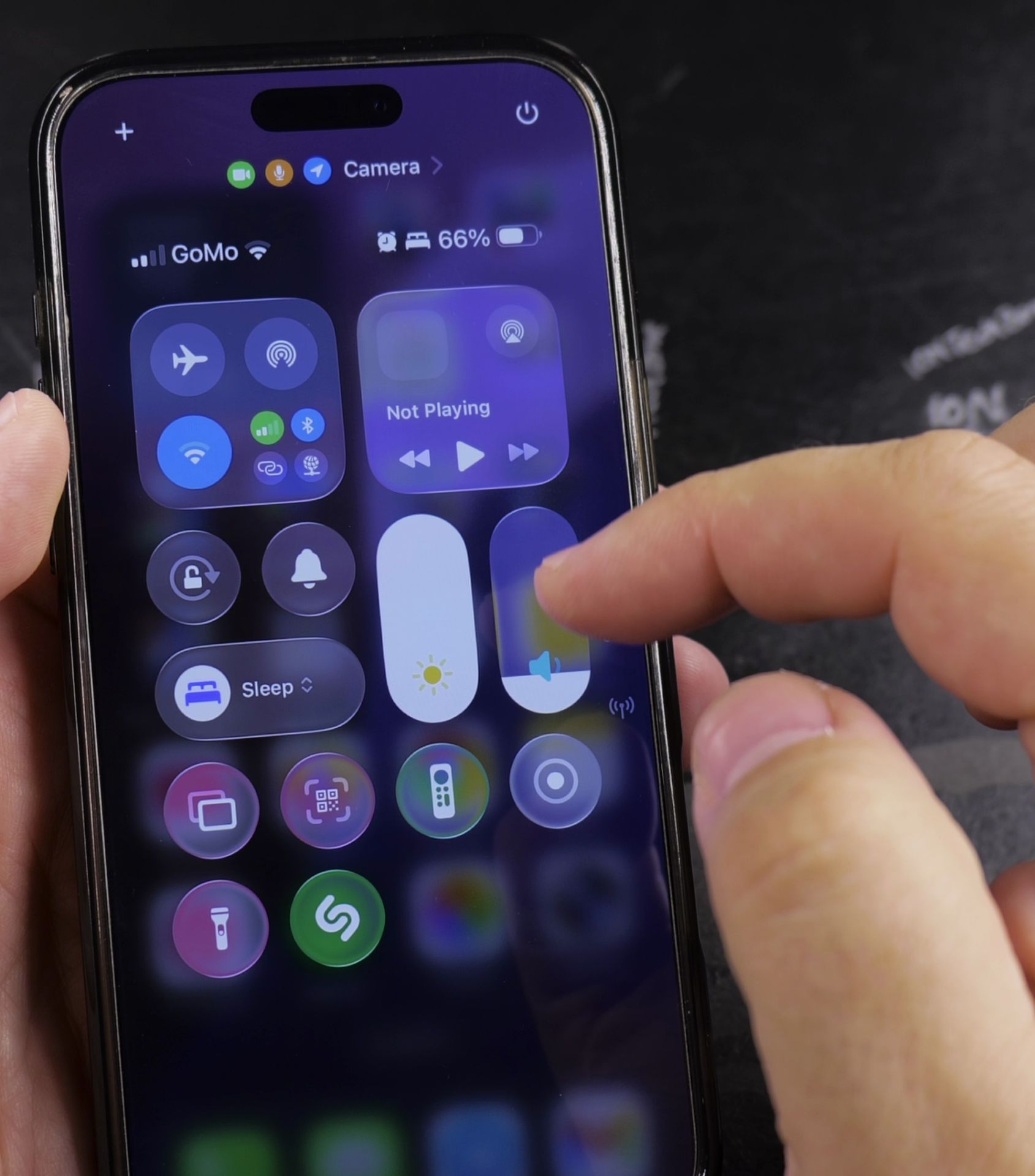
- Swipe down from the top-right corner (or up from the bottom on older iPhones) to open Control Center.
- Look at the top – the app using the microphone will be displayed there.
Method 2: Check Recent Apps
- Open the App Switcher by swiping up from the bottom (or double-pressing the Home button on older iPhones).
- Look for the orange dot, the app with the dot is currently using the mic.
How to Disable Microphone Access for Apps
If you don’t want an app to use your microphone:
- Open Settings > Privacy & Security > Microphone.
- Toggle off any apps you don’t want to have mic access.
Why Does the Microphone Icon Keep Appearing?
- Background apps – Some apps (like voice notes or calls) may keep the mic active.
- Buggy apps – A poorly coded app might not release the mic properly.
- Malware – Rare, but possible. If an unknown app keeps using the mic, uninstall it.
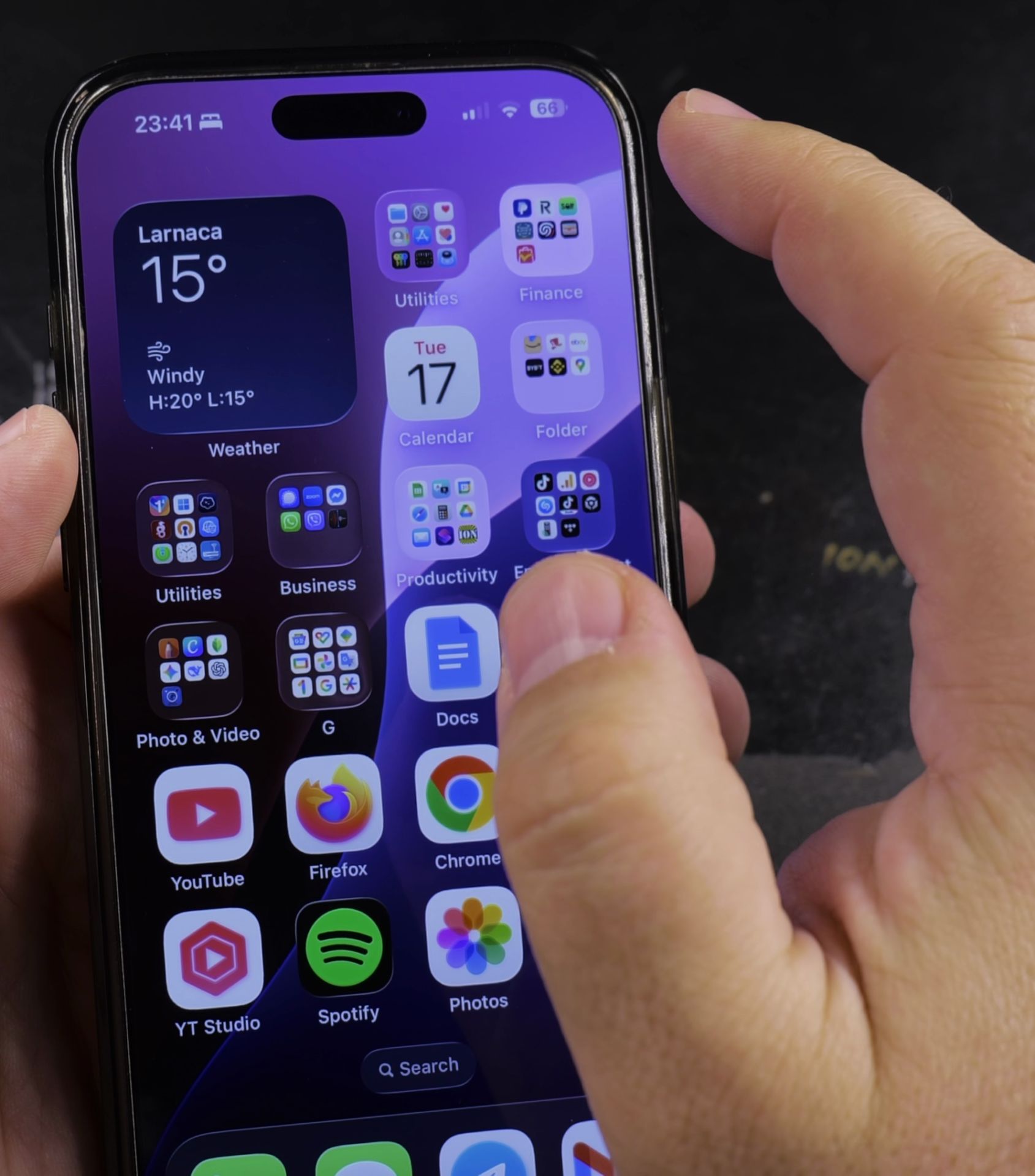
What If the Microphone Indicator Won’t Go Away?
- Restart your iPhone – This often fixes stuck indicators.
- Check for app updates – Some bugs are fixed in updates.
- Reset all settings – If the issue persists, go to Settings > General > Transfer or Reset iPhone > Reset > Reset All Settings (this won’t delete your data).
How to Prevent Apps from Secretly Using Your Microphone
- Review permissions regularly – Go to Settings > Privacy & Security > Microphone and disable unused apps.
- Close suspicious apps – If an app you don’t trust is using the mic, force-close it.
- Disable mic access completely – If you rarely use voice features, you can turn off mic access for all apps and enable it only when needed.
Final Thoughts
The orange dot is a helpful privacy feature, but if you’re seeing it too often, it’s worth checking which apps are using your microphone. By managing permissions and keeping an eye on active apps, you can protect your privacy and even improve battery life.
If you found this guide helpful, let me know in the comments!
Helpful Tips
Take your time and check the screen carefully after each tap so you can confirm the setting changed as expected. If an option appears in a slightly different spot on your device, watch the embedded video above for a closer look.
Related Guides
- iPhone 5S Battery Replacement – If you found this guide helpful, check out these related step-by-step tutorials and category resources on ION HowTo:
- Remove Microphone Access from Apps on iPhone – How to Remove Microphone Access from Apps on iPhone.
- How to Record Your iPhone Screen With Microphone – How to Record Your iPhone Screen With Microphone Audio.
- iPhone How-To Guides – Browse more tutorials and practical guides in this section.


Leave a Reply